

Gbyte Recovery
Gbyte Recovery
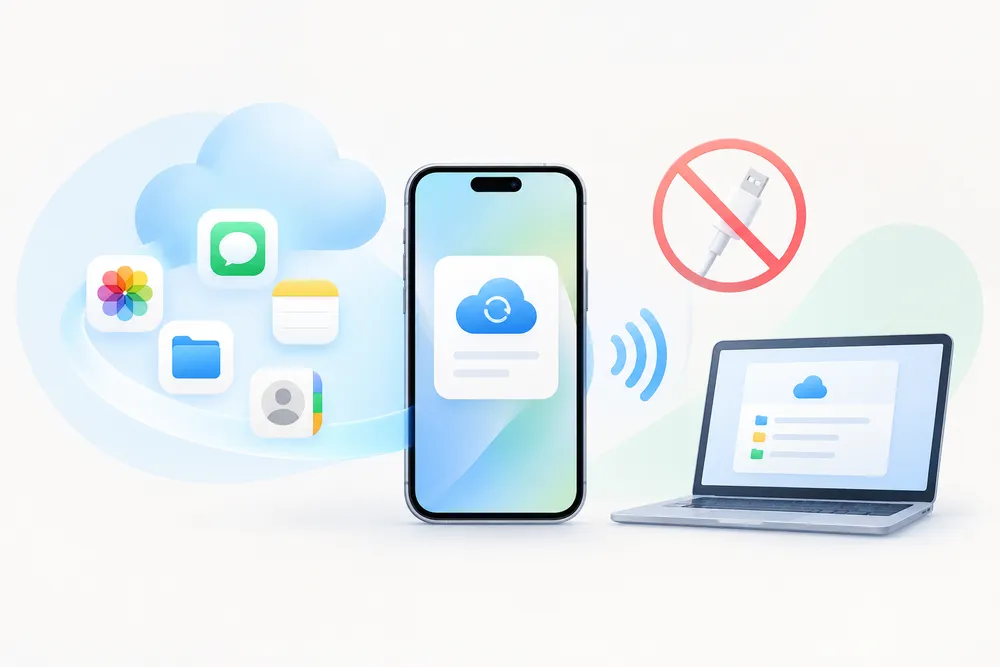
Deep scan your iCloud history for free to find 30+ types of deleted data. Recover everything beyond official limits without overwriting your iPhone.
Table of contents
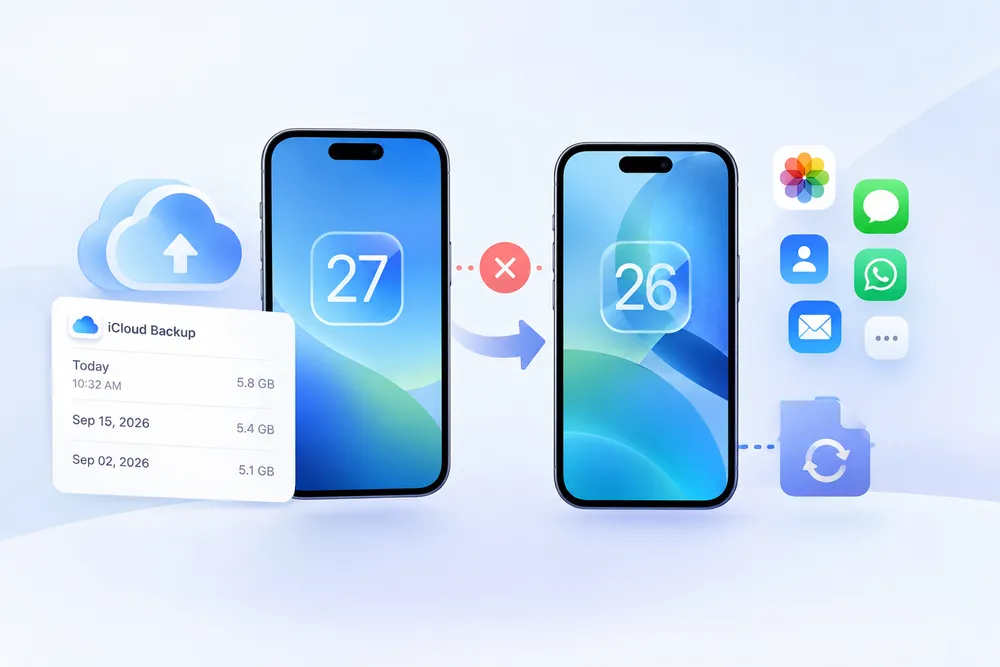
Not through Apple's standard restore process. iCloud Backup puts a whole backup back on a device rather than letting you pick individual photos first — and an already-set-up iPhone has to be erased before that restore can run.
Before going down that road, work out whether the photos you want are sitting in a backup at all.
A backup is built to rebuild a phone, not to be browsed like a folder. You choose a backup, the device gets erased, the transfer runs, and the contents arrive together. There's no step in the middle where you open it up and take one thing out.
✅ Free, official, nothing else required
⚠️ An iPhone already in use has to be erased first
⚠️ The whole backup goes back — no file-level selection
⚠️ All you see beforehand is a date and a size
That last point catches people out. You pick a backup based on when it was made, wipe a working phone, wait for the restore, and only then learn whether the photo came back.
| What happened | Where to look |
|---|---|
| Photos are still visible on iCloud.com or another device | Download them from iCloud Photos |
| Deleted less than 30 days ago | Recently Deleted |
| Deleted more than 30 days ago, and iCloud Photos was off | An iCloud Backup from that period may contain them |
| Deleted more than 30 days ago, and iCloud Photos was on | They normally won't be in the iCloud Backup |
| Not sure whether iCloud Photos was on | Check an older backup before restoring it |
That last row covers most people. The iCloud Photos switch isn't something anyone checks weekly, and whether it was on months ago decides whether those photos ever reached a backup.
There's no setting that tells you what it was set to back then. Today's switch is today's switch, and Apple's backup list shows a date and a size, nothing about the contents. The only real answer comes from looking inside the backup itself.
That doesn't require restoring it. An older backup can be scanned and read through first, which saves a wasted wipe.
Apple's standard restore is one route. Reading the backup instead of restoring it is another.
The difference comes down to where the backup ends up. A restore sends it to a phone — that's what the process is built for, and it's why the phone has to be cleared first to receive it. Reading the backup leaves it where it is and opens it from the outside, the way you'd open a folder rather than unpack a suitcase.
Which matters here because you probably don't want the backup. You want three photos out of it.
Both reach the same file sitting in your iCloud account. What separates them is what happens to the phone in your hand.
What matters | Apple Restore | Gbyte Recovery |
Your current iPhone | Erased before restore | Stays untouched during the scan |
What comes back | The whole backup | Only the photos you select |
Before you commit | Date and size | Preview each item |
Which backup you can reach | The one you pick from the list | Every backup stored in the account |
Picked the wrong one | Start over, erase again | Scan another one |
Current data | Can be replaced by the restored backup | Not changed by the scan |
Where it ends up | Back on the phone | The phone or your computer |
The old iPhone | Has to be in your hands | Not needed |
Cost | Free | Free to scan and preview |
The fourth row is the one worth sitting with. Choosing the wrong backup through Apple costs you the whole process a second time — another erase, another wait. Reading the backup instead makes a wrong guess cost a few minutes.
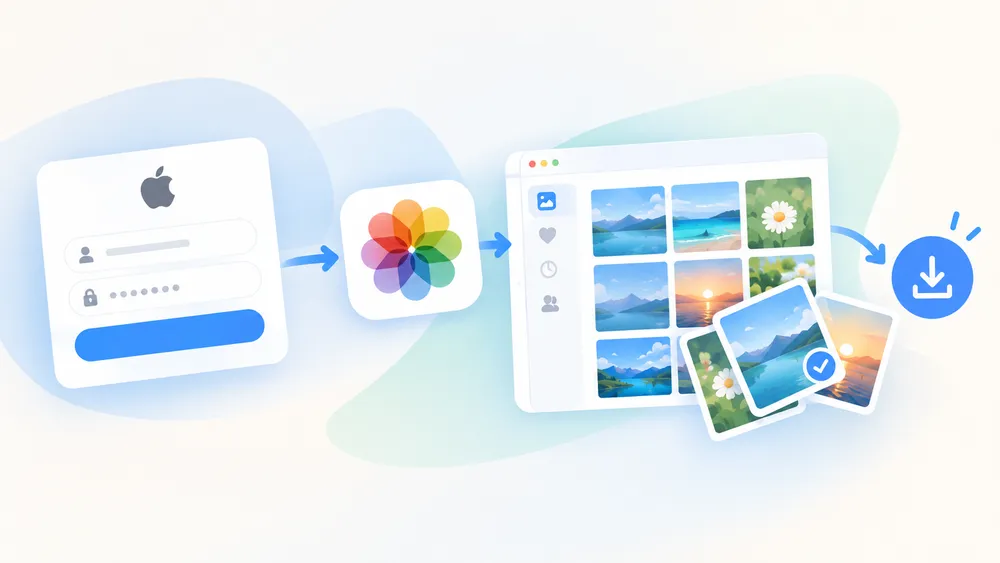
Step 1. Open Gbyte Recovery and sign in with the Apple Account tied to the backup. You'll need the password and a two-factor code — that code goes to any trusted device or trusted phone number on the account, so a missing iPhone doesn't lock you out.
Step 2. Choose Photos and start the scan. Most finish inside ten minutes — 62.21% of scans in our own data over the past 12 months completed in that window.
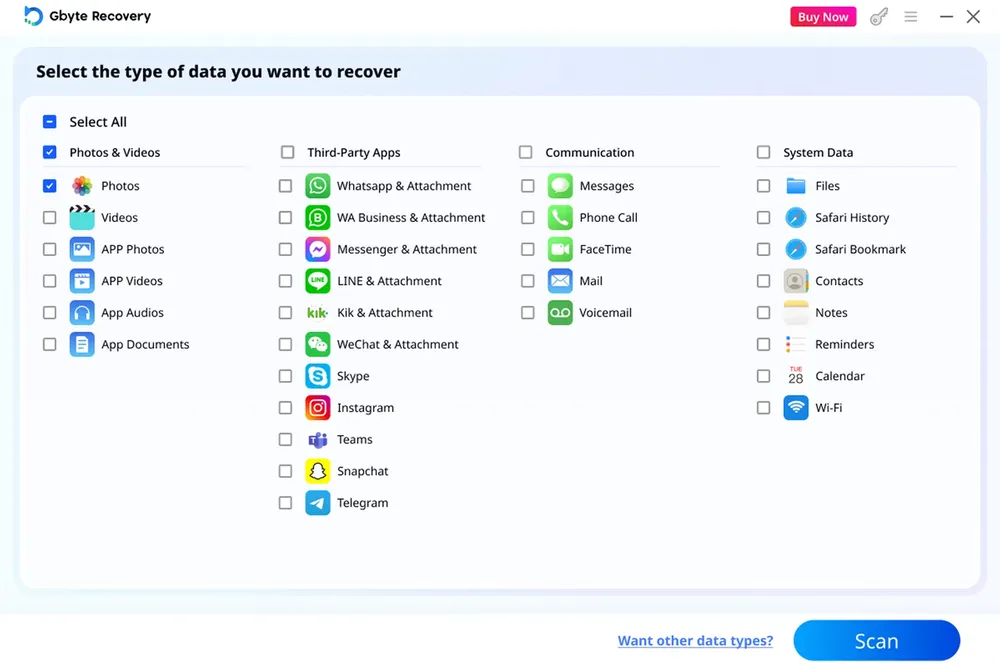
Step 3. Browse the results. Each one shows the backup it came from, and the scan and the preview cost nothing.
Step 4. Select the photos you want and send them either back to the iPhone or to your computer. What comes out is the full-resolution original, not a compressed copy.
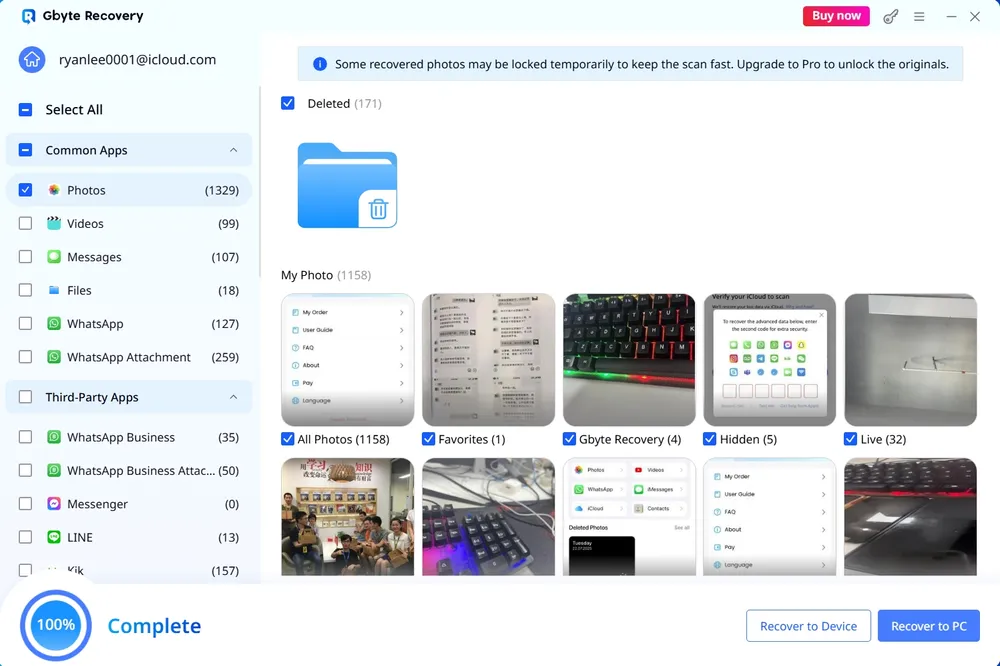
Payment only enters the picture once you've seen the photos and decided to keep them.
The scan answers the question you couldn't answer yourself along the way: whether that backup holds the photos at all. Nothing is charged for finding out.
Sometimes the scan comes back without them, and sometimes there's no backup to scan in the first place.
Gbyte scan data: among accounts scanned with Gbyte over the past 12 months, 18.07% had no iCloud backup available.
What's left are the copies that live outside the account — a chat thread you sent the photo in, a second cloud service uploading quietly in the background, a batch imported to a computer years ago, an old iPad in a drawer that hasn't connected since. Photos deleted long ago have their own set of places worth checking.
Back up your current iPhone first. Apple requires an already-set-up iPhone to be erased before restoring an iCloud backup, so save anything you want to keep before you start.
Check the backup date against the deletion. A backup made after the photos went won't hold them. The date is visible in Settings → [Your Name] → iCloud → Manage Account Storage → Backups.
Don't create a new backup blindly. Setting up the phone as new and then letting it back up again can cost you the older backup state you're trying to recover from. Know which backup you're after before changing anything.
Confirm it's still there. Turn off iCloud Backup for a device, or stop using it, and Apple keeps that backup for 180 days before deleting it.
Not through Apple's restore, which works at the level of the whole backup. Software that reads the backup rather than restoring it can pull out individual photos.
An iPhone already set up has to be erased before the restore begins, and the backup's contents take the place of what was there. Export anything current before you start.
Apple shows a date and a size. Seeing the contents requires either completing the restore or reading the backup with something built for it.
Apple lets you choose which backup to restore by its date. It doesn't let you choose photos by the date they were taken. A scan lists results individually, so a particular day can be picked out of what's found.
Check whether iCloud Photos was switched on during that period — with syncing active, photos go to iCloud Photos rather than into the daily backup. From there it's a question of finding another copy.
Apple doesn't offer a way to download an iCloud device backup as a browsable file; its restore flow puts the backup onto a device. Gbyte Recovery has a separate mode for this — sign in, scan, pick a backup by its date, and download it whole.
No. You need access to the Apple Account and a backup that's still available. A phone that's been sold, lost, or broken doesn't change what's stored in the account.

 Add Gbyte as a preferred source on Google
Share


Copyright @2026 Gbyte. All rights reserved.
The installation wizard will automatically start after downloading.
After registration, the recovery process can be managed through the web interface.
You get it all with your purchase - no locked features, no hidden limitations.