

Gbyte Recovery
Gbyte Recovery
Deep scan your iCloud history for free to find 30+ types of deleted data. Recover everything beyond official limits without overwriting your iPhone.
Table of contents
You may be able to recover photos from an old Apple ID, especially when the photos are still stored in iCloud Photos, an iCloud Backup, an old iPhone, or a computer backup. Start by signing in to the old account and checking iCloud Photos. When the photos aren't there, move on to older backups and devices.
The recovery path depends on where the photos were stored. iCloud Photos and iCloud Backup work differently, so photos that aren't visible in iCloud Photos may still exist in an older backup.
When you still have access to your old Apple ID, iCloud Photos is the first place to check. Photos and videos that were synced with iCloud Photos are stored in iCloud and can be accessed separately from an iPhone backup.
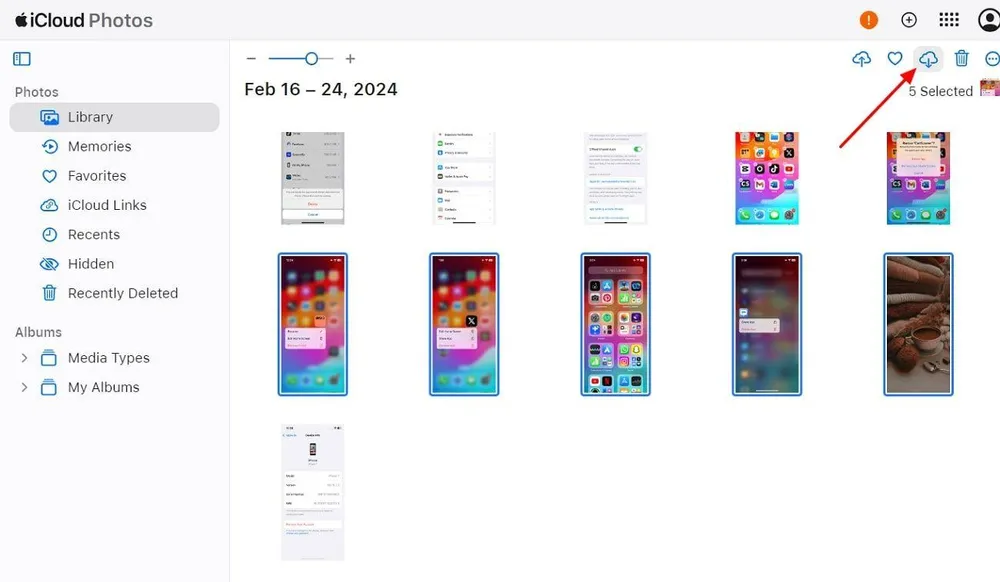
Go to iCloud.com and sign in with your old Apple ID.
Open Photos.
Browse your photo library and check whether the photos you're looking for are there.
Select the photos you want and download them to your computer.
If you don't see the photos, make sure you signed in with the correct old Apple ID. You may have used a different email address for an older account.
When the correct account still doesn't contain the photos, check your older backups and devices. The pictures may have been stored on an old iPhone or included in a backup instead of being synced through iCloud Photos.
When you know which Apple ID contains your photos but can't sign in, regain access to the account before trying to retrieve its iCloud data.
When you still have access to a trusted Apple device, you can use it to reset the password for the old account. When you don't have your old device, Apple also provides other account recovery options.
You can use the Apple Support app on a family member's iPhone or iPad to get help with password recovery. During the account verification process, Apple may also provide options such as Didn't Get a Code? or Can't get to your devices?. When you can't use the listed phone number, select Can't use [phone number] when that option is available.
Account recovery can take several days or longer. The exact process depends on what account and verification information you still have access to.
If you forgot your old Apple ID password, recovering the account is the first step. You need to regain access before you can check private iCloud data associated with that account.
Not having your old iPhone doesn't automatically mean the photos are lost. You may still be able to recover the account or find another copy of the photos in an old backup.
A third-party recovery tool cannot bypass Apple ID authentication to retrieve private data directly from an inaccessible iCloud account. You need to sign in to the account associated with the data before using a recovery workflow.
If the photos aren't in iCloud Photos, check whether they may have been included in an older iCloud Backup. An older backup may still contain data that is no longer visible on the device you're currently using.
In Gbyte's own scan data from the past 12 months, 78.52% of accounts with a full set of backup snapshots had recoverable data. Among accounts with only a single backup version, the figure was 71.72%. This data describes the availability of recoverable data in Gbyte user scans, not a general photo recovery success rate.
The difference between these two services matters:
iCloud Photos | iCloud Backup |
Stores photos and videos in iCloud and keeps them synced across devices | Stores a snapshot of device data and settings |
Photos are stored separately from the device backup | May contain photos from the Photos app when iCloud Photos was turned off |
Photos can be viewed through iCloud Photos | Backup data is normally accessed by restoring the backup |
When iCloud Photos was turned on, your photos and videos are stored in iCloud Photos rather than being included in the nightly iCloud Backup. When iCloud Photos was turned off, photos in the Photos app may have been included in an iCloud Backup.
That means an empty iCloud Photos library doesn't necessarily mean the photos are gone. An older backup may still contain them.
Apple's standard way to use an iCloud Backup is to restore an iCloud Backup to an iPhone. When the iPhone has already been set up, you need to erase its current contents before restoring the backup.
Back up anything currently stored on the iPhone that you want to keep.
Erase the iPhone and return to the setup screen.
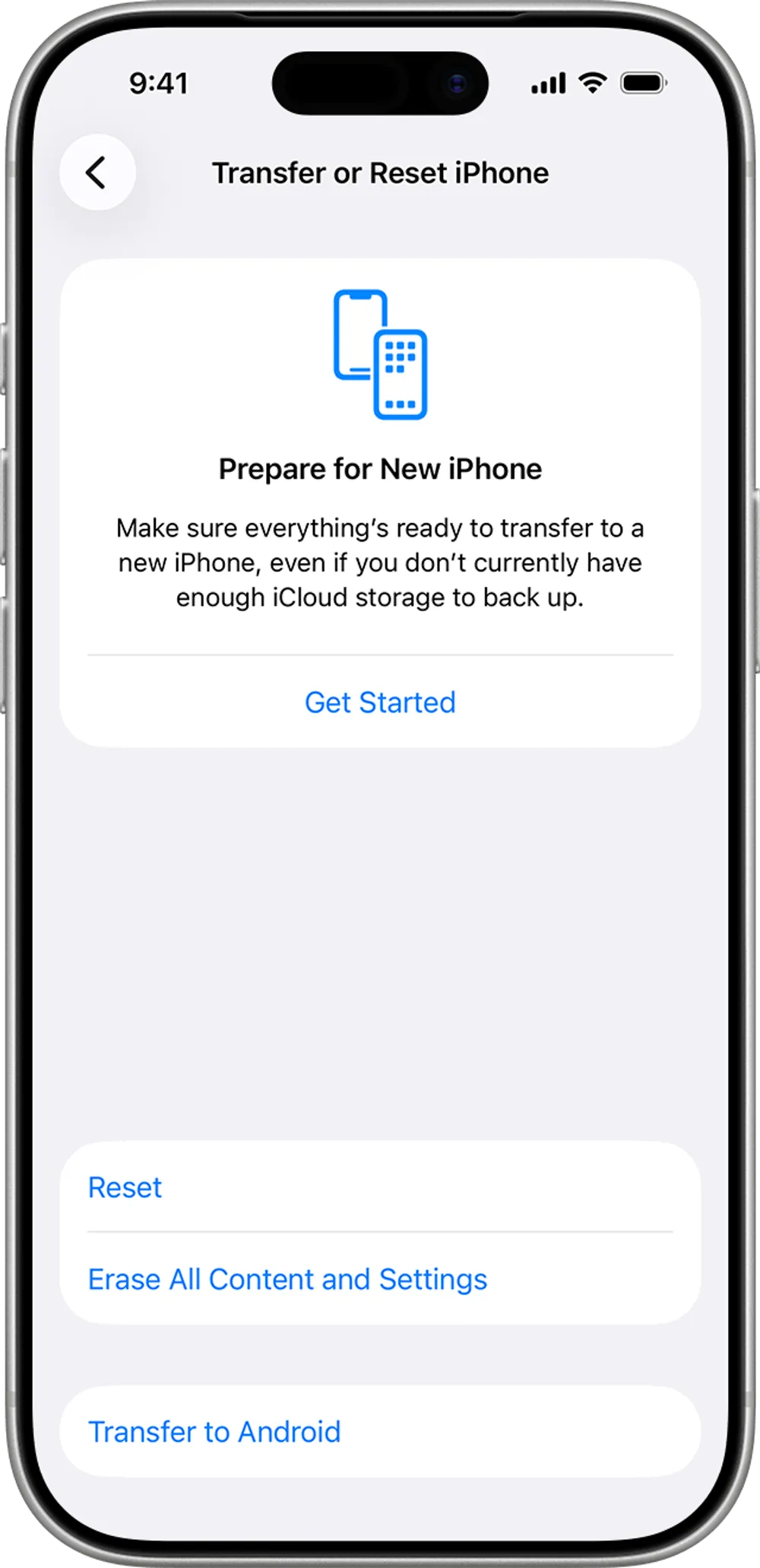
During setup, choose From iCloud Backup.
Sign in with the Apple ID associated with the backup.
Review the available backups and choose one based on its date and size.
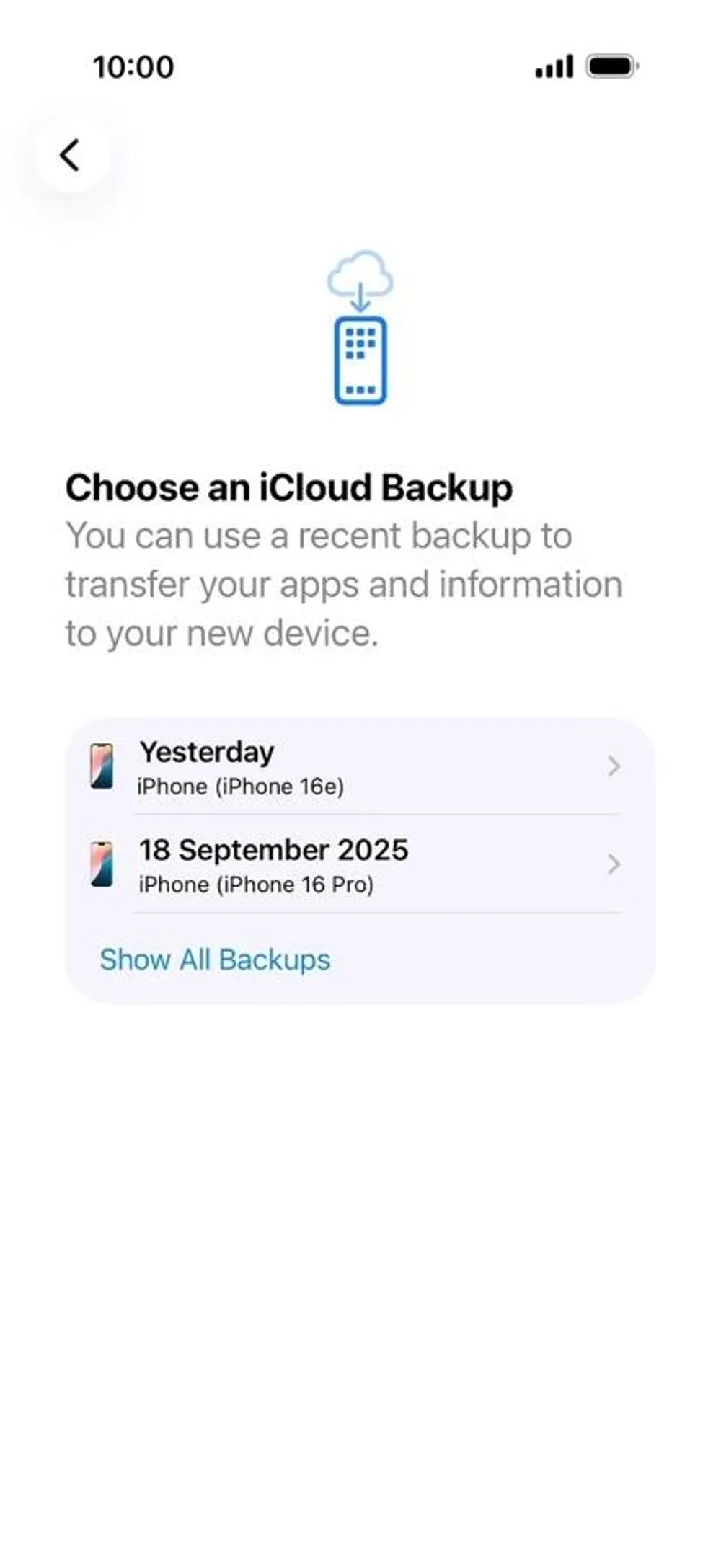
Complete the restore and check the Photos app after the backup has been restored.
This works when your goal is to restore an older device state. The main drawback is that restoring an older backup replaces the current contents of the iPhone.
When you have available backup data but only need specific photos, Gbyte's iOS Data Recovery feature lets you scan the data, preview the results, and recover the photos you select instead of restoring an entire backup to your iPhone.
Open Gbyte Recovery and select iOS Data Recovery. Launch Gbyte Recovery on your computer and choose iOS Data Recovery from the available recovery options. This starts the workflow for finding and recovering supported data.
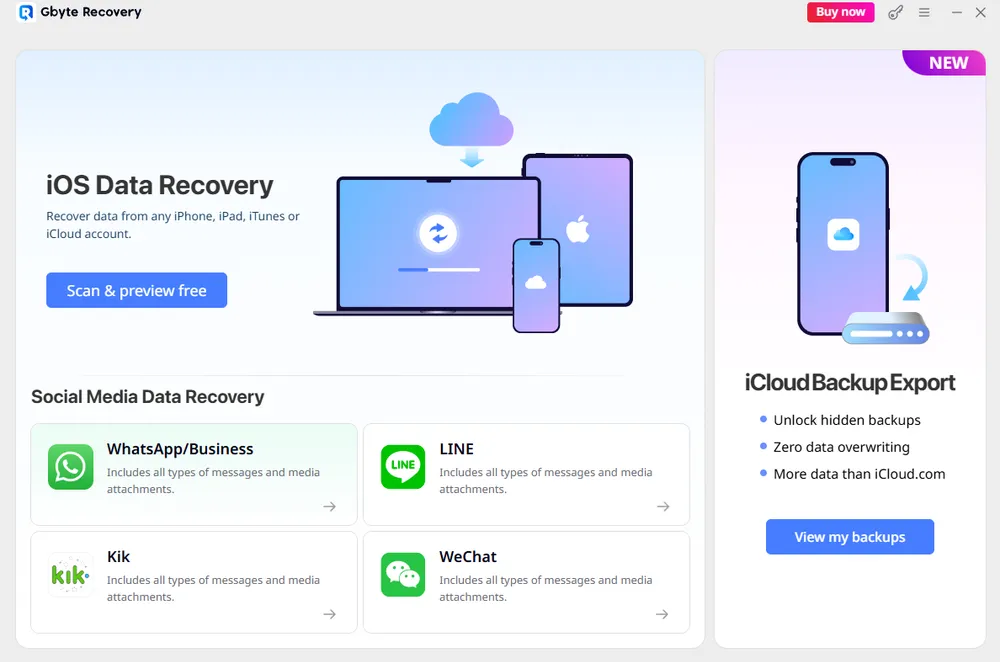
Sign in to your Apple ID and select Photos. Sign in with the Apple ID associated with the data you want to recover. After signing in, choose Photos as the data type you want to look for.
Scan and preview the available photos. Start the scan and wait for Gbyte to search the available data. When the scan is complete, preview the results and check whether the photos you're looking for are available.
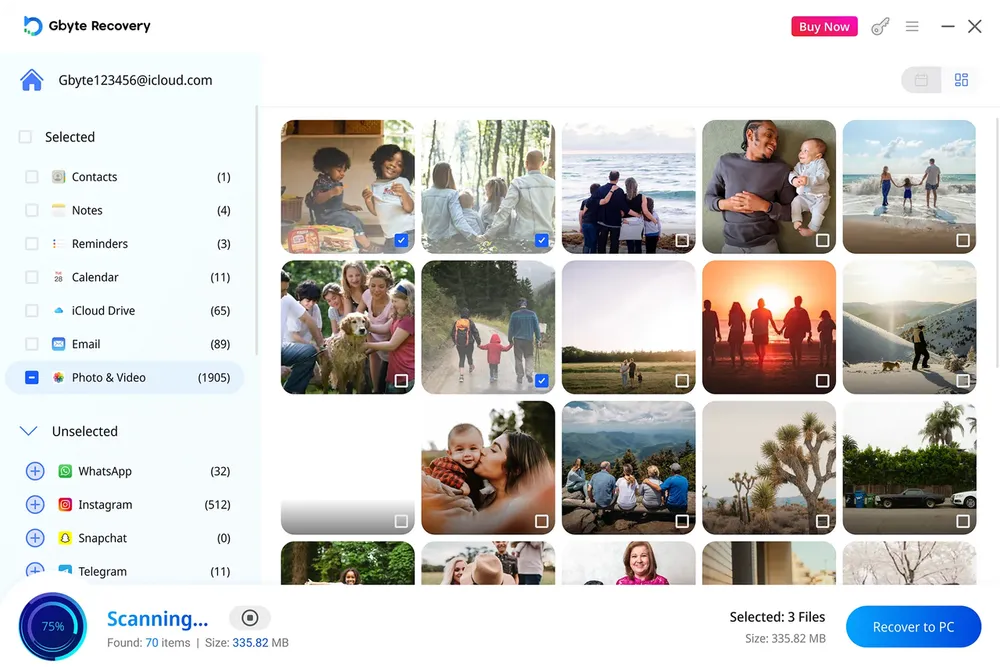
Select and recover the photos you need. Select the specific photos you want from the scan results, then start the recovery process to save them to your computer. You can recover the items you need without restoring an entire backup to your current iPhone.
This workflow is useful when you only need specific photos from available data. You can review the results first and recover the photos you want instead of restoring an older backup to the device.
When the backup you need is stored in iCloud, Gbyte also provides an iCloud Backup Export feature. This is separate from iOS Data Recovery and is designed to export an entire available iCloud Backup to your computer.
Sign in to the associated Apple ID. Sign in with the Apple ID associated with the iCloud Backup you want to access.
Scan for available backups. Start the scan so Gbyte can find the available iCloud backups associated with the account.
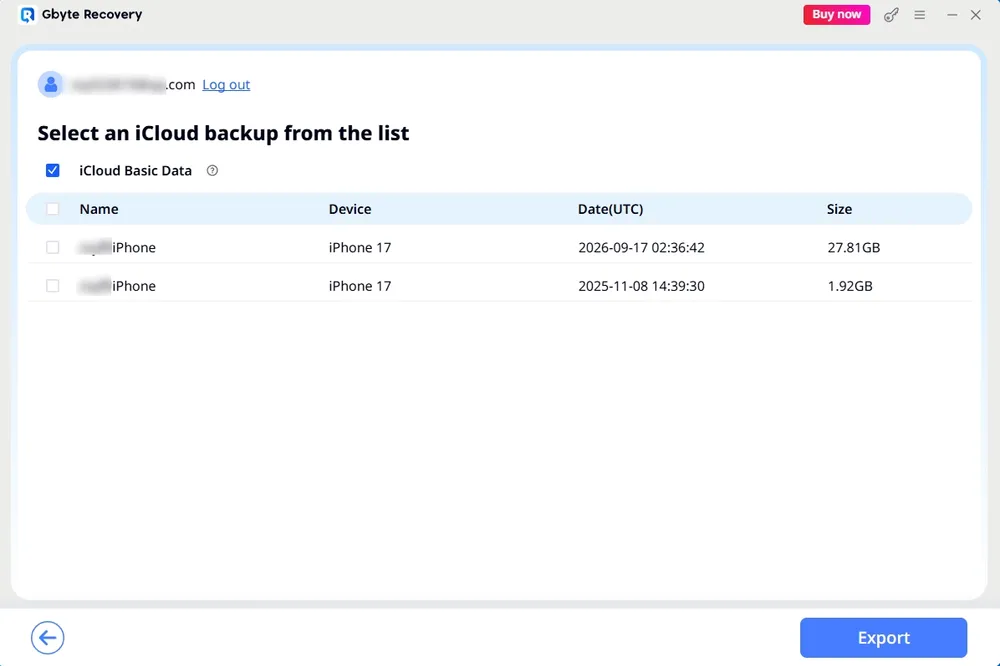
Select the backup you need. Review the available backups and choose the one you want to export.
Export the backup to your computer. Export the selected backup as a whole and save it to your computer for further use.
iCloud Backup Export and iOS Data Recovery serve different purposes: Backup Export is used to export an entire iCloud Backup, while iOS Data Recovery is used to scan, preview, select, and recover supported data.
An older iPhone may still contain the photos you're looking for, particularly when iCloud Photos wasn't being used.
If you still have the old iPhone, open the Photos app and check its library. When you find the photos, you can transfer them to your computer or another device.
You should also check whether you previously backed up the iPhone to a Mac or Windows PC. A local backup may contain an older copy of the device's data even when the photos are no longer visible on your current iPhone.
Look through the Photos app on your old iPhone and check whether the missing pictures are still stored locally. This can be one of the simplest ways to find old iPhone photos when the original device is still available.
If you find the photos, transfer them to your computer or another device so you have a separate copy.
On a Mac, iPhone backups can be managed through Finder. On Windows, backups can be accessed through Apple Devices or iTunes in supported older setups.
Look for backups from around the time when the missing photos were still on the iPhone. Pay attention to the backup date so you can identify a copy that was created while the photos were still on the device.
Start by signing in to your old Apple ID and checking iCloud Photos. When the photos aren't there, look through older iCloud backups, an old iPhone, or a computer backup created while the photos were still available.
When you find the photos in an older backup, Apple's restore process can restore the backup to an iPhone. For available backup data, Gbyte's iOS Data Recovery workflow provides another way to scan, preview, select, and recover specific photos.
Yes, when the photos still exist in iCloud Photos, an iCloud Backup, an old iPhone, or another backup. Start by signing in to the old Apple ID and checking iCloud Photos. When the photos aren't there, check older backups and devices.
Recover access to the old Apple ID using Apple's account recovery options. You need access to the account before you can retrieve photos stored in its private iCloud data.
Yes, when you can access the account and the photos are still available in iCloud Photos or an associated backup. Sign in to the old account first, then check iCloud Photos and older backups.
Yes. An older iCloud Backup may contain photos when iCloud Photos was turned off at the time of the backup. You can restore the backup to an iPhone using Apple's official process, or use available backup data with a recovery workflow.
Yes, when the photos are still stored on the device or included in an older backup. Check the Photos app on the old iPhone first, then look for older Mac or Windows backups.

 Add Gbyte as a preferred source on Google
Share


Related articles


Copyright @2026 Gbyte. All rights reserved.
The installation wizard will automatically start after downloading.
After registration, the recovery process can be managed through the web interface.
You get it all with your purchase - no locked features, no hidden limitations.