

Gbyte Recovery
Gbyte Recovery
Free scan and selective preview of 25+ data types like messages, photos, and WhatsApp. No data overwritten — recover only what you need.
Table of contents
The phone is gone. Your data might not be.
An iCloud backup is associated with the Apple Account and the device that created it. Losing or replacing the physical iPhone doesn't remove the backup. Sign in to that account and a backup from your old iPhone may still be there — with whatever iCloud was set to include at the time.
Two things decide whether you can get it back: whether that backup still exists, and whether you can still sign in. Both take about two minutes to check.
Sold or traded in. The buyer got a device that was erased at handover. The backup stayed behind in your account.
Lost or stolen. Even a remote wipe through Find My clears the device, not the copy stored in iCloud.
Dead, cracked, or won't turn on. A backup doesn't need the phone to boot. It was uploaded while the device was still working.
Handed back to an employer. The hardware belonged to them. The Apple Account that made the backup is yours.
How the phone left you doesn't change what's in your account. What matters is whether a backup for that device is still there, and whether you can still sign in.
On any iPhone or iPad signed into the same account:
Settings → [Your Name] → iCloud → Manage Account Storage → Backups
This screen lists the devices that have an iCloud backup stored in your account. An iPhone you stopped using years ago shows up here under the name it had at the time — "Sarah's iPhone", "iPhone 12", whatever you called it.
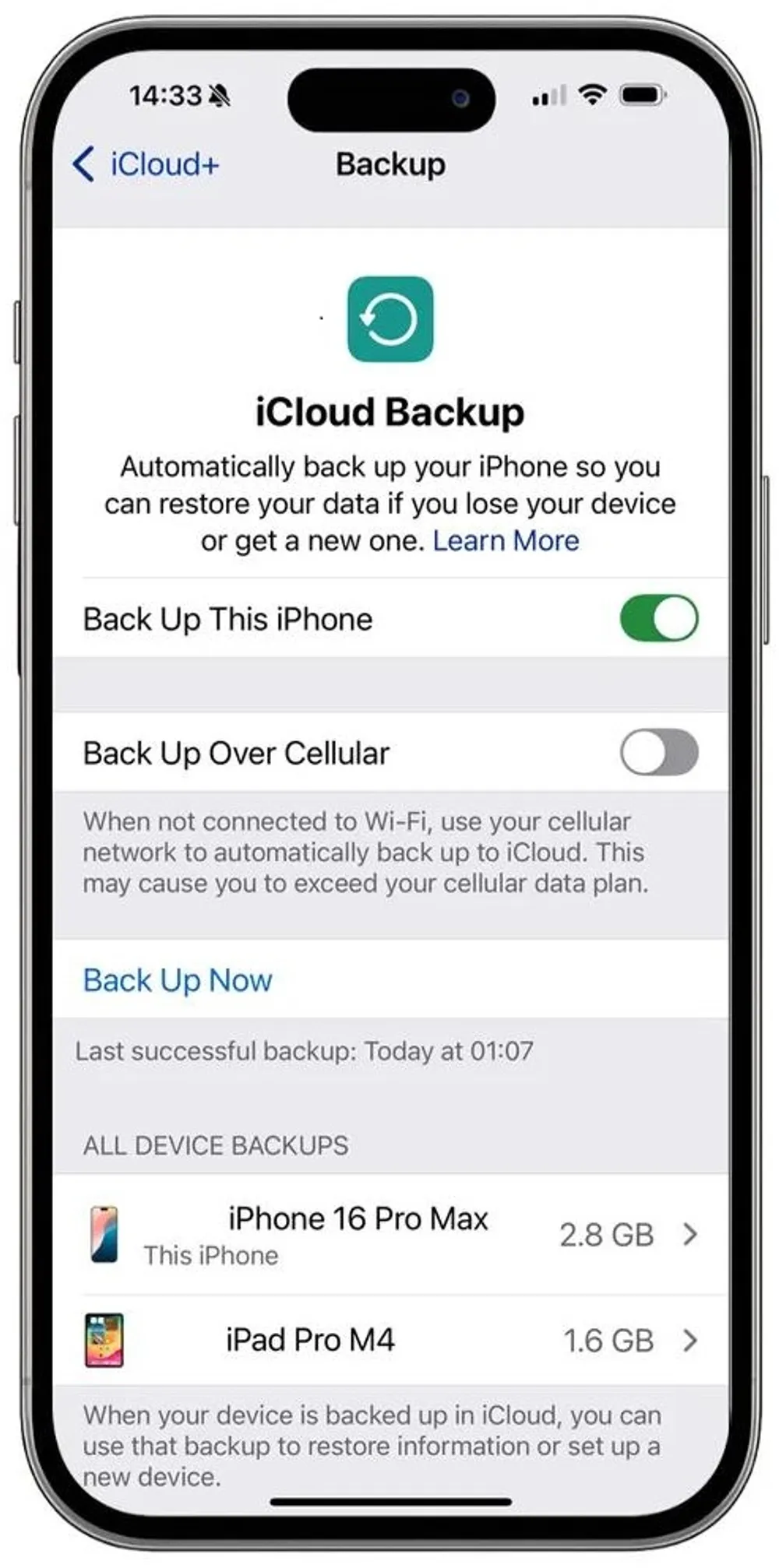
Worth knowing: this management screen and the restore screen are two different things. The screen above tells you which devices have backups stored. The restore screen, which appears while setting up a device, is where you pick a backup and see its date and size.
Turn off iCloud Backup for a device, or simply stop using it, and Apple keeps that stored backup for 180 days before deleting it.
So don't assume an old iPhone's backup is still sitting there. Check the list above and note the date before spending any time on the rest.
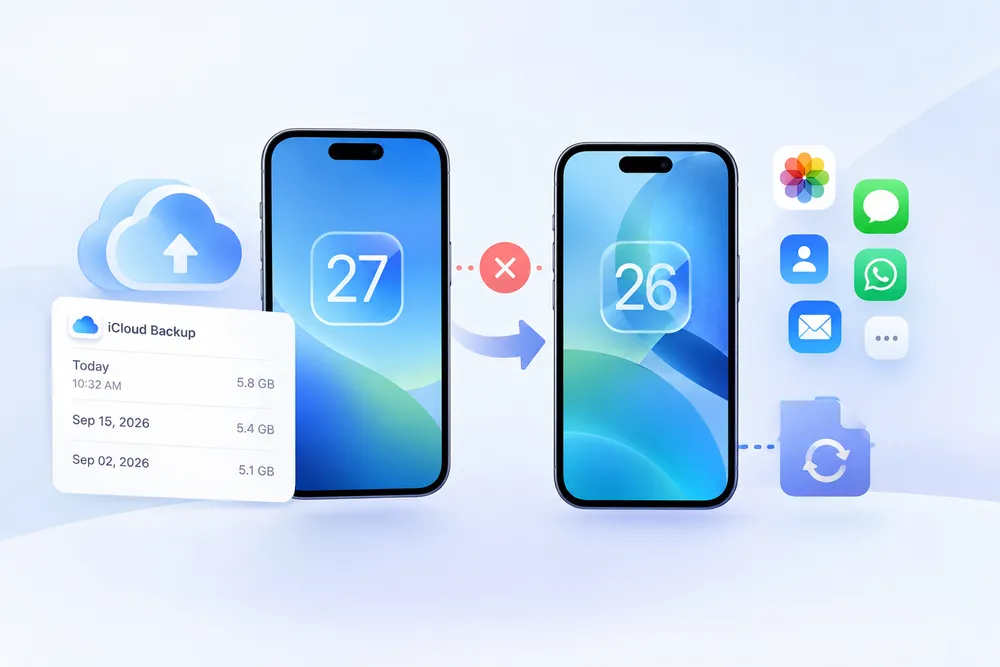
Apple's own route works, and costs nothing. It asks for one thing you may not have: another iPhone or iPad to restore onto.
A brand-new device out of the box is fine. A device you already set up has to be erased first, which puts everything currently on it at risk.
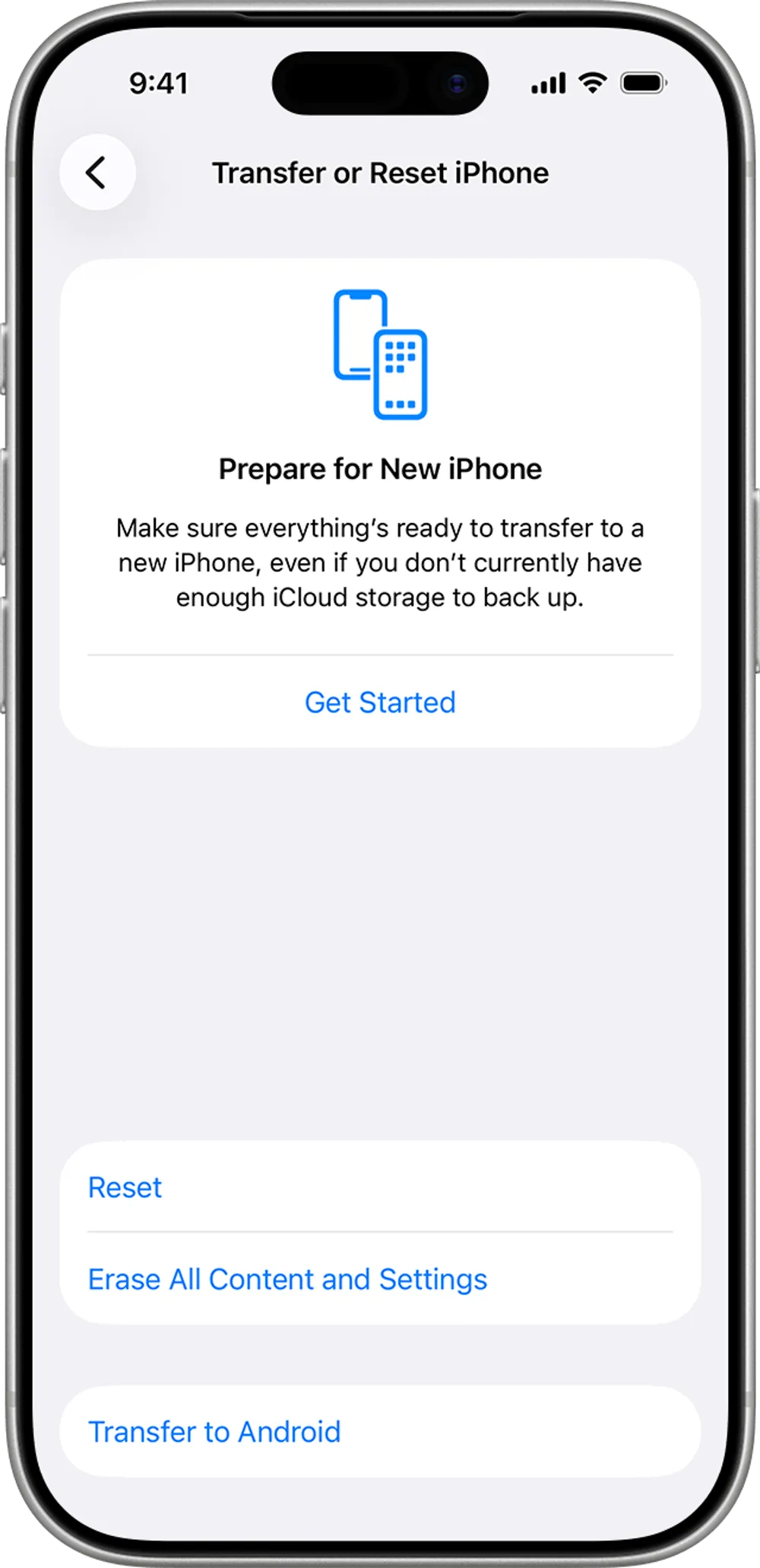
✅ Free, official, no third party involved
⚠️ Needs another device to restore the backup onto
⚠️ All or nothing — the restore is built to put a whole backup back on a device, not to pull one file out of it
⚠️ No way to see what's inside the backup before you commit to it
That last point is the one people underestimate. You choose a backup by its date and size, erase a working phone, wait for the restore, and only then find out whether the thing you wanted came back.
Reading a backup and restoring a backup are two different operations. Apple's route restores the backup to a device. Gbyte Recovery inspects what's stored and exports the items you select.
Two ways in, depending on what you're after.
Step 1. Open Gbyte Recovery and choose iOS Data Recovery.
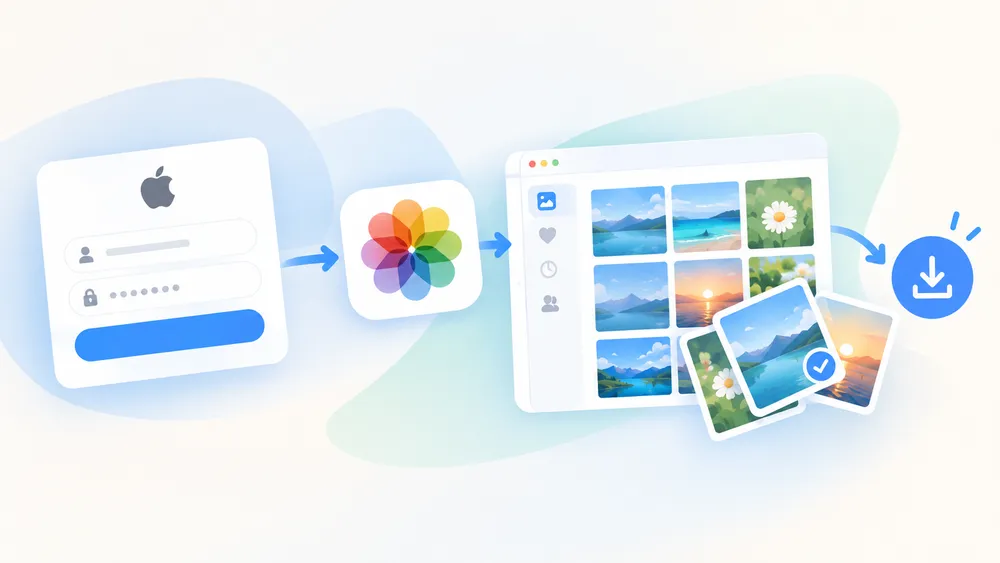
Step 2. Sign in with the Apple Account tied to that old iPhone.
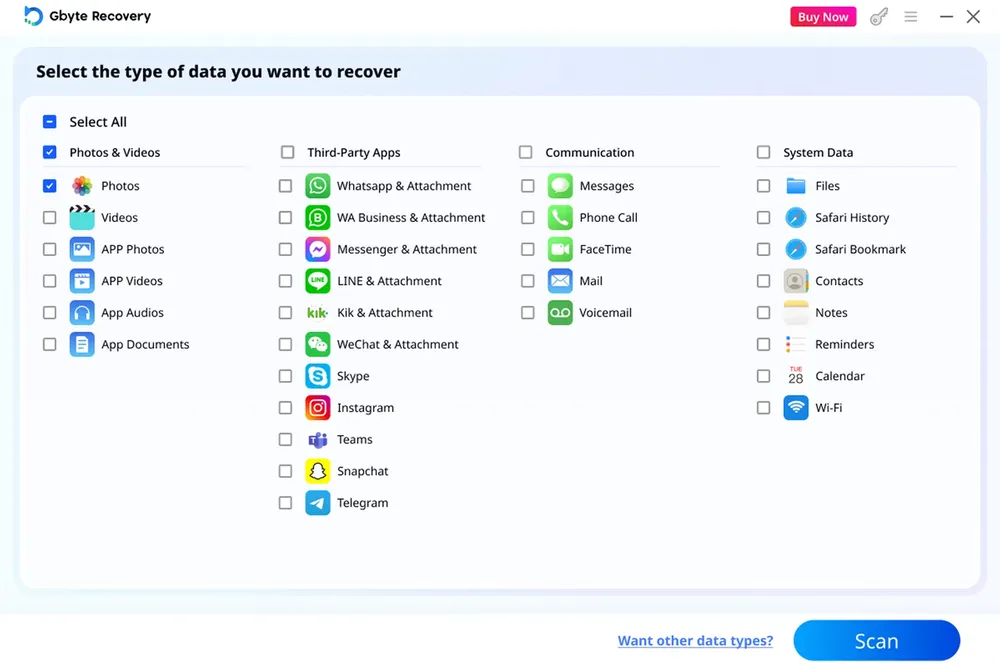
Step 3. Select the data types you want — photos, videos, messages, WhatsApp, contacts — and start the scan. The scan covers every backup stored in the account, and results carry the date they came from.
Step 4. Preview the results. This is where you confirm the data survived, before paying anything.
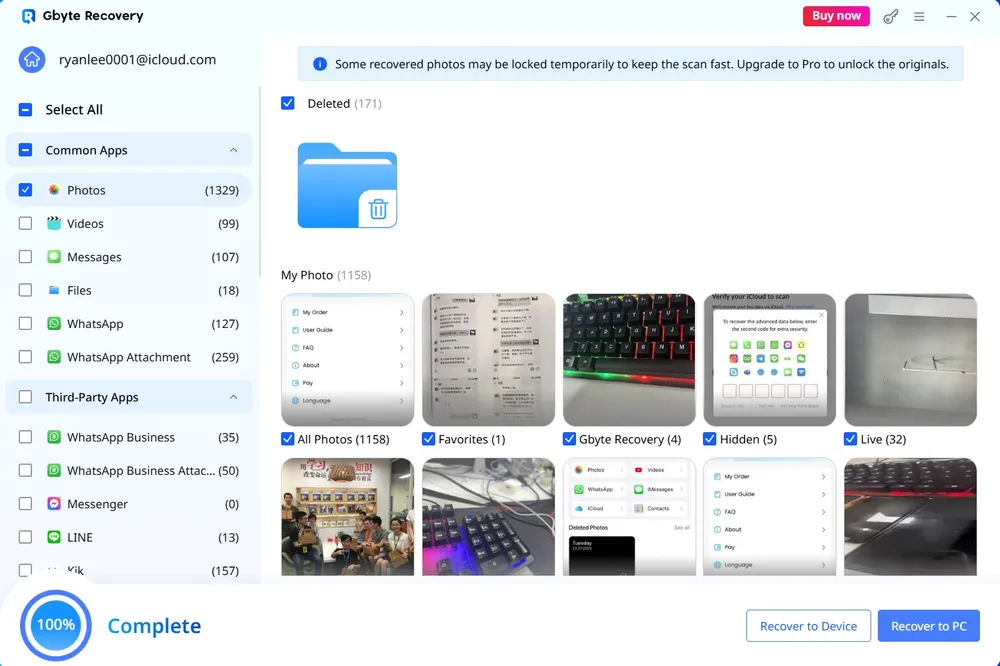
Step 5. Export what you want to your computer, or send it back to a device.
That date on each result matters when the data went missing before the phone did. A photo deleted in March won't be in the backup from the week you sold the phone in June. An earlier snapshot is where it still exists.
The route above pulls out individual items. This one downloads a complete backup as it stood on a given day — useful for keeping an archive, or for holding on to a full snapshot before it ages out.
Step 1. Open Gbyte Recovery and choose iCloud Backup Export.
Step 2. Sign in and let it scan.
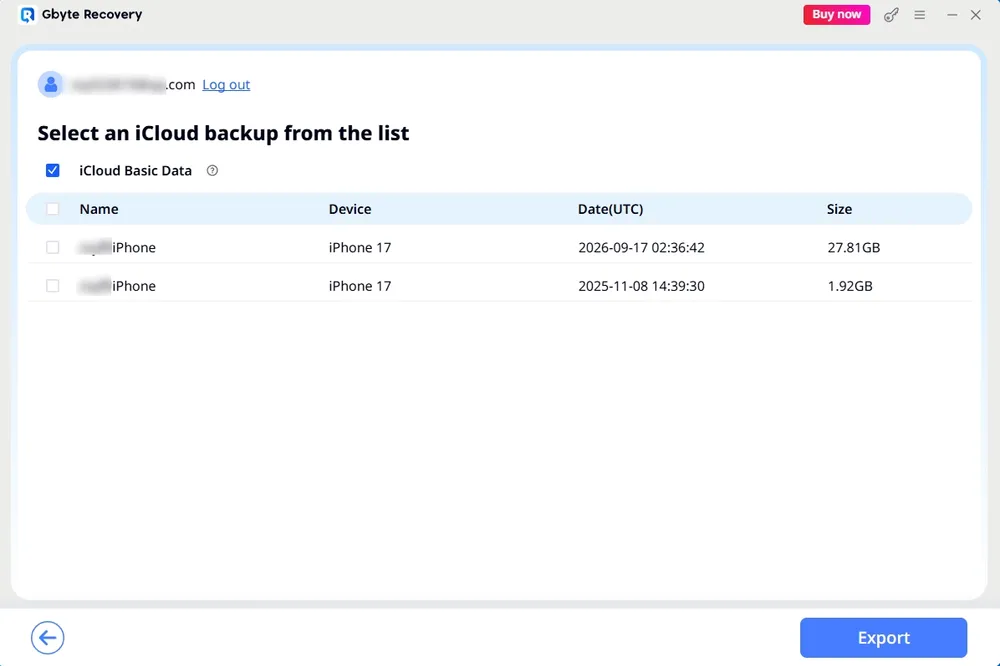
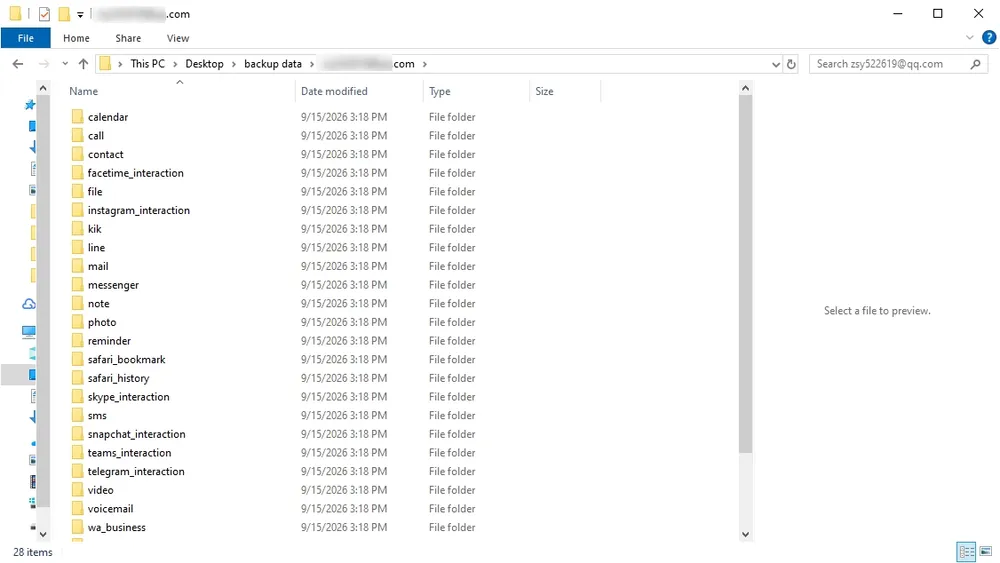
Step 3. Pick the backup you want by its date and download it.
Same account, same iPhone. Apple's own storage screen lists just one backup, dated this September.
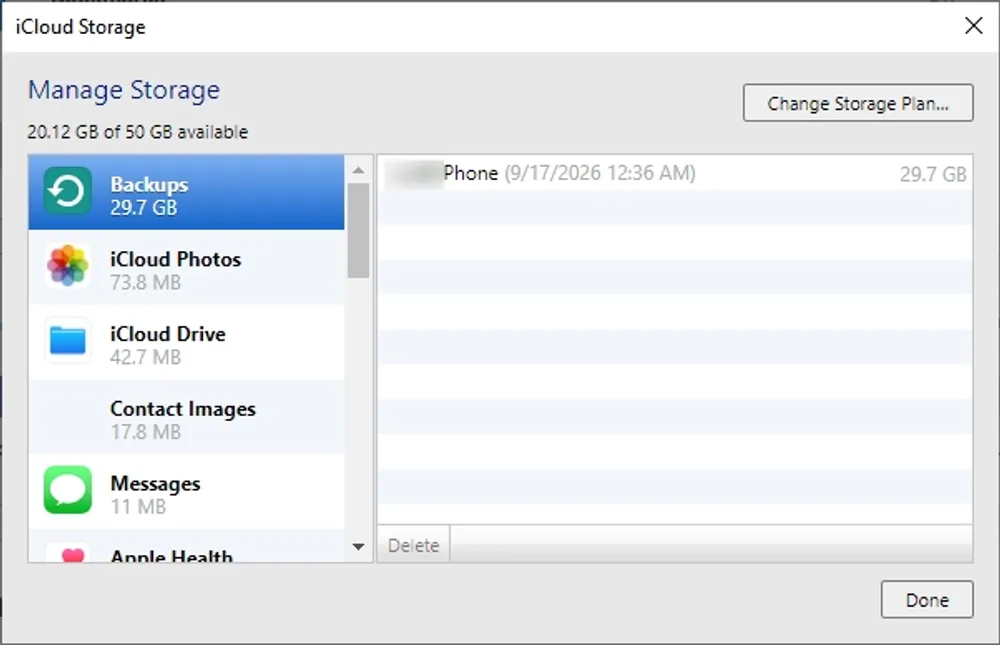
The scan turned up a second one from November last year — ten months of difference that Apple's screen doesn't mention.
This matters when the data went missing before the phone did. A photo deleted in March won't be in a backup made in September. The older snapshot is where it still exists.
In Gbyte's own scan data from the past 12 months, 78.52% of accounts with multiple available backup snapshots (9,227 accounts) had at least one recoverable item, compared with 71.72% among accounts with only one available snapshot (3,175 accounts).
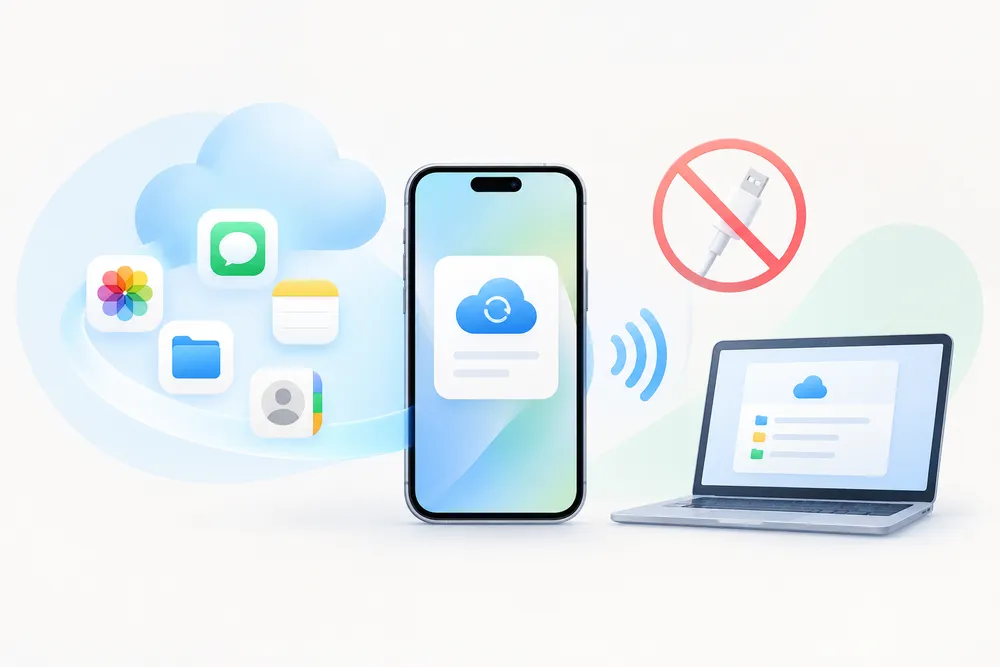
✅ The device stays out of it entirely — no cable, no erasing, nothing to plug in
✅ Items are listed one by one, so you take what you came for and leave the rest
✅ The scan and the preview cost nothing
Both routes go to the same account. What they can reach inside it is not the same.
What matters | Apple restore | Reading the backup |
Cost | Free | Paid, free scan and preview |
Device needed | Another iPhone or iPad | None |
Erases anything | Yes | No |
Pick individual items | No | Yes |
See contents first | No | Yes |
Snapshots available | Latest per device | Every snapshot the scan finds |
Three situations account for most empty results.
The 180 days ran out. Backups for a device that stopped backing up get removed. Nothing brings those back.
iCloud Backup was never on for that device. Plenty of people run iCloud Photos and assume it covers everything. It syncs your photo library, and it doesn't back up the rest of your iPhone.
The account won't let you in. Across sign-in attempts in our own data over the past 12 months, 80.52% succeeded. Of the 19.48% that failed, two-factor verification accounted for 14.84% and locked or disabled accounts for 4.35%, with the rest down to other causes.
That first figure catches out a lot of people in this exact situation. With the old iPhone gone, you can still receive the code on another trusted device or trusted phone number linked to the account. Both are worth checking in your Apple Account settings before you need them.
Of the accounts we scanned over the past 12 months, 18.07% had no iCloud backup at all. A free scan tells you which side of that line you're on, and it tells you before any payment.
Check the date of its most recent iCloud Backup
Confirm the data you care about is actually included
Export anything irreplaceable to a computer or a second service
Leave the backup in place until you're certain you no longer need it
The fourth one costs nothing and buys you six months of margin.
Provided a backup for that device is still in your account and you can sign in. The sale itself changed nothing about what's stored. Check at Settings → [Your Name] → iCloud → Manage Account Storage → Backups — the old device appears there under its original name.
Yes. Apple supports restoring a backup onto another device during setup. The replacement has to be at the setup screen, so a phone already in use needs erasing first.
No. Erase All Content and Settings clears the device. The stored backup is separate and stays in your account.
It stays available for 180 days, then Apple removes it.
No. Signing out and erasing the iPhone before handing it over cuts that device off from your account. The backup stays reachable only by signing in, which needs your password and a verification code.
You don't need the old iPhone's passcode to restore its iCloud backup. You need access to the Apple Account associated with the backup.
Codes go to any trusted device or trusted phone number on the account, not to one specific handset. Check which numbers are registered at Settings → [Your Name] → Sign-In & Security. With no trusted device and no working number, Apple's account recovery is the way back in — it takes days rather than minutes.

 Add Gbyte as a preferred source on Google
Share


Copyright @2026 Gbyte. All rights reserved.
The installation wizard will automatically start after downloading.
After registration, the recovery process can be managed through the web interface.
You get it all with your purchase - no locked features, no hidden limitations.