

Gbyte Recovery
Gbyte Recovery
Free scan and selective preview of 25+ data types like messages, photos, and WhatsApp. No data overwritten — recover only what you need.
Table of contents
You upgraded your iPhone to iOS 27, but after using it for a while, you decided you would rather go back to iOS 26. Maybe you're dealing with an app compatibility issue, battery or performance concerns, or simply prefer how iOS 26 worked.
Then you run into another problem: the backup you made on iOS 27 isn't compatible with iOS 26.
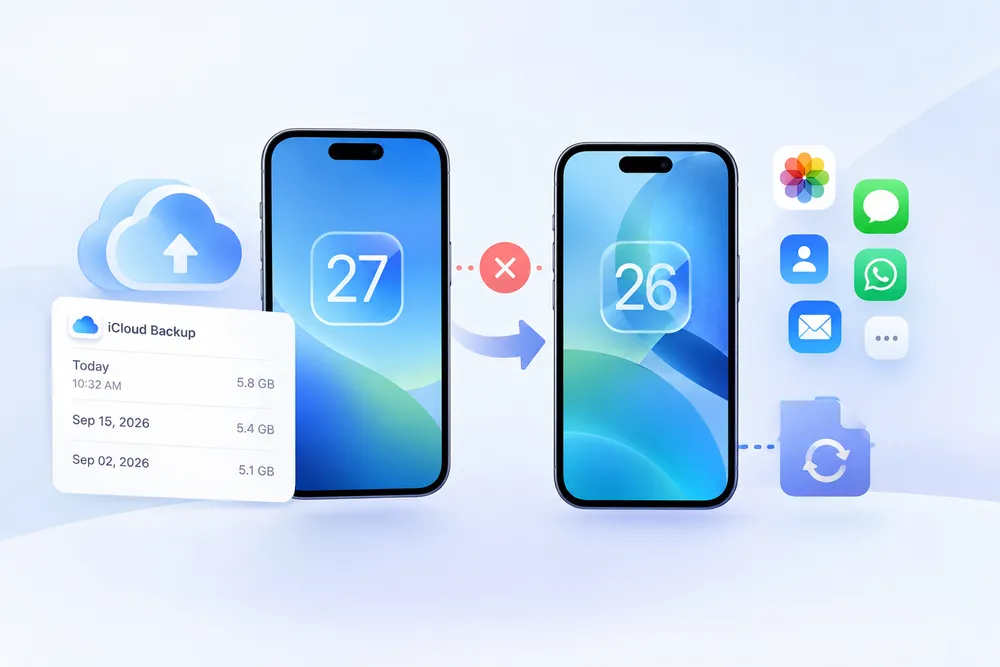
Quick Answer: An iOS 27 backup generally can't be restored directly to an iPhone running iOS 26. If you need the entire backup, you'll need a compatible iOS version to restore it. If you want to stay on iOS 26, look for a backup made before the iOS 27 upgrade, or recover specific data from the newer backup instead.
The problem is usually an iOS version mismatch. A backup created on a newer version of iOS may require that newer version or a compatible version before it can be restored.
For example, an iPhone running iOS 27 may create a backup that cannot be restored to an iPhone running iOS 26. The backup itself is not necessarily damaged; the older iOS version simply cannot use it for a full restore.
The same type of compatibility issue can also occur with computer backups. The key difference is between restoring the entire backup to the iPhone and accessing specific data stored in the backup.
Your options depend on whether you want to restore the entire iOS 27 backup, stay on iOS 26 with an older backup, or recover only specific data from the newer backup.
If you need to recover the entire iOS 27 backup, you'll need to use a version of iOS that is compatible with that backup before restoring it.
For an iCloud Backup, you can select the backup during the iPhone setup process. If the iPhone has already been set up, you'll need to erase its current content before restoring the backup.
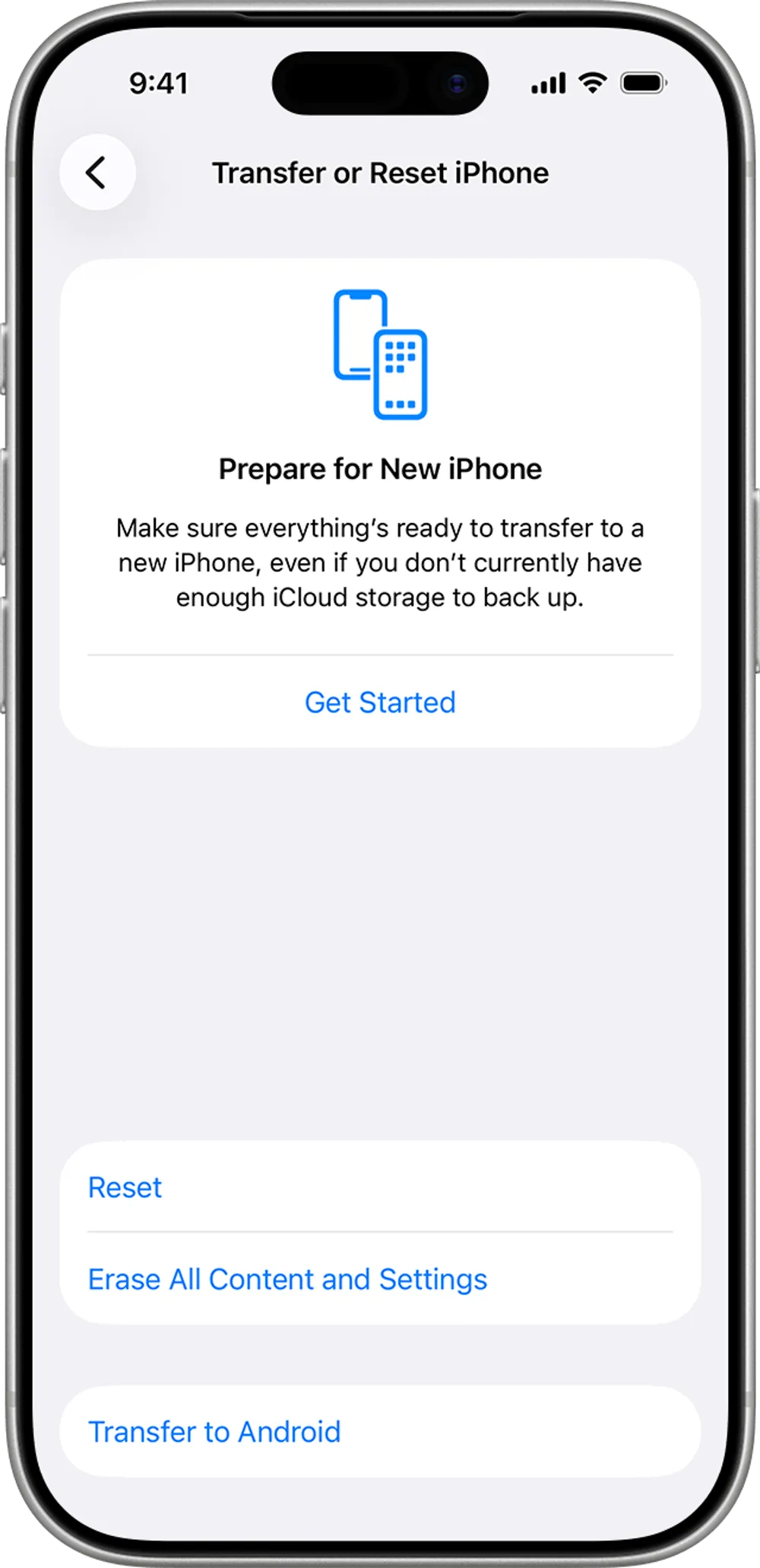
This gives you the full backup, but it means you cannot use the iOS 27 backup as a full restore while staying on iOS 26. If your priority is to get everything from the newer backup back onto the iPhone, using a compatible iOS version is the appropriate route.
Keep in mind that installing an older iOS version is also subject to Apple's signing status. If the iOS version you want to return to is no longer being signed, you cannot simply downgrade to it through the normal restore process.
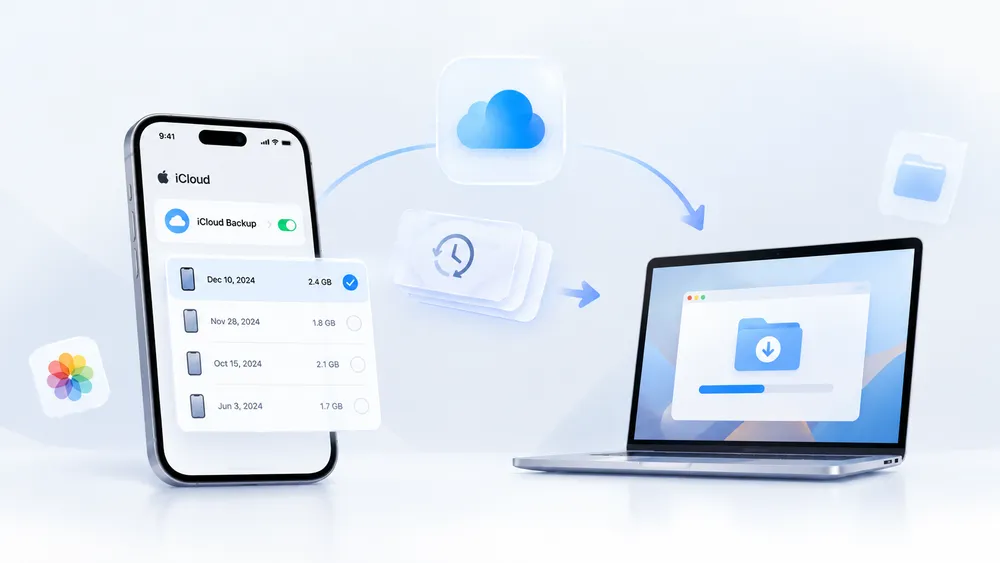
If you want to stay on iOS 26, look for a backup that was created before you upgraded to iOS 27.
For example, suppose you made an iCloud or computer backup while the iPhone was still running iOS 26, then upgraded to iOS 27. That earlier backup may be compatible with your iOS 26 setup.
Check the backup date carefully before restoring. Anything added to the iPhone after that backup was created won't be included in it, so an older backup may not contain your latest photos, messages, or app data.
For iCloud, check whether an older device backup is still available. If you have been backing up the iPhone after upgrading to iOS 27, an older iOS 26 backup may no longer be available.
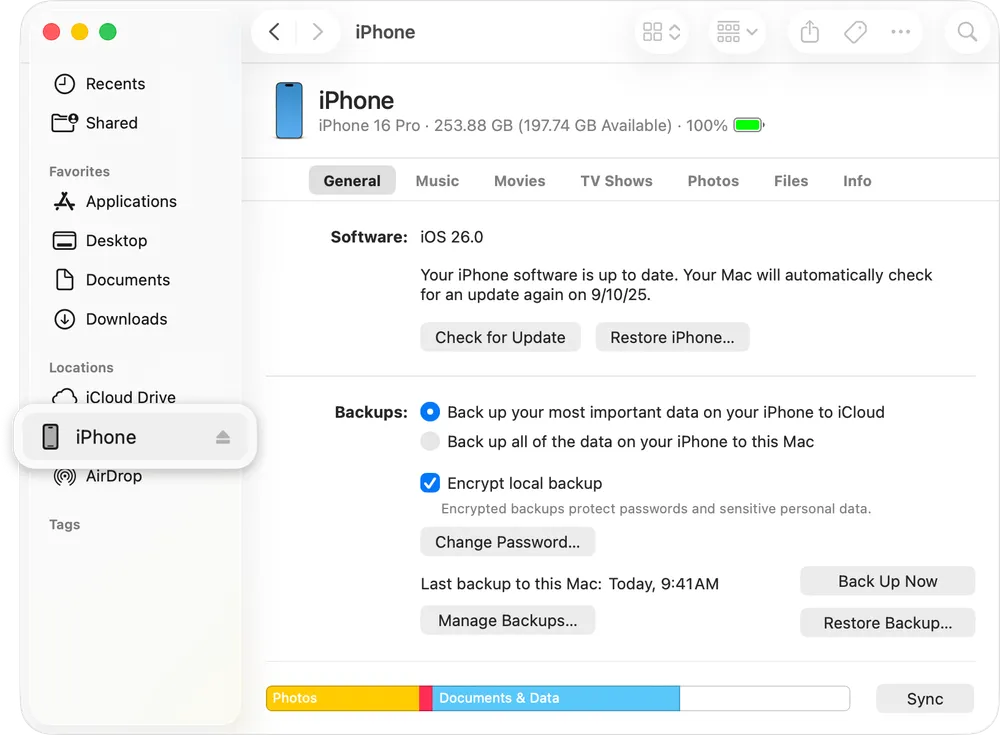
For a computer backup, check Finder, Apple Devices, or iTunes for an older copy. An archived computer backup made before the iOS 27 upgrade can be especially useful because it preserves the earlier state of the iPhone.
You can also find a backup from before the upgrade to check whether an older copy is still available.
Neither of the options above is ideal when you want to stay on iOS 26 but still need newer data from the iOS 27 backup.
For example, your iOS 27 backup may contain photos, messages, or supported app data that were created after your last iOS 26 backup. Restoring the older backup would bring back the earlier state of the iPhone, but it would not include those newer items.
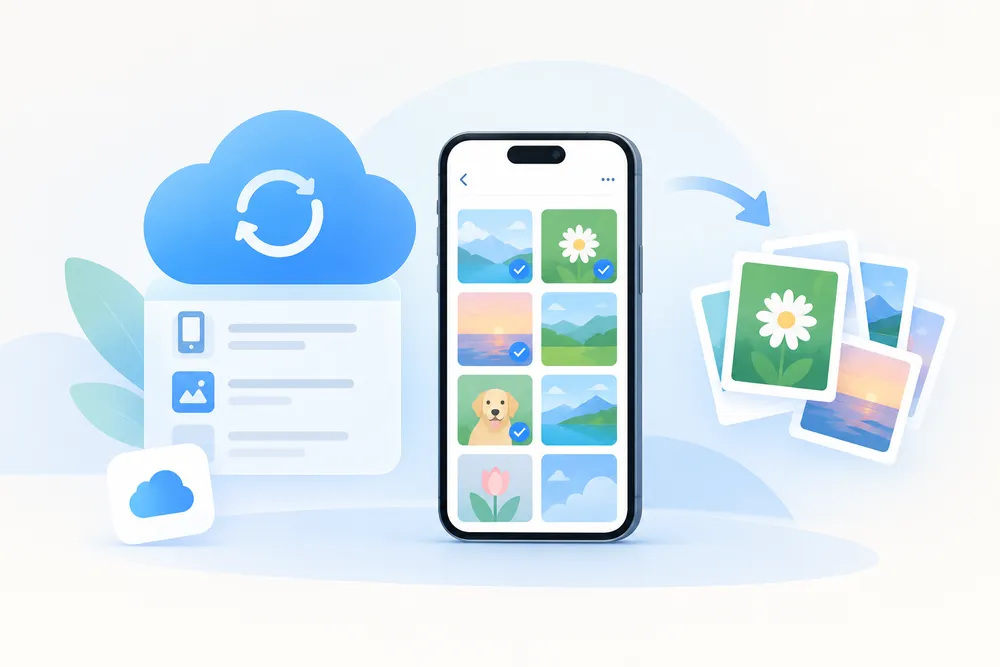
In this situation, you can look for a way to access and recover specific supported data from the available iCloud or backup source instead of restoring the entire backup.
This approach lets you focus on the data you actually need without replacing the current contents of the iPhone with an older backup.
Gbyte Recovery also shows that an incompatible full restore does not necessarily mean that the backup contains no recoverable data. Among accounts with a complete set of backup snapshots, 78.52% had recoverable data, while 71.72% of accounts with only a single backup version had recoverable data. These figures are based on observed accounts and do not represent a guaranteed recovery rate for an individual backup.
What you want to do | What to do | Result |
🔄 Restore everything from the iOS 27 backup | Use a compatible iOS version, then restore the backup | ✅ Full backup restored |
📦 Stay on iOS 26 and restore your old data | Use a backup made before the iOS 27 upgrade | ✅ Data from that backup |
📸 Stay on iOS 26 but need newer photos, messages, or app data | Try selective recovery from the available iOS 27 backup/source | ✅ Recover selected supported data |
💾 Save the entire iOS 27 backup | Export the available iCloud Backup to your computer | ✅ Entire backup exported |
⚠️ Restore an iOS 27 backup directly to iOS 26 | There is no compatible full-restore path | ❌ Not available |
The key distinction is simple: restoring a backup and recovering data from a backup are not the same thing. A newer backup may not work as a full restore on iOS 26, while specific data may still be accessible through another recovery method.
When you don't have a compatible iOS 26 backup but still need specific data from a newer backup, Gbyte Recovery provides a selective recovery route.
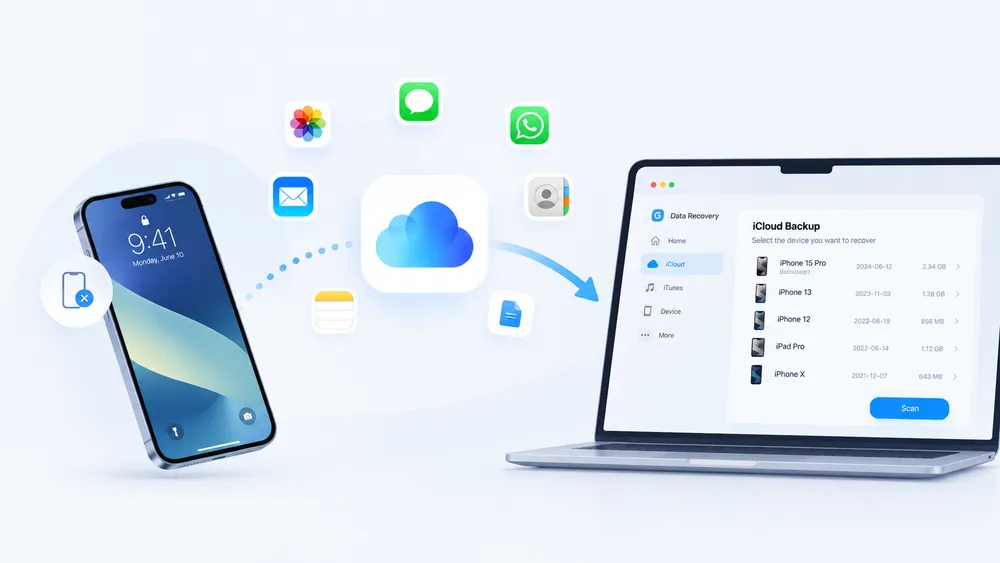
Instead of restoring the entire backup to the iPhone, you can sign in to the associated Apple Account, scan the available data, preview what is found, and recover the supported items you need.
Launch Gbyte Recovery on your computer and select iOS Data Recovery.
This is the recovery feature for checking available iPhone data and supported backup sources.
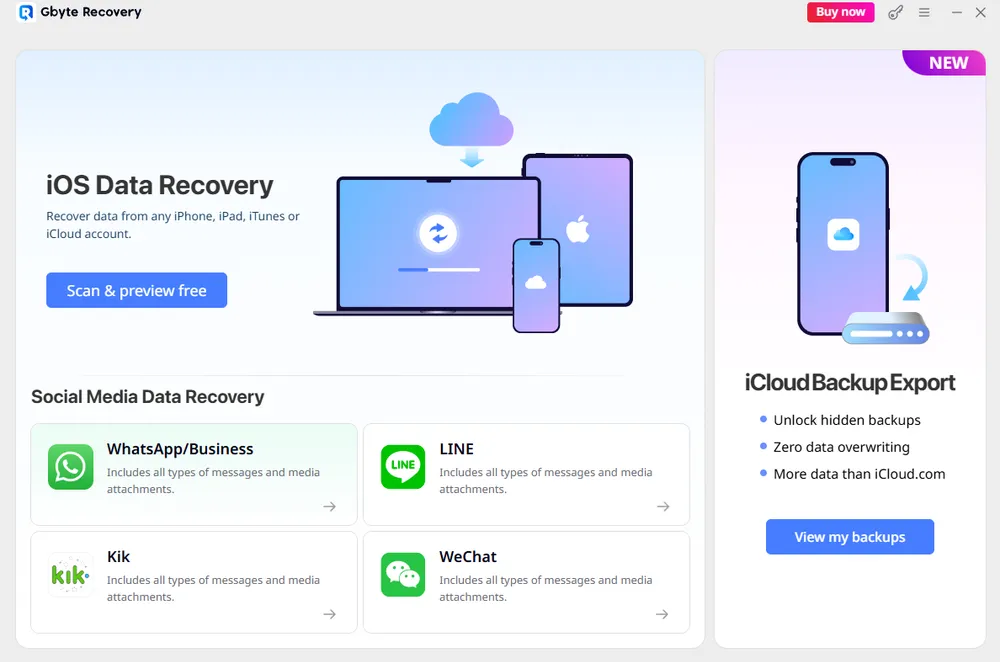
Sign in with the Apple Account associated with the iCloud data or backup you want to check.
Gbyte does not bypass Apple Account authentication. You need to sign in to access the relevant iCloud data.
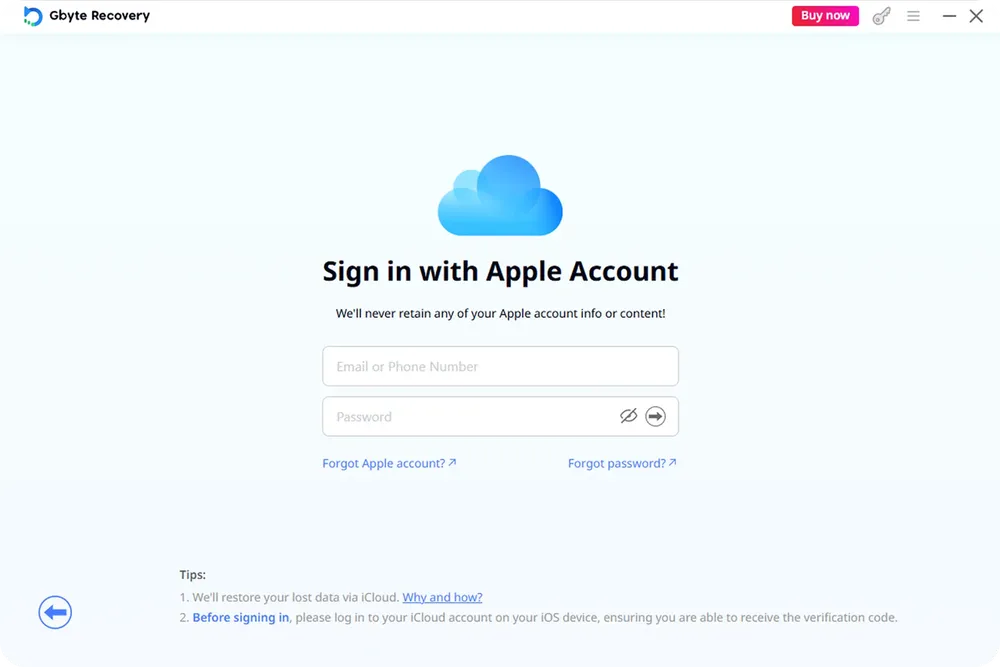
Start the scan and let Gbyte check the available data.
Once the scan is complete, you can preview the supported data that is available. This lets you check what can be found before selecting anything for recovery.
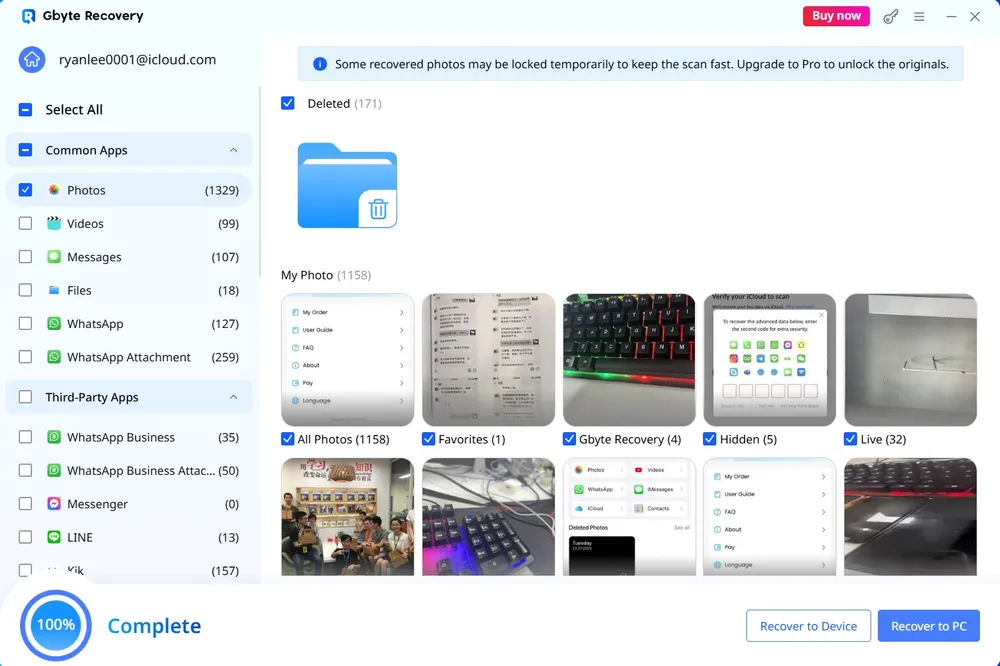
Select the specific data you want to recover and follow the prompts to save it to your computer.
This approach is useful when you need selected data from the newer backup but do not want to restore the entire backup to your iPhone.
Gbyte Recovery supports 26+ apps and data types, including WhatsApp, WhatsApp Business, LINE, WeChat, and Messenger, along with other supported iPhone data.
The exact data available for recovery depends on the source and the type of data stored there. Check the current supported data list before starting a recovery to confirm that the data you need is supported.
If you don't need to recover individual files and instead want to save the entire iCloud Backup, Gbyte Recovery also includes an iCloud Backup Export feature.
This is different from iOS Data Recovery:
iOS Data Recovery: Scan, preview, select, and recover supported data.
iCloud Backup Export: Select an available iCloud Backup and export the backup as a whole to your computer.
Sign in to the Apple Account associated with the backup.
Scan for available iCloud backups.
Select the backup you want to export.
Export the entire backup to your computer.
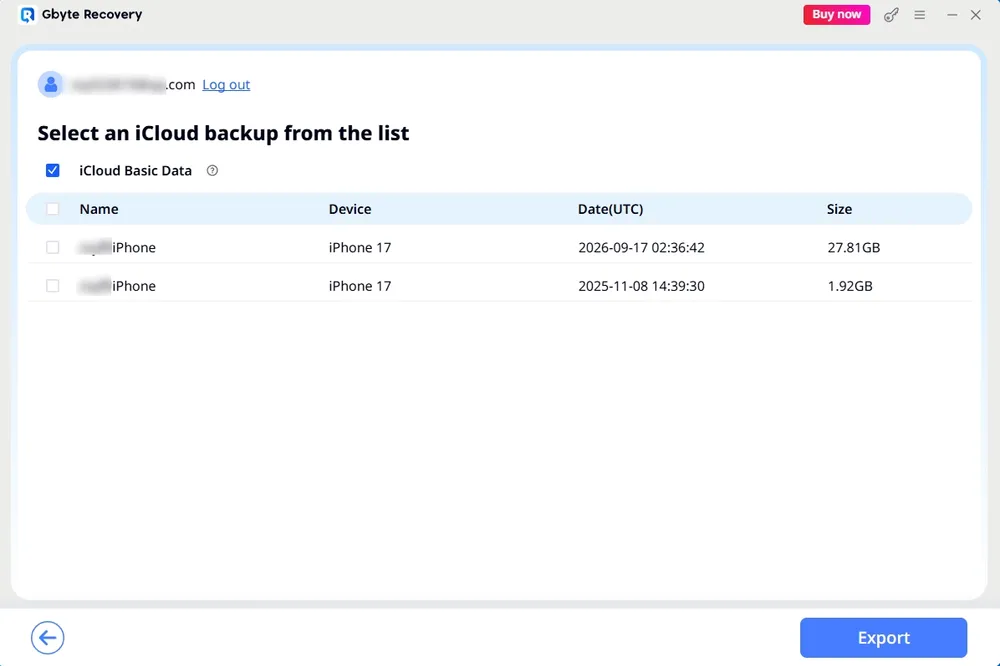
Use iOS Data Recovery when you only need specific supported data. Use iCloud Backup Export when you want to save an entire historical backup.
If you don't have a backup from before the iOS 27 upgrade, check whether your data exists somewhere else:
iCloud-synced data: Some data is stored or synced separately from iCloud Backup. iCloud Backup and iCloud Photos work differently, for example.
Old iPhone: Data may still be available on a previous iPhone that you used before upgrading.
Computer backup: Check Finder, Apple Devices, or iTunes for an older backup.
App account: Some apps sync data through their own accounts or cloud services. Reinstalling the app and signing in again may restore data that was synced separately.
If the data has been completely deleted and there is no backup, synced copy, old device, or app-based copy left, recovery may not be possible.
An iOS 27 backup generally cannot be restored directly to an iPhone running iOS 26 because of the iOS version mismatch. If you need the entire iOS 27 backup, you need a compatible iOS version to restore it. If you want to stay on iOS 26, look for a backup created before the iOS 27 upgrade.
When no compatible iOS 26 backup is available, you don't necessarily need to give up on the newer data. You can check for iCloud-synced data, an older device, or computer backups, or use Gbyte Recovery to scan available sources and selectively recover supported data. You can also export an entire available iCloud Backup to your computer when you need a complete copy.
An iCloud Backup may require a newer version of iOS or iPadOS than the one currently installed on the iPhone. When this happens, the backup cannot be used for a full restore until the device is running a compatible version.
Generally, no. An iOS 27 backup may require a newer version of iOS and therefore cannot normally be restored to an iPhone running iOS 26. To restore the device after returning to iOS 26, you need a compatible backup created before the iOS 27 upgrade.
Generally, no. A backup created on a newer version of iOS may contain data that requires that newer system version. The device needs to meet the backup's software requirements before the backup can be restored.
First, check whether you can use a compatible iOS version to restore the backup. If you want to remain on an older iOS version, look for a backup created before the upgrade. When you only need specific supported data, selective recovery can be an alternative to restoring the entire backup.
Yes, when the backup is compatible with the iOS version installed on the iPhone. A backup created before the iOS 27 upgrade is the type to look for when you want to return to or remain on iOS 26.
Yes, when the data is accessible through a supported recovery method. A selective recovery tool can scan available backup data, let you preview supported items, and recover selected data without replacing the entire iPhone.

 Add Gbyte as a preferred source on Google
Share


Related articles


Copyright ©2026 Gbyte. All rights reserved. Gbyte’s software is not developed by or affiliated with Apple Inc.
The installation wizard will automatically start after downloading.
After registration, the recovery process can be managed through the web interface.
You get it all with your purchase - no locked features, no hidden limitations.