

Gbyte Recovery
Gbyte Recovery
Free scan and preview of your iCloud backup content. Selectively extract messages, contacts, and more from any historical backup point.
Table of contents
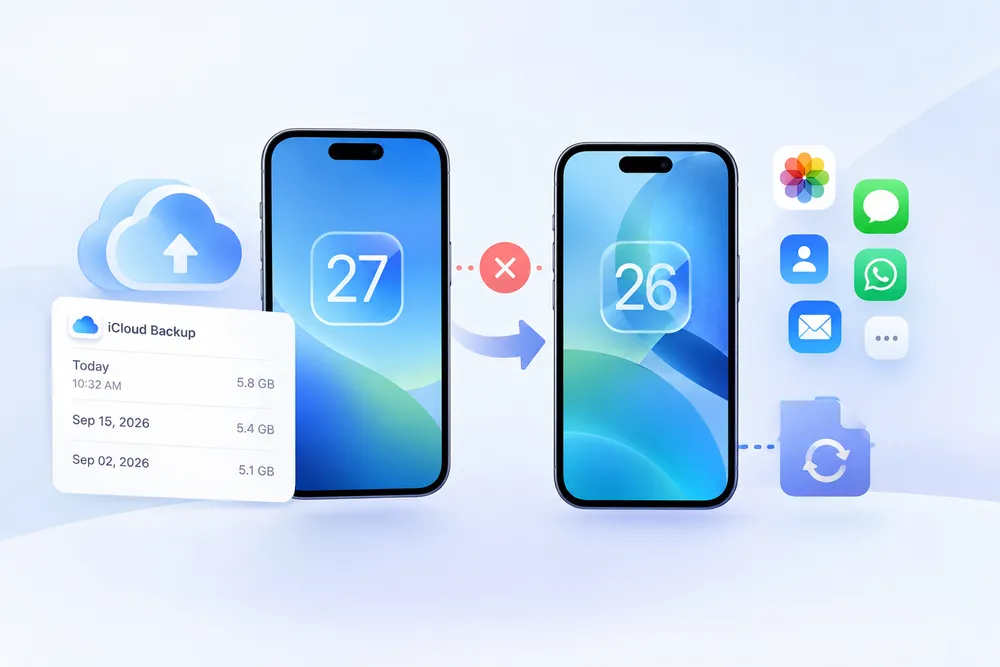
You picked an iCloud backup, waited for the restore to finish, and checked your iPhone. The data you needed isn't there. Maybe you restored an older backup from the wrong iPhone, or chose a backup from before the data existed.
The frustrating part is that trying another iCloud backup isn't as simple as choosing a different file. Apple requires you to erase a set-up iPhone before restoring it from another iCloud backup. You then have to go through setup again and choose another backup. Before you erase the phone again, it helps to check which backups are available and whether the one you need is still accessible.
Apple's standard iCloud restore works during the iPhone setup process. If your iPhone is already set up, Apple requires you to erase all of its content before you can restore it from an iCloud backup. After the erase, you return to the setup process, sign in to your Apple Account, and choose From iCloud Backup.
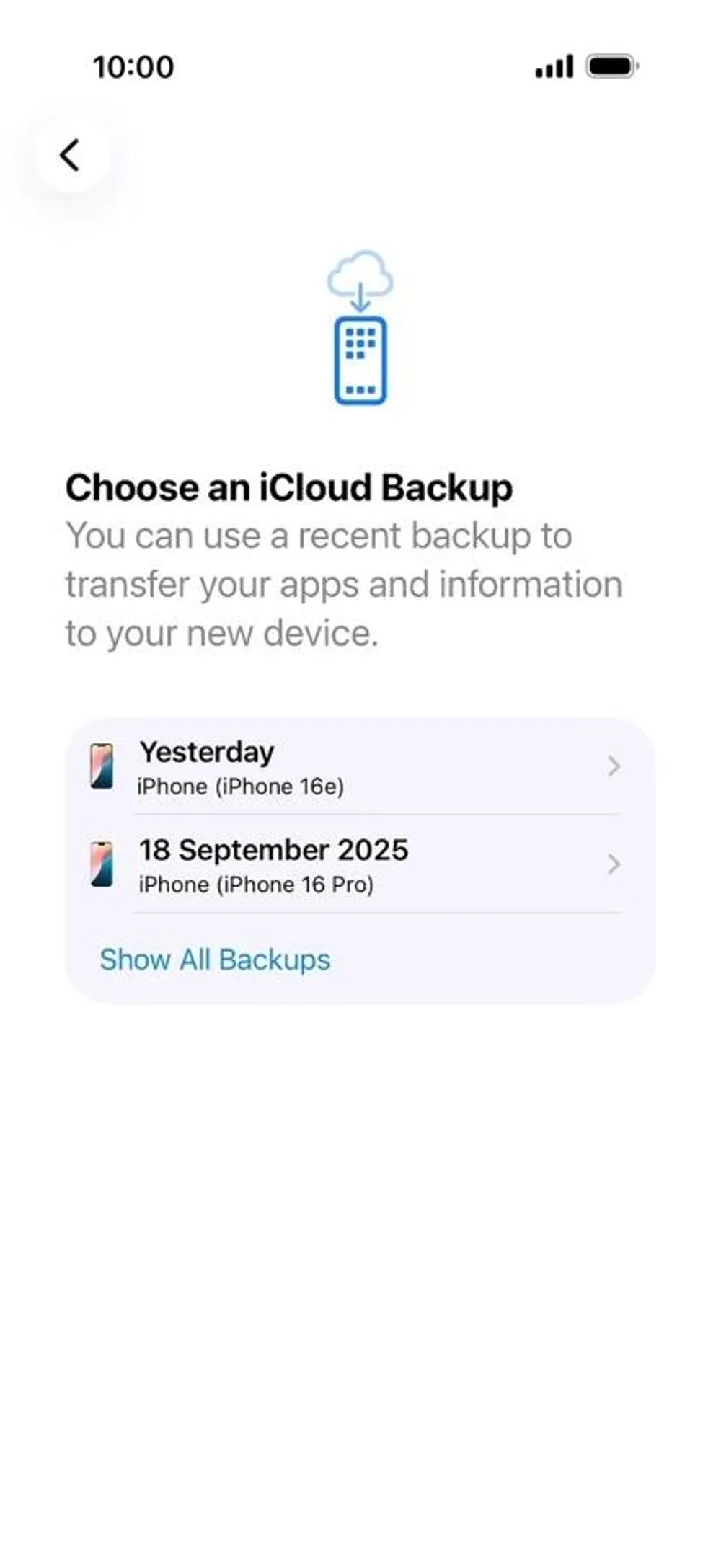
When you reach the backup selection screen, Apple tells you to check the date and size of each backup before choosing one. After you select a backup, the transfer starts. This works when you already know which backup you need, but date and size alone may not tell you whether a specific photo, message, contact, or file is inside.
Free and Apple-supported
Requires erasing an already set-up iPhone
Restores the selected backup to the device
Lets you compare the backup date and size before choosing
The key limitation is what you can check before the restore. Apple's documented restore process lets you compare the backup's date and size, but it does not show the backup contents at that point. If you are looking for specific data, you may not know whether the backup contains it until after the restore.
Before erasing your iPhone again, make sure the backup you're about to restore can actually contain the data you need. The backup date can help you identify the right time period, while the backup size can help distinguish between available backups.
But those details do not tell you exactly which photos, messages, or other files are inside. If you have several backups available, checking them first can help you avoid another erase-and-restore cycle.
For more ways to identify older backups, see our guide on how to find old iCloud backups.
Before erasing your iPhone again, check the available backups first and make sure the one you choose is the right one.
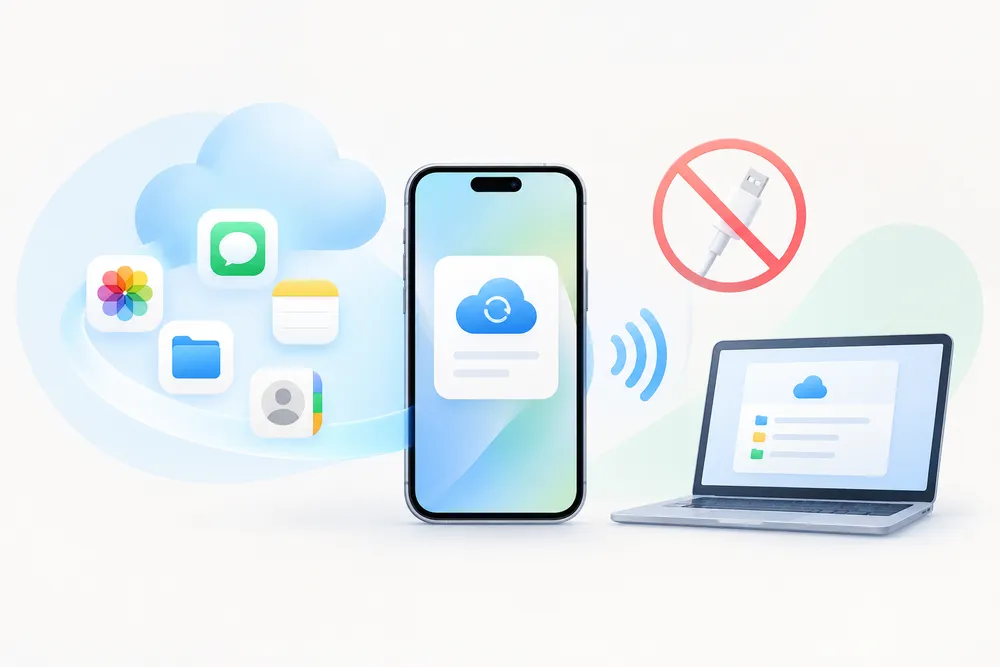
If you want to try another backup without restoring it directly to your iPhone, Gbyte Recovery offers iCloud Backup Export. It scans the available backups associated with your account, shows the backup results, and lets you choose the backup you want to export to your computer.
What matters | Apple Restore | Gbyte iCloud Backup Export |
Current iPhone | Erased before another restore | Not erased |
Find another backup | Choose from available backups during setup | Scan available backups before recovery |
Check backup options | Compare backup date and size | Review available backup results |
Chose the wrong backup | Erase and try another backup | Select another backup to export |
Where the backup goes | Restored to the iPhone | Exported to your computer |
The key difference is when you work with the backup.
Apple: choose → erase → restore → check the result.
Gbyte: sign in → scan → choose a backup → export.
If you chose the wrong backup, this gives you another way to access an available backup without immediately erasing your current iPhone again.
Gbyte Recovery's iCloud Backup Export scans the available backups associated with your account and lets you choose which backup to export.
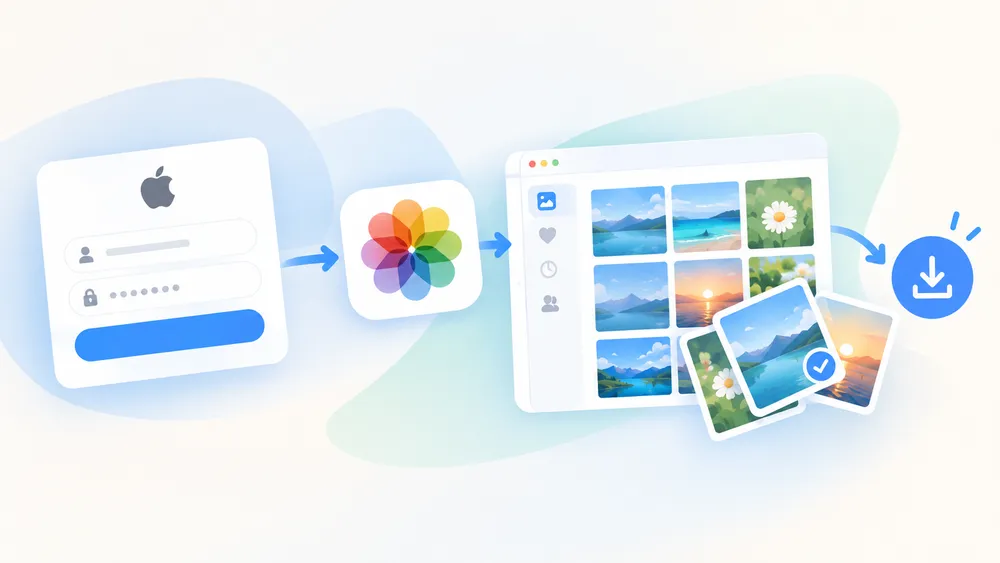
1. Sign In to Your Apple Account Sign in with the Apple Account associated with your iCloud backups. Complete the required account verification during the login process to access your available backup data.
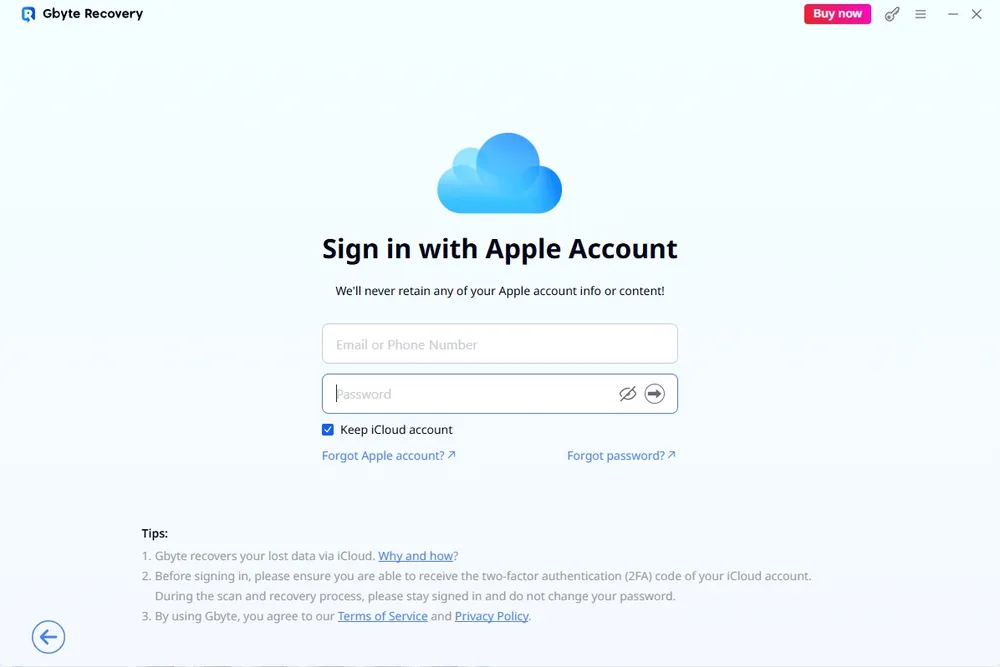
2. Scan Your iCloud Backups for Available Backups Start the scan to check the backups associated with your account. Once the scan is complete, Gbyte Recovery displays the available backup results for you to review.
3. Select the Backup You Want to Export Review the available backup results and choose the backup you want to export. When multiple backup results are available, you can select the backup that contains the data you need.
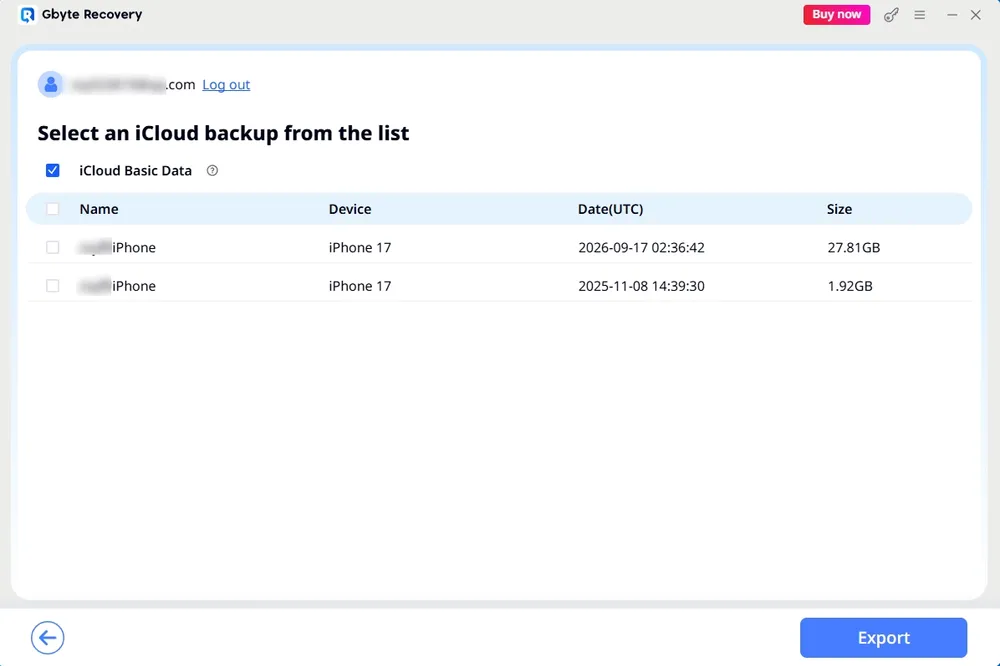
4. Export the Selected Backup to Your Computer After selecting a backup, export the entire backup to your computer. You don't need to restore the backup directly to your iPhone.
Sign in → Scan → Select a backup → Export
This gives you a chance to review the available backup results and choose the backup you want before recovering your data.
If you want to understand Apple's standard restore process in more detail, see our guide on how to restore an iCloud backup without resetting your iPhone.
You may not need the entire backup. Gbyte Recovery also offers a separate data recovery workflow that lets you choose the data types you need, scan the available backup data, preview the results, and recover selected data to your computer or device.
The process is:
Choose data types → Scan → Preview → Select data → Recover
This option is useful when you only need specific photos, messages, contacts, notes, files, or other supported data instead of the entire backup.
An available backup does not necessarily contain every piece of data you are looking for. The backup may be from the wrong period, or the data may have been stored through iCloud syncing rather than in the backup itself.
Checking these possibilities can help you avoid spending time trying backups that cannot contain the missing data.
The backup may not cover the period when the data was available. For example, a backup from before you took a particular photo cannot contain that photo. The same applies to messages, files, and other data created after the backup was made.
Check the backup date against the time when you last remember having the missing data. A newer backup is not automatically better, but a backup from before the data existed cannot contain it.
Some information is stored through iCloud syncing rather than iCloud Backup. For example, when iCloud Photos is enabled, your photos and videos are stored in iCloud and aren't included in your daily iCloud Backup. iCloud Drive files are also synced to iCloud rather than stored in the device backup.
So if a photo, file, or other piece of data is missing from a backup, check the relevant iCloud service as well. You can also read our guide on recovering permanently deleted photos from iCloud.
You may not have an available iCloud Backup from the period you need. Among accounts scanned with Gbyte over the past 12 months, 18.07% had no iCloud backup available. This figure reflects accounts scanned by Gbyte and does not represent all iPhone owners.
If there is no suitable iCloud Backup, check other possible copies before assuming the data is gone. These may include iCloud Photos, iCloud Drive, Google Photos, OneDrive or Dropbox, a Mac or Windows computer, another iPhone or iPad, or photos and files shared through messages and chat apps.
You can make the next restore easier by keeping track of which backup you need before starting the process.
Before choosing a backup, compare its date and size with what you remember about your data. Apple specifically recommends checking these details when selecting an iCloud Backup.
For example, if you need photos from last month, a backup from several months earlier may not contain them. The date helps you rule out backups that are clearly from the wrong period.
Multiple iPhones can make backup lists difficult to recognize, especially when you use the same Apple Account on several devices. Give each iPhone a distinctive name when possible so you can identify which device a backup is associated with before choosing it.
This is particularly useful if you have replaced an iPhone but still have older backups associated with the same account.
If you still have your old iPhone, keep it until you confirm that the restored or replacement iPhone has the data you need. The old device can give you another way to check missing photos, messages, contacts, or files.
That extra copy can be useful when the backup you selected turns out to be the wrong one. Instead of immediately trying another full restore, you can first check whether the missing data is still available on the old device.
Choosing the wrong iCloud backup doesn't mean you have to erase your iPhone again right away. First, check which backups are available and identify the one most likely to contain the data you need.
If you need the entire backup, iCloud Backup Export lets you select and export an available backup to your computer. If you only need specific files, Gbyte Recovery also provides a separate workflow for previewing and recovering selected data.
Apple does not provide a one-click way to undo a completed iCloud restore. If you want to restore a different iCloud backup after setting up the iPhone, you need to erase the device first and start the restore process again.
Start with the backup date and size to narrow down your options. Apple shows these details when you choose an iCloud Backup, but they do not confirm which files are inside. If you're still unsure, Gbyte's iCloud Backup Export can scan the available backups and let you choose which backup to export.
If you erase the iPhone before restoring, the data currently stored on the device is erased. Data that has already been synced to iCloud through a separate service may still be available through that service.
Apple's standard iCloud restore restores the selected backup to the device rather than letting you choose individual items first. If you only need specific data, Gbyte Recovery's data recovery workflow lets you choose data types, preview the available results, and recover selected data to your computer or device.
Check other available backups first. Then check whether the missing data is stored through an iCloud service or whether you have a computer backup that may contain it. Apple also recommends checking other backups or computer backups when information is still missing after an iCloud restore.

 Add Gbyte as a preferred source on Google
Share


Copyright @2026 Gbyte. All rights reserved.
The installation wizard will automatically start after downloading.
After registration, the recovery process can be managed through the web interface.
You get it all with your purchase - no locked features, no hidden limitations.