

Gbyte Recovery
Gbyte Recovery
Free scan and selective preview of 25+ data types like messages, photos, and WhatsApp. No data overwritten — recover only what you need.
Table of contents
Your iPhone slipped into the sink, the pool, or a puddle. Now the screen stays black. It won't charge, and your computer can't see it either. The photos, messages, and notes on it suddenly feel out of reach.
Here's something worth knowing first. A dead phone and lost data are two separate problems. The iPhone may be beyond repair. However, the data on it may already exist somewhere else.
Here's how to recover data from a water damaged iPhone that won't turn on, and where to look before you pay for anything.
Power the iPhone off and leave it off. Don't charge it, and don't plug it into a computer. Both push current through circuits that may already be shorting.
Skip the bag of rice as well. It doesn't dry the inside of the phone, and it can leave dust in the ports. Remove the case and the SIM tray so trapped water has a way out.
It's tempting to take the phone straight to an Apple Store. Apple can repair or replace the device. However, recovering data from a damaged board isn't part of that service. Go in expecting a working phone, not your old files.
Tools like Dr.Fone and UltData start by connecting to the phone over USB. Water causes short circuits and corrosion, and the phone stops talking to the computer. The scan never gets past step one.
Apple's encryption adds a second wall. Your data is locked with a key stored in the Secure Enclave, a protected chip on the original logic board. Without that board working, the storage can't be read.
So the issue isn't which software you pick. When the iPhone can't talk to a computer, scanning the device stops being a practical path. The better place to look is iCloud.
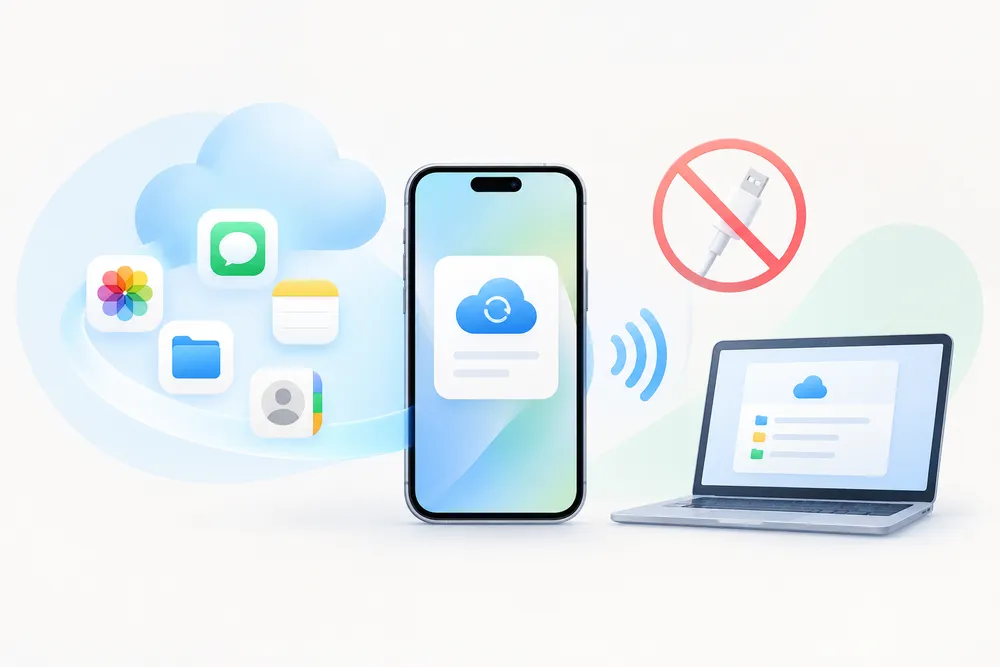
Some of your data never lived only on the phone. With iCloud sync turned on, these copies already sit in the cloud:
Photos and videos in iCloud Photos
Files in iCloud Drive
Messages in iCloud
Notes, contacts, and calendars
You don't need another Apple device to see them. Open iCloud.com in any browser, on a Windows PC, a Mac, or an Android phone. What synced is right there. You can also read our guide on how to view iCloud Photos.
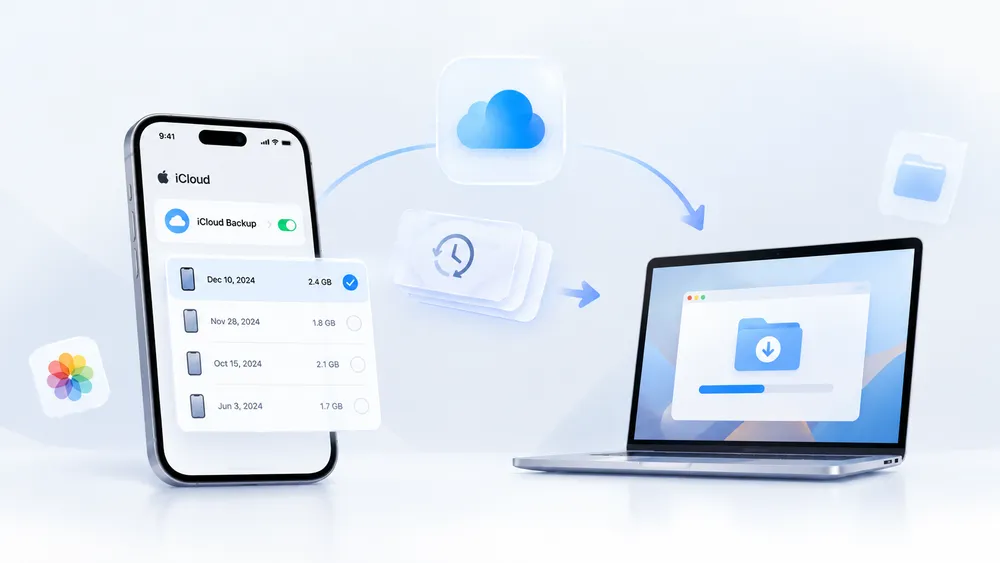
Your iCloud backup is stored in iCloud. It can still be available even when the original iPhone is unusable.
The backup holds what sync doesn't cover. That can include photos taken while iCloud Photos was off, app data, and chats from apps like WhatsApp.
To check which backups exist, open Settings → [Your Name] → iCloud → Storage / Manage Account Storage → Backups on another iPhone or iPad. On Windows, open iCloud for Windows, click Storage, then select Backups. Our guide on finding old iCloud backups covers the other places to look.
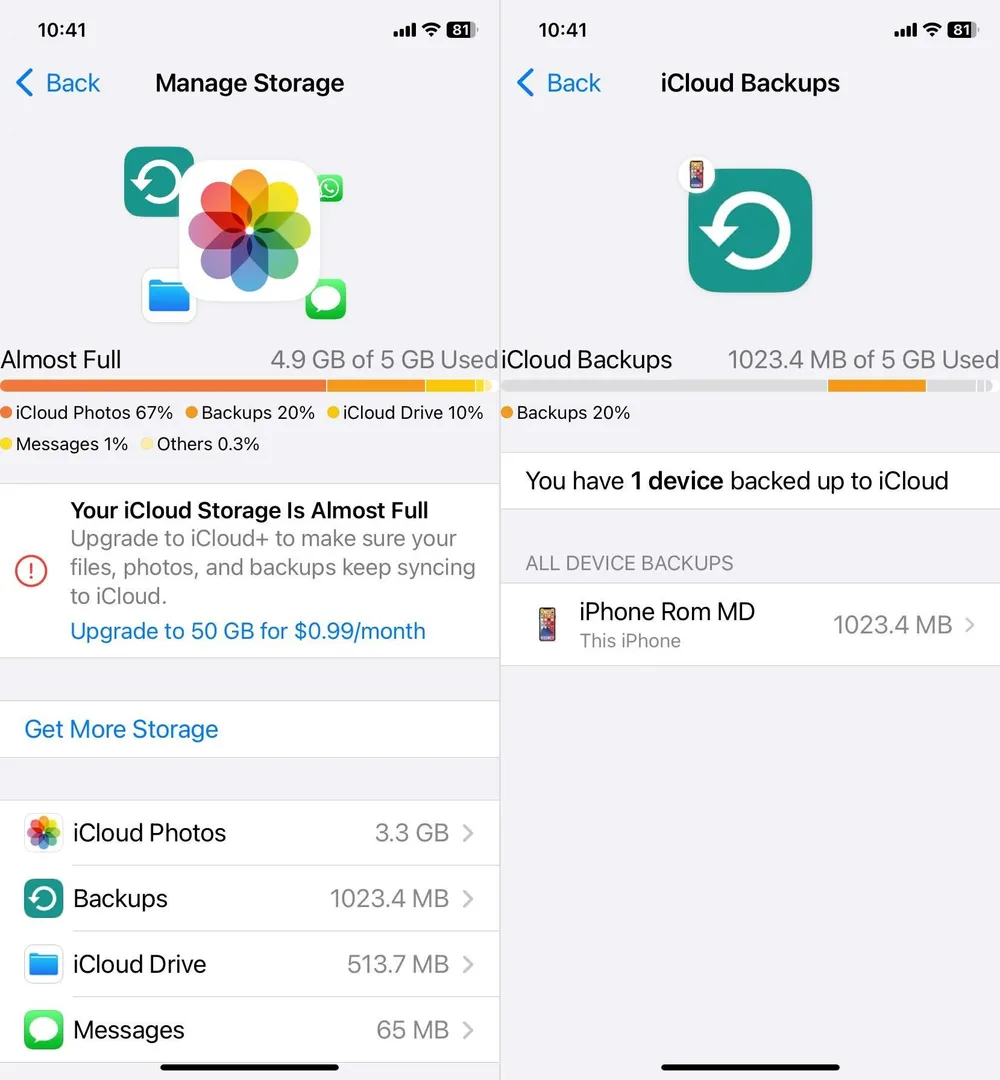
This applies well beyond water damage. A phone that's cracked, dead, in for repair, or already sold follows the same path.
This is where many people get stuck. Your Apple Account asks for a verification code, and that code usually appears on your iPhone. Your iPhone is the one that's broken.
The code doesn't have to go to that phone.
Stuck on the verification code? On the sign-in screen, choose "Didn't get a verification code?" and have it sent to a trusted phone number by text or call.
Any other device already signed into your account works too, such as an iPad or a Mac.
With no trusted device and no working number, Apple's account recovery is the way back in. It can take several days, so start it early.
Most people replace the phone, and that opens the simplest route. During setup, stop at the Apps & Data screen and choose Restore from iCloud Backup. Sign in, pick the backup, and let it transfer.
A brand-new iPhone has nothing on it yet, so there's nothing to lose by restoring. It's free, and for many people it's all they need.
It does have limits. You only find out what the backup held after you've bought the phone and finished the restore. Everything comes back together, with no way to pick. And an iPhone you've already set up has to be erased before it can restore. Apple's restore lets you choose a backup by its date and size, but it doesn't show you what's inside it before you restore.
Some situations call for a different approach:
You want to know what the backup holds before buying a phone or paying for a repair
Your new iPhone is already set up, and you don't want to erase it
You're switching to Android, or not replacing the phone yet
You only need some photos or chats, not the whole backup
Your account holds several backups, and you're not sure which one has your data
Gbyte Recovery fits these cases. It scans the available backup first, previews the data it finds, and lets you choose what to recover. It doesn't need the damaged iPhone at all.
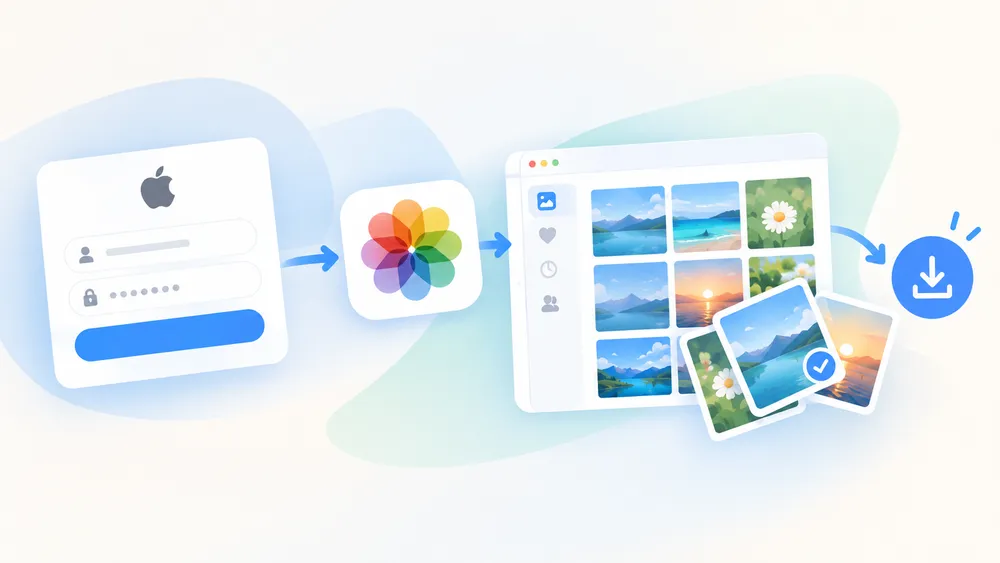
Open Gbyte Recovery and sign in with your Apple Account.
Choose the data types you want, such as photos, messages, or WhatsApp.
Start the scan and preview what it finds.
Select what you need and save it to your computer or another device.
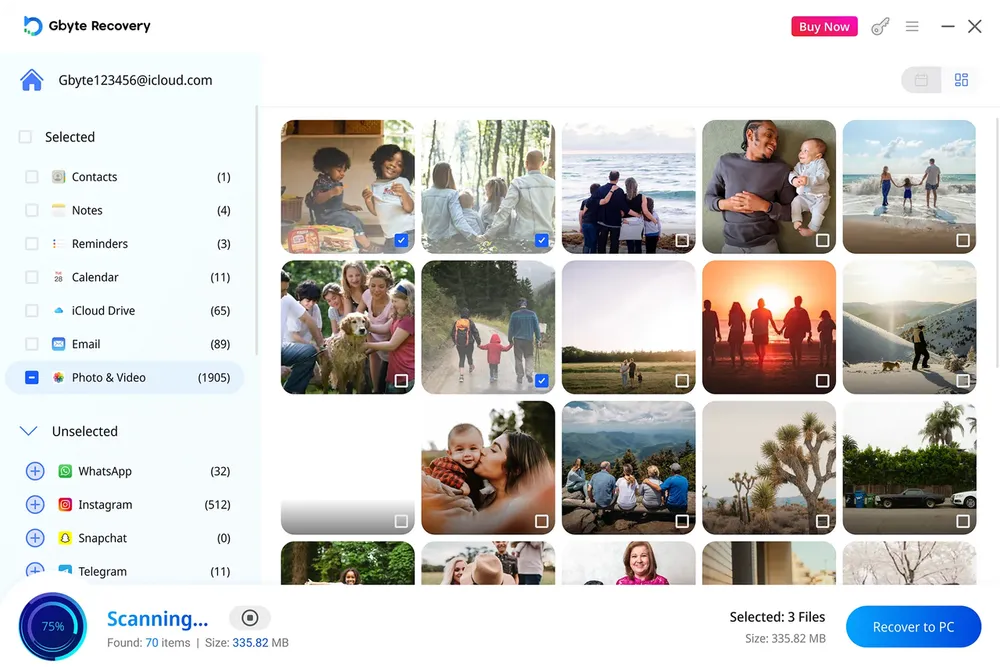
The scan and preview are free. You only pay once you've seen the files and decided to keep them.
Try Gbyte Recovery and follow the simple steps to check what your backup still holds.
What matters | Restore to a new iPhone | Read the backup with Gbyte |
When you use it | After buying a new iPhone | Anytime, with or without a new phone |
See the contents first | No, only after restoring | Yes, preview before recovering |
Pick specific items | No, the whole backup comes back | Yes, choose photos, chats, or files |
Already set-up iPhone | Must be erased first | Stays untouched |
Switching to Android | Not supported | Export to a computer, then move |
Several backups in the account | Pick one, restore, then check | Scan and compare before choosing |
Cost | Free | Free to scan and preview |
Sometimes the account comes up empty. iCloud Backup may never have been on for that phone. Or it was switched off and later removed: when you turn off iCloud Backup or stop using it for a device, Apple keeps the stored backup for 180 days before deleting it.
From our own data: Among accounts scanned with Gbyte over the past 12 months, 18.07% had no iCloud backup available. This reflects Gbyte users, not all iPhone owners.
Even then, a few places are worth checking:
A local backup on a Mac (Finder) or a Windows PC (iTunes or Apple Devices)
Other cloud services, such as Google Photos, OneDrive, or Dropbox
Chats where you sent the photos or files to someone
Another device still signed into your account
When the data exists only on the damaged iPhone, board-level recovery may be the remaining option. A technician cleans the logic board, replaces damaged parts, and gets the phone running long enough to copy data off. It often costs hundreds of dollars, and success isn't guaranteed.
If the data exists only on the damaged iPhone, professional hardware-level recovery may be the remaining option. It's worth the cost when the data truly can't be replaced. You can also read our guide on recovering permanently deleted photos from iCloud.
In summary, a water damaged iPhone doesn't have to mean lost data. Start with what's synced to iCloud, then check your iCloud backup. A new iPhone can restore that backup for free. When you'd rather check first or pick specific items, Gbyte Recovery lets you preview the backup without the damaged phone. Even when the device is gone for good, your photos and messages may still be within reach.
Often, yes. The phone being unusable doesn't mean the data is gone. If the iPhone had an iCloud backup or synced data to iCloud Photos, Drive, or Messages, those copies are still in the account. You can reach them from any browser or another device without the damaged phone.
If nothing synced and there's no backup, that's a different situation. The data may only exist on the device itself, which is when professional hardware recovery becomes the remaining option.
No. Water damage to the iPhone doesn't affect a backup already stored in iCloud.
Not through Apple, whose restore works on iPhone and iPad only. However, a backup extraction tool can export photos, messages, and other files to a computer. From there you can move them to an Android phone manually or through a transfer app.
It depends on two things: whether the data exists anywhere else, and whether it's worth the cost. A specialist can sometimes get a water damaged board working long enough to copy data off, but the process often costs several hundred dollars and isn't guaranteed.
Check iCloud, computer backups, other cloud services, and shared chats before going that route. If nothing turns up and the data matters enough, it may be worth a quote from a reputable shop.
A shop doing data recovery handles your files directly. Choose a reputable one and ask how they handle customer data and what happens to it after the job is done.

 Add Gbyte as a preferred source on Google
Share


Copyright @2026 Gbyte. All rights reserved.
The installation wizard will automatically start after downloading.
After registration, the recovery process can be managed through the web interface.
You get it all with your purchase - no locked features, no hidden limitations.