

Gbyte Recovery
Gbyte Recovery
Free scan and selective preview of 25+ data types like messages, photos, and WhatsApp. No data overwritten — recover only what you need.
Table of contents
Accidentally archived an important email? Don't worry—archived does not mean deleted. In Gmail, archiving simply removes the "Inbox" label, keeping your message safe but hidden from view.
This guide will show you how to find and restore archived emails on any device.
Since Gmail has no "Archive" folder, your mail is stored in the All Mail label.(1) Use this table to find and move it back to your Inbox on any device:
Device | How to Find it | How to Move to Inbox |
Desktop | Click More > All Mail | Right-click > Move to Inbox |
Android | Menu (≡) > All Mail | Long-press > Three dots (⋮) > Move to Inbox |
iPhone | Menu (≡) > All Mail | Long-press > Three dots (⋯) > Move to Inbox |
Search Pro | Type -in:inbox in search bar | Select email > Click Move to Inbox icon |
Need a faster way? Simply type -in:inbox -in:trash -in:spam into the Gmail search bar. This command filters out your active inbox and deleted items, displaying only your archived messages.
In Gmail, "Archive" is a status, not a location. When you archive an email, Gmail simply removes the "Inbox" label. The message isn't deleted or moved to a secret folder; it stays safely indexed in the Gmail All Mail folder.
Think of it as moving a book from your desk (Inbox) back to the library shelf (All Mail). It’s still there, you just need to know where to look.
Most users panic because of Gmail archived emails missing from their main view. This happens because Gmail’s interface is built on "labels" rather than traditional folders. To find archived emails in Gmail, you just need to look at the unfiltered version of your mailbox.
👉If emails disappear across multiple accounts or devices, this guide may help → emails disappearing on iPhone
To retrieve archived emails in Gmail effectively, you must first confirm you didn't accidentally delete them. Here is a quick comparison to help you identify the current state of your mail:
Action | Where is it stored? | Does it reappear on reply? | Auto-deleted? |
Archive | Gmail All Mail folder | Yes (moves back to Inbox) | No |
Delete | Trash / Bin | No | Yes (after 30 days) |
Mute | All Mail | No (stays hidden) | No |
The reason it’s so easy to move archived email back to inbox is that you are simply re-applying a label. Unlike recovering from the Trash, where you have a ticking clock, you can search archived emails in Gmail and restore them whether they were archived yesterday or five years ago.
Recovering archived mail on a computer is straightforward once you know where Gmail hides those messages. Here are the two most effective methods.
This is the official and fastest way to find archived emails Gmail has moved out of sight.
Step 1: Open Gmail on your browser.
Step 2: Go to All Mail. In the left-hand sidebar, click More, then select All Mail.
Step 3: Locate the archived email. Tip: Archived emails are easy to spot because they do not have the "Inbox" label next to the subject line.
Step 4: Move to Inbox. Right-click the email (or select multiple) and click the Move to Inbox icon at the top.

📌 Note: This "All Mail" logic is universal—it works for desktop, Android, and the iPhone Gmail app.
If your All Mail folder is too cluttered, you can search archived emails in Gmail using specific operators. This is the best way to retrieve archived emails in Gmail when you remember the sender or the date but can't find the thread.
The "Magic" Search Command: Copy and paste this into the search bar: -in:inbox -in:trash -in:spamThis tells Gmail: "Show me everything that is NOT in the inbox, trash, or spam."
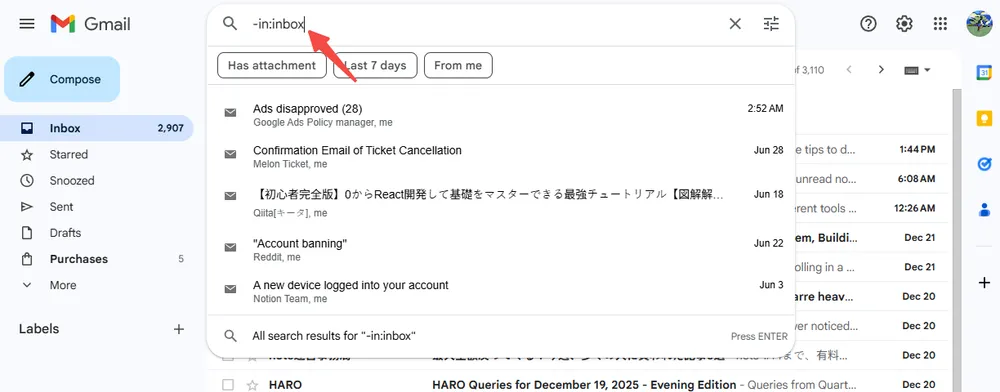
Pro Tips for Precise Recovery: If you still can’t find the message, combine the command above with these filters:
From a specific person: from:[email protected] -in:inbox
With an attachment: has:attachment -in:inbox
Older than a certain time: older_than:1y (Finds archived mail older than 1 year)
By subject: subject:"Project Update" -in:inbox
Using these advanced filters is the secret to solving the "Gmail archived emails missing" problem that often frustrates users on forums like Reddit.
If you are using the official Gmail app on iOS, the process is similar to the desktop:
Tap the three-line menu icon (top left).
Select All Mail.
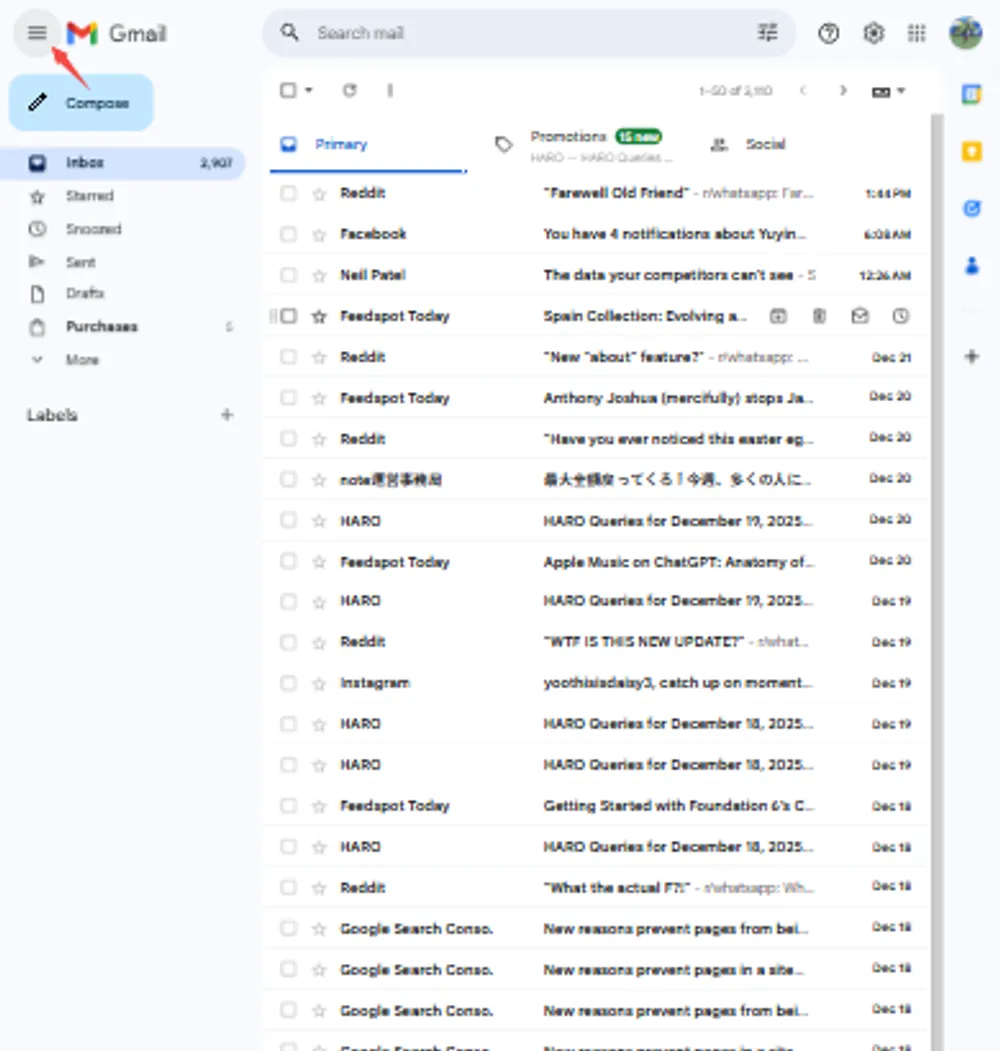
Locate the message (remember: it won't have the "Inbox" label).
Long-press to select it, tap the three dots (top right), and choose Move to Inbox.
Pro Tip: If you are specifically using the default Apple Mail app on iPhone (rather than the Gmail app), the recovery steps are different. Check out our detailed iPhone email recovery guide for specific iOS tips.
On Android, you can retrieve archived emails in Gmail in seconds using these steps:
Step 1: Open the Sidebar. Tap the "hamburger" menu (three horizontal lines) in the top-left corner.
Step 2: Tap "All Mail". This opens the master list where all your archived messages live.
Step 3: Identify & Restore. Find the email you need. Hint: Look for messages that lack the "Inbox" prefix in their tags.
Step 4: Move to Inbox. Long-press the email -> Tap the three vertical dots (top right) -> Select Move to Inbox.
Alternative: Search on Mobile The Gmail app’s search bar automatically includes archived mail. Simply type a keyword or the sender’s name. If the result doesn't show "Inbox" in the details, you’ve found your archived mail!
One of the most common fears is that archived messages will eventually disappear. Most online guides gloss over this, but the truth is simple: Gmail will never automatically delete your archived emails. Unlike the Trash or Spam folders—which Google auto-empties every 30 days—the Gmail All Mail folder is a permanent storage area. However, your emails are only "at risk" in three specific scenarios:
Manual Deletion: If you accidentally click "Delete" instead of "Archive," the email moves to the Trash. Once it sits there for 30 days, it is gone forever.
Storage Limits: If your Google Account exceeds its storage space (15GB limit for free accounts), you will stop receiving new emails, but your existing archived mail will remain safe until you delete it.
Account Inactivity: According to Google’s current policy, if your account remains inactive for 2 years, they reserve the right to delete the content.
The takeaway: As long as you stay within your storage limit and active status, your archived mail is safe indefinitely.
If you’ve checked "All Mail" and used advanced search operators but the emails are still missing, you might be facing a deeper sync or deletion issue. Here is what to do next:
Sometimes, a misconfigured filter or an accidental click sends mail to the Trash instead of the Archive. Remember, Gmail automatically deletes Trash items after 30 days. Use the search command in:trash or in:spam to double-check these locations.
If your emails were visible on your iPhone but disappeared after you tried to archive or move them within the iOS Mail App, the problem might not be with Gmail’s servers, but with the local data synchronization on your device.
Often, sync errors or software glitches during an "Archive" command can cause emails to become inaccessible or "lost" within the iPhone’s local storage. In these specific cases—where the data exists on your iOS device but won't show up in the Gmail app—Gbyte Recovery can help. Our specialized tools are designed to scan iOS local databases and help you recover lost email data on iPhone that cloud-based searches might miss.
If you suspect your account has been compromised or a massive amount of data has disappeared from the cloud, you can use the Gmail Message Recovery Tool. This is a Google-official service that helps recover emails that may have been deleted by someone else without your permission.
Usually, it’s due to a filter error or accidental deletion. If it’s not in All Mail, check your Trash immediately. Also, review Settings > Filters to ensure no rules are auto-deleting your messages.
They reside in the All Mail folder. Gmail doesn't use a separate "Archive" folder; it simply removes the "Inbox" label and keeps the message in your master library.
If a message was deleted and stayed in the Trash for over 30 days, it is purged. Recovery is generally impossible unless the data is still cached on a local device via a mail client.
No. Archiving only decluters your view. Because the email remains in your account, it still counts toward your Google storage quota. Only Deleting (and emptying Trash) frees up space.
Immediately after archiving, click "Undo" on the black notification bar that appears at the bottom of your screen (works on both Desktop and Mobile).
Locating archived mail in Gmail is easy once you stop looking for an "Archive Folder" and start using the All Mail label. By mastering search operators like -in:inbox, you ensure that no important conversation ever stays hidden for long.

 Add Gbyte as a preferred source on Google
Share


Copyright @2026 Gbyte. All rights reserved.
The installation wizard will automatically start after downloading.
After registration, the recovery process can be managed through the web interface.
You get it all with your purchase - no locked features, no hidden limitations.