

Gbyte Repair

Gbyte Repair
Fix 150+ iOS issues yourself, no tech skills needed, no data loss
Table of contents
If your iPhone won't turn on, the right fix depends on what happened before the problem appeared. A black screen, no response, startup failure, or update issue can have different causes — from temporary iOS glitches to system failures or hardware problems.
Use the decision tree below to identify your situation and choose the most suitable solution.
An unresponsive iPhone can have several different causes, and the right fix depends on which one applies to you. Before troubleshooting, it helps to know the five most common categories:
Battery or charging problems — the device may simply lack enough power to start, especially after a full drain or long period unused.
A temporary iOS crash — the screen goes black or freezes with no drop, no water exposure, and no recent update; usually a background process hung.
Stuck on the Apple logo or a boot loop — the phone powers on but never finishes starting, whether or not you've updated recently.
iPhone won't turn on after update — startup problems that began right after installing a new iOS version, almost always caused by an interrupted or corrupted update.
Hardware damage — the phone was dropped, bent, or exposed to water before it stopped responding.
Use the decision tree below to identify which one matches your situation and jump straight to the recommended fix.
Follow the decision tree below — it will point you to the situation and recommended solution that match your case.
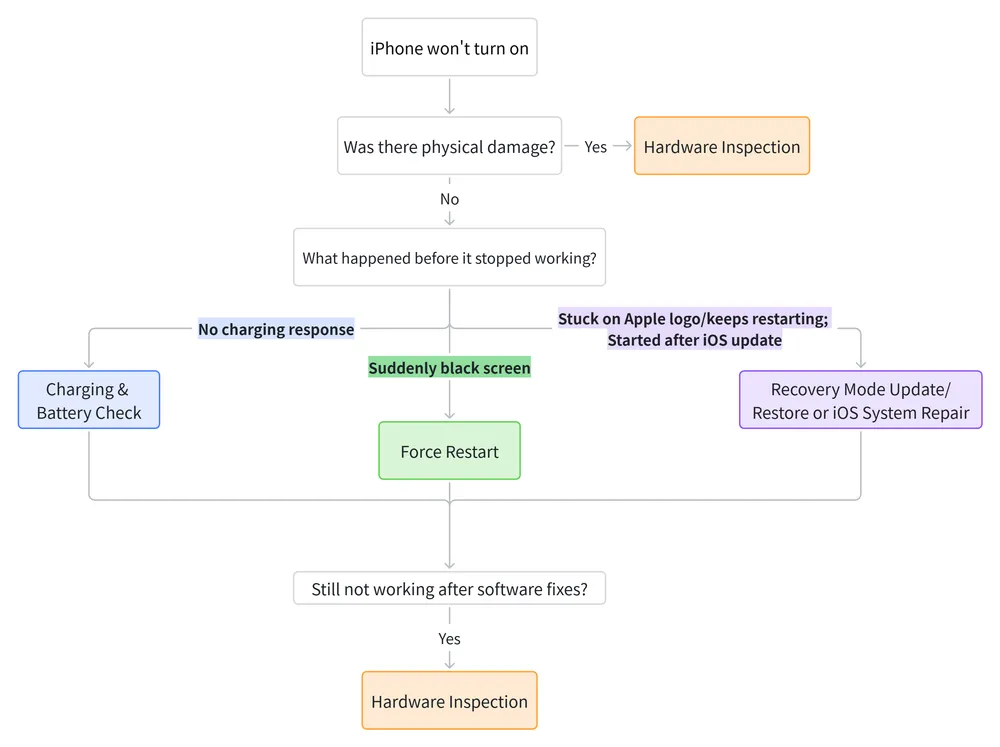
If your iPhone won't turn on after physical damage, such as a drop, bend, or water exposure, software troubleshooting may not be effective. In these cases, the problem is more likely related to internal hardware components, and visiting a repair shop or seeking professional inspection may be the better option.
If there is no physical damage, continue with the situations below to find the software-related fix that matches your problem.
⭐ Recommended Solution: Charging & Battery Check
Before assuming that your iPhone won't turn on because of an iOS problem, it is important to rule out basic power-related issues first. A drained battery, faulty charging connection, or charging accessory problem can make an iPhone appear completely unresponsive.
Best for:
Your iPhone shows no response when connected to a charger
The device was completely drained and cannot turn back on
The iPhone has been unused for a long time
The phone turns off immediately after attempting to start
Advantages

Simple and low-risk to try
Does not erase or affect personal data
Helps rule out common power-related causes quickly
Limitations

Cannot fix iOS system errors or corrupted software
May not help if the battery or other hardware components are damaged
A deeper repair may be needed if the iPhone still shows no response after checking power-related issues
⭐ Recommended Solution: Force Restart
A sudden black screen is often caused by a temporary iOS crash rather than permanent hardware damage. In this situation, a force restart can reload the system and help the iPhone recover without changing your settings or removing your data.
Best for:
Your iPhone screen suddenly turns black while you were using it
The device was working normally before the problem appeared
There was no drop, water damage, or recent iOS update
The iPhone does not respond to buttons or touch
Advantages
Quick, safe, and does not require a computer
Does not erase personal data
Can fix temporary system freezes
Limitations
Cannot repair corrupted iOS files or failed updates
Will not solve hardware-related problems
Need correct button combination based on your iPhone model
👉 Learn how to force restart an iPhone.
If you prefer Apple's official methods first, Recovery Mode is the recommended option to try.
When an iPhone turns on but cannot complete the startup process, the problem is usually related to the iOS system rather than power or charging. Corrupted system files, failed startup processes, or software conflicts can prevent the device from reaching the home screen.
Recovery Mode allows Finder or iTunes to communicate with the iPhone and reinstall or update iOS when the device cannot start normally.
Best for:
Your iPhone shows the Apple logo but never reaches the home screen or keeps restarting repeatedly (boot loop)
The screen stays frozen on the Apple logo for an extended time
Force Restart does not solve the problem
There was no physical damage before the issue started
Advantages
Can fix many startup-related iOS problems
Uses Apple's official recovery process; free
Update option may repair iOS without erasing data
Restore provides a complete system reinstall when Update does not work
Limitations
Restore through Recovery Mode or DFU Mode will erase all data
Requires access to a computer
May not work if the issue is caused by hardware damage
👉 Read our full Update/Restore iPhone via Finder/iTunes guide and learn DFU Mode vs. Recovery Mode.
If Update/Restore through Recovery Mode does not solve the problem, or you prefer a simpler repair process without erasing your data, iOS system repair tools can be a good option.
Third-party iOS system repair tools are designed to fix common iOS system problems, such as startup failures, boot loops, and system freezes. For example, Gbyte Repair offers different repair modes, including Standard Repair and Deep Repair, which focus on resolving system issues while preserving or deleting your data based on your needs.
Best for:
Recovery Mode Update/Restore does not fix the Apple logo or boot loop issue
You want to try a simpler repair process before restoring and erasing the device
The problem appears to be caused by iOS system errors rather than hardware damage
Advantages
Provides additional repair options beyond Apple's built-in recovery methods
Both Repair modes may fix common issues without deleting data
Designed for users who want a simpler repair process
Limitations
Repair features require payment
Cannot fix hardware-related failures
Some severe issues may still require a full restore or professional repair
👉 Learn how iOS Standard Repair mode and Deep Repair mode work.
⭐ Recommended Solution: Recovery Mode Update/Restore or iOS System Repair
When an iPhone won't turn on after update, the problem is usually related to the iOS installation process rather than a hardware failure. An interrupted update, corrupted system files, or failed installation can prevent the device from completing startup.
Because the issue is caused by system-level problems, the recommended solutions are similar to an iPhone stuck on the Apple logo or boot loop:
Recovery Mode Update/Restore via Finder/iTunes — the official Apple method to update or reinstall iOS when the device cannot start normally.
iOS System Repair Software — a good choice if Recovery Mode does not solve the problem, or if you want a stronger repair process that lets you choose to keep or delete your data.
Best for:
Your iPhone stopped turning on immediately after an iOS update
The update process was interrupted by low battery, connection issues, or other errors
The device is stuck on the Apple logo or keeps restarting after updating
Your iPhone stuck in Recovery Mode after a failed update
⭐ Recommended Solution: Seek Professional Help for Hardware Inspection
If your iPhone won't power on after trying software-related solutions such as Force Restart, Recovery Mode Update/Restore, or iOS system repair, the problem may no longer be related to iOS.
At this stage, the issue may be caused by hardware components such as the battery, charging port, display, or other internal parts. If the underlying problem is hardware-related, continuing to try software fixes after multiple failed attempts usually will not help. A professional hardware inspection can identify the actual cause and determine whether a repair is possible.
Best for:
Force Restart does not bring the iPhone back
The device still shows no response after software troubleshooting
You suspect a hardware component may be damaged
Advantages
Helps identify the actual cause of the failure
Can detect hardware problems that software tools cannot fix
Provides professional repair options based on the inspection result
Limitations
May require repair costs depending on the damaged component
Repair time depends on the type of hardware issue
Data recovery cannot always be guaranteed if internal components are damaged
The simple table summarizes the key differences between the five solutions above.
Method | Data Loss Risk | Computer Required | Difficulty | Cost |
Charging & Battery Check | None | No | Easy | Free |
Force Restart | None | No | Easy | Free |
Recovery Mode Update/Restore (Finder/iTunes) | Update: usually none; Restore: erases all data | Yes | Moderate | Free |
iOS System Repair Software | Depends on your choice | Yes | Easy–Moderate | Paid |
Professional Hardware Inspection | Depends on the damage | No (in-person repair) | Hard (professional only) | Varies by repair |
Before settling on a specific method, it's worth considering a few more factors — outlined below.
Before choosing a repair method, consider the following factors to avoid unnecessary risks and select the right solution for your situation.
1️⃣ Do You Need to Protect Your Data?
If your iPhone contains important photos, messages, or files, choose methods that do not require erasing the device first.
Generally:
Usually keeps data:
Force Restart
Update through Recovery Mode
iOS System Repair Tool — Keep Data Option
May erase data:
Restore through Recovery Mode or DFU Mode
iOS System Repair Tool — Erase Data Option
Some hardware repairs, depending on the damage
Always understand the possible data impact before choosing a repair method.
2️⃣ Can Your Computer Detect the iPhone?
Whether Finder or iTunes can detect your iPhone can help determine the next step.
If your iPhone is detected:
Recovery Mode Update/Restore may be available
iOS system repair tools may be able to communicate with the device
If your iPhone is not detected:
The issue may be more serious
Hardware problems become more likely
3️⃣ Know When to Stop Software Troubleshooting
If Force Restart, Recovery Mode, and iOS system repair options all fail, continuing to try more software fixes may not solve the problem.
At this point, a hardware inspection may be a more practical next step to identify possible issues with components such as the battery, charging port, or internal hardware.
A black screen can happen because of a temporary iOS crash, battery-related issues, system problems, or hardware damage. If there is no physical damage, a Force Restart is usually the first solution to try.
Yes. A failed or interrupted update can cause startup problems. This is why some users experience an iPhone won't turn on after update situation.
It depends on the method. Force Restart usually keeps your data, while Restore through Recovery Mode or DFU Mode may erase the device. Third-party iOS system repair software offers repair modes that can preserve or delete data. Always check the data impact before choosing a repair option.
Reputable iOS system repair tools can be safe when used correctly. However, users should choose trusted software, understand the repair limitations, and know that these tools cannot fix hardware-related problems.
First check whether the issue is related to charging, a temporary system crash, an iOS failure, or hardware damage. Follow the decision tree above to find the solution that matches your situation.
 Add Gbyte as a preferred source on Google
Share


Related articles


Copyright ©2026 Gbyte. All rights reserved. Gbyte’s software is not developed by or affiliated with Apple Inc.
The installation wizard will automatically start after downloading.
After registration, the recovery process can be managed through the web interface.
You get it all with your purchase - no locked features, no hidden limitations.