

Gbyte Repair

Gbyte Repair
Fix 150+ iOS issues yourself, no tech skills needed, no data loss
Table of contents
An iPhone stuck in Recovery Mode shows the "connect to computer" screen instead of booting normally, usually caused by a failed update, corrupted system files, or a stuck restore. There are four ways to fix it — from a free force restart to Apple's official Update/Restore, third-party repair software, or professional support — and the right one depends on your specific situation, covered below.
When your iPhone enters Recovery Mode, you may see the "connect to computer" screen with a cable and computer icon. This is Apple's built-in recovery environment designed to help fix serious iOS system problems.
However, an iPhone stuck in Recovery Mode can happen in different situations, and the right solution depends on what you are trying to fix. Common causes include:
Failed iOS updates or interrupted installations
Incomplete restore processes
Corrupted iOS system files
Software crashes or system errors
Jailbreak-related issues
Hardware problems affecting the startup process
Before trying random fixes, understand your situation first so you can choose the right solution for your case.
👉 Read the full Recovery Mode guide.
Whether your iPhone entered Recovery Mode unexpectedly or you entered it yourself while trying to fix a problem, the goal is usually the same: get your iPhone out of Recovery Mode while avoiding unnecessary data loss whenever possible.
Think of it this way — start with the decision tree below, then jump straight to the situation that matches yours.

⭐ Recommended Situation: Your iPhone Stuck in Recovery Mode and You Want to Exit
If your iPhone entered Recovery Mode unexpectedly and you simply want to return it to normal operation, a force restart is the first method to try. This quick troubleshooting step may help your device exit Recovery Mode without changing system settings or erasing your data.
Quick Steps:
Press and release the volume button(s) depending on your iPhone model.
Hold the Side button until the Apple logo appears.
Wait for your iPhone to restart.
Best for:
You see the connect to computer screen but have not started a restore process
Your iPhone unexpectedly entered Recovery Mode
Your iPhone is temporarily frozen or unresponsive
You want to try a quick fix before using recovery or restore methods

Advantages

Limitations
👉 Read the full Force Restart iPhone guide
⭐ Recommended Situation: Your iPhone is still stuck in Recovery Mode after a force restart and you want to use Apple's official recovery method.
If a force restart does not work and your iPhone remains stuck in Recovery Mode, updating or restoring your device through Finder or iTunes is the official Apple method to recover the system. This process reinstalls iOS and can fix software issues that prevent your iPhone from starting normally.
If you want to avoid data loss, try the Update option first. It attempts to reinstall iOS without erasing your data. If the Update process fails, you can choose Restore to reinstall iOS completely, but this will erase all content on your iPhone.
If Finder or iTunes cannot complete the restore while your iPhone is in Recovery Mode, you can try putting your iPhone into DFU Mode and restoring it again through Finder or iTunes.
DFU Mode is a deeper recovery state that bypasses the normal iOS boot process and can help with more serious system issues. However, unlike Recovery Mode Update, DFU restore requires reinstalling iOS and will erase your data, so make sure you have a backup if possible.
Quick Steps:
Connect your iPhone to a computer.
Open Finder or iTunes/Apple Devices.
Choose Update first if available.
Choose Restore if Update fails.
If standard Recovery Mode restore does not work: Enter DFU Mode.
Restore your iPhone through Finder/iTunes.
Best for:
Your iPhone won't exit recovery mode after trying a force restart
Recovery Mode was caused by a failed iOS update, interrupted installation, or system error
You prefer a free and official Apple solution
Advantages
Limitations
👉 Read the full Update or Restore iPhone via Finder/iTunes guide
⭐ Recommended Situation: Your iPhone is still stuck in Recovery Mode after trying Apple's official methods, or you want an easier way to fix the issue.
Some iOS system repair tools, such as Gbyte Repair, offer a free one-click option to exit Recovery Mode. Once your iPhone is detected by the software, you can exit Recovery Mode without going through a full restore process.
Quick Steps:
Download and install iOS repair software.
Connect your iPhone to a computer.
Wait until the device is detected, then click Exit Recovery Mode to restart your iPhone normally.
Best for:
Your iPhone accidentally entered Recovery Mode
Force restart does not work
You want to exit Recovery Mode without restoring your iPhone
Advantages
Limitations
⭐ Recommended Situation: Apple's official methods failed, and you need a deeper repair option for iOS system issues.
Quick Steps (Using Gbyte Repair as an example):
Connect your iPhone to a computer and wait for Gbyte to detect your device.
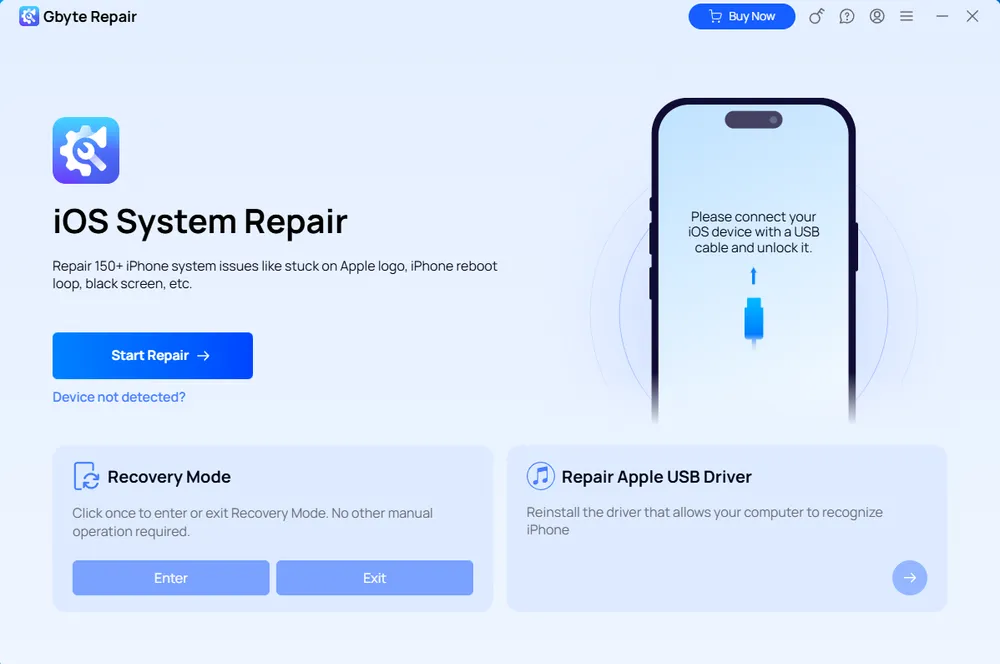
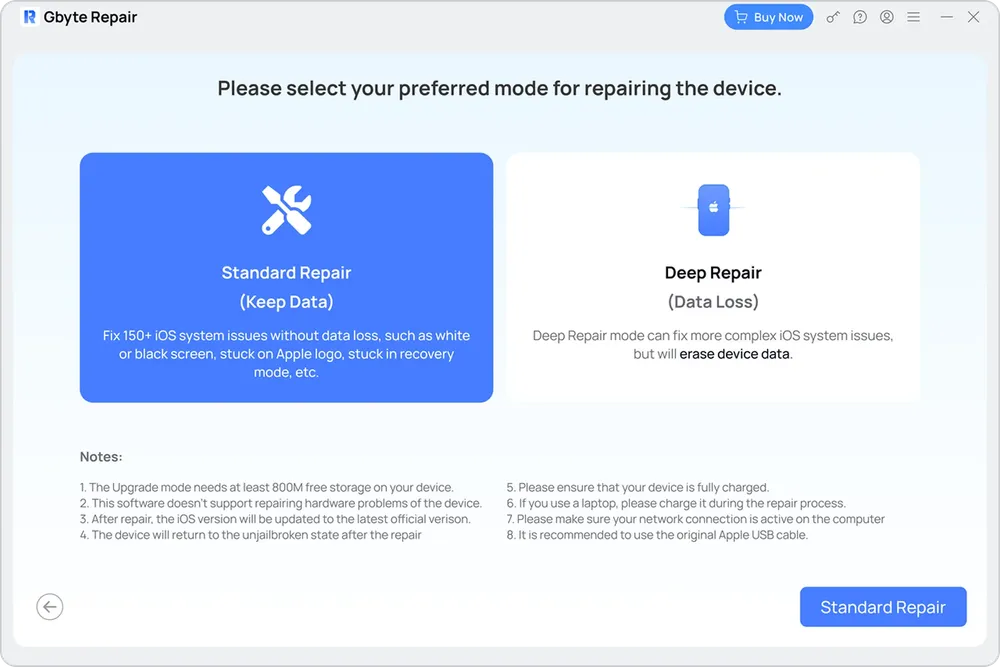
Click Start Repair and choose Standard Repair or Deep Repair mode.
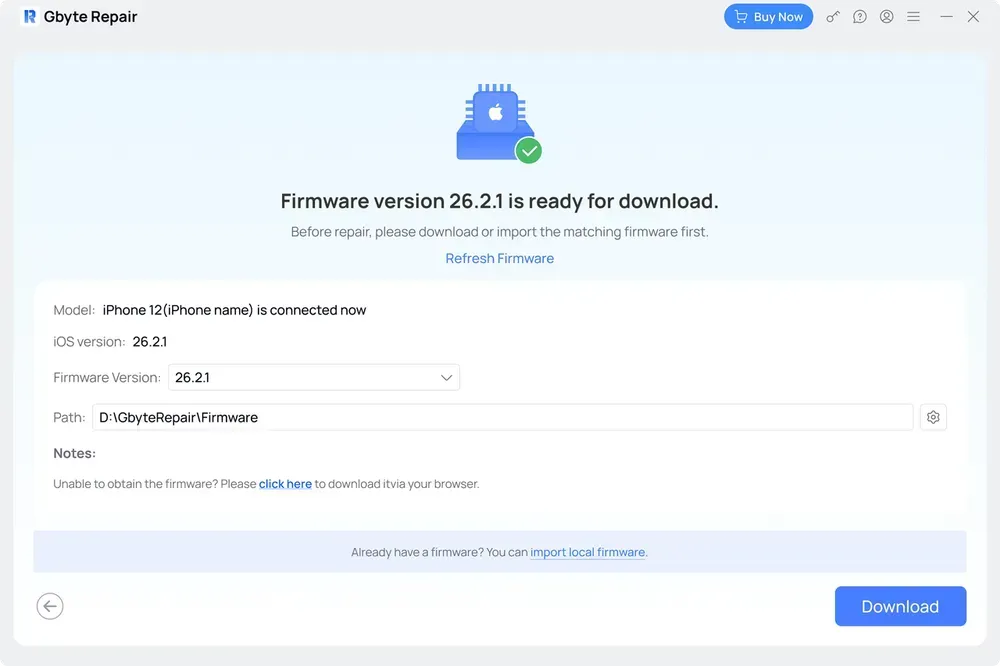
Download the matching firmware package provided by the software.
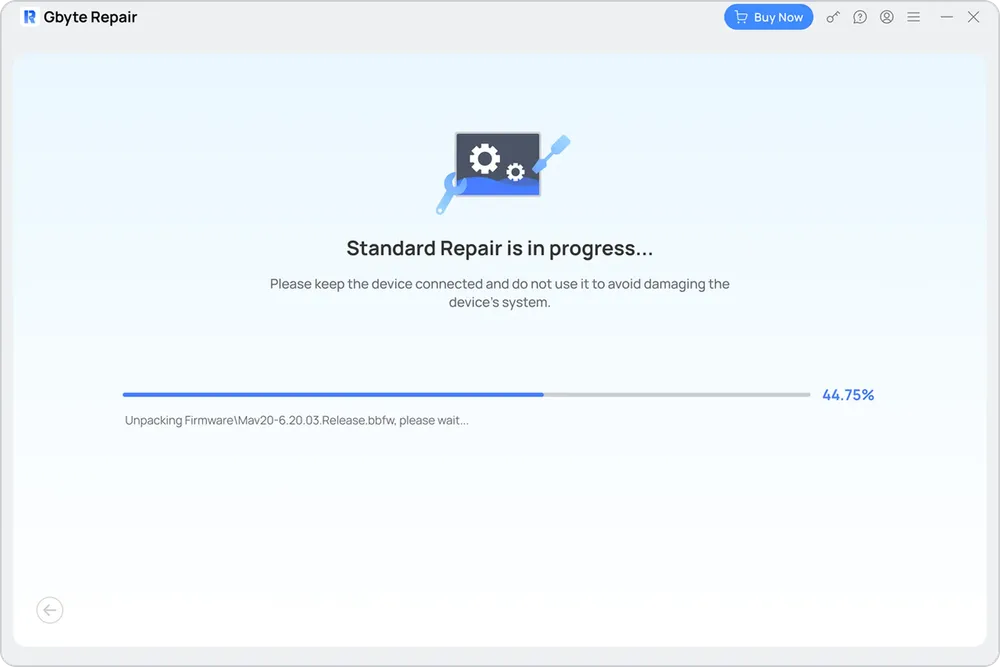
Start the repair process and wait until your iPhone restarts.
Best for:
Your iPhone keeps returning to Recovery Mode after restarting
Finder/iTunes restore fails or shows errors
Your iPhone has serious iOS system issues caused by failed updates, interrupted installations, or corrupted system files
You want an alternative solution before considering hardware-related problems
Advantages
Limitations
👉 Check the full iOS Standard Repair and Deep Repair Mode guide
⭐ Recommended Situation: Your iPhone remains stuck in Recovery Mode after trying software-based solutions, or you suspect a hardware problem.
If your iPhone cannot exit Recovery Mode after force restart, Finder/iTunes recovery, or iOS repair tools, the issue may be related to hardware components or deeper system failures. In this situation, professional diagnosis can help identify the actual cause and provide a suitable repair option.
Best for:
Your iPhone remains stuck in Recovery Mode after trying all software methods
Finder/iTunes cannot detect or restore your device
Recovery attempts repeatedly fail with different errors
Your iPhone has possible hardware issues, such as damage from drops, water, or component failure
Advantages
Limitations
Different solutions work for different situations. Use this comparison table to quickly find the method that matches your needs.
Solution | Best For | Data Loss Risk | Computer Needed | Time Required | Cost | Difficulty | Location |
Force Restart | Exiting Recovery Mode quickly — try this before anything else | No | No | 10–30 seconds | Free | Easy | At home |
Finder/iTunes Update or Restore | Official recovery after Force Restart fails | Update: Usually No; Restore: Yes | Yes | 20–60+ min | Free | Medium, error-prone | At home |
iOS System Repair Software | Recovery Mode loop, restore failures, or other iOS issue scenarios | Standard Repair: Usually No; Deep Repair: Usually Yes | Yes | ~10 min (excl. firmware download, depends on internet) | Paid (some features are free) | Easy | At home |
Apple Support or Repair Service | Software methods fail or hardware issues are suspected | Depends on repair, data loss risk | No | Hours to days | Varies | Difficult | In-store |
In most cases, start with the least invasive method first. Try a force restart first, then move to official recovery methods or advanced repair options if the problem continues.
After trying basic fixes, you may wonder whether to continue with Apple's official recovery methods or use a third-party repair tool. Both options can help when an iPhone is stuck in Recovery Mode, but they work differently.
Apple Official Recovery Methods
Apple's official methods use Finder, iTunes, or the Apple Devices app to update or restore your iPhone when it is stuck in Recovery Mode.
Pros

Free and officially provided by Apple
No third-party software required
Safe and suitable for standard Recovery Mode issues
No jailbreaking or rooting is essential.
Cons

Restore may erase all data if Update fails
Requires a computer
May not solve repeated Recovery Mode issues or failed restore attempts
Third-Party iOS System Repair Software
Third-party repair tools provide additional options when your iPhone remains stuck in Recovery Mode after official methods fail or when you want to avoid a full restore.
Pros
Provides a free one-click Recovery Mode exit option in some tools
Offers repair modes designed for iOS system issues
Can provide a data-preserving option before choosing a full restore
Easier workflow compared with repeated restore attempts
Cons
Advanced repair features usually require payment
Cannot fix hardware-related problems
Cannot bypass legitimate Activation Lock
Before trying any Recovery Mode solution, keep these points in mind to avoid unexpected data loss or unnecessary troubleshooting.
Try the least invasive methods first
A Recovery Mode issue does not always require a restore. Start with a force restart first, then move to Update, Restore, or repair tools if the problem continues.
Back up your iPhone whenever possible
Some recovery methods, especially Restore through Finder/iTunes or Deep Repair options, Deep Repair through third-party repair tools may erase your data. If your iPhone can still be accessed, create a backup before proceeding.
Make sure your computer and connection are reliable
Recovery processes can fail because of:
Unstable USB connection
Outdated Finder/iTunes or Apple Devices app
Interrupted firmware downloads
Network problems during firmware verification
Use a reliable cable and stable internet connection before starting.
Try a force restart first. If your iPhone remains stuck, you can use Finder/iTunes to update or restore it. If official methods fail, an iOS system repair tool may provide another option.
Your iPhone may be stuck because of failed iOS updates, system errors, corrupted files, or a restore process that did not complete successfully.
No—Recovery Mode itself doesn't erase your data. But some of the solutions used to get your iPhone out of Recovery Mode may delete it, so it depends on which method you choose.
Yes, in some situations. Start with a force restart, then try the Update option in Finder/iTunes. Some iOS system repair tools also provide data-preserving repair options.
Reputable iOS repair tools can be safe when used correctly. However, always choose trusted software, avoid tools that claim to bypass Activation Lock, and back up your iPhone before performing major repairs.
There's no official time limit — it can sit there indefinitely without damage if left alone, since it won't exit on its own. The main downside is battery drain, so it's worth forcing a restart or starting a fix rather than leaving it plugged in for hours.
 Add Gbyte as a preferred source on Google
Share


Related articles


Copyright ©2026 Gbyte. All rights reserved. Gbyte’s software is not developed by or affiliated with Apple Inc.
The installation wizard will automatically start after downloading.
After registration, the recovery process can be managed through the web interface.
You get it all with your purchase - no locked features, no hidden limitations.