

Gbyte Repair

Gbyte Repair
Fix 150+ iOS issues yourself, no tech skills needed, no data loss
Table of contents
Your iPhone green screen problem usually comes down to one of four situations:
Slight green tint, phone still works — check Display & Accessibility settings first.
Solid green screen, repeated flickering, or green lines appearing suddenly with no clear cause (and no drop or liquid exposure) — start with a force restart, then try an iOS repair path (Finder/iTunes or Gbyte Repair) if it persists.
Green screen appeared right after an iOS update — force restart first; if it's still stuck, reinstall iOS via Finder/iTunes or Gbyte Repair.
Green screen or lines after a drop or liquid exposure, or nothing above worked — this is usually hardware. Back up your data if the screen still responds, and get it checked.
(💡 If green lines are your main symptom, they're more often hardware-related than solid green or flickering — a force restart is still worth trying, but don't be surprised if a hardware inspection ends up being the faster path.)
An iPhone green screen can look alarming, but it does not always mean the display is permanently damaged. In many cases, the fix is quick and free — the real challenge is knowing which fix actually applies to your situation.
The easiest fix depends on what the green screen looks like and what happened right before it appeared. Instead of trying every possible solution one by one, use the guide below to find your exact situation and jump straight to the right fix.
A green screen means the display is showing an unintended green cast instead of your normal screen — this can range from a faint tint you can still see through, to green lines running across the display, to the entire screen turning solid green with nothing else visible. Some people call this the iPhone green screen of death, but the name is misleading: in most cases it does not mean your iPhone is dead, and it does not always require a repair.
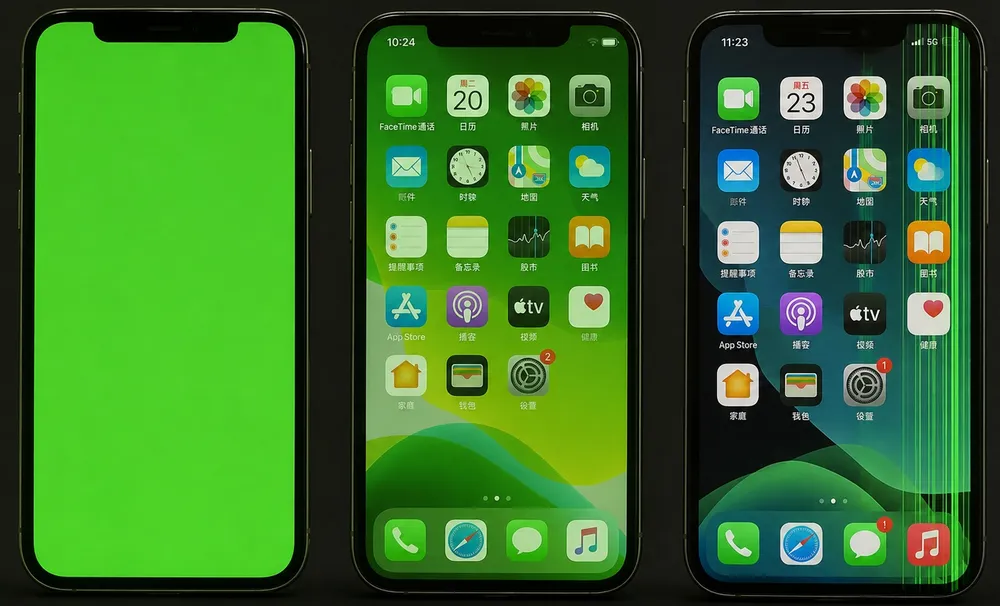
The severity of what you're seeing is actually a useful clue. A subtle tint that still lets you use the phone normally points toward a software or settings issue. A solid green screen with no response to touch is more likely to need a deeper fix — but even then, it is not automatically a hardware failure.
An iPhone screen turning green generally points to either a software-related display problem or a hardware display problem. Knowing which is more likely can save you from trying unnecessary fixes.
⚙️ Software-related causes may include a temporary iOS glitch, an issue after an iOS update, incorrect display settings, or a deeper system problem. These cases are more reasonable candidates for software troubleshooting, especially when the iPhone has not been dropped or exposed to liquid.
🔩 Hardware-related causes can include OLED display failure, a damaged screen or display connection, impact damage, or liquid exposure. If the problem began immediately after physical damage, repeatedly updating, restoring, or repairing iOS is unlikely to fix the damaged hardware.
Quick check: If your iPhone is still usable and you haven't dropped it or been exposed to liquid, take a screenshot and view it on another device. If the screenshot looks normal but the green still shows on your iPhone, the issue is likely the display hardware itself. If the green also appears in the screenshot, it's more likely a software issue worth troubleshooting first.
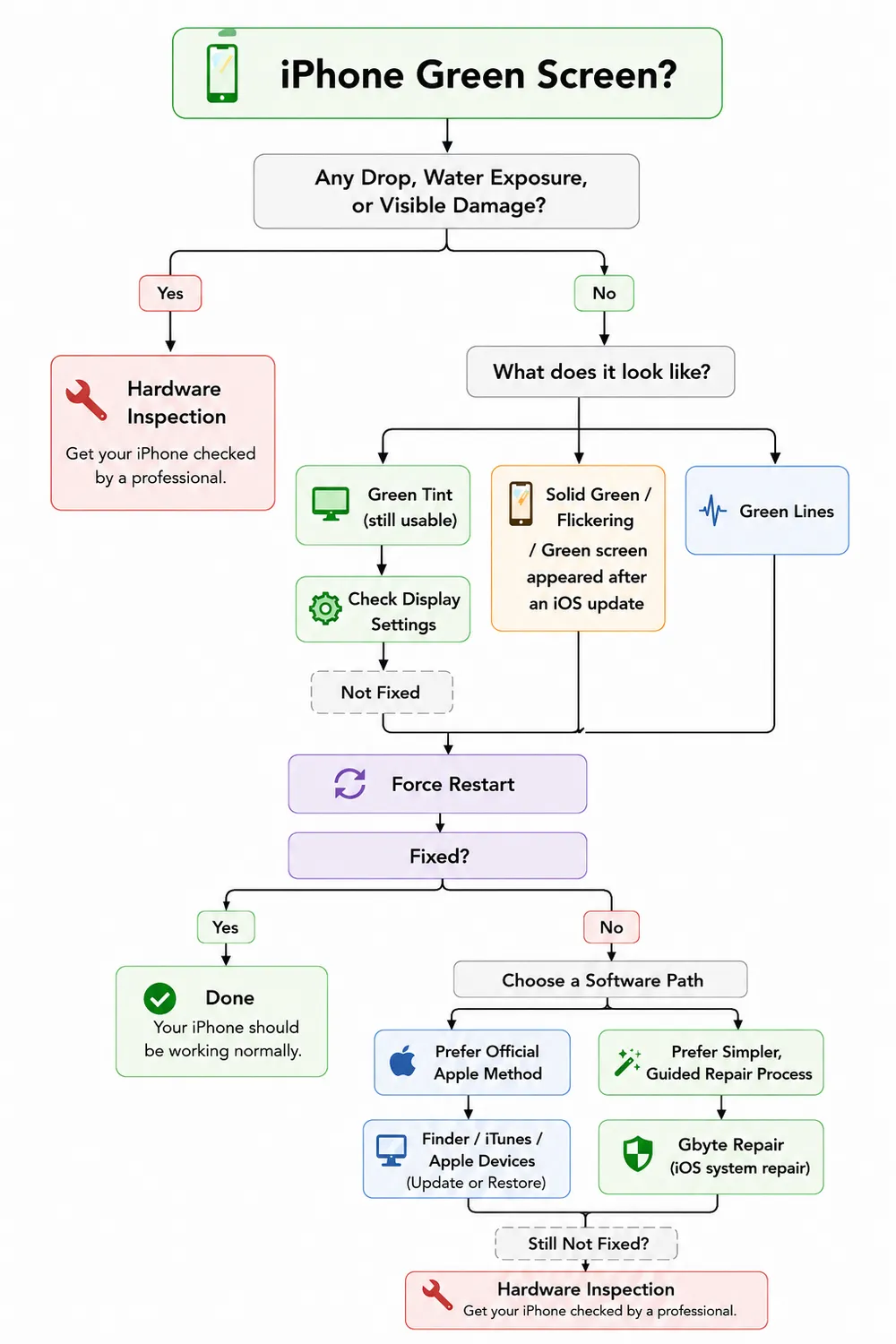
🎯 Found your situation? Jump to the recommended fix:
Drop, water exposure, or visible damage or software troubleshoot fails: Hardware Inspection
Green tint and still usable: Check Display Settings First
Solid green, flickering, green lines, or appeared right after an iOS update: Force Restart (If it's green lines specifically, this is more often a hardware sign — worth trying once, but don't be surprised if it points to Hardware Inspection next.)
Still green after a force restart: Choose a Software Repair Path (💡 You can also try both before hardware inspection.)
Prefer an official Apple method → Finder / iTunes (Apple Devices)
Prefer a simpler, guided repair process → Gbyte Repair
✅ Recommended if: the screen only shows a faint green tint and everything still works normally.
Features like True Tone, Night Shift, or Color Filters can shift the screen's color balance enough to look like a green cast, especially in warm lighting or Dark Mode.
Quick Steps:
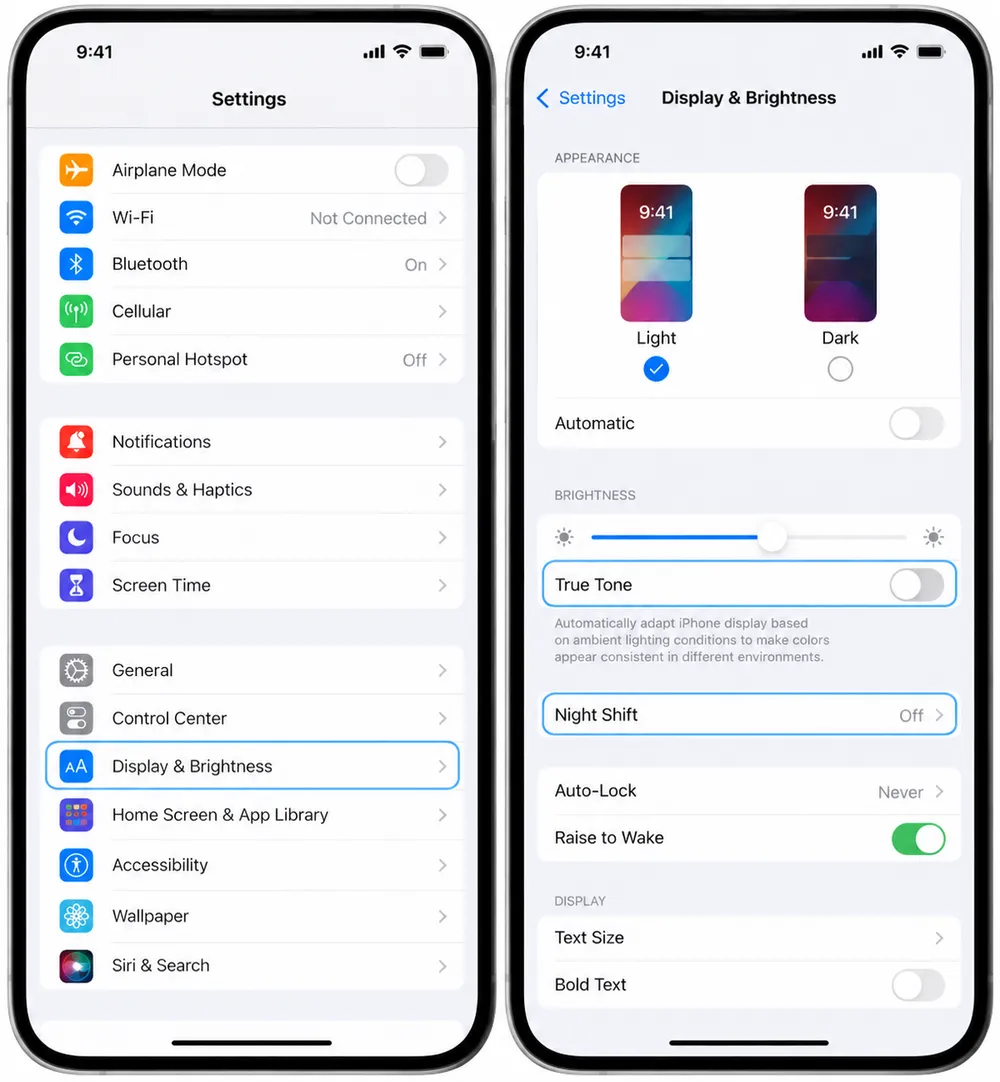
Go to Settings > Display & Brightness and turn off True Tone and Night Shift.
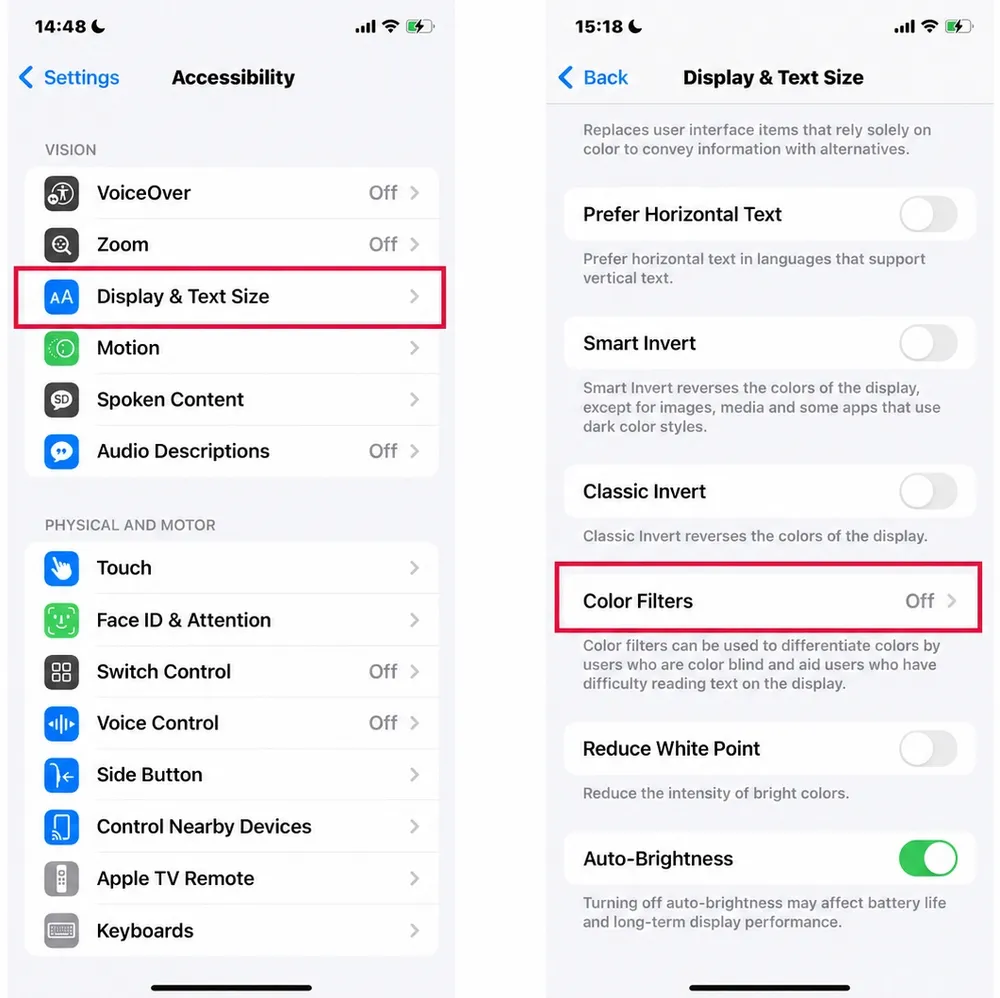
Go to Settings > Accessibility > Display & Text Size > Color Filters and make sure it's off, or that no filter is set to a green tone.
Restart your iPhone normally and see if the tint is gone.
Pros

Free
Quick
No computer required
No data loss
Cons

only fixes tint-type discoloration — if the screen is solid green, flickering, or showing lines, this step won't help.
Still seeing green? Try a force restart next to rule out a temporary iOS or display glitch.
✅ Recommended if: display settings didn't fix a tint, or your screen shows solid green, repeated flickering, or green lines — and you've already ruled out an obvious drop, liquid exposure, or visible crack.
📝 Note: Green lines are worth a quick force restart, but they're more often a sign of a hardware issue (like a loose display connector or a failing OLED panel) than solid green or flickering are. If a force restart doesn't clear it right away, it's reasonable to move straight to a hardware inspection rather than working through every software step.
A force restart clears temporary system glitches without touching your data. It's the single most effective first move for a software-related green screen, which is why it sits at the center of almost every fix path.
Button combinations differ across iPhone models.
👉 Read the full Force Restart iPhone guide to see the exact steps for your model
Pros
Free
Quick
No computer required
No data loss
Cons
only clears temporary glitches — if the cause is a failed update deeper in the system, or actual hardware damage, this alone won't fix it.
If your screen responds to touch, it's also worth checking for a pending update (Settings > General > Software Update) around this same step, since a stuck update is one of the most common software causes of a green screen.
Still green after this? Before trying anything else, double-check for any physical damage you might have missed — a hairline crack or a slightly separated edge is easy to overlook. If there's genuinely none, move on to choosing a software repair path next.
✅ Recommended if: a force restart didn't fix the green screen and you want to try an at-home fix before considering a hardware repair.
The fix now requires reinstalling the iOS system files that control the display. There are two ways to do this, and they're not mutually exclusive: you can try the free official method first and fall back to the guided tool if it doesn't work, or skip straight to whichever one fits how hands-on you want to be.
Connect your iPhone to a computer, put it into Recovery Mode, and choose Update or Restore in iTunes or Finder.
Update: reinstalls iOS while attempting to keep your data.
Restore: erases the iPhone and reinstalls iOS.
👉 Read our detailed guide to Update or Restore via iTunes or Finder, including how each option works, their differences, and when to use them.
Pros:
Free
Official Apple method
Update can reinstall iOS without intentionally erasing your data
Cons:
Requires a computer and several manual steps
Less beginner-friendly
You may also run into issues such as iTunes not recognizing iPhone or errors like 4013 and 9 during the update or restore process
Note: On Windows 10 and later, Apple also offers the Apple Devices app for updating, restoring, backing up, and managing your iPhone. It serves as the newer alternative to iTunes for device management on supported Windows PCs.
If you prefer a simpler, guided repair process, Gbyte Repair provides a more straightforward way to repair software-related iOS problems without iTunes or Finder. This reliable tool can fix an iPhone with green screen caused by system-related problems. Besides this screen issue, it can also help resolve iPhone black screen, white screen, Apple logo stuck, etc. It offers data-preserving and data-erasing repair options.
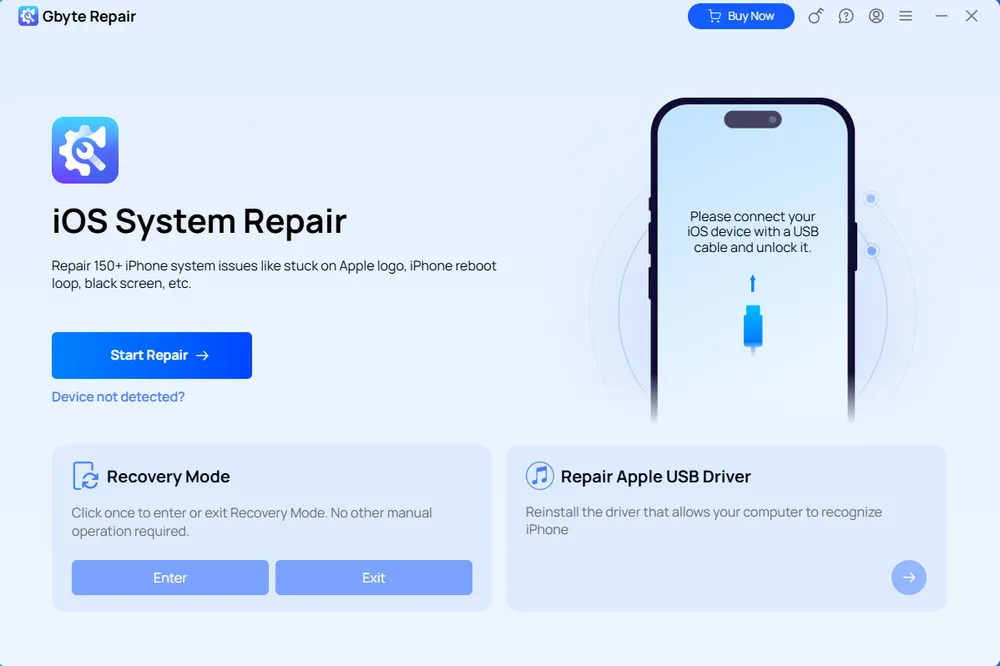
Quick Steps:
Install and launch Gbyte Repair on your PC.
Connect your iPhone and let Gbyte detect the device.
Click Start Repair and choose the repair option that fits your situation.
When your iPhone isn't responsive, follow the on-screen instructions to put it in Recovery Mode.
Download the required firmware and start the repair. Gbyte guides you through the process on screen.
Pros
Beginner-friendly
Lets you choose between a data-preserving repair and a data-erasing repair
Covers 150+ iOS issues beyond green screens
Cons
Not a completely free tool
Still can't help if the real cause turns out to be hardware
👉 See the full Gbyte Repair user guide for detailed instructions.
⚠️ Neither option works? At this point, the cause is very likely hardware — a damaged display or a loose internal connection that no software fix can reach. Time to move on to a hardware inspection.
✅ Recommended if: the green screen started right after a drop or liquid exposure, there's visible damage to the screen or frame, or neither software method above fixed it.
Software can reinstall system files, but it can't reconnect a loose display cable or repair a cracked or damaged OLED panel. A hardware inspection — whether at an Apple Store, an authorized service provider, or a trusted third-party repair shop — is the only reliable next step.
Before handing over your phone, back up what you can: via iCloud or your computer if the screen still partially responds to touch, or by connecting it to a computer if it doesn't respond at all. A screen replacement typically doesn't affect your stored data, but it's worth having a backup in case the phone doesn't power on during diagnosis.
Pros
The only fix that actually addresses physical damage
Permanent solution
Cons
Paid
Takes longer than any software method (hour-to-day, depending on the provider)
You can't do it yourself
You've now seen each method in detail — here's how all five compare side by side if you want the full picture before choosing.
Method | Best For | Difficulty | Data Loss Risk | Computer Required | Time Needed | Cost | Location |
Display Settings | Slight green tint while iPhone works | Easy | None | No | < a minute | Free | At home |
Force Restart | Temporary software/display glitch | Easy | None | No | < a minute | Free | At home |
Update & Restore via iTunes/Finder | iOS update failures or deeper software faults | Moderate | Low updating; high when restoring | Yes | 20-60+ min | Free | At home |
Gbyte Repair | Possible software-related iOS issue | Easy | Depends on selected repair option | Yes | ~10 min after firmware download | Affordable, paid | At home |
Hardware Repair | OLED/display damage, drop, liquid exposure | N/A (handled by a professional) | Depends on repair | No | Hour-to-day | Paid | In-store |
If the problem appears software-related, start with the least disruptive option and escalate only when necessary.
Yes. A failed or incomplete iOS update can leave the display stuck rendering incorrectly. A force restart or iOS reinstall usually fixes it.
When your iPhone screen green issue shows up, match the fix to the symptom: check display settings for a tint, force restart for solid green or flickering, reinstall iOS if that fails, or get a hardware inspection if it followed a drop or liquid exposure.
A green tint is a mild color cast that still lets you use the phone normally. The "Green Screen of Death" refers to more severe cases — solid green, lines, or an unresponsive screen — but it's usually still fixable.
Yes, in most cases. Software causes are fixed with a restart, an iOS reinstall, or a repair tool. Only physical display damage requires a hardware repair.
Free options like a restart, settings check, or an official iOS reinstall can often fix a software-related green screen. Paid repair tools or a hardware inspection cost more — check Apple's site or a local repair provider for current pricing.
Only if it's a genuine defect — Apple's standard warranty doesn't cover accidental damage. If the green screen followed a drop or liquid exposure, you'll need AppleCare+ for a reduced repair fee.
 Add Gbyte as a preferred source on Google
Share


Related articles


Copyright @2026 Gbyte. All rights reserved.
The installation wizard will automatically start after downloading.
After registration, the recovery process can be managed through the web interface.
You get it all with your purchase - no locked features, no hidden limitations.