

Gbyte Repair

Gbyte Repair
Fix 150+ iOS issues yourself, no tech skills needed, no data loss
 Gbyte Editorial Team
Table of contents
A force restart is a hardware-based reboot method that forces an iPhone to restart when normal controls are unavailable. Unlike a factory reset or restore, it does not erase data, remove apps, or change iOS settings.
It works by interrupting the current system state and clearing temporary memory (RAM), making it effective for temporary software freezes, unresponsive screens, and minor iOS glitches. However, because it does not repair system files or modify iPhone storage, it cannot fix deeper issues such as corrupted iOS files, failed updates, or persistent boot loops.
This guide explains what force restart is, how it works, when to use it, which iPhone models support it, and what to do if force restart does not solve the problem.
A force restart is a method of restarting an iPhone using a specific combination of physical buttons instead of the normal shutdown process inside iOS.
Under normal conditions, turning off an iPhone requires iOS to respond first. You open the power menu, slide to shut down, and the system performs an orderly shutdown.
A force restart bypasses this software-controlled process. It directly triggers the device hardware to restart, which is why it can work even when:
The touchscreen is frozen
The iPhone cannot respond to taps
Apps are completely stuck
The system interface stops working
Although some users call it a "hard reset," a force restart is not the same as resetting an iPhone to factory settings. A factory reset removes all content and settings, while a force restart only reboots the device.
A force restart works at the hardware level rather than the software level. When you perform the correct button sequence for your model, the device's hardware directly cuts power to the processor and forces a cold reboot — similar to unplugging a desktop computer instead of clicking "Shut Down."
During this process:
Temporary memory (RAM) is cleared
Frozen processes and background tasks are terminated
iOS starts a fresh boot sequence
This explains why force restart can fix temporary system freezes.
However, force restart does not:
Repair damaged iOS system files
Replace corrupted firmware
Remove failed update packages
Modify user data stored on the device
In simple terms:
Force restart fixes problems caused by a system state being stuck. It does not repair problems caused by damaged system components.
A force restart is only one of the simplest ways to recover an unresponsive iPhone. Depending on the cause of the issue, different recovery methods work at different levels. Some methods only refresh the current system state, while others reinstall iOS components or completely erase the device.
The main difference between these methods is how deeply they affect the iPhone system and whether they change the data stored on the device.
Method | Computer needed | Difficulty | Data Impact | Best For |
Normal Restart | No | Easy | No data loss | Minor slowdowns, temporary glitches |
Force Restart | No | Easy | No data loss | Frozen screens, unresponsive touch, stuck apps |
Recovery Mode Update / Restore | Yes | Medium | Update: no data loss; Restore: erases all data | Failed updates, certain system errors, or severe software corruption |
DFU Mode | Yes | Difficult | Apple tools (Finder/iTunes) only offer Restore (data erased), while third-party tools may provide both no-data-loss and data-erasing repair modes. | Devices that can't enter Recovery Mode, or firmware-level corruption Recovery Mode can't fix |
Factory Reset | Usually No | Medium | Erases all data | Selling the device or starting from a clean state |
Third-Party iOS System Repair Tools | Yes | Easy | Depends on the repair mode selected | Simplified, one-click fixes for various iOS errors |
Force restart is usually the safest first troubleshooting step because it requires no computer, no software, and no risk of data loss.
⚠️ Force Restart vs Hard Reset: Are They the Same?
The terms "force restart" and "hard reset" are often used interchangeably online, but they don't always mean the same thing — "hard reset" isn't a technical term used in Apple's official documentation.
For iPhone users, hard reset usually refers to a force restart — using a specific button combination to restart a frozen device without deleting data.
However, it shouldn't be confused with a factory reset, which permanently removes all content, settings, and personal information from the iPhone. The distinction that actually matters isn't between these two names — it's between Force Restart and Factory Reset, compared in the table above.
A force restart is most useful when an iPhone is frozen or temporarily unresponsive. However, its effectiveness depends on the root cause of the problem.
Because force restart only refreshes the current system state, it works best for temporary software freezes but cannot repair damaged iOS components or hardware problems.
Try a force restart first when the iPhone appears to be frozen but the issue is likely caused by a temporary system hang.
Problem | Why It May Help |
iPhone screen is frozen | Restarts the system when normal controls cannot be used |
Touchscreen is not responding | Works without requiring screen interaction |
Apps are completely stuck | Terminates frozen processes and reloads iOS |
iPhone has a black screen but is still running | May recover from a temporary software hang |
Device is not responding to buttons or touch | Provides a hardware-level restart |
Force restart is worth trying for these problems, but the underlying cause may be more serious than a temporary system freeze.
Problem | Why It May Not Be Enough |
The issue may involve corrupted iOS files | |
Could be caused by firmware or system errors | |
Failed iOS update | Update interruption may have damaged system components |
iPhone stuck verifying update | May require deeper system recovery |
May stem from corrupted system files or hardware faults | |
iPhone repeatedly restarts after reboot | The root cause may return after restarting |
Force restart cannot solve problems that require repairing, replacing, or modifying parts of the device.
Problem | Why It Cannot Help |
Water damage | The cause is physical hardware damage |
Broken internal components | A restart cannot repair damaged hardware |
Defective battery | Power-related hardware issues require repair |
Damaged display hardware | Screen problems are unrelated to system state |
iPhone requires firmware reinstallation | Restarting cannot replace corrupted system files |
A force restart is simple, but several conditions must be met.
The iPhone must have some battery power
If the device has a completely empty battery, it may not respond.
Try:
Connect the iPhone to a charger.
Wait 15–30 minutes.
Perform the force restart again.
Physical buttons must work
Force restart depends on hardware buttons.
It may fail if:
Volume buttons are stuck
Side button is damaged
Home button is not functioning
The correct button sequence must be required
Force restart commands vary by iPhone generation, so the correct button combination must be used for your specific model. Timing is also important: on iPhone 8 and later, the Volume Up and Volume Down buttons should be pressed and released quickly before holding the Side button. Pressing buttons too slowly or holding them in the wrong order may not trigger the restart.
All steps, button sequences and screenshots are sourced from Apple Support.
Supported models:
iPhone 8 / 8 Plus
iPhone SE (2nd generation and later)
iPhone X series
iPhone 11 series
iPhone 12 series
iPhone 13 series
iPhone 14 series
iPhone 15 series
iPhone 16 series
iPhone 17 series
Steps:
Quickly press and release the Volume Up button.
Quickly press and release the Volume Down button.
Press and hold the Side button.
Release the Side button when the Apple logo appears.
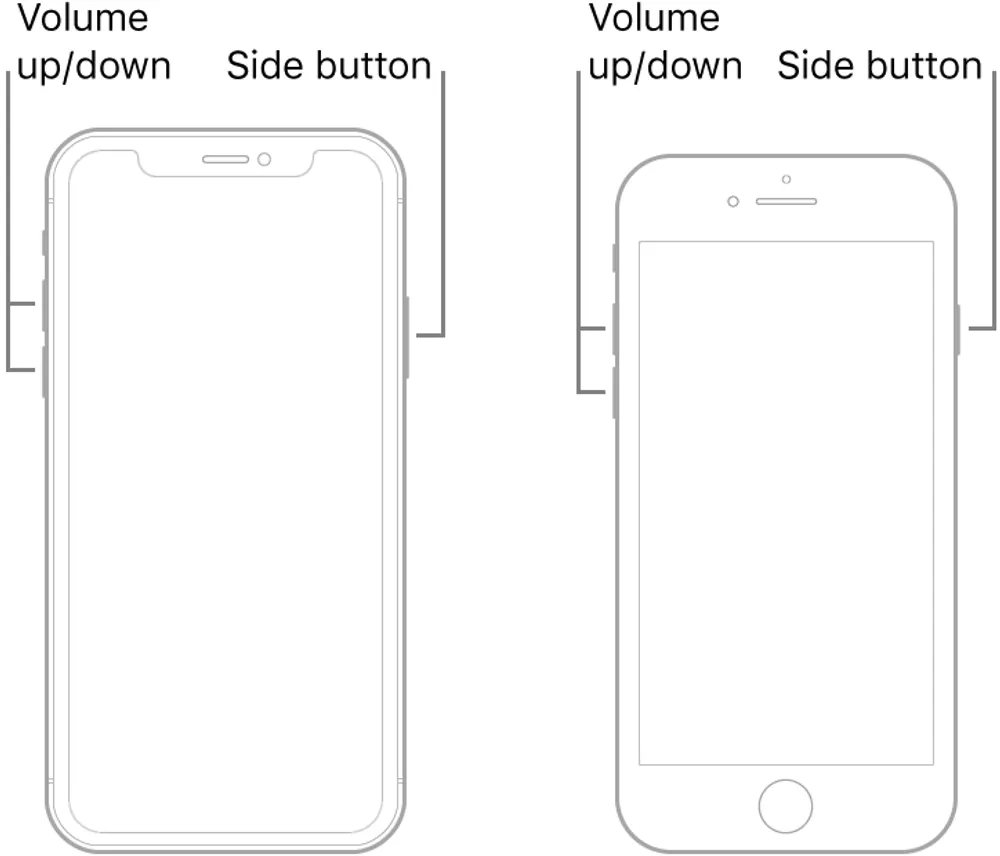
Note: The Apple logo may take several seconds to appear. Continue holding the Side button if the screen remains black temporarily.
Steps:
Press and hold both the volume down button and the Sleep/Wake button.
Keep holding until the Apple logo appears, then release.
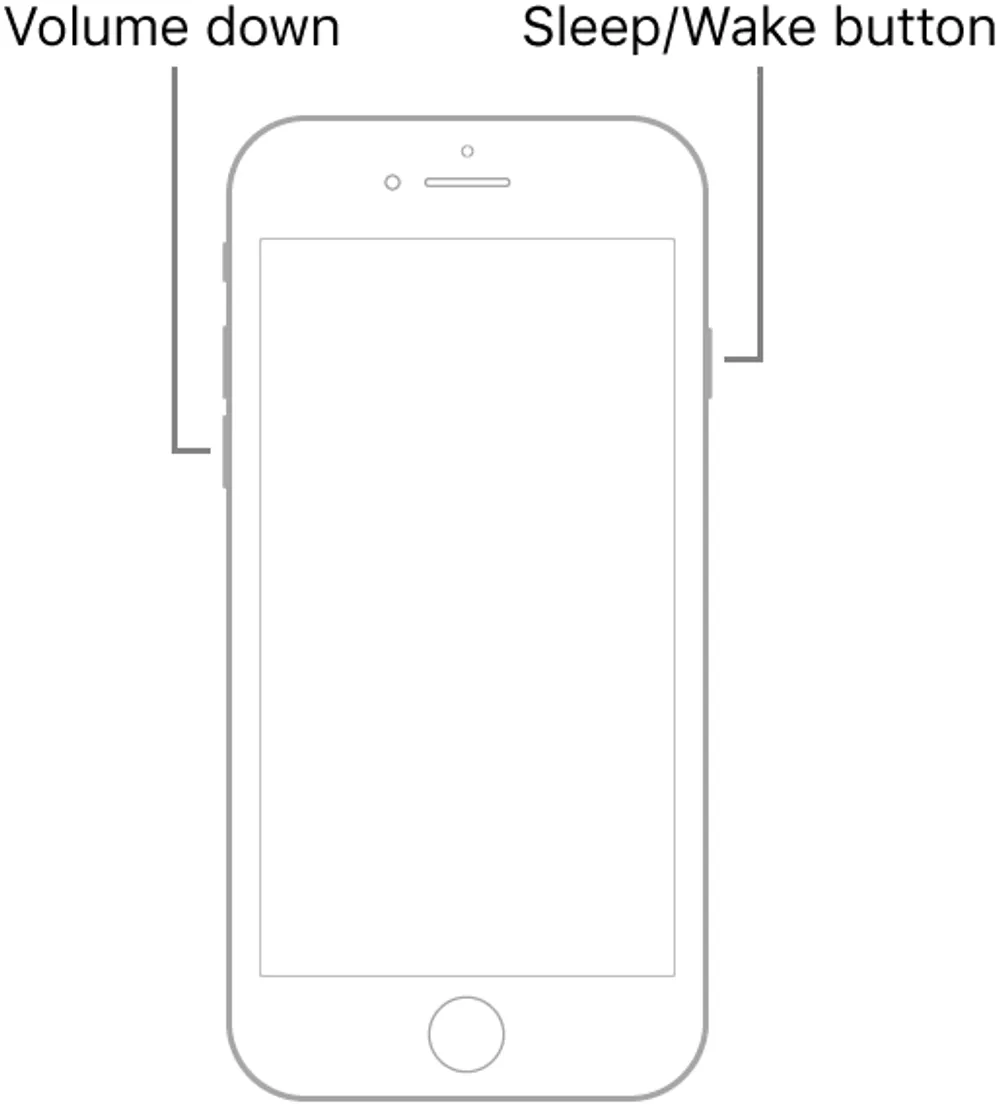
Supported models:
iPhone 6s / 6s Plus
iPhone 6 / 6 Plus
iPhone SE (1st generation)
iPhone 5s and earlier
Steps:
Press and hold both the Sleep/Wake button and the Home button.
Keep holding until the Apple logo appears, then release.
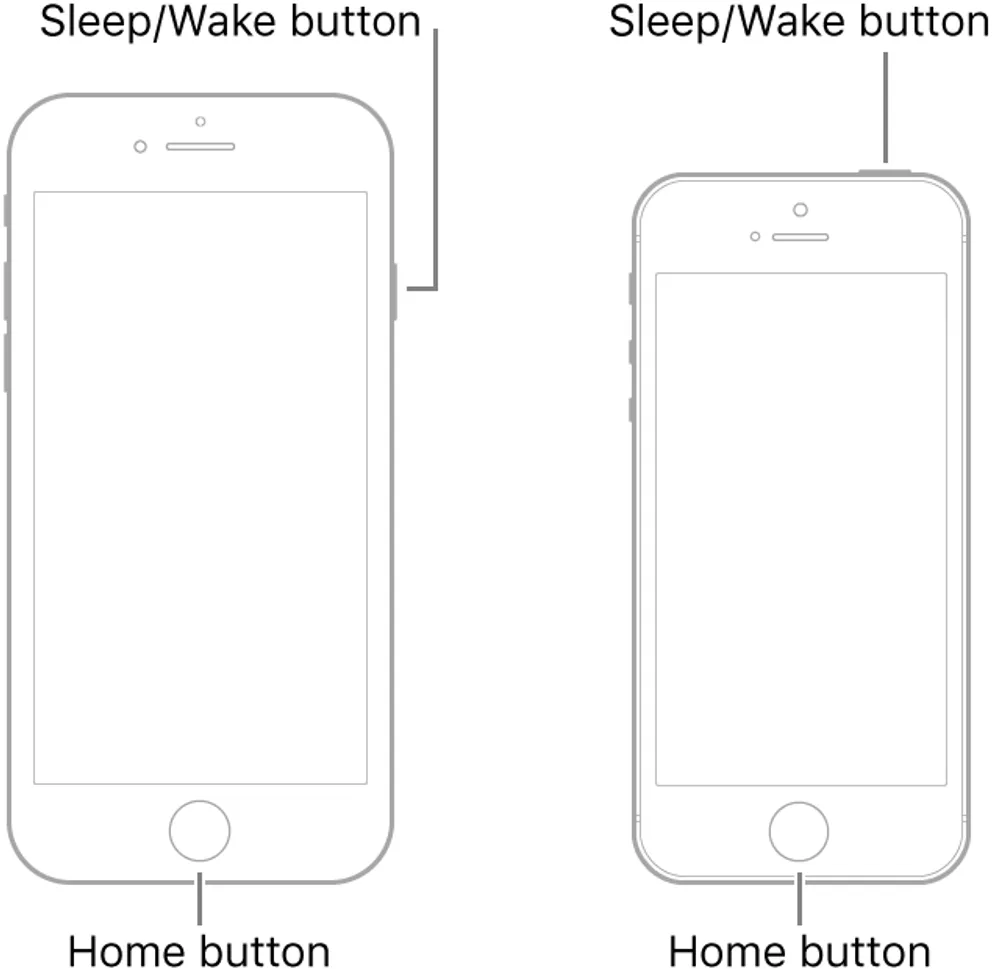
Force restart is supported on all iPhone models released by Apple.
The button combination depends on the hardware generation, not the installed iOS version.
This means the same force restart method applies whether the iPhone is running:
Older iOS versions
Current iOS versions
Future iOS updates supported by the same hardware
No.
A force restart does not delete or modify any personal information. The following remain unchanged:
Photos and videos
Contacts
Messages
Apps
Apple ID information
Device settings
iOS version
It only forces the device to restart. Because it does not touch storage, you can perform a force restart multiple times without causing data loss. But keep in mind that triggering excessive force restarts on your iPhone in a short period may exert minor adverse effects on its flash storage and system cache.
Even though a force restart is a simple process, it may not work as expected.
Possible causes include:
Incorrect button sequence or timing
Different iPhone generations use different button combinations. Ensure you follow the correct button combination, order and timing.
The battery is completely drained
If the iPhone has no remaining power, it may not respond to a force restart. Try charging the device for several minutes before attempting again.
Physical buttons are not working properly
Because force restart relies on hardware buttons, damaged or stuck buttons may prevent the command from being recognized.
Sometimes the force restart process succeeds, but the iPhone remains stuck at the same screen or returns to the same problem.
Common examples include:
Apple logo appears but the device does not boot completely
iPhone enters a continuous restart loop
Device remains frozen after restarting
This usually indicates that the issue may involve something beyond a minor temporary system freeze.
Force restart is usually the best first step when an iPhone becomes unresponsive because it is free, fast, safe, and does not erase any data.
However, if the problem continues after a successful force restart, the issue may involve deeper iOS or system-level problems. The next solution depends on the severity of the issue, whether you have access to a computer, whether you are comfortable with advanced recovery procedures, and whether you prefer Apple's built-in recovery options or third-party repair solutions.
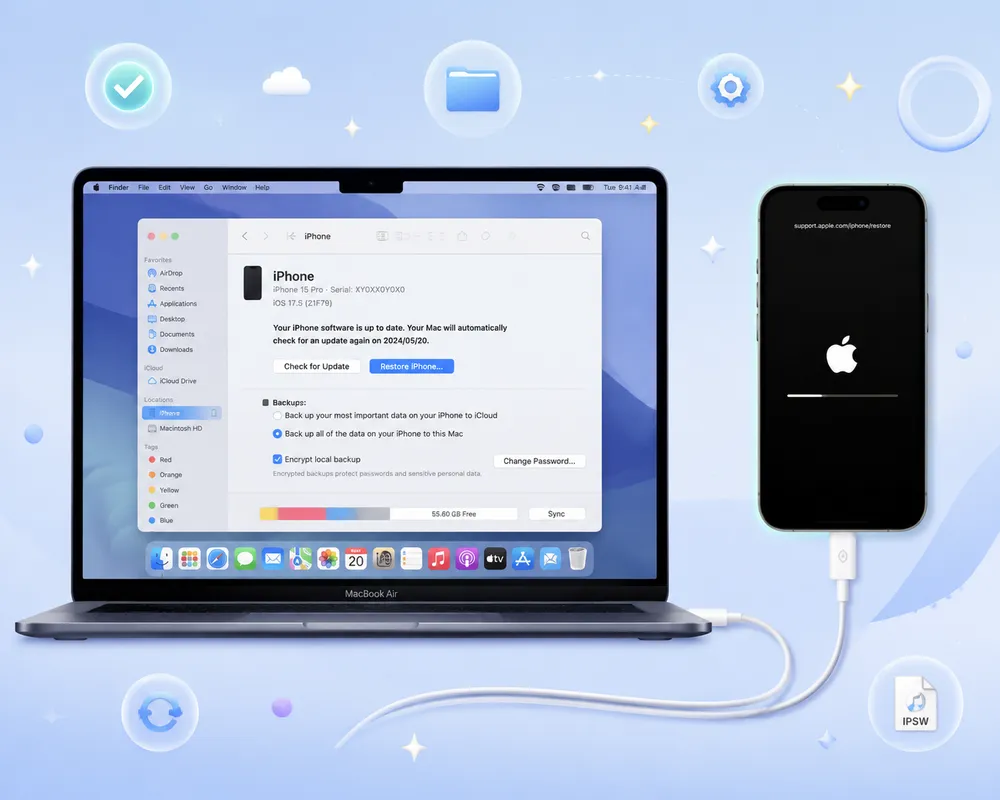
Recovery Mode is Apple's built-in recovery environment that allows Finder or iTunes to update or restore an iPhone when it cannot start normally.
This mode is widely applied to resolve iOS update failures, iPhone stuck on the Apple logo screen, and other common system glitches.
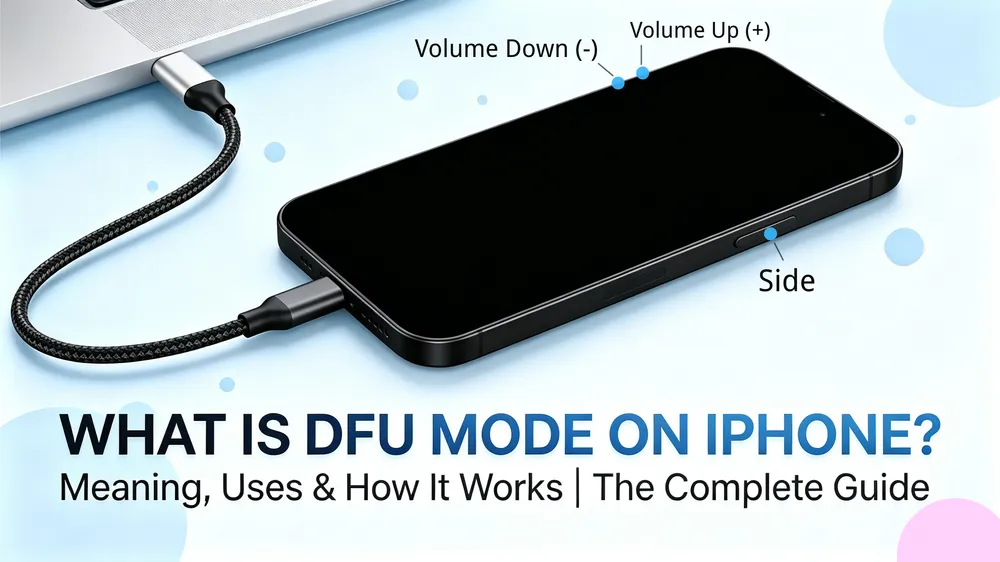
DFU Mode is a deeper recovery state that allows Finder or iTunes to reinstall firmware and iOS when standard recovery methods fail.
It is mainly used for advanced, severe iOS system repair cases.
A factory reset erases all content and settings from an iPhone. It is mainly used when the device can still access Settings but needs to be completely wiped.
If the iPhone cannot enter iOS normally, Recovery Mode Restore may be required instead.
If you want a easier alternative to manually entering Recovery Mode, iOS system repair tools provide another option for addressing deeper software-related issues.
Unlike a force restart, which only refreshes the current system state, these tools are designed to repair certain iOS-level problems. Depending on the repair mode selected, they may offer different approaches regarding data preservation.
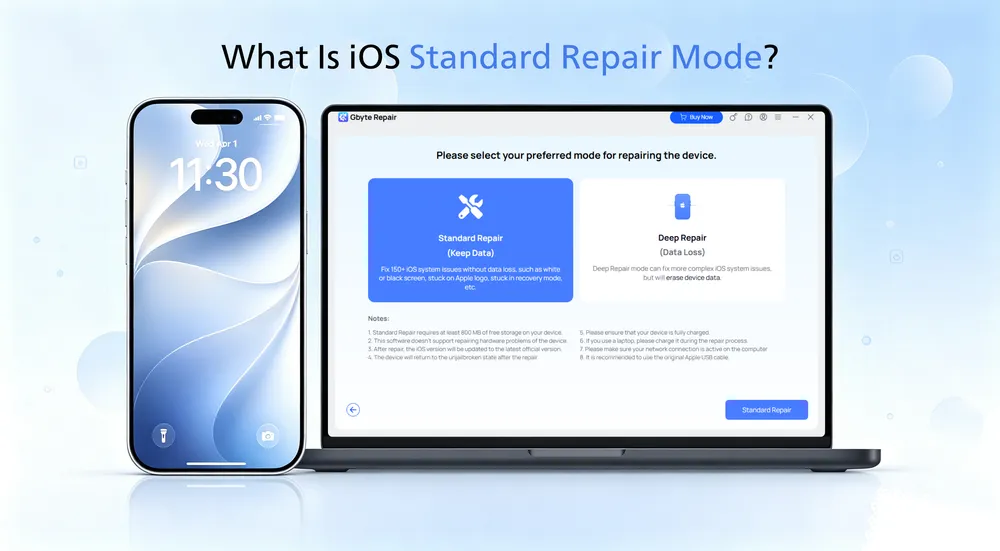
For example, Gbyte Repair provides Standard Repair for fixing common iOS system issues without losing data and Deep Repair for resolving more serious system problems while erasing device data.
It also supports a wide range of iPhone models and offers a one-click way to enter or exit Recovery Mode without manually performing complex button combinations.
No. Force restart only reboots the iPhone. A factory reset permanently erases all content and settings.
Usually less than one minute. The Apple logo may take several seconds to appear.
Yes, as long as the physical buttons are working.
No. Performing a force restart occasionally is safe. However, needing to do it repeatedly may indicate a deeper system problem.
The issue may involve damaged iOS files, failed updates, firmware problems, or hardware issues that a simple restart cannot repair.
Force restart is one of the safest and fastest ways to recover an unresponsive iPhone. It requires no computer, does not erase data, and can solve many temporary software freezes.
However, it is important to understand its limitation: force restart is a reboot method, not a complete system repair solution.
When problems such as boot loops, failed updates, or Apple logo freezes continue after a force restart, a deeper recovery method may be required.
Starting with the least invasive solution and moving toward advanced repair options is usually the safest approach for protecting your iPhone data.
 Add Gbyte as a preferred source on Google
Share


Copyright ©2026 Gbyte. All rights reserved. Gbyte’s software is not developed by or affiliated with Apple Inc.
The installation wizard will automatically start after downloading.
After registration, the recovery process can be managed through the web interface.
You get it all with your purchase - no locked features, no hidden limitations.