

Gbyte Repair

Gbyte Repair
Fix 150+ iOS issues yourself, no tech skills needed, no data loss
 Gbyte Editorial Team
Table of contents
Quick Answer
iOS Deep Repair Mode is an advanced repair option offered by third-party iOS system repair software for serious or persistent software problems, such as boot loops, failed iOS updates, Recovery Mode issues, and other system errors that require a more intensive repair process.
Deep Repair often erases device data, but this depends on the repair tool. For example, Gbyte Repair performs Deep Repair through DFU Mode and lets you choose Keep Data or Erase Data. Deep Repair can address software-related iOS problems, but it cannot fix hardware damage, remove Activation Lock, or recover lost or deleted data.
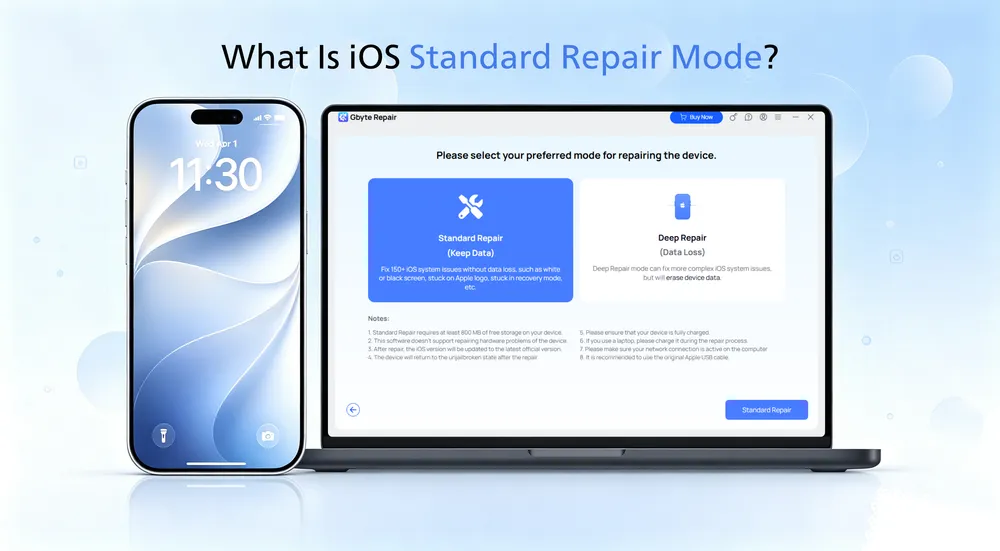
iOS Deep Repair Mode (also called Advanced Repair Mode in some tools) is an advanced repair feature designed for more serious iOS system problems that may not be resolved by Standard Repair Mode.
Compared with Standard Repair, Deep Repair uses a more intensive system repair process. In most iOS system repair tools, this deeper repair mode also erases existing device data. Gbyte Repair works differently: its Deep Repair runs through DFU Mode and allows users to choose whether to keep or erase their data.
Deep Repair is not an official Apple feature. It is a repair mode provided by third-party iOS system repair software, while Apple offers its own recovery and restore methods through Finder or iTunes/Apple Devices.
Although the exact process varies by repair tool, Deep Repair generally uses compatible iOS firmware to perform a more extensive system repair or reinstall.
Detect the connected iPhone. The repair tool identifies the device model and other information needed for the repair.
Download compatible iOS firmware. The tool obtains an IPSW firmware package compatible with the connected device and selected iOS version.
Repair or reinstall iOS. The firmware is used to perform a deeper system repair or reinstall. Depending on the repair software and selected option, existing user data may be preserved or erased.
Restart the device. Once the repair is complete, the iPhone restarts. If the repair erased the device, you will need to set it up again.
iOS Deep Repair Mode is designed for more serious software-related problems that simpler troubleshooting, such as force restarting or Standard Repair, may not resolve. Common scenarios include:
Boot and startup issues
iPhone stuck on the Apple logo or in a boot loop
Black/white/green screen or unresponsive screen
iPhone stuck in Recovery Mode or unable to start normally
iPhone stuck during an iOS restore or recovery process
iOS system issues
Repeated iOS update or installation failures
Frequent system crashes or freezing
Serious system errors caused by a failed update, restore, or corrupted iOS installation
Other software-related issues that Standard Repair cannot resolve
Screen lock issues
Some iOS system repair tools' Deep Repair can also remove an iPhone screen lock when the passcode is forgotten. This typically requires erasing the device, and it does not remove Activation Lock or Apple Account verification after the reset.
Note: Deep Repair does not always erase data. Data handling depends on the repair software and the option selected. However, removing a forgotten screen passcode generally requires a data-erasing repair or reset.
Deep Repair cannot fix hardware damage, such as a broken display, failing battery, damaged charging port, water damage, or logic board failure.
It also cannot remove Activation Lock, bypass Apple Account verification, or recover a forgotten Apple Account password. These protections are separate from the screen passcode and may still be required after the device is erased or restored.
Deep Repair is also not a data recovery tool. If files have already been deleted or lost, repairing iOS will not restore them.
Deep Repair and Apple's official Update/Restore options can all address common iOS system problems, but they differ in repair process, data handling, and user experience.
Deep Repair | Apple Update | Apple Restore | |
Provided by | Third-party iOS repair tools | Apple | Apple |
Repair approach | Advanced system repair using the tool's guided workflow | Reinstall/update iOS | Reinstall iOS and return the device to factory settings |
Data handling | Usually erases data, although some tools offer data-preserving options | Designed to preserve data | Erases the device |
Process | Guided by the repair software; requirements vary by tool | When iOS can be updated or reinstalled without a full erase | When Update fails or a full restore is needed |
Cost | Usually paid | Free | Free |
Computer software | Repair tool | Finder / Apple Devices / iTunes | Finder / Apple Devices / iTunes |
Best for | Users who want a guided advanced repair process | Users who prefer Apple's official method and want to keep data | Users who prefer Apple's official method and don't mind erasing data |
With Gbyte Repair, Deep Repair is performed through DFU Mode and lets you choose whether to keep or erase data. This differs from many other iOS repair software that pair their advanced repair mode with data erasure.
👉 See the full iPhone Update and Restore guide for the official process.
Deep Repair is most useful for serious or persistent iOS system problems that require a more intensive repair process.
Consider Deep Repair when:
Your iPhone remains stuck on the Apple logo, in a boot loop, or in Recovery Mode after basic troubleshooting.
iOS repeatedly fails to update, restore, or start normally.
The device continues to experience serious system crashes or errors.
Standard Repair has failed to resolve the problem.
You need to remove a forgotten screen lock and understand that this typically requires erasing the device.
Before you choose a tool: Data handling varies. Many Deep Repair modes erase the device, while some tools, including Gbyte Repair, provide options to keep or erase data. You can also compare popular iOS system repair tools to see how their repair modes, data handling, and features differ.
Before starting, make sure your device and computer are ready for the repair process:
Back up important data if possible. Even if your repair tool offers a data-preserving option, having a backup provides additional protection before a deeper system repair.
Use a stable USB connection. Keep the iPhone securely connected throughout the repair and avoid disconnecting the cable until it is complete.
Maintain a stable internet connection. Deep Repair typically requires downloading an iOS firmware package.
Check available computer storage. Make sure there is enough free space to download and process the required firmware.
Keep the iPhone sufficiently charged. Avoid losing power or interrupting the device during the repair.
Check firmware availability. Available iOS versions depend on the device, repair tool, and firmware currently available for installation.
Deep Repair has limits: It cannot fix hardware damage, remove Activation Lock, or recover data that has already been lost or deleted.
The exact steps vary by repair tool. Here's how Deep Repair works using Gbyte Repair as an example.
Download and launch Gbyte Repair, then connect your iPhone to the computer via USB.
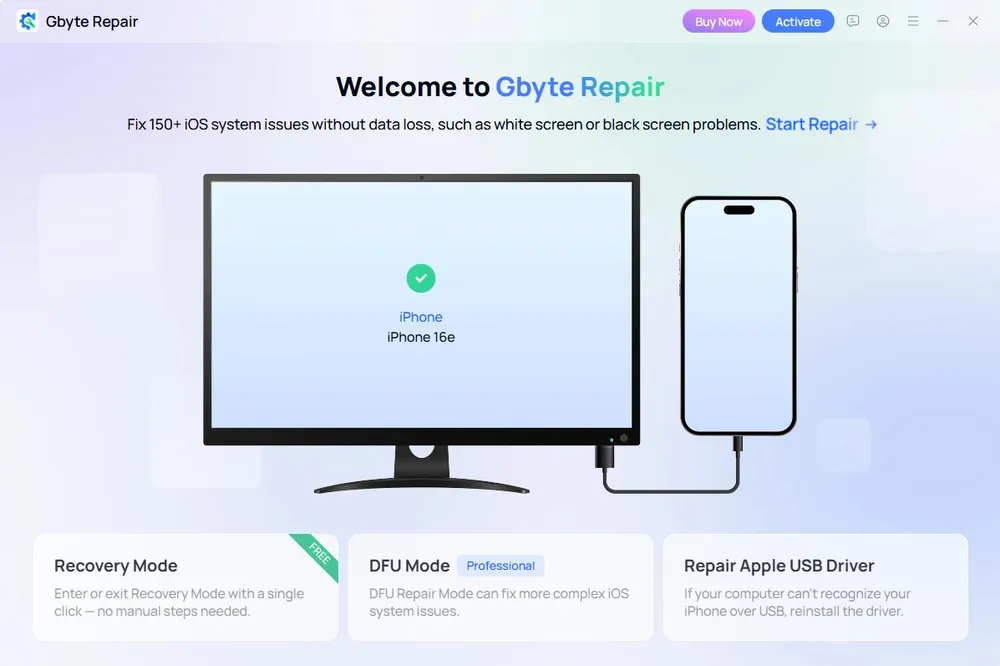
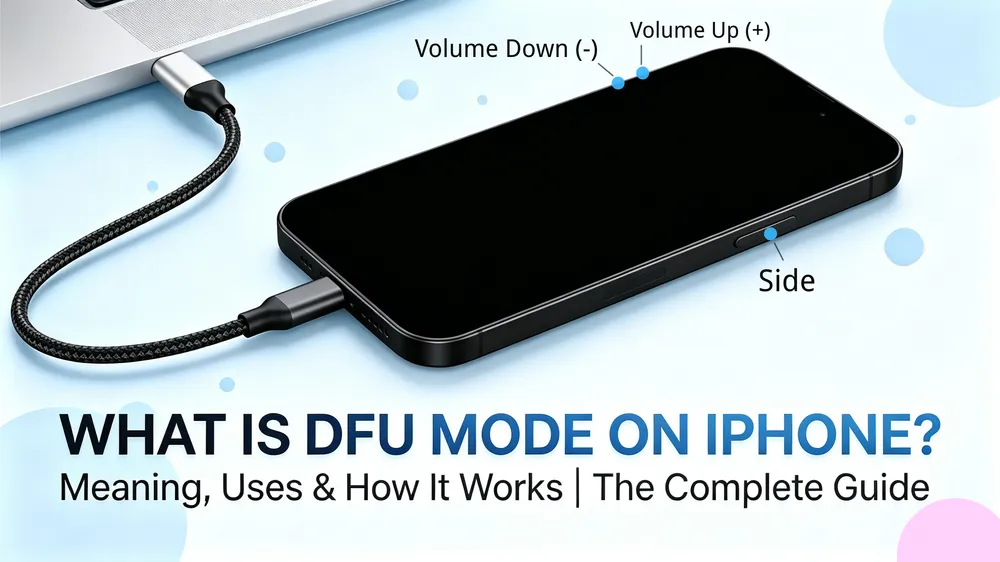
Select DFU Mode (Professional) and follow the on-screen instructions to put your iPhone into DFU Mode. If needed, see our iPhone DFU Mode guide for detailed instructions.
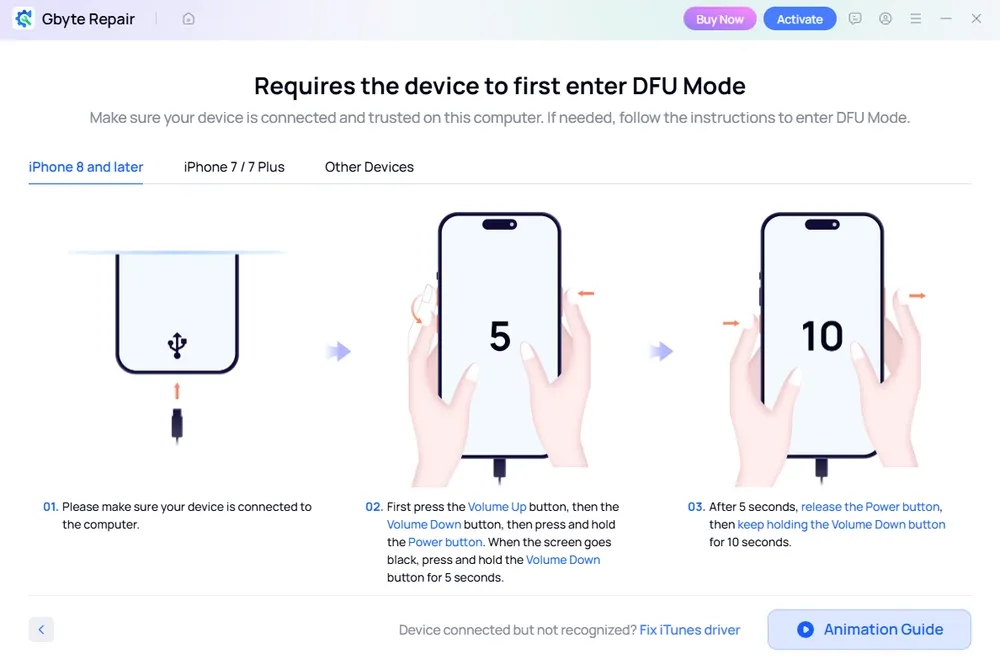
Once your iPhone enters DFU Mode, wait for Gbyte to detect the device and find the matching firmware.
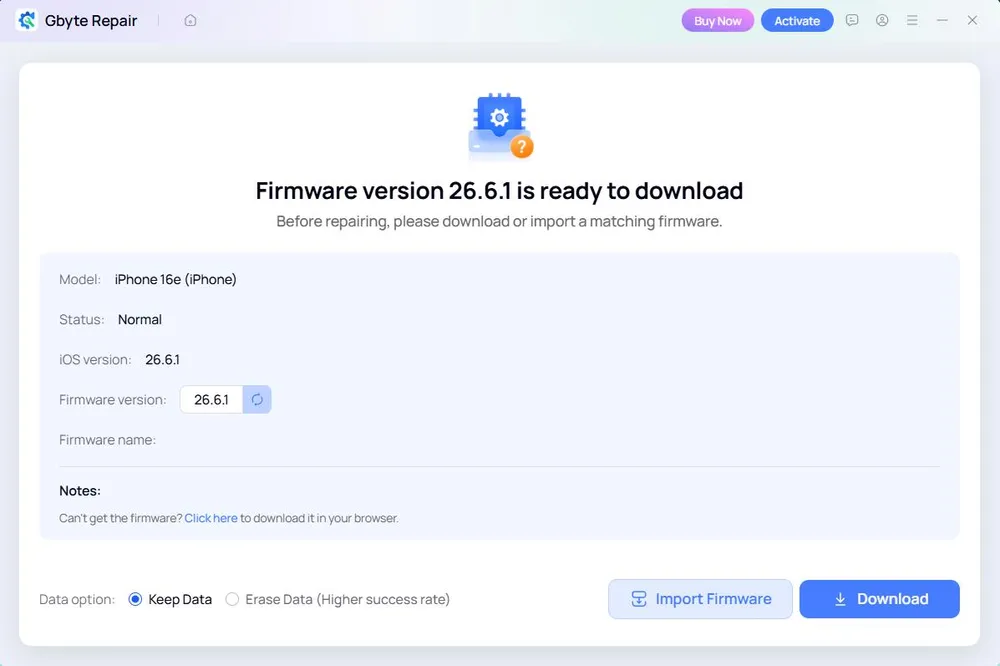
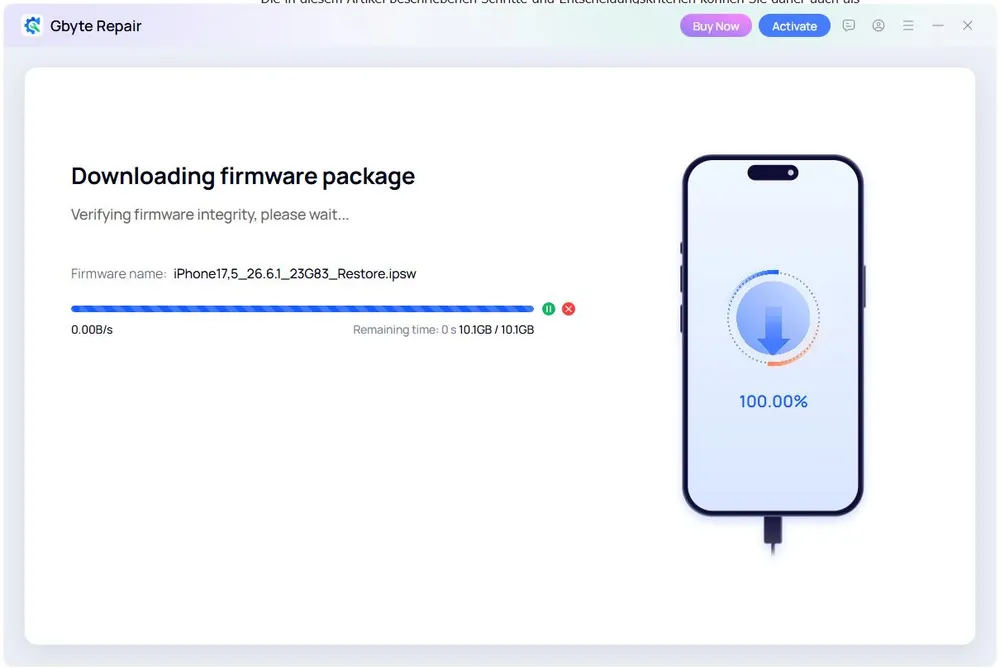
Download and verify the firmware package before starting the repair.
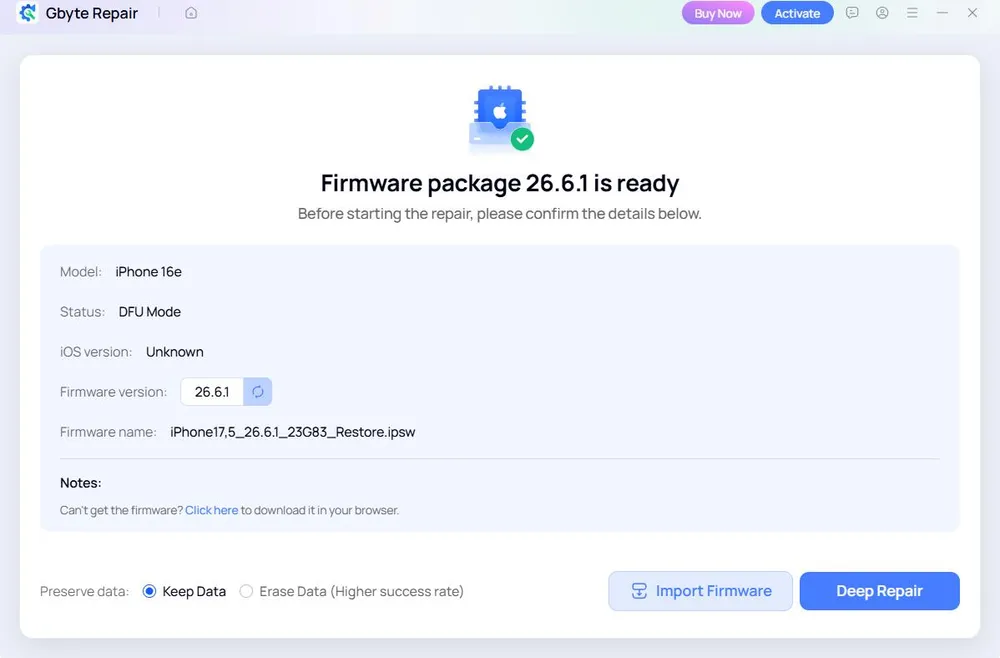
Once the firmware is ready, choose Keep Data or Erase Data, then click Deep Repair to continue.
Wait for the repair to complete. Keep your iPhone connected during the process. Once finished, the device will restart automatically.
No. DFU Mode is a device state, while Deep Repair is a repair process provided by iOS system repair software. Some Deep Repair tools use DFU Mode as part of the repair process, but they are not the same thing.
It may help if the problem is caused by iOS or firmware. Deep Repair cannot fix hardware problems such as a failed battery, damaged logic board, or water damage.
It depends on the repair tool. Most Deep Repair modes erase device data, but some tools handle data differently. Gbyte Repair, for example, lets you choose Keep Data or Erase Data before starting Deep Repair.
Some Deep Repair tools can remove a forgotten screen passcode by erasing and restoring the device. However, this does not remove Activation Lock or bypass Apple Account verification.
It varies depending on the repair tool, firmware size, internet speed, and device. Downloading and verifying the firmware can also add to the total repair time.
 Add Gbyte as a preferred source on Google
Share


Related articles


Copyright ©2026 Gbyte. All rights reserved. Gbyte’s software is not developed by or affiliated with Apple Inc.
The installation wizard will automatically start after downloading.
After registration, the recovery process can be managed through the web interface.
You get it all with your purchase - no locked features, no hidden limitations.