Gbyte Recovery
Gbyte Recovery
Free scan and selective preview of 25+ data types like messages, photos, and WhatsApp. No data overwritten — recover only what you need.
 Gbyte Editorial Team
Table of contents
Accidentally deleting WhatsApp messages without a backup can feel like a nightmare — especially when those chats contain important work info, sentimental memories, or even legal records. Most users assume that once a chat is gone and WhatsApp can't find a backup, it's gone forever. That's not always true. Your iPhone may have been backing up to iCloud on its own, and older backups can still hold chats you've since deleted. In this guide, we'll show you where those copies hide and how to get them back safely.
Often, yes, because "no backup" usually means "not in the latest backup." Understanding why comes down to where your chats actually end up after you delete them. Let's break it down in simple terms.
When you delete a message in WhatsApp on an iPhone, it's gone from the phone for good. iOS cleans up WhatsApp's database almost immediately, and no tool can read what's left.
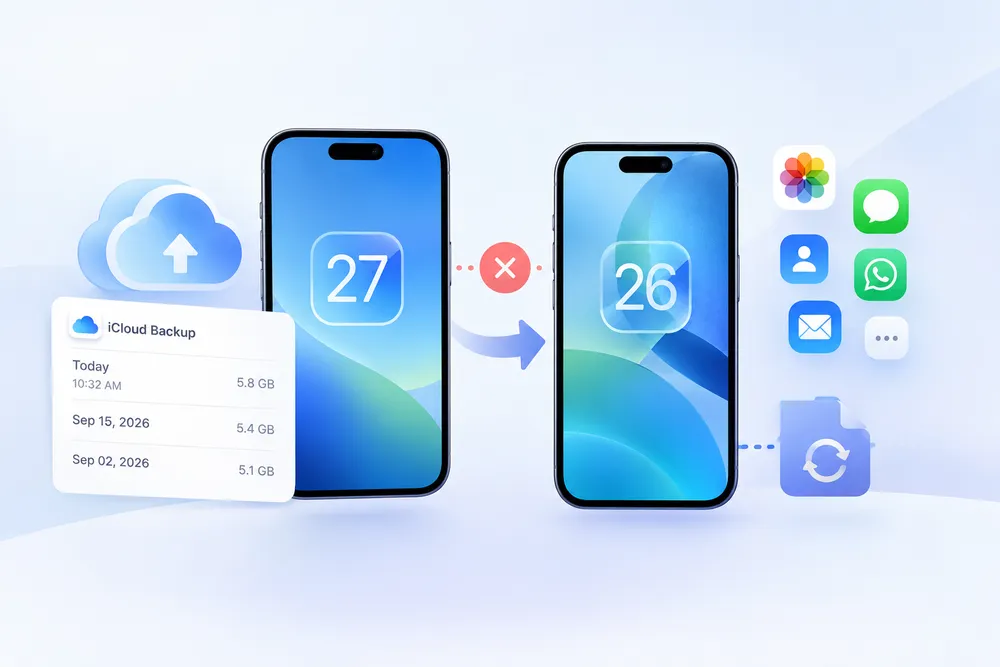
But your phone isn't the only place your chats live. Every time your iPhone backs up to iCloud, it saves a snapshot of your data at that moment. Think of it like photos of a whiteboard: erasing the board doesn't change the photo you took yesterday. If a backup ran before you deleted the chat, the chat is still in that backup.
If you’ve never backed up WhatsApp to iCloud or Google Drive, then the official restore method simply won’t work. Here’s why:
● WhatsApp backups are not automatic unless enabled
● Local device backups (on Android) get overwritten every 24 hours
● WhatsApp's restore only offers the latest backup — not earlier versions
Even worse, if you've just deleted a message and a backup ran right afterward, that latest backup no longer has your lost data.
That's why third-party recovery tools that can open older iCloud backups are your best shot. They reach past the latest backup to the earlier ones, where the chat you deleted may still be intact.
When WhatsApp's own restore comes up empty, most recovery options fall short. Gbyte Recovery takes a different route. Instead of scanning your phone, it signs in to your iCloud account and reads your current and older iCloud backups, pulling out WhatsApp chats and attachments, including ones you've deleted. Whether your phone is broken, lost, or reset, you can get your chats back without restoring or erasing anything.
Here is how you recover WhatsApp messages with Gbyte Recovery:
1. Download and Launch Gbyte Recovery:
First, download and install Gbyte Recovery for your Windows PC. Once installed, launch the application.
2. Select "WhatsApp" for Scanning:
Upon launching Gbyte Recovery, choose "WhatsApp" from the displayed data types. This selection directs the software to focus its scan specifically on your WhatsApp chat history and associated attachments found within your iCloud backups.

3. Verify Your iCloud Account:
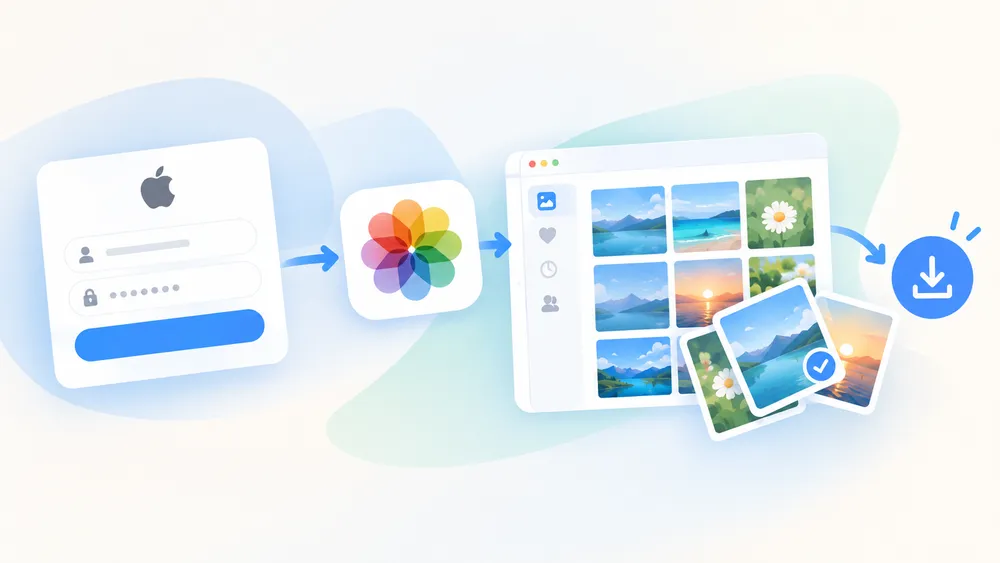
Next, securely sign in with your Apple ID and password when prompted. Gbyte Recovery prioritizes your privacy; your credentials are used solely to access your iCloud backups and are not stored. This secure verification connects the software to your cloud data.
4. Preview All Data from WhatsApp:
After verifying your account and selecting the relevant backup, Gbyte Recovery will download and scan its contents. Once complete, navigate to "WhatsApp" and "WhatsApp Attachments." You'll see everything from your chats, including messages, photos, videos, and documents.
5. Select Data You Want to Recover:
Carefully browse the previewed WhatsApp data. Check the boxes next to the specific chats or media files you need to retrieve. Once selected, click the "Recover" button and choose a secure folder on your computer to save your restored communications.
Note: Gbyte Recovery is also capable of recovering data from WhatsApp Business. You can simply choose "WhatsApp Business" in the selection page (Step 2) to recover your professional chat history. Learn more about WhatsApp Recovery.
Gbyte Recovery stands out for WhatsApp recovery, especially when WhatsApp's own restore only gives you the latest backup. It offers flexibility, privacy, and precision, from opening older backups to restoring only the chats you choose.
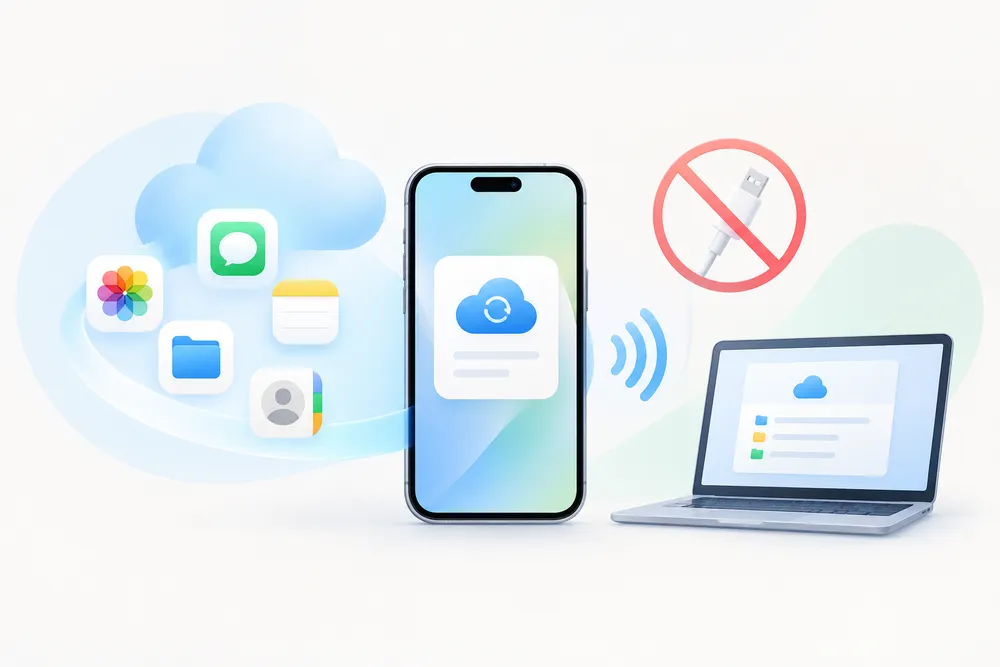
GByte Recovery doesn’t rely on your iPhone at all. Instead of connecting through USB, it uses your Apple ID to securely access your iCloud data. Even if WhatsApp's restore screen only shows your latest backup, Gbyte can open the earlier ones and show you what's inside.
This method is ideal if:
● Your phone is no longer working
● You skipped the WhatsApp restore prompt
● You never turned on iCloud backups manually
With GByte, you’re not forced to restore everything. You can:
● Preview chat threads before restoring
● Search by contact, keyword, or date
● Download only the conversations, media, or files you care about
● Export as HTML, PDF, or CSV
This saves time, avoids data overwrite, and makes the process user-friendly.
Your WhatsApp data goes from iCloud straight to your computer, where Gbyte scans and decrypts it. Nothing is restored to your phone or changed in your iCloud account, so it's a safe choice for sensitive or confidential chats, whether you're recovering personal memories or legal evidence.
Even the best tools can’t perform miracles — so timing matters. Here's how to know if it might be too late to recover your data:
If your iPhone or WhatsApp backed up to iCloud at any point before the deletion, that backup may still hold the chat. Most iPhones back up automatically every day or so.
It's on by default, so even if you never set it up yourself, your iPhone has probably been backing up in the background.
If iCloud Drive or WhatsApp iCloud Backup was never enabled, the chance of finding recoverable cloud data decreases — but not to zero. Some iCloud logs, photo thumbnails, or app data may still be scannable through third-party recovery tools like GByte.
Even if official recovery fails, don’t give up:
●Run Gbyte's free scan first to see which backups still have your chats
●Don't let WhatsApp create a new chat backup yet, because it replaces the previous one
●Don't reinstall WhatsApp and restore over and over; it only ever brings back the latest backup
Act quickly, stay offline, and explore all recovery options.
Losing WhatsApp chats when WhatsApp says there's no backup isn't the end of the road. Thanks to tools like Gbyte Recovery, you can still recover important messages, attachments, and media from your older iCloud backups, even if your phone is gone. With selective recovery and nothing overwritten on your phone, Gbyte makes it easy to regain control of your chat history. Just remember: the sooner you scan, the more likely an older backup still has what you need.

 Add Gbyte as a preferred source on Google
Share


Related articles


Copyright ©2026 Gbyte. All rights reserved. Gbyte’s software is not developed by or affiliated with Apple Inc.
The installation wizard will automatically start after downloading.
After registration, the recovery process can be managed through the web interface.
You get it all with your purchase - no locked features, no hidden limitations.