Recover, repair, unlock, transfer & view backups. Every iPhone issue, solved.
 Gbyte Editorial Team
Table of contents
“This is gonna sound stupid, but how do I see hidden apps on my iPhone and unhide them? I was just testing the feature out, and now I have no idea.” - A Question from Reddit
Sometimes, you may want to let someone else use your iPhone without giving them access to certain apps. On iOS 18 and later, you can hide downloaded apps and protect them with Face ID, Touch ID, or your passcode.
Before you hide an app on your iPhone, here are a few things to know:
Hidden apps disappear from the Home Screen and move to the Hidden folder in App Library. Their names may still appear in places such as Screen Time, Battery Usage by App, and your App Store purchase history.
Children under 13 in a Family Sharing group can't hide or lock apps. Family members aged 13–17 can, but parents or guardians may still be able to see which apps are downloaded and how they're used. Age limits may vary by country or region.
Pre-installed Apple apps can't be hidden. Only apps downloaded separately from the App Store can use the built-in Hide App feature.
An app's hidden status doesn't sync with iCloud.
To hide an app on iPhone, follow these steps:
Step 1: Go to the Home Screen and locate the app you want to hide. Touch and hold the app icon until the Quick Actions menu appears.
Step 2: Tap Require Face ID (or Touch ID or Passcode).
Step 3: Tap Hide and Require Face ID (or Touch ID or Passcode), then authenticate.
Step 4: Tap Hide App. The app will disappear from the Home Screen and move to the Hidden folder in App Library.
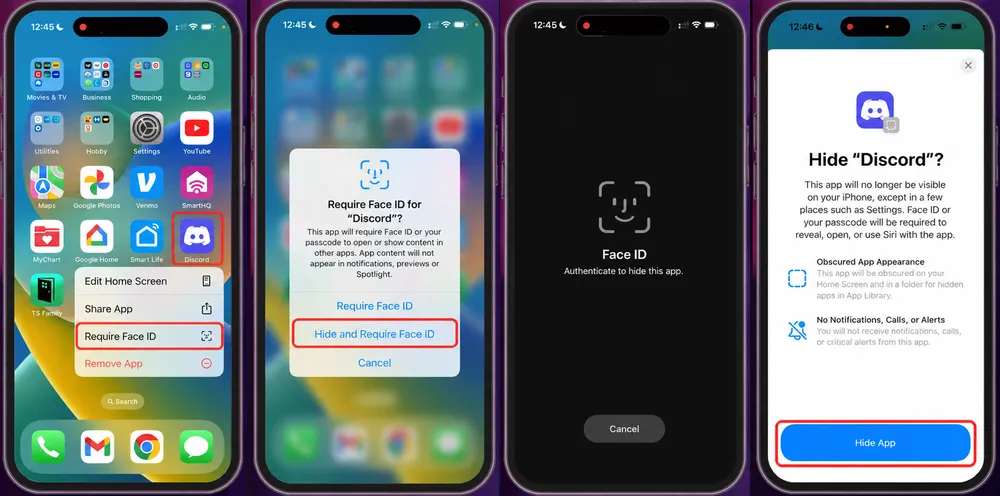
Note: The built-in Hide App feature is available on iOS 18 and later. On older iOS versions, you can remove an app from the Home Screen or limit its appearance in Search, but this doesn't hide the app in the same way.
Once an app is hidden, it no longer appears on the Home Screen or in Search. If you want to find hidden apps on your iPhone, there are two easy ways:
Option 1: Check Settings
Go to Settings > Apps > Hidden Apps, then authenticate with Face ID, Touch ID, or your passcode to see your hidden apps.
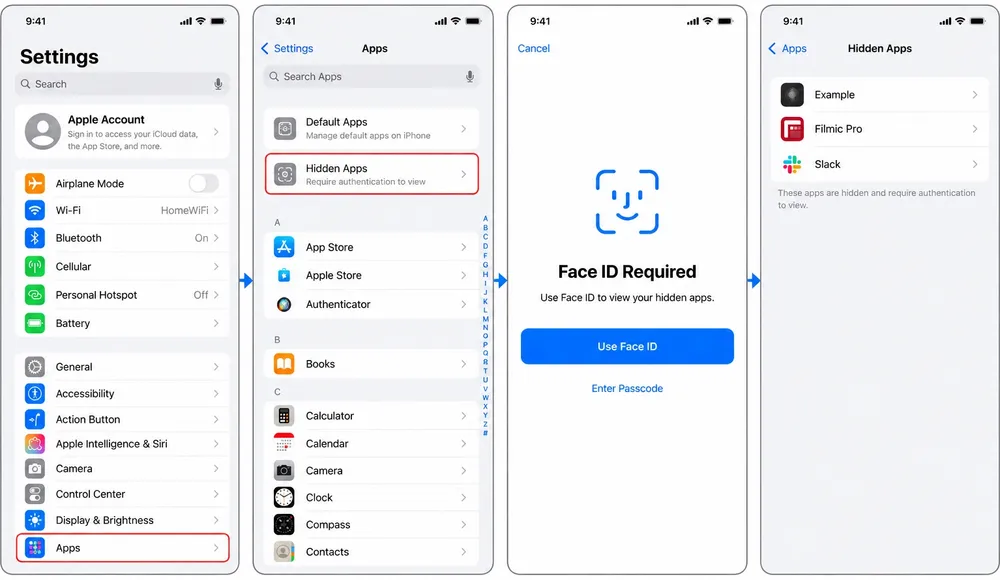
Option 2: Check the App Library
Swipe left past your Home Screen pages until you reach the App Library. Scroll to the bottom and tap the Hidden folder, then authenticate with Face ID, Touch ID, or your passcode. You'll see all apps currently hidden on your iPhone.
If you no longer want an app to stay hidden, you can unhide it from the App Library:
Step 1: Open the App Library, scroll to the bottom, and tap the Hidden folder. Authenticate with Face ID, Touch ID, or your passcode.
Step 2: Touch and hold the app you want to unhide, then tap Don't Require Face ID (or Touch ID or Passcode). Authenticate again if prompted. The app will be removed from the Hidden folder.
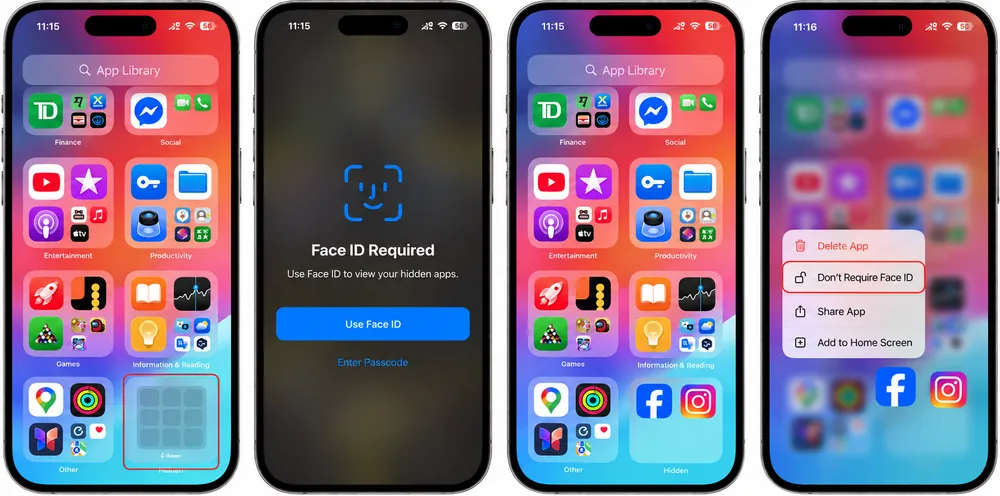
Step 3: If the app doesn't automatically return to your Home Screen, find it in the App Library, touch and hold it, and tap Add to Home Screen.
If you can't find an app in the Hidden folder or App Library, it may have been deleted rather than hidden. You can search for the app in the App Store and download it again.
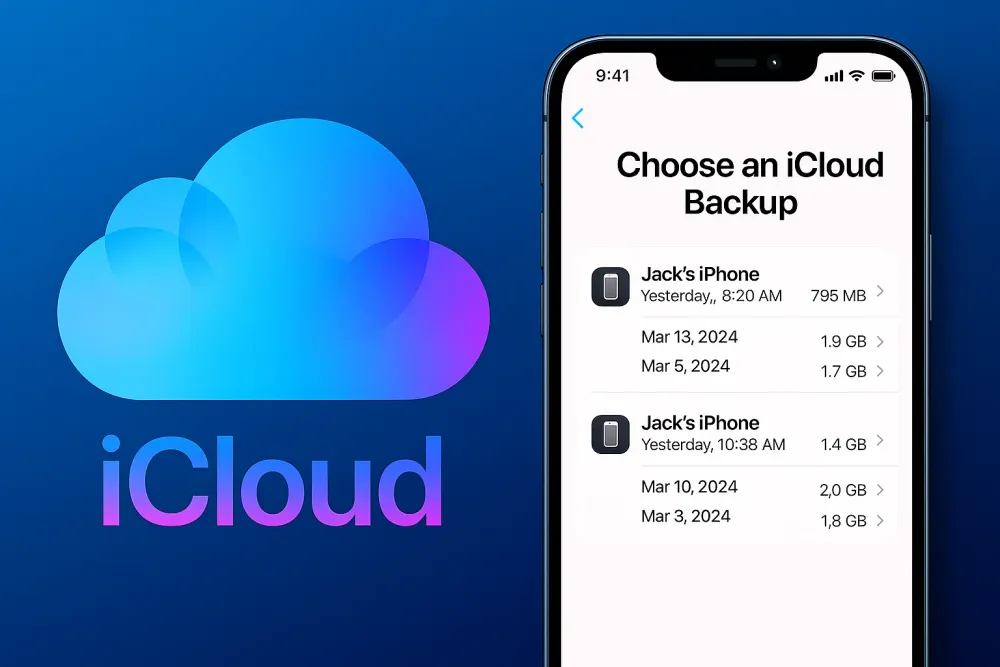
Reinstalling an app, however, doesn't always bring back its previous data. Some data may return after you sign in to the same account or enable iCloud sync, depending on how the app stores its data. If the missing data was included in an iCloud backup, you may also be able to restore it by restoring your iPhone from that backup—but this requires erasing the iPhone first.
If you want to check for recoverable data without restoring the entire iPhone, Gbyte Recovery provides another option. It can scan available iCloud data and backups for supported data types, allowing you to preview recoverable content before deciding what to export.
For example, if you accidentally deleted an app and later discovered that important messages, photos, or other supported data were also missing, you can:
Step 1: Open Gbyte Recovery on your computer and choose the type of data you want to recover.
Step 2: Sign in with your Apple ID and let Gbyte scan the available iCloud data and backup points.
Step 3: Preview the scan results, select the data you need, and export the recoverable items to your computer.
This can be useful when you're looking for specific lost data and don't want to erase your current iPhone just to restore an older backup.
The Hidden folder appears in App Library when you have hidden an app using the built-in Hide App feature on iOS 18 or later. If you haven't hidden any apps, or your iPhone is running an older iOS version, you may not see it.
Yes. Hidden apps don't appear on the Home Screen or in Search, but you can still find them in Settings > Apps > Hidden Apps or the Hidden folder in App Library after authentication.
Open App Library > Hidden and authenticate. Touch and hold the app you want to reveal, then tap Don't Require Face ID. The app will be removed from the Hidden folder.
No. Hiding an app doesn't delete the app or its data. If you delete the app instead, some locally stored data may also be removed, depending on the app and whether the data is synced or backed up.
Finding hidden apps on iPhone is straightforward once you know where to look. Check Settings > Apps > Hidden Apps or open the Hidden folder in App Library and authenticate to view them.
If an app isn't there, it may simply have been removed from the Home Screen or deleted rather than hidden. Checking the App Library and App Store can help you tell the difference.

 Add Gbyte as a preferred source on Google
Share


Related articles


Copyright ©2026 Gbyte. All rights reserved. Gbyte’s software is not developed by or affiliated with Apple Inc.
The installation wizard will automatically start after downloading.
After registration, the recovery process can be managed through the web interface.
You get it all with your purchase - no locked features, no hidden limitations.