

Gbyte Unlock

Gbyte Unlock
Safely remove any iPhone/iPad screen lock in a few clicks.
Table of contents
No — not without the correct passcode or the linked Apple ID password. iPhone Lost Mode is built specifically to resist unauthorized access, and even a full erase leaves Activation Lock in place, tying the phone to that Apple ID indefinitely. For the actual owner, getting back in is straightforward: enter the passcode, or use Find My from another device.
Lost Mode does not create a new password or unlock method. It simply locks your iPhone with the passcode that was already set on the device and adds extra protection through Find My and Activation Lock.
Lost Mode is part of Apple's Find My service, built specifically for the moment a device goes missing. Turning it on immediately locks the device with its existing passcode — no new code needs to be set, whatever passcode was already on the phone still applies. From there, a custom message with contact information can be displayed right on the lock screen, so a stranger who finds the phone has a way to reach the owner without ever getting past the lock. The phone also keeps checking in with its location as long as it's online, and Apple Pay is disabled automatically the moment Lost Mode turns on. All of this happens remotely, without needing physical access to the device at all — it's designed to be activated the moment a phone is realized to be missing, from any other Apple device signed into the same account.
Once activated, Lost Mode disables Face ID and Touch ID immediately, leaving the passcode as the only way in. That passcode is itself resistant to guessing — five wrong attempts trigger a time delay, ten can be set to erase the device, and Apple's hardware-level rate limiting means a 6-digit code (a million possible combinations) would take specialized cracking hardware years to work through on average. Notifications stay hidden, Apple Pay is disabled, and location tracking keeps running even if the SIM card is removed.
Not without the passcode or the Apple ID password. Apple does not provide a way to bypass Lost Mode or Activation Lock without verifying ownership — law enforcement occasionally has access to specialized forensic tools, but these are limited to certain models and iOS versions, expensive, and far from guaranteed to work on a current device.
This holds for two separate reasons. The passcode itself is what's described above — resistant to guessing, and the only way past the lock screen. Behind that sits Activation Lock, which ties the device to the Apple ID that enabled Find My. Even a full factory reset through Recovery Mode or DFU Mode doesn't remove it — the device can't be reactivated or set up as new without that Apple ID's password, and there's no time limit on how long this persists.
Software marketed as being able to bypass Lost Mode generally falls into one of a few categories: outright scams built to collect payment or personal information, exploits from older iOS versions that Apple has already patched, or tools that only work on a device that's already unlocked or jailbroken — which doesn't describe a phone someone else is trying to get into. None of this changes the core mechanics described above.
Lost Mode can be activated from another Apple device or from icloud.com, using the same Apple ID that's signed into the missing phone. Both routes take under a minute.
Through iCloud.com:
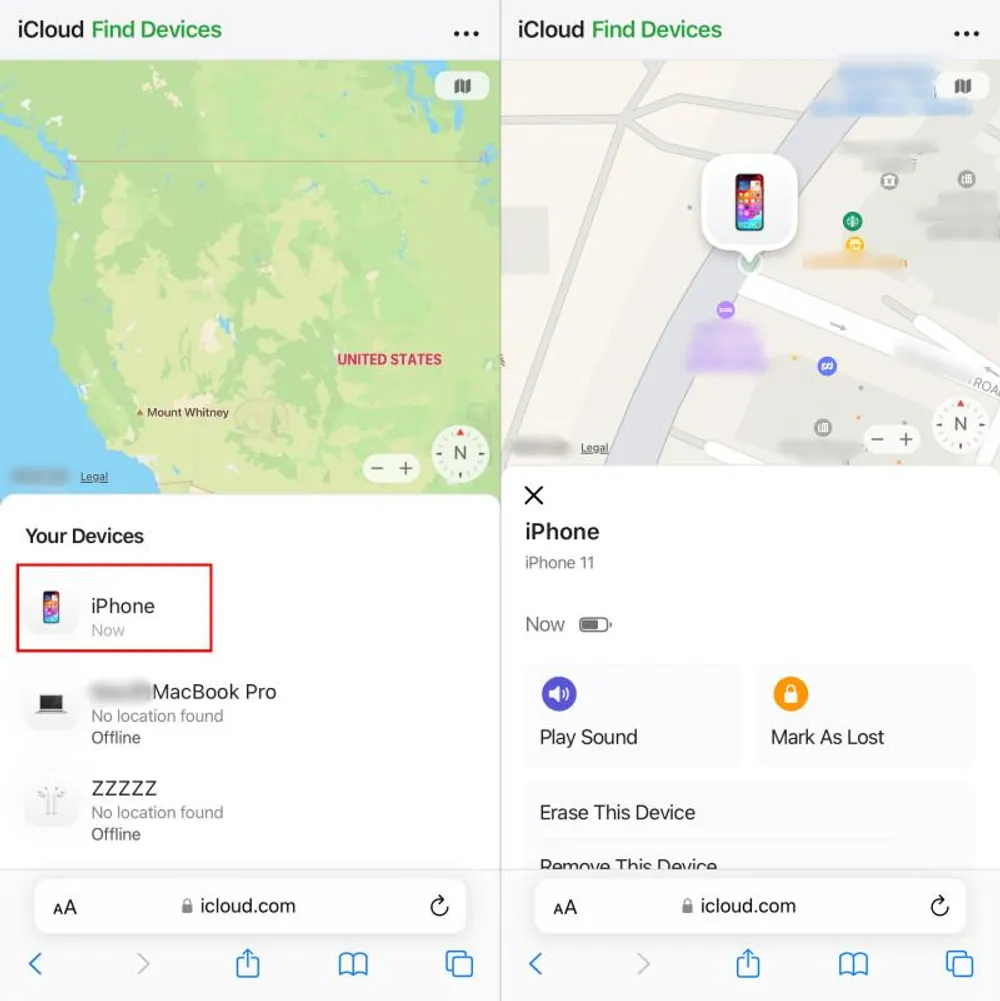
Go to iCloud's Find Devices page and sign in with the Apple ID linked to the missing iPhone.
Select All Devices at the top, then choose the missing iPhone from the list.
Click Mark As Lost, then Continue.
Enter a phone number where the phone's finder can reach you, and add a short message — something like "This iPhone is lost. Please call the number above."
Turning on Notify When Found sends an alert the moment the device reconnects to a network.
Confirm, and Lost Mode activates immediately.
Through the Find My app on another Apple device:
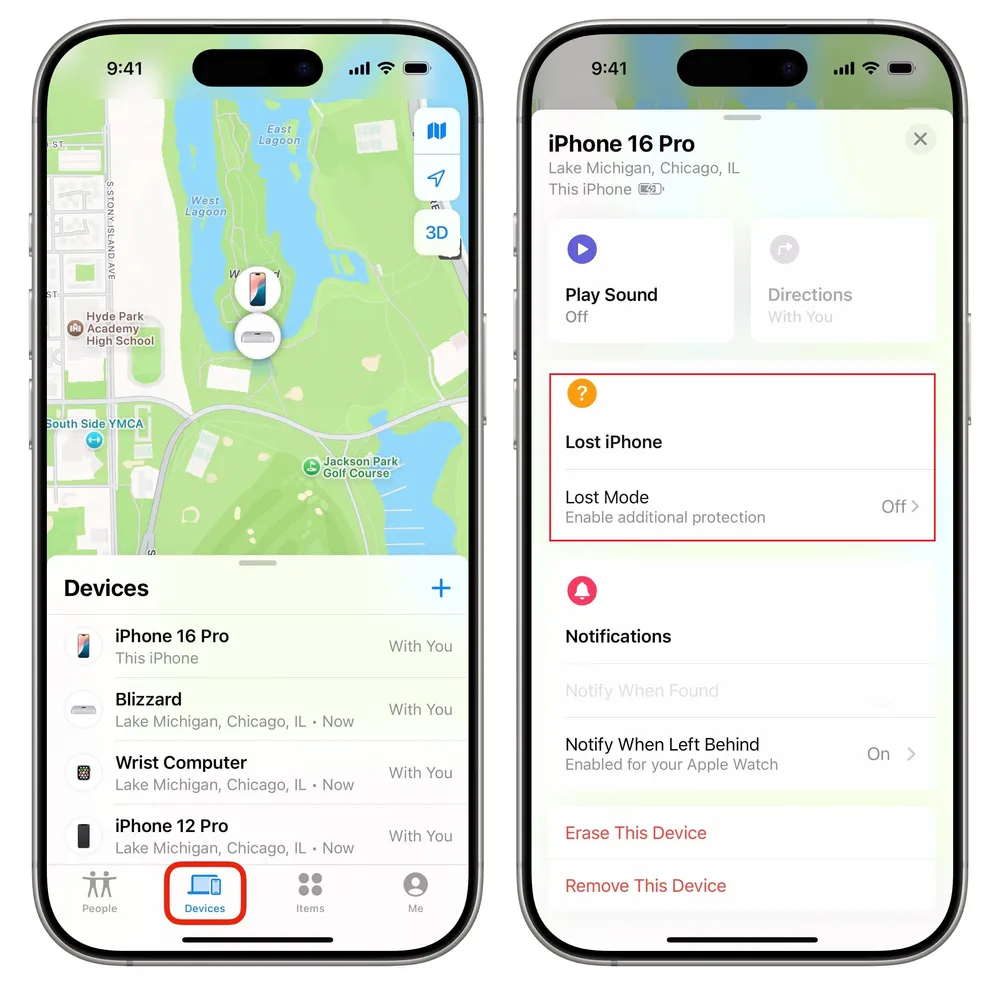
Open Find My on an iPad, Mac, or another iPhone signed into the same Apple ID.
Tap Devices at the bottom, then select the missing iPhone from the list.
Tap Mark As Lost, then Continue.
Enter a contact phone number and a short message for the lock screen.
Tap Activate to turn on Lost Mode.
Either method works the same way in practice — the device locks with its current passcode within seconds of confirming.
Case 1: You Don't Have the iPhone With You Yet
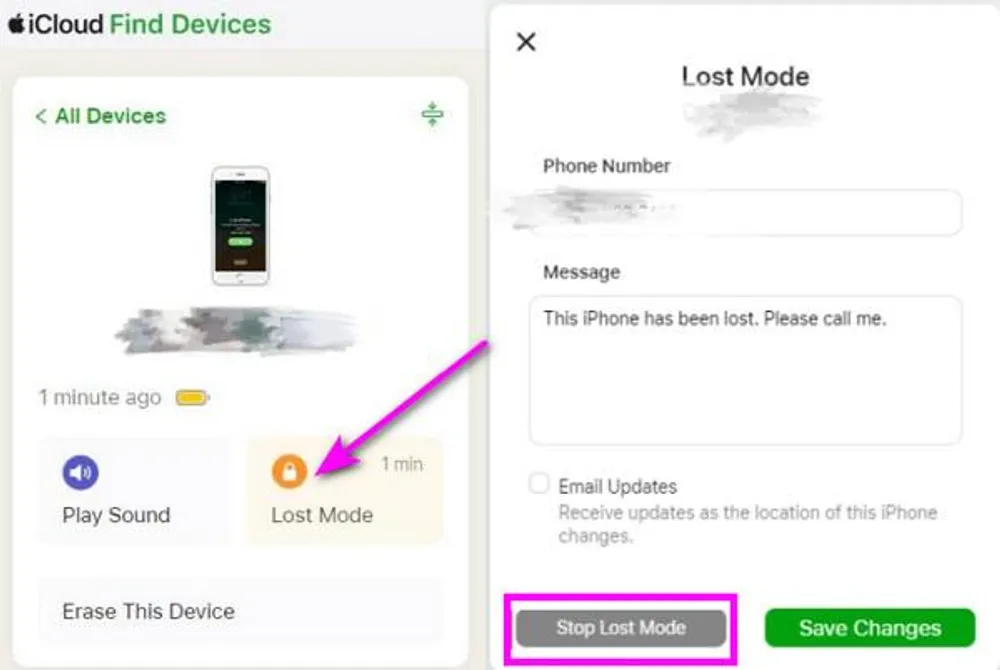
On another Apple device or at icloud.com, open Find My and sign in with the same Apple ID.
Select the device from All Devices, then choose it from the list.
Tap Lost, then Stop Lost Mode.
Confirm by tapping Continue. Lost Mode turns off remotely, ready for the passcode to be entered once the phone is back in hand.
Case 2: You Forgot the Passcode but Still Know Your Apple ID Password
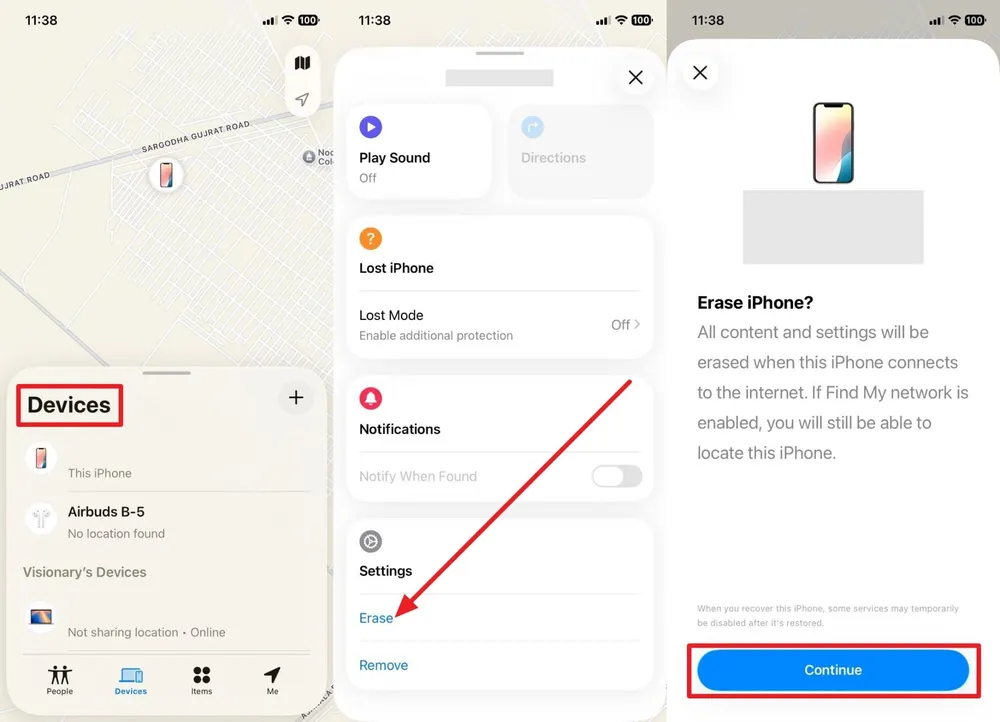
From Find My on another device or icloud.com, select the phone and choose Erase This Device.
Confirm with the Apple ID password.
Once the erase finishes, set the device up again signed into the same Apple ID, then restore from a recent iCloud or computer backup if one exists.
Case 3: You Want a Guided Way to Remove the Passcode
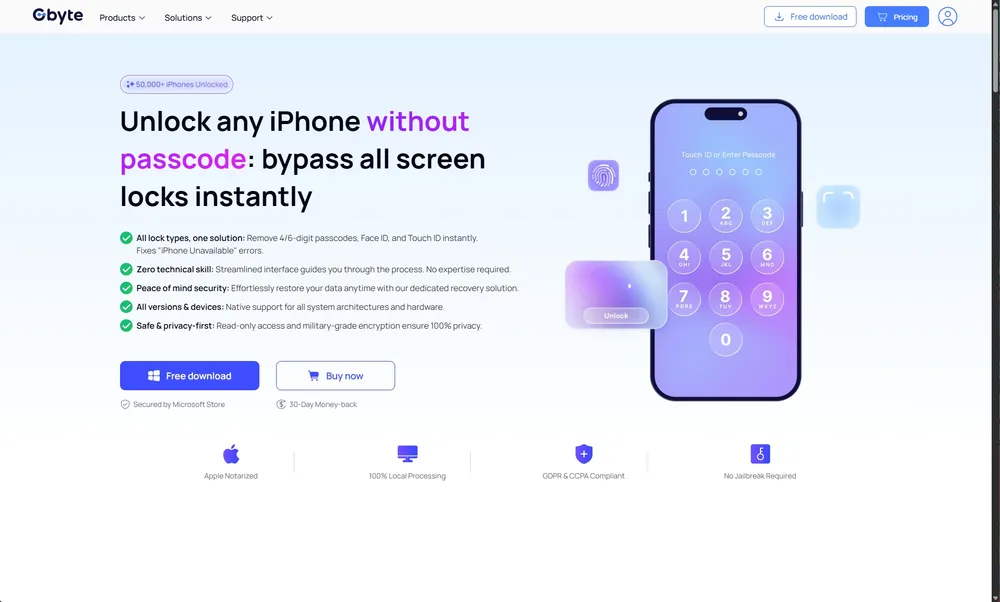
For anyone who owns the device but would rather not wait on Apple Support, third-party unlock software like Gbyte Unlock offers a guided, computer-based way to remove the screen passcode — connecting the device, letting the tool detect it, and following the on-screen steps. It's worth being clear about what this does and doesn't solve: it clears the passcode itself, but Activation Lock stays tied to the Apple ID that was signed in, so the device will still ask for that Apple ID's credentials during setup afterward. It's most useful alongside remembering the Apple ID, not as a replacement for it.
Case 4: You Lost Access to Both the Passcode and Apple ID
Apple Support can help verify ownership with proof of purchase. This route takes longer than the others, since it involves manual verification, but it's the path forward when both credentials are genuinely gone.
A used iPhone showing a Lost Mode screen is usually still linked to the previous owner's Apple Account through Activation Lock. Removing the screen passcode alone will not make the device usable again.
The best solution is to contact the previous owner and ask them to remove the iPhone from their Apple Account and Find My. If you have a valid proof of purchase, Apple Support may also be able to help verify ownership.
Be careful with third-party unlock tools that claim to remove Activation Lock. Most tools can only remove the screen passcode — they cannot remove the Activation Lock tied to someone else's Apple Account.
A few settings, checked now rather than after the fact, make Lost Mode and Activation Lock far more effective if the phone ever does go missing:
Use a passcode longer than 4 digits. A 6-digit or alphanumeric passcode is significantly harder to guess than the default, and it's the single biggest factor in how secure Lost Mode actually is.
Turn on Erase Data after 10 failed attempts, found in Settings under Face ID & Passcode. This puts a hard limit on how many guesses anyone gets.
Keep iOS updated. Security patches close off whatever exploits older versions may have had.
Make sure Find My and Activation Lock are both on — Settings > [Your Name] > Find My. Without this enabled beforehand, Lost Mode and remote erase aren't available at all if the phone goes missing.
Turn off notification previews on the lock screen, so messages and alerts can't be read by anyone who has the phone in hand, even before it's locked with Lost Mode.
None of this requires the phone to already be missing — checking these once, ahead of time, is what makes the difference later.
Lost Mode does what it's designed to do: without the passcode or the Apple ID behind it, an iPhone stays locked, and Activation Lock keeps it that way even through a full erase. For the legitimate owner, getting back in is one of a few straightforward official paths. For anyone else, it's built to hold.
No. Lost Mode is the visible lock screen state — the message, the location tracking, the passcode requirement. Activation Lock is the underlying protection tying the device to an Apple ID, and it's what keeps the device unusable to anyone else even after an erase.
No. Erasing the device clears its data and the passcode, but Activation Lock remains tied to the Apple ID that was signed in. Setting the device up again requires that same account's credentials.
No. Erasing removes the personal data on the device, but Activation Lock stays enabled as long as the device remains linked to your Apple Account — anyone else who erases it still can't set it up as their own.
No security system is completely unbreakable, but Lost Mode combines passcode requirements, hardware-level rate limiting, and Activation Lock in a way that makes unauthorized access impractical for nearly anyone without specialized, expensive tools — and even those aren't guaranteed to work.
If the passcode is remembered, entering it directly clears Lost Mode. If it's forgotten but the Apple ID password is known, erasing the device remotely through Find My and restoring from a backup is the next step. Without either, Apple Support can help verify ownership with proof of purchase.
Yes, as long as Lost Mode and Activation Lock have both been removed first through the original owner's Apple ID. A buyer should always confirm this has been done before purchasing a used iPhone.
 Add Gbyte as a preferred source on Google
Share


Copyright ©2026 Gbyte. All rights reserved. Gbyte’s software is not developed by or affiliated with Apple Inc.
The installation wizard will automatically start after downloading.
After registration, the recovery process can be managed through the web interface.
You get it all with your purchase - no locked features, no hidden limitations.