Recover, repair, unlock, transfer & view backups. Every iPhone issue, solved.
 Gbyte Editorial Team
Table of contents
Quick Answer
To turn off call forwarding on your iPhone, go to Settings > Apps > Phone > Call Forwarding and switch it off. If you don't see the Call Forwarding option, your carrier may manage the feature through its network instead — check the carrier-specific methods below.
Call forwarding can stay on longer than you intended — after a trip, a temporary setup, or a change you don't remember making. When that happens, incoming calls may keep going to another number instead of ringing on your iPhone, and you might not notice until someone tells you they couldn't reach you.
The good news is that turning it off usually takes less than a minute. This guide shows you how to turn off call forwarding on your iPhone through Settings, what to do if the option is missing, how carrier-specific methods differ, and how to troubleshoot call forwarding that won't turn off.
If your carrier supports call forwarding through iPhone settings, you can turn it off in just a few steps:
Open the Phone Settings: Open Settings, scroll down, and tap Apps > Phone.
Open Call Forwarding: Tap Call Forwarding under the Calls section.
Turn Off Call Forwarding: Switch off Call Forwarding. If a forwarding number was previously set, calls should no longer be redirected to that number once the feature is disabled.
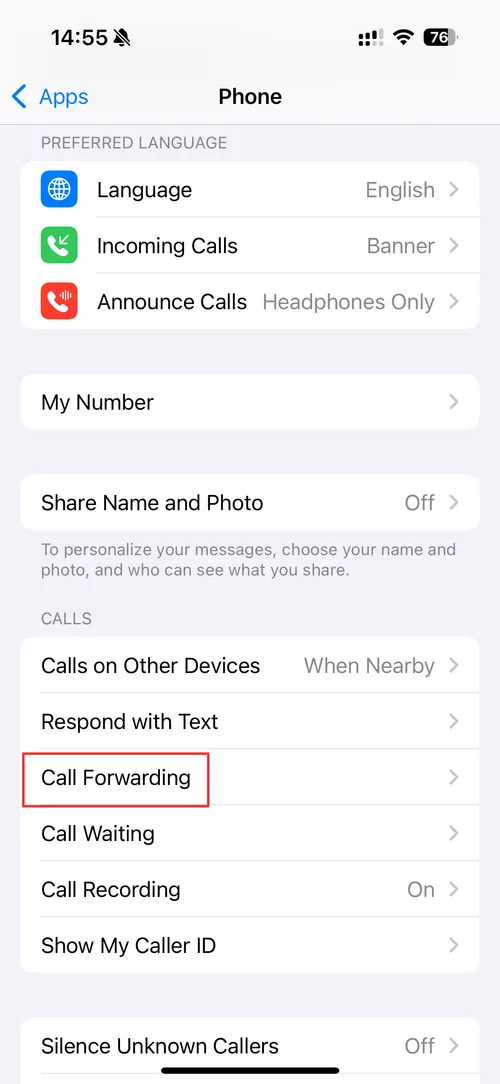
Using Dual SIM? Select the line you want to manage before changing its call forwarding settings.
Note: On older iOS versions, you may find Call Forwarding directly under Settings > Phone > Call Forwarding.
Not every carrier handles call forwarding the same way. If the Call Forwarding option isn't available in your iPhone settings, or turning it off there doesn't work, use the carrier-specific method below.
Carrier | How to Turn Off Call Forwarding | Notes |
Verizon | Dial *73 and tap Call | Wait for the confirmation tone or message, then call your iPhone from another phone to verify that forwarding is off. |
AT&T | Turn it off in Settings > Apps > Phone > Call Forwarding. You may also try #21# where supported. | AT&T supports call forwarding through iPhone settings on supported devices and service. |
T-Mobile | Dial ##21# to turn off unconditional call forwarding. | T-Mobile provides separate codes for different types of conditional call forwarding. |
T-Mobile also lets you disable specific types of call forwarding without turning off every forwarding condition:
Code | What It Turns Off |
##21# | Unconditional call forwarding |
##61# | Forwarding when you don't answer |
##62# | Forwarding when your phone isn't reachable |
##67# | Forwarding when your line is busy |
Open the Phone app, enter the appropriate code, and tap the Call button.
Note: Carrier codes can vary by network, account, and forwarding type. If a code doesn't work, check your carrier's current instructions rather than trying other dial codes.
If you don't see Call Forwarding under Settings > Apps > Phone, it usually means your carrier or cellular network doesn't support managing the feature directly through iPhone settings — not that something is wrong with your iPhone.
Call forwarding availability depends on your cellular service, and some carriers manage it through network-level dial codes instead of the iPhone toggle.
In that case, use the carrier-specific method in the table above. If you're still unsure whether forwarding is active, contact your carrier to confirm.
If you've turned off Call Forwarding on iPhone but calls are still being redirected — or the setting won't update — try these fixes.
Make sure your iPhone has an active cellular signal before changing call forwarding settings. Because call forwarding is a carrier-level feature, the change may not go through properly if your iPhone isn't connected to the cellular network.
After reconnecting, return to Settings > Apps > Phone > Call Forwarding and try turning it off again.
Turn Airplane Mode on, wait about five seconds, and turn it off again. This forces your iPhone to reconnect to the cellular network and may help refresh the forwarding status.
If that doesn't work, restart your iPhone and check Call Forwarding again.
If call forwarding still appears to be active, check your carrier's app or online account for any call-management or forwarding settings associated with your line.
The forwarding may be configured at the carrier level rather than through your iPhone, especially if you originally enabled it using a carrier code or service.
If you still can't disable call forwarding, contact your carrier and ask them to check whether forwarding is active on your line. They can also confirm whether your account has network-level or conditional forwarding enabled.
For the three major U.S. carriers:
Carrier | Customer Support |
Verizon | Dial *611 from your Verizon phone |
AT&T | Dial 611 from your AT&T phone |
T-Mobile | Dial 611 from your T-Mobile phone |
If call forwarding is already off but your iPhone still isn't ringing, forwarding may not be the cause. Settings such as Focus, Silence Unknown Callers, blocked contacts, or other network issues can also prevent incoming calls from reaching you normally.
See our guide on why your iPhone isn't ringing for the next troubleshooting steps.
It may be managed by your carrier rather than through iPhone settings. Check the carrier-specific methods above or contact your carrier.
Check Settings > Apps > Phone > Call Forwarding. You can also call your iPhone from another phone to confirm that it rings normally.
Usually not. However, disabling conditional call forwarding may affect how unanswered or unavailable calls reach voicemail, depending on your carrier. If a voicemail is already missing or deleted, see how to recover deleted voicemail on iPhone.
Not with standard iPhone call forwarding, which generally applies to all incoming calls. Check whether your carrier offers selective forwarding options.
Your carrier may still have network-level or conditional forwarding enabled. Check your carrier settings or contact your carrier to confirm.

 Add Gbyte as a preferred source on Google
Share


Copyright ©2026 Gbyte. All rights reserved. Gbyte’s software is not developed by or affiliated with Apple Inc.
The installation wizard will automatically start after downloading.
After registration, the recovery process can be managed through the web interface.
You get it all with your purchase - no locked features, no hidden limitations.