

Gbyte Unlock

Gbyte Unlock
Safely remove any iPhone/iPad screen lock in a few clicks.
Table of contents
A locked iPad with a forgotten passcode can be reset to factory defaults without entering the password using one of four methods:
(1) the built-in "Erase iPad" option on the lock screen (iPadOS 15.2+),
(2) Recovery Mode via a Mac or PC running Finder or iTunes,
(3) remote erase through iCloud.com, or (4) Gbyte Unlocker — a desktop tool that removes the passcode without erasing data.
All methods require your Apple ID credentials to complete activation after the reset. The first three methods delete all data; Gbyte Unlocker is the only option that preserves your files.
You typed the wrong passcode too many times, and now your iPad shows "iPad Unavailable" or "Security Lockout." If you remember your Apple ID but can't get past the lock screen, you have several ways to reset a locked iPad without passcode entry. Here are four working methods, each suited to a different situation.
Most people searching for how to reset an iPad to factory default without passcode own the device and know their Apple ID — they just can't recall the 4-digit or 6-digit screen code. All methods below address that exact scenario.
Apple's built-in lock-screen erase lets you factory reset a disabled iPad directly — no computer required.
If your iPad runs iPadOS 15.2 or later, has Find My iPad enabled, and is connected to Wi-Fi or cellular, the lock screen displays an "Erase iPad" option after too many failed attempts (or a "Forgot Passcode?" link on iPadOS 17+).
Tap Erase iPad (or Forgot Passcode? → Start iPad Reset) at the bottom of the lock screen.
Confirm the erase when prompted.
Enter your Apple ID password to disable Activation Lock remotely.
Wait for the iPad to wipe itself and restart to the Hello screen.
This is the fastest way to restore iPad without password. The iPad erases everything, including the passcode, then prompts you to set up as new or restore from an iCloud backup. Activation Lock stays intact — you'll need the original Apple ID at setup.
If the option doesn't appear, your iPad may be offline, have Find My disabled, or run an older iPadOS version. Move to Method 2.
Recovery Mode is the universal fallback. It works on any iPad model and any iOS version, and it doesn't require the device to be connected to the internet.
This method uses a computer to force the iPad into a restore state. It is the most reliable way to reset factory settings on a locked iPad when the on-device erase option is unavailable.
Step-by-step:
Connect your iPad to a Mac or Windows PC with a USB cable.
Put the iPad into Recovery Mode:
No Home button (Face ID models): Press and quickly release Volume Up, press and quickly release Volume Down, then press and hold the Top button until the recovery-mode screen appears (a cable icon pointing to a laptop).
Home button models: Press and hold both the Home button and the Top (or Side) button simultaneously. Keep holding until the recovery screen appears.
On your computer, open Finder (macOS Catalina or later) or iTunes (Windows or older macOS). Download Apple Devices from Microsoft Store if on Windows 10/11.
Click Restore when the dialog appears. If the download takes longer than 15 minutes, the iPad may exit recovery mode. If so, re-enter recovery mode and let the download finish.
Wait for the restore to complete. The iPad restarts to the Hello screen.
Recovery Mode is the best method if you need to "restore iPad without password" and don't have another Apple device handy. According to Apple Support, this deletes all data, so only proceed if you have a backup or are willing to lose what's on the device.
If you have a second device — any phone, tablet, or computer — you can reset a locked iPad remotely through iCloud.com. No physical connection to the iPad is needed.
This method is useful when your iPad is locked, was online at last check, and you want to know how can I reset iPad without password from anywhere.
Go to iCloud.com/find and sign in with your Apple ID.
Click All Devices and select your locked iPad.
Click Erase iPad. This sends a remote wipe command over the internet.
Enter your Apple ID password to confirm.
The iPad erases as soon as it connects to Wi-Fi or cellular.
The iPad must have been online and have Find My enabled before it was locked for this to work. The erase command queues and executes on the next network connection. As Apple Discussions community members confirm, this is also the recommended method if you've lost the device entirely.
All three methods above erase everything. But what if you need to reset a locked iPad without password and keep your photos, documents, and app data?
Gbyte Unlocker is a desktop tool that removes the screen passcode from a locked iPad without wiping the device. It's the only method on this list that offers a no-data-loss path.
This method works by downloading the appropriate firmware for your iPad model, then removing the lock-screen data segment without touching the user-data partition. The process runs entirely on your computer — no data is uploaded to external servers, and the tool is Apple-notarized for safety.
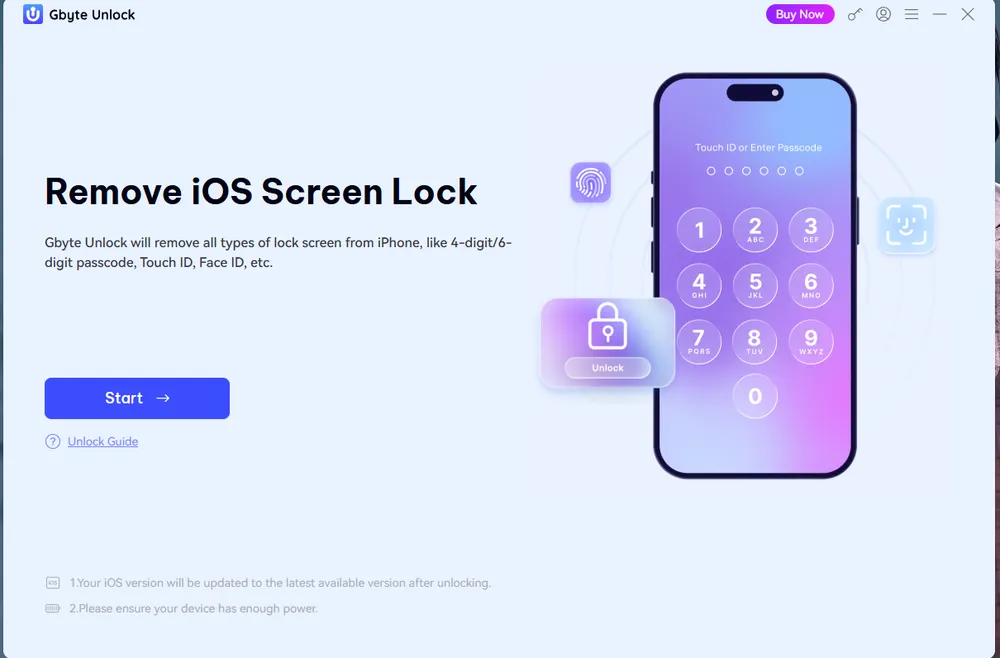
How to use Gbyte Unlocker:
Download and install Gbyte Unlocker on your Mac or PC (50 MB installer, supports Windows 7–11 and macOS with M1–M4 chips).
Connect your locked iPad via an original Apple USB cable.
Launch the software — it detects the iPad and its current iOS version automatically.
Click Download to fetch the matching firmware package (or import a local IPSW file if you already have one).
Click Start Removing. Keep the iPad connected throughout — the process takes a few minutes.
The iPad restarts with the passcode removed and all your data intact.
Gbyte supports all iPad models — iPad Pro, Air, Mini, and standard — running iPadOS 12 through 18. It also handles "iPad Unavailable," disabled devices, security lockout after 26 failed attempts, and biometric failures (Face ID / Touch ID). The tool is GDPR and CCPA compliant with 100% local processing, verified by over 12,000 reviews with a 4.8/5 rating.
This is the strongest option for anyone asking how to reset iPad without password who doesn't want to lose their data. It's also the only method that works when the iPad is stuck in a disabled state and you have no backup to restore from.
Method | Computer Needed? | Data Loss? | Internet Required? | Best For |
Lock Screen Erase | No | Yes | Yes | Quick reset, iPadOS 15.2+ |
Recovery Mode | Yes (Mac/PC) | Yes | No (download firmware) | Reliable universal fallback |
iCloud Remote Erase | No (second device) | Yes | Yes | Remote reset, lost devices |
Gbyte Unlocker | Yes (Mac/PC) | No | Yes (download firmware) | Preserving data, disabled devices |
Can I reset my iPad to factory defaults without the passcode?
Yes. Use the lock-screen Erase iPad option (iPadOS 15.2+), Recovery Mode via computer, iCloud remote erase, or Gbyte Unlocker. All four methods work without entering the screen passcode.
How do I factory reset a locked iPad without a computer?
If your iPad runs iPadOS 15.2 or later, tap Erase iPad on the lock screen after too many failed attempts. You'll need Wi-Fi and your Apple ID password. No computer required.
Will resetting my iPad remove the Apple ID lock?
No. Activation Lock remains intact after any reset method except one done from within Settings (which requires the passcode). You will need your Apple ID and password to set up the iPad after the reset. This is an anti-theft protection built into all Apple devices.
How can I reset iPad without password and keep my data?
Only Gbyte Unlocker can remove the screen passcode without erasing data. Apple's built-in methods and Recovery Mode all perform a full wipe. If you have an iCloud or iTunes backup, you can restore from it after the reset.
What happens if I enter the wrong passcode too many times?
After six incorrect attempts, the iPad displays "iPad Unavailable." After more attempts, it shows "Security Lockout" with a "Connect to iTunes" message. The iPad does not auto-erase unless you enabled that setting in Touch ID & Passcode settings.
How to reset an iPad without password if Erase iPad doesn't appear?
Use Recovery Mode with a computer. This works regardless of iPadOS version or whether Find My is enabled. Connect to a Mac or PC, enter Recovery Mode using the button sequence, and click Restore.
Regardless of which method you choose to reset factory settings on a locked iPad, three things matter:
You need your Apple ID. Every method will prompt for the original Apple ID and password during setup. If you've forgotten that too, you'll need to recover it through iForgot before you can use the device.
Backups matter. If you reset via Apple methods, all data is gone. Restoring from an iCloud or iTunes backup is the only way to get it back. If you never backed up, Gbyte Unlocker is the only path that preserves on-device data.
Activation Lock is not removed by a reset. The entire point of Activation Lock is to prevent unauthorized use of a stolen device. A reset erases your content but does not unbind the device from your Apple ID. This is confirmed by iFixit and Reddit's r/ipad community — a clean DFR (device firmware restore) does not bypass Activation Lock.
Choose the method that matches your situation. If you can afford to wipe the device, the lock-screen erase takes two minutes. If you need your files, Gbyte Unlocker is the only option. And if you need help recovering your Apple ID, Apple Support can assist after you verify ownership.
 Add Gbyte as a preferred source on Google
Share


Copyright ©2026 Gbyte. All rights reserved. Gbyte’s software is not developed by or affiliated with Apple Inc.
The installation wizard will automatically start after downloading.
After registration, the recovery process can be managed through the web interface.
You get it all with your purchase - no locked features, no hidden limitations.