

Gbyte Unlock

Gbyte Unlock
Safely remove any iPhone/iPad screen lock in a few clicks.
Table of contents
Quick Answer: You may be able to recover a disabled iPhone without a computer. If you changed the passcode within the last 72 hours, Passcode Reset can let you regain access with your previous passcode without erasing the device. If that option is unavailable, a compatible iPhone can be erased directly from the lock screen, or you can remotely erase it with Find My from another device or a browser. These erase-based methods remove the data stored on the iPhone, but you can restore an available backup afterward.
If none of those options are available, a computer becomes necessary. Apple's standard fallback is Recovery Mode, while a third-party desktop tool can provide a more guided reset process.
So before looking for a computer, check the three computer-free options below.
"iPhone Disabled" is older wording for a passcode lockout. Newer versions of iOS generally use "iPhone Unavailable" instead.
The message appears after too many incorrect passcode attempts. Depending on the iOS version and the state of the device, you may see a timer, Forgot Passcode?, Erase iPhone, or no useful recovery option at all.
What appears on the screen matters because it determines whether you can recover the iPhone without another device.
Not sure which option fits your iPhone? Use the decision tree below to find the right path.
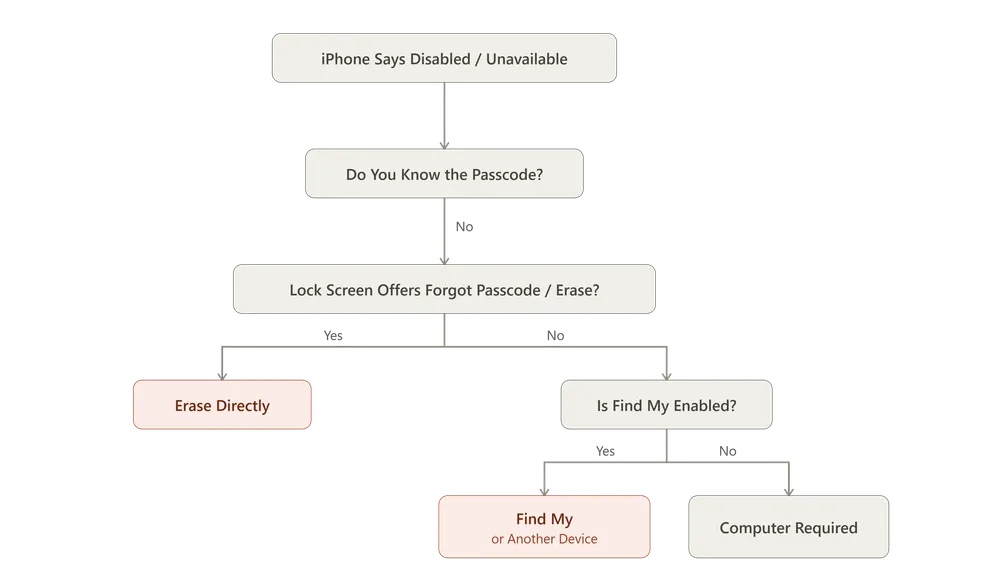
Start with the recovery options shown on your iPhone. If no lock-screen option is available, check Find My. If neither works, you'll need a computer or help from an Apple service provider.
Best for: Your disabled iPhone shows Forgot Passcode? or Erase iPhone on the lock screen.
Before using Find My or reaching for a computer, check whether your iPhone offers a recovery option directly on the lock screen. Depending on your situation, you may be able to regain access without erasing the device, or erase it directly from the iPhone if the passcode cannot be recovered.
If you changed your passcode within the last 72 hours and still remember the previous one, you may be able to reset the passcode without erasing your iPhone.
On supported versions of iOS, tap Forgot Passcode? and choose the option to enter your previous passcode.
Steps:
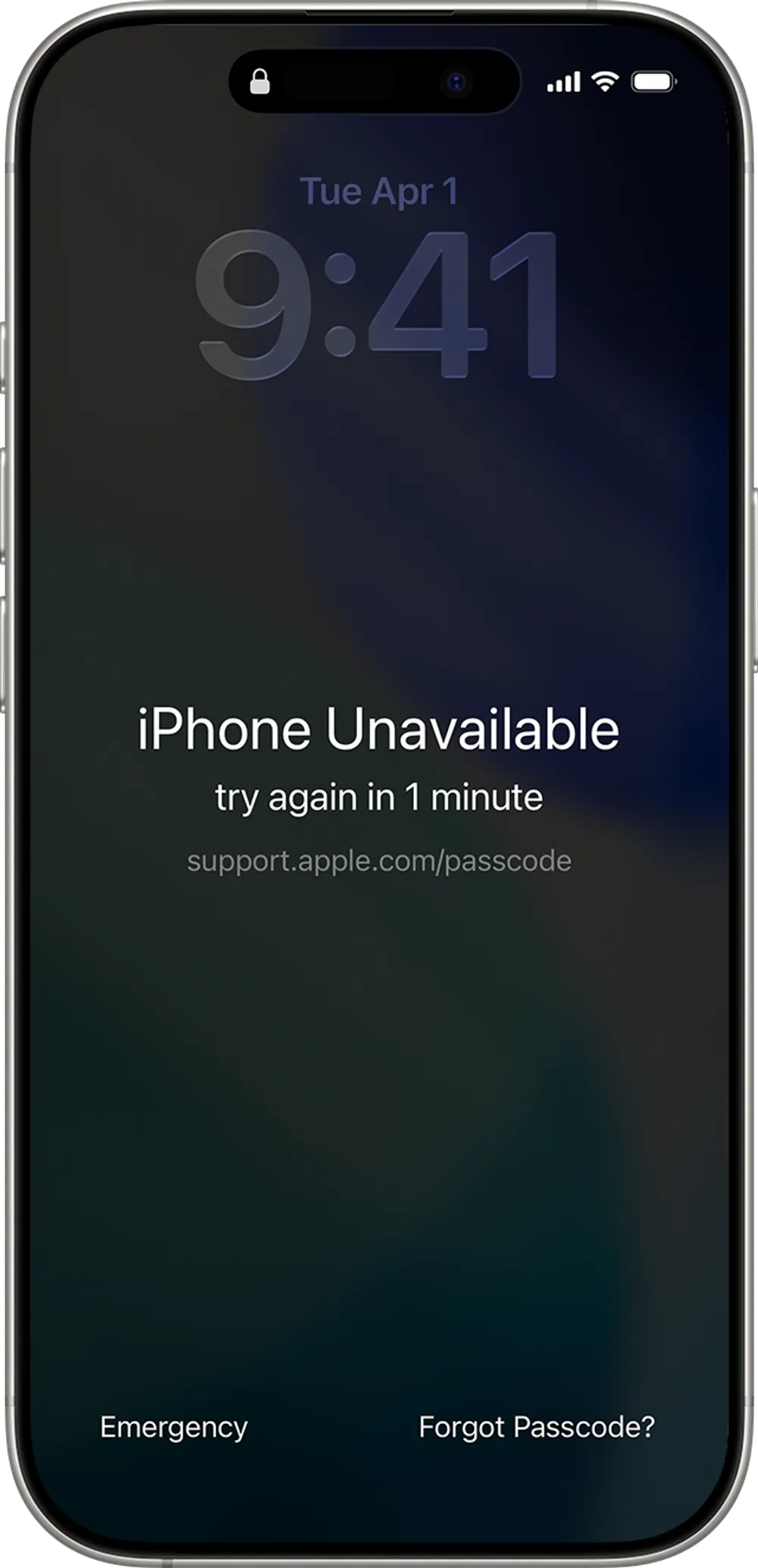
Tap Forgot Passcode? on the lock screen.
Choose Enter Previous Passcode.
Enter the old passcode.
Follow the onscreen instructions to create a new passcode.
Use the new passcode to access your iPhone.
This option is available only when the required conditions are met, including the 72-hour window after changing the passcode.
The main advantage: Your existing data stays on the iPhone.
If you do not remember your previous passcode, the lock screen may still provide an erase option.
Depending on the iOS version, you may see Forgot Passcode? or Erase iPhone. If the required conditions are met, you can use this option to erase the device and then set it up again.
Steps:
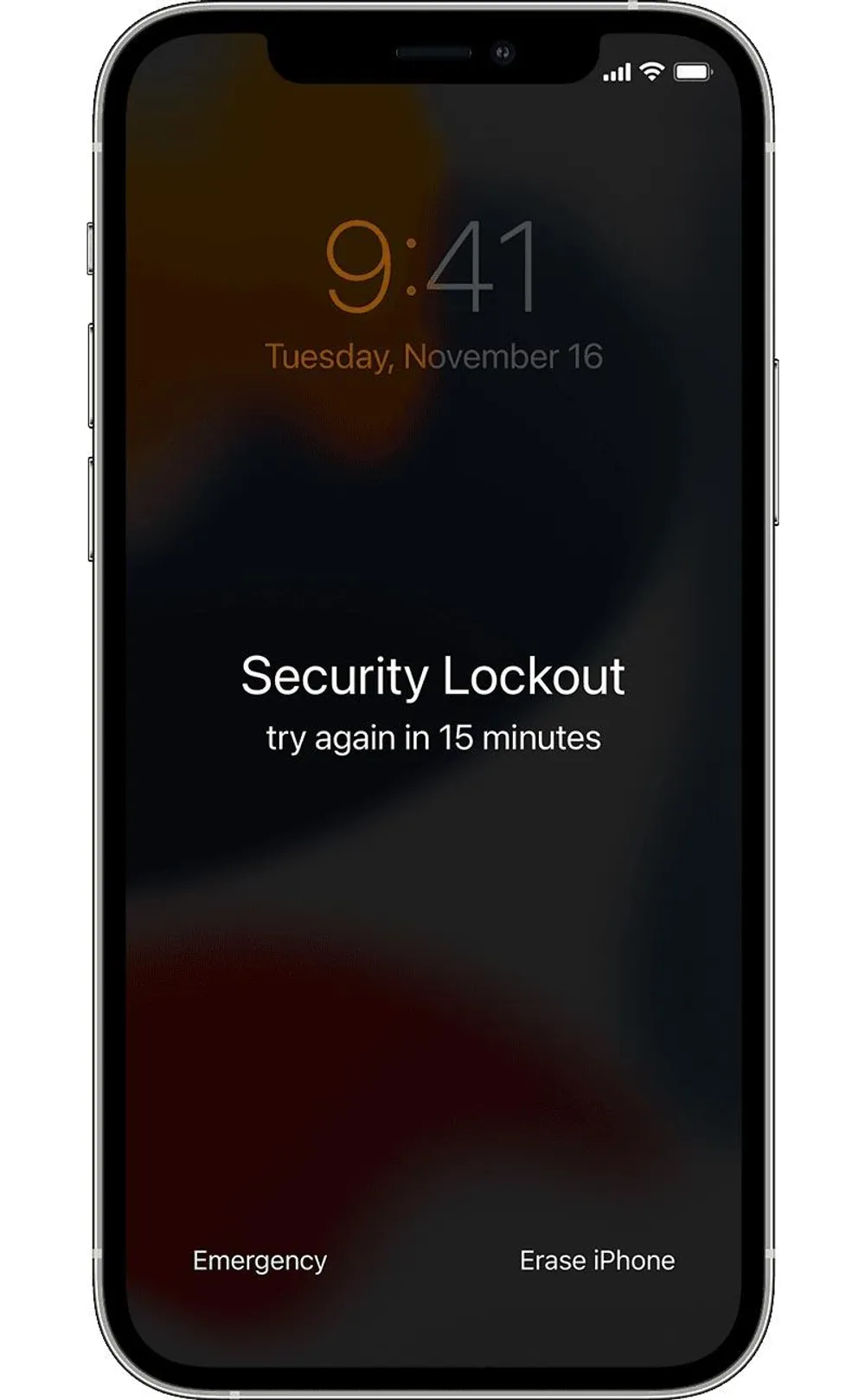
Tap Forgot Passcode? or Erase iPhone when it appears.
Follow the onscreen instructions.
Enter the Apple Account password associated with the iPhone.
Confirm that you want to erase the device.
Wait for the erase process to finish.
Set up the iPhone again.
Restore an available backup if you have one.
This process erases the data stored locally on the iPhone. It does not remove Activation Lock.
No computer required
Can be completed directly from the iPhone
The previous-passcode option can preserve your data
Uses Apple's built-in recovery features
The no-erase option requires the previous passcode
The previous-passcode option is limited to the 72-hour window
The erase option deletes locally stored data
The required lock-screen options may not appear on every iPhone
💡Forgot your passcode? See our [forgot passcode guide] for more detailed steps.
Best for: The lock screen does not provide the recovery option you need, but Find My was enabled before the iPhone became disabled.
Find My gives you another way to erase an iPhone without using the locked screen. You can send the erase request from another Apple device or from a web browser.
Apple allows remote erasure through the Find My app and through Find Devices on iCloud.com. If the iPhone is offline, the erase request remains pending until the device reconnects to Wi-Fi or cellular service.
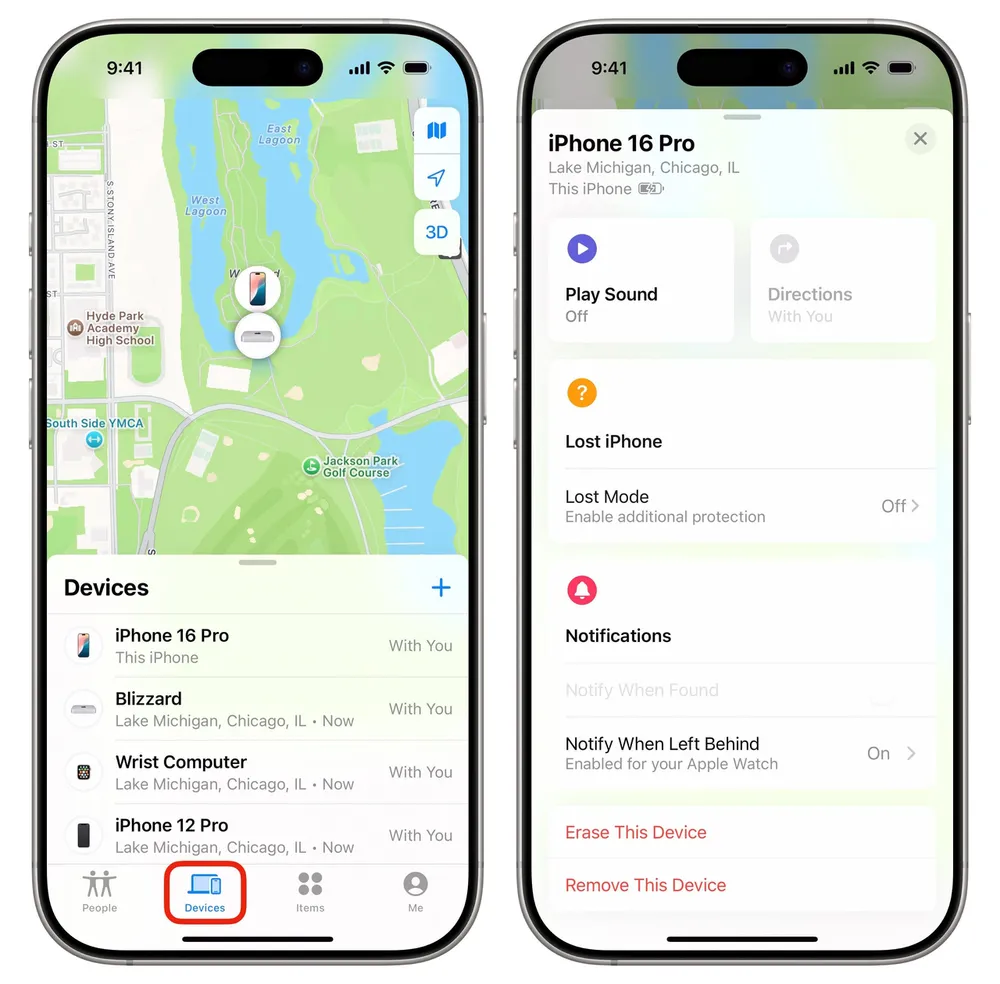
Open the Find My app.
Tap Devices.
Select the disabled iPhone.
Tap Erase This Device.
Tap Continue.
Follow the onscreen instructions.
Enter the Apple Account password if requested.
Confirm the erase.
You do not need another Apple device. A browser on a phone, tablet, or other device can also be used.
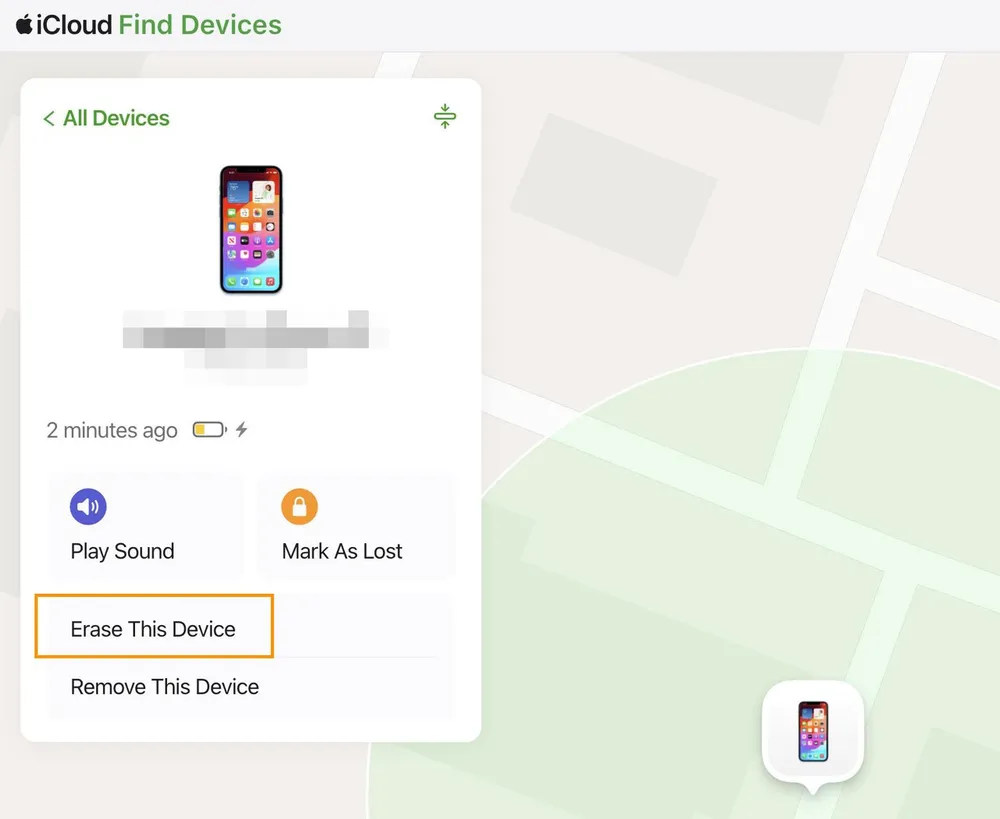
Go to iCloud.com/find.
Sign in with the Apple Account linked to the disabled iPhone.
Select All Devices.
Choose the disabled iPhone.
Select Erase iPhone.
Follow the onscreen instructions.
Confirm the erase.
If the iPhone is offline, the request will show as pending and will begin when the device comes online.
No computer required
Works even when you cannot use the iPhone's lock screen
Can be started from another phone, tablet, or browser
Useful when the lock-screen erase option is unavailable
Find My must have been enabled beforehand
You need access to the Apple Account associated with the iPhone
The process erases the iPhone
An offline iPhone must reconnect before the erase can begin
👉Want to see the full process? Our guide to [erasing an iPhone with Find My] walks you through each step in detail.
Remote erase is not a way to unlock the existing contents of the iPhone.
It erases the device and removes the screen passcode as part of the reset process. Afterward, you must go through setup again.
Activation Lock also remains enabled after a Find My erase. The Apple Account password associated with the device is required to reactivate it.
If you cannot use Passcode Reset, the lock screen does not offer an erase option, and the iPhone is not available in Find My, you have reached the point where a computer is normally required.
Apple's official fallback is Recovery Mode.
If you do not have a computer at all and cannot borrow one, Apple says you may need to visit an Apple Store or an Apple Authorized Service Provider for help.
This is an important distinction:
You may be able to start recovery without a computer, but there is no current Apple-supported method that can recover every disabled iPhone without either an available on-device/Find My erase path or access to a computer or service provider.
Best for: The computer-free options are unavailable, especially on older iPhones or unsupported iOS versions.
Recovery Mode is Apple's standard computer-based method for restoring an iPhone when you cannot use its passcode.
On a Mac, the restore is handled through Finder. On Windows, Apple's current software is Apple Devices rather than iTunes.
A Mac or Windows PC
A compatible charging/data cable
An internet connection
Enough time to download the required iPhone software
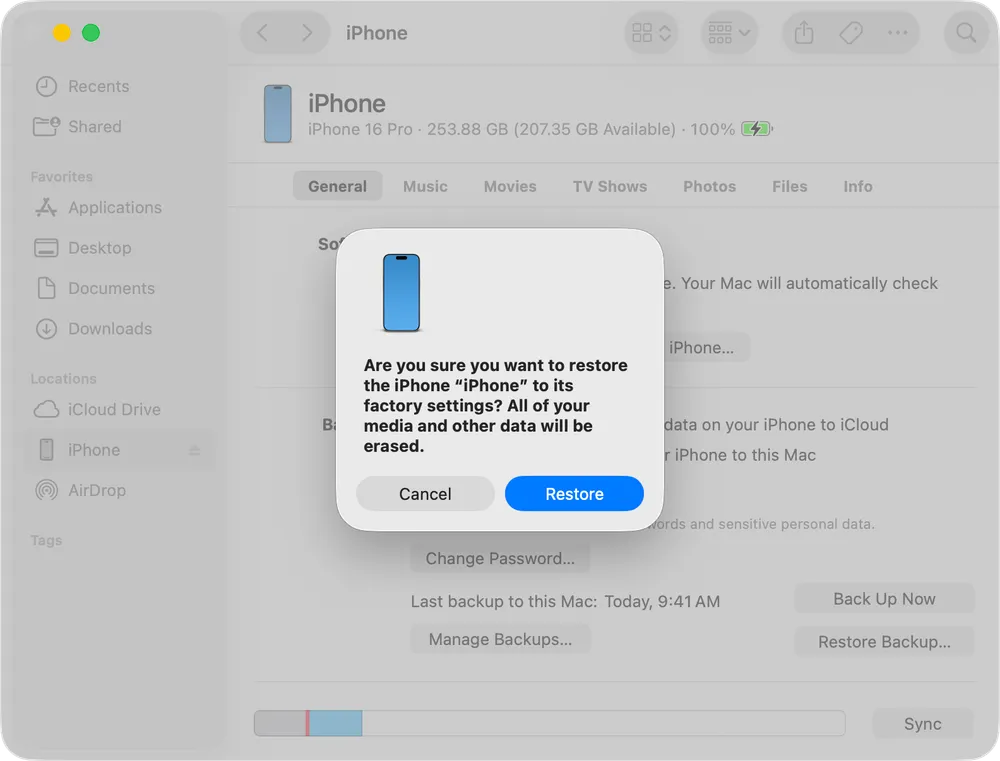
Connect the iPhone to the computer.
Put the iPhone into Recovery Mode.
Open Finder on a Mac or Apple Devices on Windows.
Select the iPhone.
Choose Restore.
Follow the onscreen instructions.
Wait for the restore to finish.
Set up the iPhone again.
The exact button combination for Recovery Mode depends on the iPhone model. Apple also notes that if the software download takes longer than the Recovery Mode window, the device may leave Recovery Mode and need to be placed into it again.
Apple's official recovery method
Does not require Find My to perform the restore
Works with older devices that may not have newer lock-screen recovery features
Available on both Mac and Windows
Requires a computer
Erases the iPhone
Recovery Mode steps vary by model
You need a backup if you want to restore your previous data
🔎 Need the exact steps for your iPhone model? See our [Recovery Mode guide] for detailed instructions.
Best for: You need a computer-based reset but prefer a guided workflow rather than manually working through Apple's Recovery Mode instructions.
A third-party iPhone unlock tool can provide an alternative workflow for resetting a disabled or locked iPhone. For example, Gbyte Unlock is designed to guide users through the reset process from a computer.
This is different from Apple's official recovery method. A third-party tool does not recover the forgotten passcode or preserve data that exists only on the locked iPhone. The device still needs to be reset.
Install and open Gbyte Unlock on your computer.
Connect the disabled iPhone.
Follow the onscreen instructions.
Enter the required recovery state when prompted.
Confirm the reset.
Wait for the process to finish.
Set up the iPhone again.
Guided workflow
Designed specifically for locked iPhones
Can be easier to follow than manually navigating Recovery Mode
Provides an alternative when you prefer a dedicated desktop workflow
Requires a computer
Resets the iPhone rather than recovering the forgotten passcode
Does not preserve data stored only on the device
It is a third-party solution rather than an Apple recovery service
Method | Computer Needed | Find My Required | Erases Data | Best For |
Passcode Reset | No | Yes | No | Changed passcode within 72 hours |
Lock-screen erase | No | Yes | Yes | Compatible iPhone showing the erase/recovery option |
Find My erase | No | Yes | Yes | Find My is available but the lock screen is not |
Recovery Mode | Yes | No | Yes | Older or unsupported devices |
Gbyte Unlock | Yes | No | Depends | Guided computer-based reset |
The key difference is not simply which method is "best." It is which method your iPhone currently allows.
If you can use Passcode Reset, that should come first because it can preserve the data already on the device. If not, the next computer-free routes are erase-based. Recovery Mode becomes relevant when those options are unavailable.
Sometimes.
If you changed your passcode within the previous 72 hours and the iPhone supports Passcode Reset, you may be able to use the previous passcode to regain access without erasing the device. Apple introduced this option in iOS 17 and later.
Outside that window, you should not expect a legitimate method to simply bypass the forgotten screen passcode while keeping the encrypted data on the iPhone.
The current Apple recovery paths are based on resetting the device, not bypassing its security.
That is why checking for Passcode Reset before choosing an erase option is so important.
Several conditions can affect which recovery options appear.
The newer Forgot Passcode? workflow is associated with iOS 17 and later.
Earlier supported versions use different wording and have different requirements. Apple notes that iOS 15.2 and iOS 16 can show an Erase [Device] option when the required conditions are met.
If your device still shows "iPhone Disabled", the available options may therefore look different from those shown in newer tutorials.
Find My needs to have been enabled before the lockout for the computer-free erase options associated with Find My to work.
If Find My was never turned on, the iPhone cannot simply be added to Find My after it becomes disabled.
A remote erase request can still be sent to an offline iPhone.
However, the erase does not begin immediately. The request remains pending until the iPhone reconnects to Wi-Fi or cellular service.
The Apple Account credentials can be required when erasing or activating the device.
If you erase the iPhone but cannot complete activation afterward, the problem may have changed from a screen passcode issue to an Activation Lock issue.
A factory reset does not automatically remove Activation Lock.
If the iPhone is still linked to someone else's Apple Account, the previous owner needs to remove it from their account. Apple also provides an Activation Lock support process for eligible owners with proof of purchase.
You may still find articles recommending Siri tricks, emergency-call workarounds, or other lock-screen techniques for older versions of iOS.
These should not be treated as current recovery methods.
Modern iPhones are designed so that a forgotten screen passcode cannot simply be bypassed to reveal the protected data. Current recovery methods either use an eligible passcode-reset feature or erase and restore the device.
No. Siri is not a current Apple-supported method for bypassing a forgotten screen passcode.
Older Siri-based workarounds depended on security weaknesses in older iOS versions. They should not be relied on for a modern disabled iPhone.
Not specifically.
The "Connect to iTunes" wording comes from Apple's older recovery workflow. Today, Macs use Finder, while Windows PCs use Apple Devices to restore an iPhone.
The Recovery Mode concept is still relevant. The software used to perform the restore has simply changed.
Before choosing an erase-based method, take a moment to check what data you may be able to recover afterward.
If iCloud Backup was enabled before the lockout, you may be able to restore the backup during the setup process after erasing the iPhone.
Photos, contacts, notes, and other information that was already synchronized with iCloud may become available again after you sign back into the same Apple Account.
Do not assume that resetting the screen passcode also removes your Apple Account credentials.
After an erase, you may still need the account associated with the iPhone to complete activation.
These are two different security mechanisms.
Screen passcode: Protects access to the iPhone and its local data.
Activation Lock: Helps prevent someone else from activating a device associated with Find My.
Erasing the iPhone can remove the screen passcode, but it does not automatically remove Activation Lock.
You do not necessarily need a computer to recover a disabled iPhone.
Start with the option your iPhone actually supports. If you changed the passcode within the last 72 hours, Passcode Reset is the only route that can let you regain access without erasing the device. If that is not available, you can try the lock-screen erase option or use Find My from another device or a browser.
If none of those options work, the problem has reached the point where a computer or service provider is required. Recovery Mode is Apple's standard computer-based solution, while a guided third-party tool can be an alternative for users who prefer a more structured desktop workflow.
The important thing is to check the computer-free options first. You may not need a computer at all.
Yes. If Find My was enabled on the disabled iPhone, you can use another iPhone or iPad to remotely erase it. This does not bypass the screen passcode, and the iPhone will still require activation after the erase.
Usually, you cannot create a new backup from a disabled iPhone because you cannot unlock it to start the backup process. If an iCloud or computer backup was made before the iPhone became disabled, you can restore that backup after erasing the device.
Yes. Erasing the iPhone removes the data and settings stored locally on the device, including photos, messages, apps, and other content that has not been backed up or synced elsewhere. Data already stored in iCloud or included in a backup may be recovered after you set up the iPhone again.
The iPhone restarts and returns to the setup process. You can set it up as a new device or restore an available backup. If Find My was enabled, Activation Lock can still require the Apple Account previously associated with the iPhone.
Use a passcode you can reliably remember and avoid repeatedly guessing when you are unsure of it. Keep an up-to-date iCloud or computer backup so that you have a way to recover your data if the iPhone ever needs to be erased.
 Add Gbyte as a preferred source on Google
Share


Copyright ©2026 Gbyte. All rights reserved. Gbyte’s software is not developed by or affiliated with Apple Inc.
The installation wizard will automatically start after downloading.
After registration, the recovery process can be managed through the web interface.
You get it all with your purchase - no locked features, no hidden limitations.