

Gbyte Recovery
Gbyte Recovery
Free scan and selective preview of 25+ data types like messages, photos, and WhatsApp. No data overwritten — recover only what you need.
Table of contents
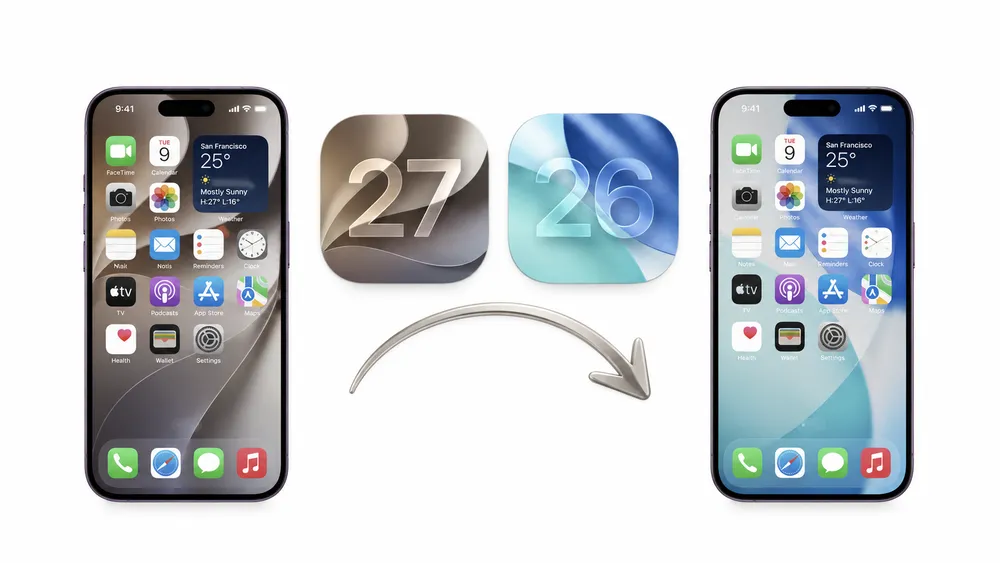
Updated to iOS 27 and already thinking about going back? Maybe the update is draining your battery, making your iPhone run hot or lag, breaking an app you rely on — or maybe you simply prefer the previous iOS experience.
Downgrading is possible, but it isn’t as simple as installing another update. Before you start, you need to know whether your iPhone can still install the version you want and what will happen to your data during the process.
This guide covers: whether downgrading is the right call for your situation, what happens to your data and how to protect it, step-by-step instructions for both the tool-assisted and manual methods, and what to do if something goes wrong.
Downgrading is reasonable if:
You strongly dislike the iOS 27 interface or feature changes and want the older experience back
You've confirmed an eligible iOS 26 version can still be installed on your model
Battery drain is severe and has continued for more than a few days of normal use
Your iPhone overheats during ordinary tasks, not just during setup or heavy gaming
An app you rely on daily is broken or incompatible on iOS 27
The system is visibly unstable — repeated crashes, freezes, or reboots
You accept that a downgrade can erase what's currently on the device
It's usually better to wait or repair first if:
You updated very recently. Some battery drain and warmth right after an update is caused by background indexing, re-downloading photos, and re-training on-device features, and it often settles within a few days.
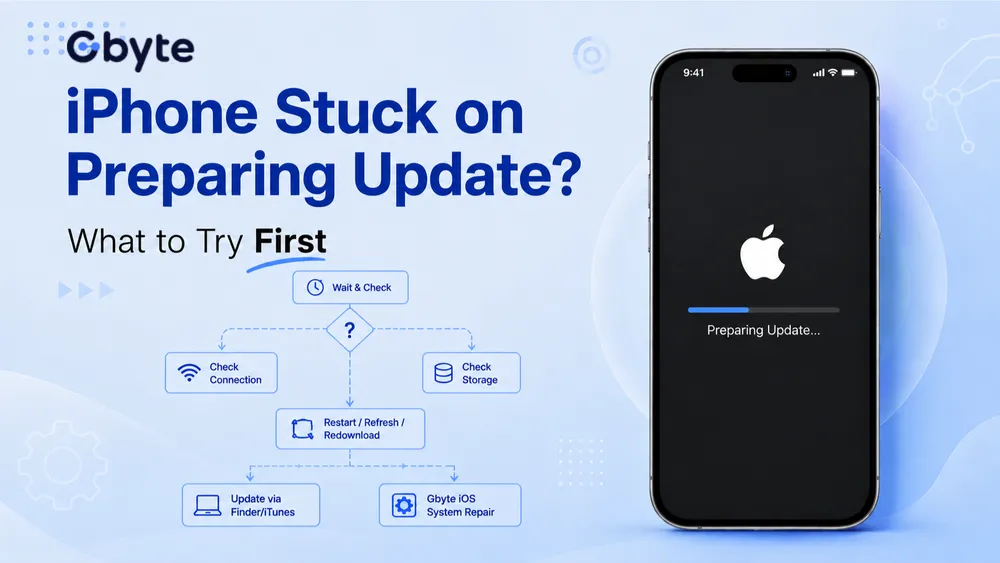
The symptom looks like a system fault rather than a version problem — Wi-Fi dropping, persistent lag, an iPhone stuck on the Apple logo, a boot loop, or a device that won't get past the update screen.
Your goal is "make this bug go away," not "return to iOS 26" specifically.
Your important data isn't backed up or synced anywhere yet.
Apple is no longer allowing the iOS 26 version you'd need on your model.
💡 If you only need to fix an iOS system error, try Gbyte iOS System Repair first. It can fix common iOS issues without data loss, avoiding the need to wipe your iPhone and downgrade the system.
Your iPhone model. You can only downgrade to an iOS version that was officially released for your device. For example, an iPhone model that launched with iOS 27 and never supported iOS 26 cannot be downgraded to iOS 26, regardless of which tool you use.
Whether Apple is still signing an eligible iOS 26 firmware for that model. Apple runs a server-side verification check every time iOS is installed. When a version is no longer "signed," it fails that check and cannot be installed, even if the IPSW file downloaded to your computer perfectly.

Look up your exact model (for example, iPhone 16 Pro, not just "iPhone") on a live IPSW source such as ipsw.me, and see which iOS 26 versions are marked as Signed. “Signed” means Apple is still allowing that version to be installed on your iPhone.
Make sure the firmware is for your exact iPhone model. A file made for a different model will not install.
Check again right before you downgrade, because Apple can stop allowing an older iOS version at any time.
If you don’t want to check firmware compatibility manually, you can also connect your iPhone to Gbyte iOS System Repair. It will automatically detect your device and show the iOS versions currently available for downgrade. Checking the available versions is free, and you don’t need to start the downgrade to see them.
Downgrading iOS reinstalls the operating system, which can erase the data currently stored on your iPhone. If you have photos, messages, files, or app data that you cannot afford to lose, protect them before you start.
There's a second limitation worth knowing: a backup created on iOS 27 may not restore to iOS 26. This affects both iCloud backups and computer backups made with Finder, Apple Devices, or iTunes. A backup made before you updated to iOS 27 doesn't have this problem — it restores to iOS 26 normally.
What happens to your data depends on where that data is stored:
What you have before downgrading | What happens after downgrading to iOS 26 | Main limitation |
Data synced with iCloud | Compatible Photos, Contacts, Notes, Messages in iCloud, iCloud Drive files, and other synced data can usually sync back after you sign in | The data must have finished syncing before the downgrade |
A backup made before you updated to iOS 27 | Restores normally, whether it's an iCloud backup or a computer backup | It must have been created before the upgrade |
An iCloud backup made on iOS 27 | Cannot be restored to iOS 26 | Rejected by iOS 26, but data still be extracted with a backup-recovery tool |
A Finder / Apple Devices / iTunes backup made on iOS 27 | Not directly compatible with iOS 26. Some users try to make an iOS 27 computer backup "pass" as compatible by editing the version number in the backup's Manifest.plist file. | Editing backup files is technically complex and may still fail, damage the backup, or result in an incomplete restore. |
Data stored only on the iPhone | Be erased during the downgrade | There is no cloud or backup copy to recover from |
Not sure how iCloud Sync differs from iCloud Backup? See our guide on iCloud Backup and iCloud Sync.
Check whether you have a backup made before you updated to iOS 27 — iCloud or computer, either works. If you do, you don't need to create a new one.
If you don't have one, make an iCloud backup before you downgrade. It won't restore directly to iOS 26 during setup, but there are ways to recover supported data from it — see the options in the table above.
Either way, confirm your iCloud-synced data has actually finished syncing — this is separate from the backup itself and applies regardless of which path you're on.
Before you begin: downgrading iOS 27 requires a Mac or Windows PC. Connect your iPhone with a USB cable and make sure the computer has a stable internet connection.
This is the easier route if terms like IPSW, DFU, and recovery mode aren't familiar. Gbyte handles the parts that most often go wrong for first-time users:
√ Helps match firmware that can actually be installed on that device, so you're not hunting through download sites for the right file
√ Simple downgrade process — just choose the version you want and click Downgrade
√ Includes iOS System Repair for fixable system issues
Steps:
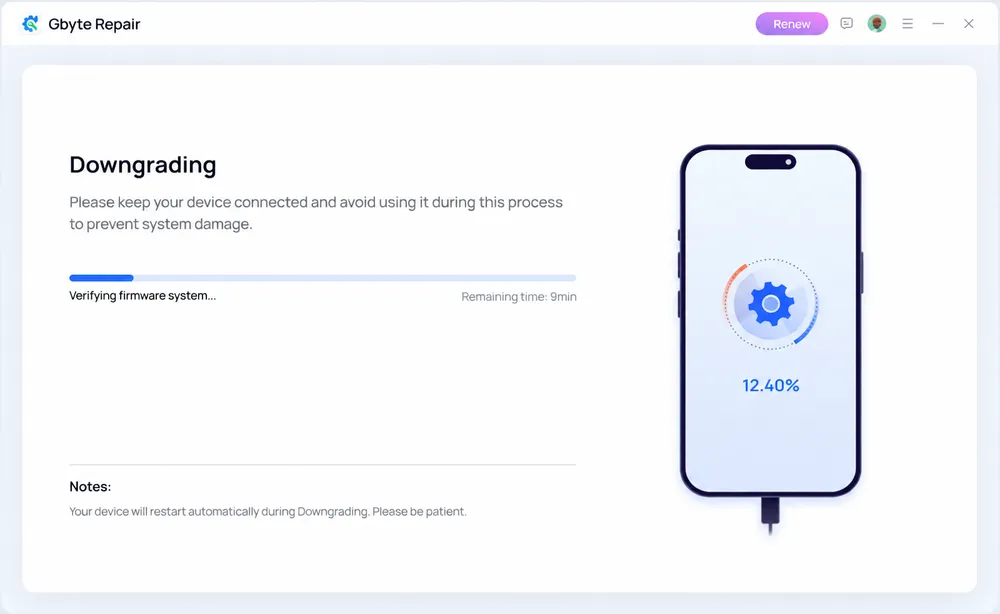
Install and open Gbyte on your Mac or Windows PC.
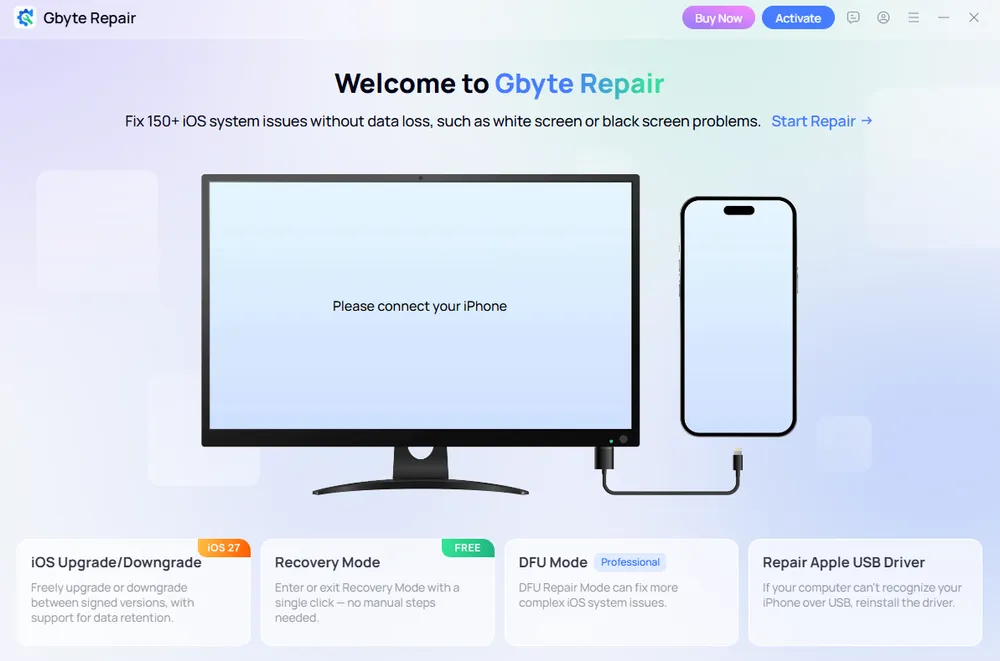
Connect your iPhone to the computer with a cable, unlock your iPhone, and tap “Trust This Computer” when prompted.
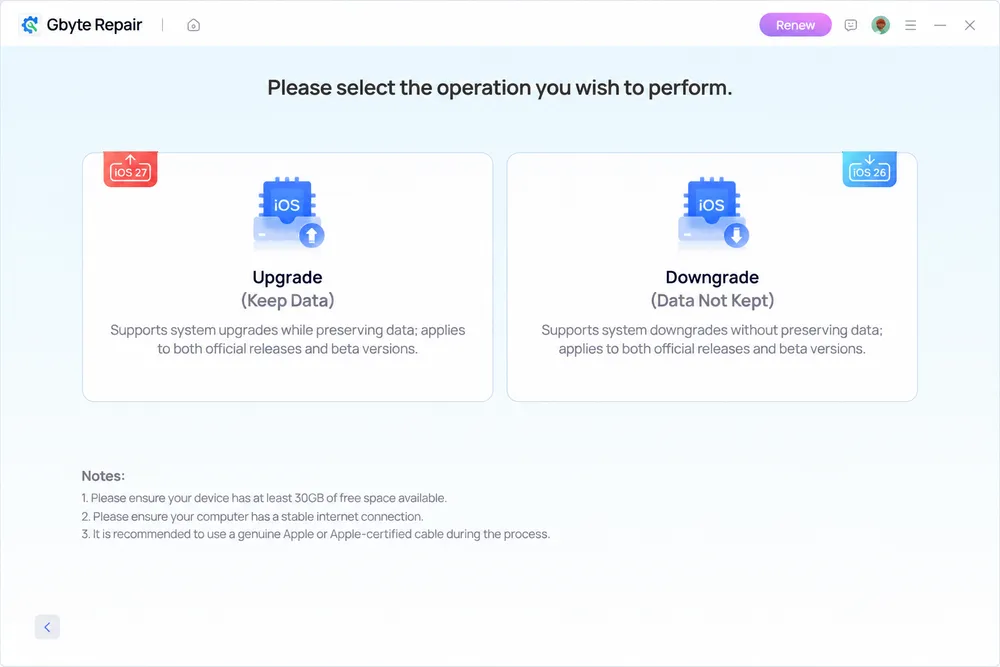
Choose the downgrade.
Select an available iOS firmware version. Let the firmware download.
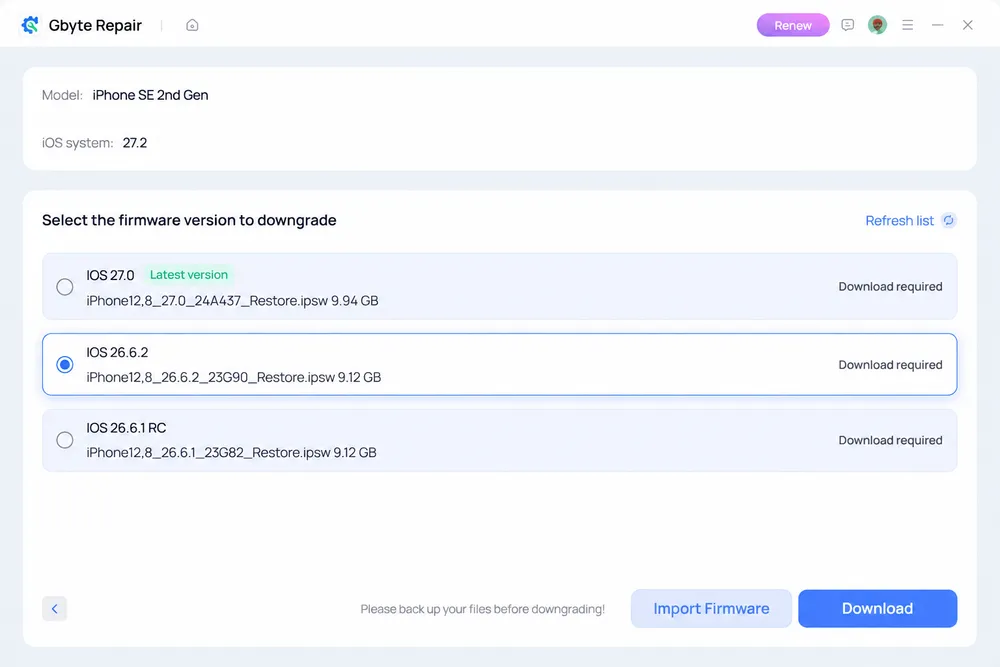
After download, start the downgrade and keep the iPhone connected until it finishes and restarts.
Use Finder on a Mac, Apple Devices on Windows, or iTunes on older Windows setups where Apple Devices isn't available.
Check signing status first. Confirm on a live IPSW source that an iOS 26 build is still signed for your model.
Download the correct IPSW for that precise model from a trusted firmware source.
Turn off Find My iPhone: Settings → [your name] → Find My → Find My iPhone. A restore is blocked while it's on.
Connect the iPhone to the computer with a cable, preferably one you know is reliable.
Open Finder, Apple Devices, or iTunes and select the iPhone in the sidebar.
Put it into recovery mode. [See our guide on how to enter recovery mode]
Start the manual restore:
Mac: hold Option and click Restore iPhone
Windows: hold Shift and click Restore iPhone
Select the IPSW file you downloaded and confirm the restore.
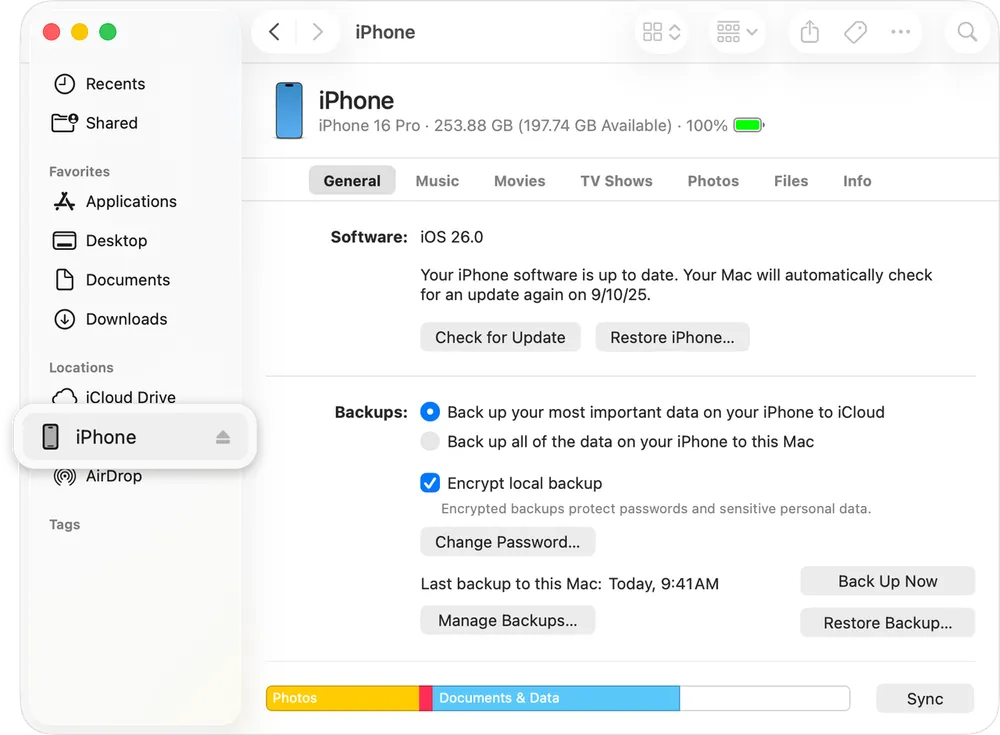
Wait. The iPhone will restart, show the Apple logo more than once, and may sit on a progress bar for several minutes. Don't disconnect it.
Set up the iPhone again and sign in to your Apple Account.
The IPSW doesn't match the model, or the version is no longer signed. Re-check the exact model identifier and the current signing status before trying again.
There is no supported way around this.
This can happen if the cable connection is interrupted, the USB port becomes unstable, or the computer shuts down during the restore. Try another cable or a USB port directly on the computer, avoid using a hub, and give the restore some time before force-restarting.
I ran into this myself while testing the downgrade. My computer accidentally restarted in the middle of the restore, which interrupted the process and left the iPhone stuck on progress bar. After I force-restarted it, the phone entered Recovery Mode, and another force restart still couldn't get it out.
If this happens, you can try restoring the firmware again. In my case, I used Gbyte iOS System Repair, and the repair successfully brought the iPhone out of Recovery Mode and back to normal.
The install didn't complete cleanly. Force restart first; if it loops again, the system needs to be reinstalled or repaired.
[ See our guide on iPhone stuck on Apple logo]
Common when a restore is interrupted. The device isn't bricked — it's waiting for a valid system to be installed.
[See our guide on iPhone stuck in recovery mode]
Almost always a version issue: the backup was created on iOS 27 and the iPhone is now on iOS 26. Use a backup made before the iOS 27 update if you have one, and rely on iCloud sync for photos, contacts, and notes in the meantime.
No. The version has to have been released for your iPhone model, and Apple has to still be signing it. Older versions are permanently closed off once signing ends.
Partly. Data on the device itself is erased. Data that had already synced to iCloud — iCloud Photos, Contacts, Notes, Messages in iCloud, iCloud Drive — can sync back once you sign in again. Local app data and backups that won't restore to the older version are the pieces most likely to be lost.
No. A full iOS downgrade generally requires a Mac or Windows PC. There is no built-in option on the iPhone to roll back to an earlier major iOS version. On Mac, the manual method uses Finder; on Windows, it uses Apple Devices or iTunes. Third-party downgrade tools also run on a computer and connect to the iPhone by cable.
No. An iPad can't run Finder, Apple Devices, or iTunes in a way that restores another device's firmware. It's a Mac or PC job.
It depends on when the backup was created:
Backup made on iOS 26 before upgrading: this is the best backup to restore after going back to iOS 26.
Backup made after upgrading to iOS 27: it may not restore to iOS 26 because the backup was created on a newer iOS version.
Data synced with iCloud: photos, contacts, notes, and other synced data may return after you sign in, even if the full iOS 27 backup cannot be restored.
In that case, downgrading may not be necessary. Issues such as Wi-Fi disconnecting, freezing, boot loops, an unresponsive screen, and similar problems can often be caused by iOS system errors rather than the iOS 27 version itself.
Gbyte iOS System Repair can fix common iOS system issues in one click without erasing your data, so you can stay on iOS 27 instead of rolling back the entire system.
The process itself is a standard Apple restore, but it carries real risk: the device is erased, an interrupted restore can leave the iPhone stuck. Back up first, use a reliable cable, and don't start if you can't leave the iPhone connected for 20–30 minutes.
Apple does not support restoring a newer iOS backup to an older iOS version because of system compatibility limits. If the full iOS 27 backup cannot be restored to iOS 26, Gbyte iOS Data Recovery can extract supported data from the backup and transfer it back to your iPhone.

 Add Gbyte as a preferred source on Google
Share


Related articles


Copyright @2026 Gbyte. All rights reserved.
The installation wizard will automatically start after downloading.
After registration, the recovery process can be managed through the web interface.
You get it all with your purchase - no locked features, no hidden limitations.