Gbyte Recovery
Gbyte Recovery
Free scan and selective preview of 25+ data types like messages, photos, and WhatsApp. No data overwritten — recover only what you need.
 Gbyte Editorial Team
Table of contents
When texts from one person disappear, the conversation is usually hidden or deleted, not lost for good. Start with the quick checks: make sure a message filter isn’t hiding the chat, check that the contact isn’t blocked, and set Keep Messages to Forever so older texts stop being removed. If you deleted the chat by mistake, look in Recently Deleted, which keeps messages for up to 30 days. After that, you can restore an iCloud or computer backup, but that replaces everything on your iPhone. To get back only the missing conversation without erasing your phone, Gbyte Recovery can search your iCloud account and older backups for it.
Before jumping into solutions, it's helpful to understand why this happens:
iOS syncing errors: iCloud message syncing can sometimes cause conversations to temporarily disappear.
Accidental deletion: You might have swiped to delete without realizing it.
Software glitches: iOS updates or bugs can make messages vanish
Storage settings: Your iPhone may automatically delete older messages when storage is full.
Filter settings: You might have accidentally enabled a filter that hides certain messages.
Knowing the cause helps you easily and effectively fix this problem. Below are several methods to get the disappeared text messages back on your iPhone.
First, make sure you're not filtering out the conversation:
Open the Messages app
Tap "Filters" in the top left corner (if available)
Select "All Messages" to ensure nothing is being hidden
Check if the missing conversation reappears
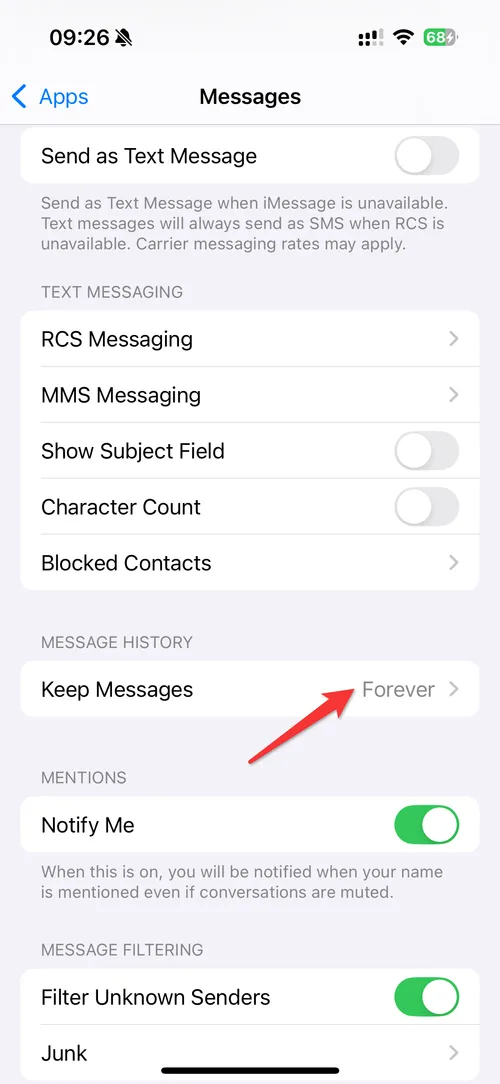
If only older conversations are missing, your iPhone may be deleting them automatically. When Keep Messages is set to 30 Days or 1 Year, any message older than that is removed, which is why one person’s chat can vanish while newer chats stay.
Open Settings and go to Apps > Messages. On iOS 17 or earlier, go to Settings > Messages.
Scroll down to Message History and tap Keep Messages.
Choose Forever.
This stops future deletions, but it won’t bring back messages that have already been removed. To get those back, try the recovery methods below.
A simple restart can often resolve temporary glitches:
Press and hold the side button and either volume button.
Slide to power off.
Wait 30 seconds, then press the side button to restart.
Check if messages have been returned.
If you accidentally blocked the person, their messages won’t appear.
To check:
Go to Settings > Messages > Blocked Contacts.
Look for the missing contact.
If listed, swipe left and tap Unblock.
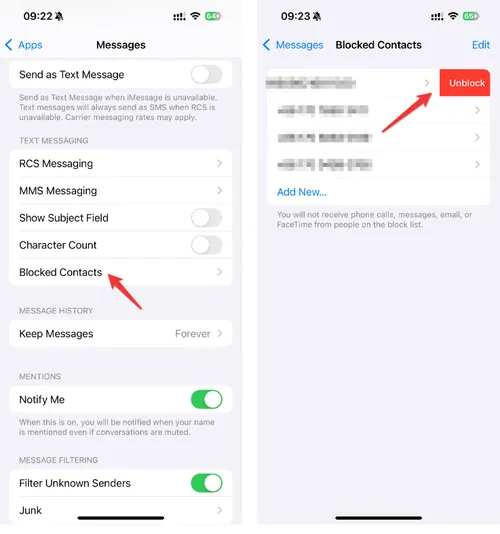
Now ask the person to send a message—it should show up normally.
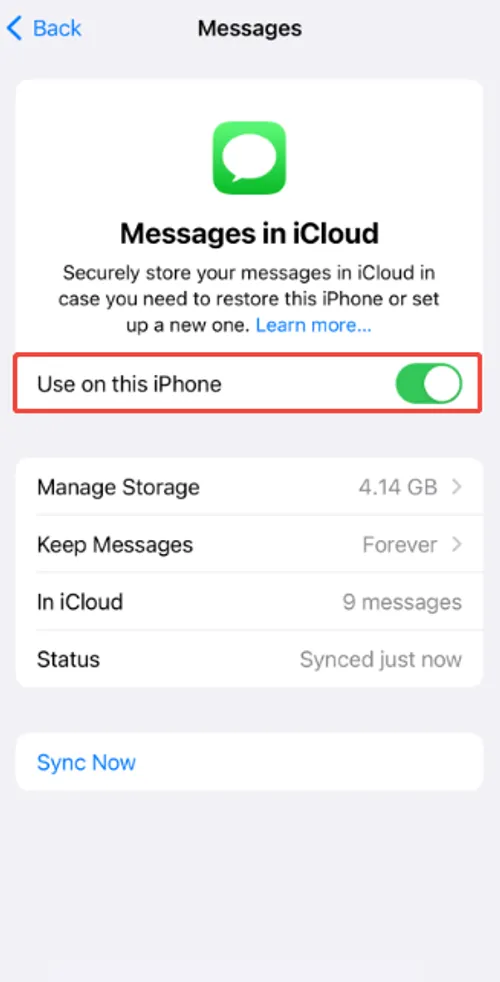
If you use iCloud for Messages, sync issues might be the culprit:
Go to Settings > [your name] > iCloud
Toggle "Messages" off and wait 30 seconds
Toggle it back on
Wait for sync to complete (this may take several minutes)
For iPhones running iOS 16 or later:
Open Messages app
Tap "Filters" > "Recently Deleted"
Look for the missing conversation
Tap "Recover" if found
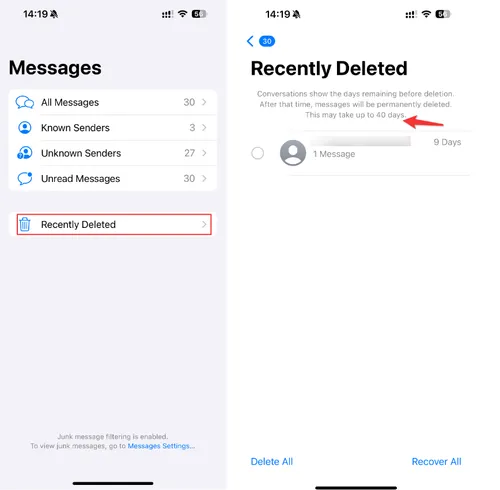
Note: Deleted messages on iPhone are only kept for 40 days, so act fast for those.
If you have an iCloud backup from before the messages disappeared:
Go to Settings > General > Reset
Select "Erase All Content and Settings"
Set up your iPhone and choose "Restore from iCloud Backup"
Select a backup from when the messages were still available.
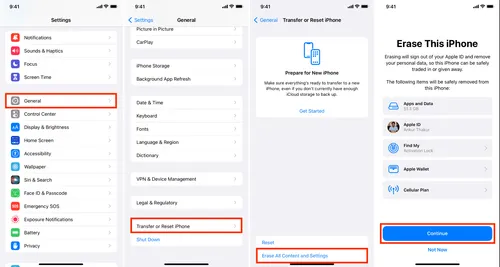
Note: This will erase all current data and replace it with the backup data.
If you back up your iPhone to a computer, you can restore an older backup that still has the conversation. Like an iCloud restore, this replaces everything currently on your iPhone with the backup.
Turn off Find My on your iPhone in Settings > [your name] > Find My.
Connect your iPhone to your computer with a cable.
On a Mac, open Finder and select your iPhone. On Windows, open iTunes or the Apple Devices app.
Click Restore Backup and choose a backup made before the messages disappeared.
Enter the backup password if it’s encrypted, and keep your iPhone connected until it restarts.
When other methods fail, specialized tools like Gbyte Recovery can often retrieve lost messages, or if you want to recover deleted text messages from one person without erasing your iPhone, Gbyte Recovery is the easiest and safest option.
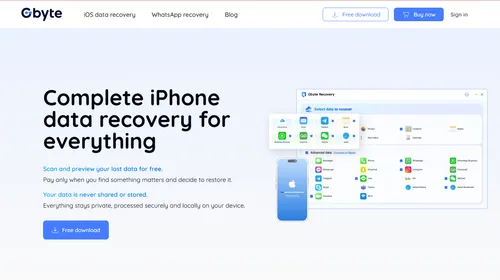
Why choose Gbyte Recovery?
No need to reset your iPhone.
Supports recovery of SMS, iMessage, and WhatsApp chats.
Can scan your iCloud account and retrieve messages from any connected device.
Step-by-step guide:
Download and Install - Get the software from the official Gbyte website and install it.
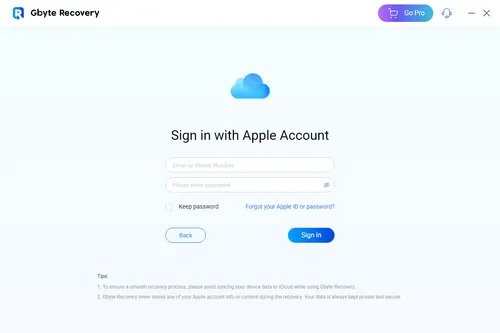
Sign In to Apple Account - Log in with your Apple ID to connect your device.
Scan for Deleted Data - Select "Messages" and start the scan (duration depends on your data size).
Preview and Recover - Review found messages and restore the ones you need.
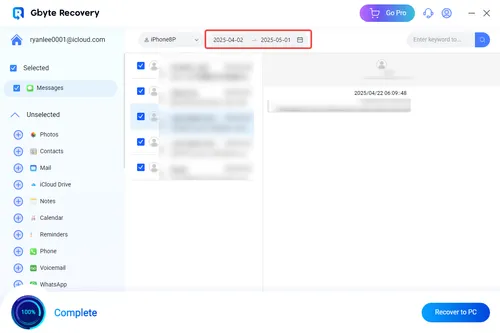
Gbyte Recovery can find deleted iMessages, SMS, and even WhatsApp chats that are no longer visible in your Messages app.
You can also recover deleted texts right on your iPhone with the Gbyte app. Here’s how it works:
For SMS (green bubble texts), your carrier might retain records:
Call your mobile provider's customer service
Ask if they can provide copies of your text message history
Note that carriers typically only store messages for a limited time
If none of the above methods work and you suspect a serious glitch, reach out to Apple.
Visit Apple Support.
Use the Messages > iMessage section.
You may be asked to submit logs or screenshots for diagnostics.
Apple may help if it's a system bug or syncing error from their side.
To avoid this issue recurring:
Regularly back up your iPhone (both iCloud and computer backups)
Keep messages forever: Set Keep Messages to Forever, as shown in Method 2.
Manage storage: Keep at least 1GB free to prevent automatic deletions
Update iOS: Always run the latest version to avoid software bugs
When text messages from one person disappear on iPhone, it doesn’t always mean they’re gone for good. From quick settings checks to professional recovery tools like Gbyte Recovery, there are multiple ways to bring them back—without panic. Start with the easy steps and move toward advanced recovery if needed.
Often, yes. Gbyte Recovery scans your iCloud account, so you don’t need a backup saved on your computer. It can find messages that were synced to iCloud or saved in an older iCloud backup, but not ones that never reached iCloud. The free scan shows what’s there before you pay.
It could be due to accidental deletion, iOS bugs, or a blocked contact. Filter settings can also hide individual threads, and if Keep Messages is set to 30 Days or 1 Year, older conversations are deleted automatically.
Absolutely. It connects to your iCloud using encryption and does not store any of your data.
It depends on the size of your iCloud data. Small accounts finish in under a minute; larger ones may take 5–10 minutes.

 Add Gbyte as a preferred source on Google
Share


Related articles


Copyright ©2026 Gbyte. All rights reserved. Gbyte’s software is not developed by or affiliated with Apple Inc.
The installation wizard will automatically start after downloading.
After registration, the recovery process can be managed through the web interface.
You get it all with your purchase - no locked features, no hidden limitations.