


Gbyte Recovery
Gbyte Recovery
Free scan and selective preview of 25+ data types like messages, photos, and WhatsApp. No data overwritten — recover only what you need.
 Gbyte Editorial Team
Table of contents
Yes. From the phone in your hand, you can check whether your video still exists in Recently Deleted, in iCloud, on another device, or inside an existing backup — and when a copy is still out there, you can bring it back.
That last part is the honest catch. Recovery only works when a copy survived somewhere; nothing can rebuild a file that was never stored. The good news is that finding out costs nothing and takes a few minutes.
Work through the chart below, find the row that matches your situation, and go straight to that section.
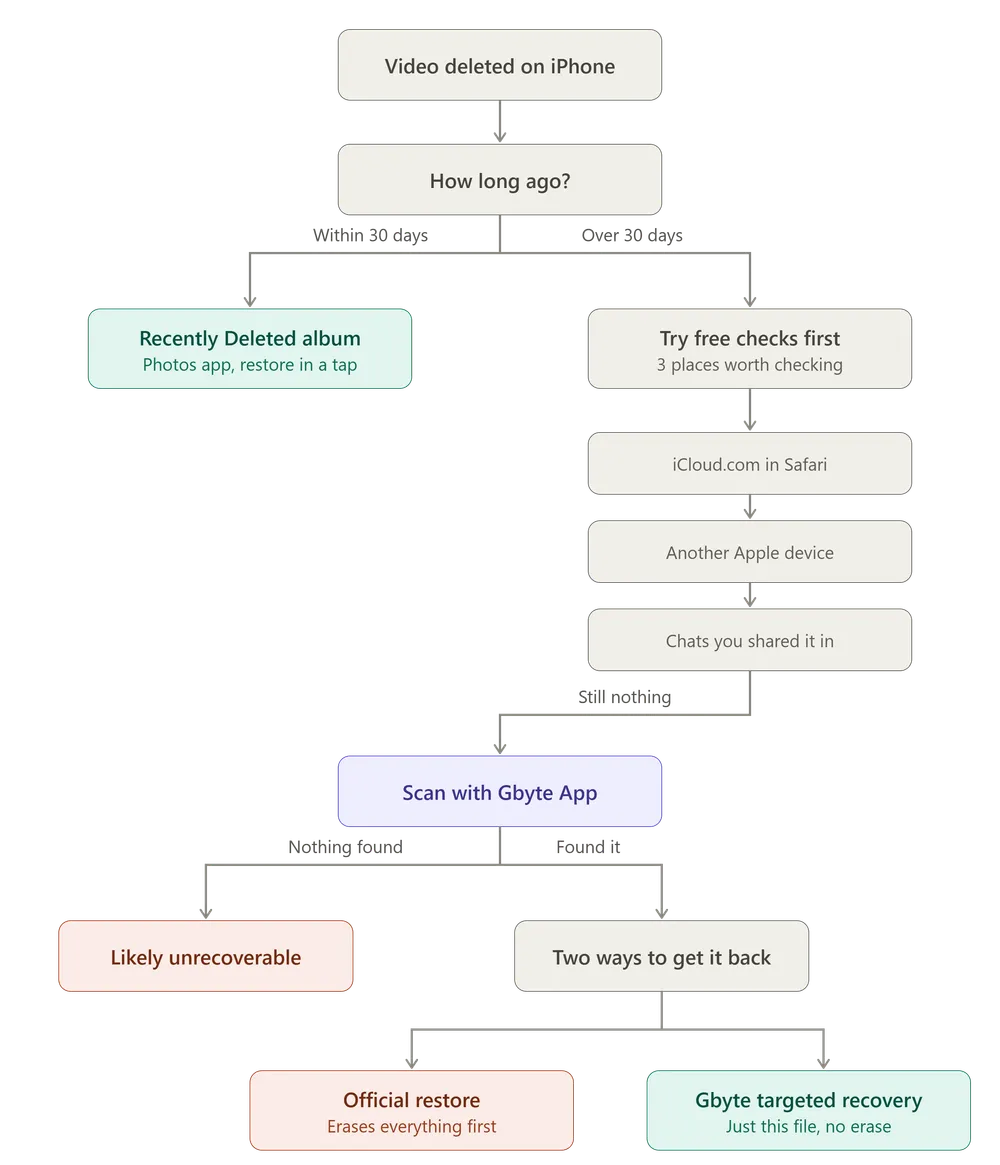
Each branch below has its own section. Skip to whichever one matches you:
Deleted within 30 days → Recently Deleted album
Deleted over 30 days ago → start with the free checks
Free checks came up empty → scan your iCloud backup with Gbyte Recovery
Already found it → pull out one file without resetting your phone
Every video you delete goes into a holding folder before it's gone for good. Most people who land on this page find their file sitting right there.
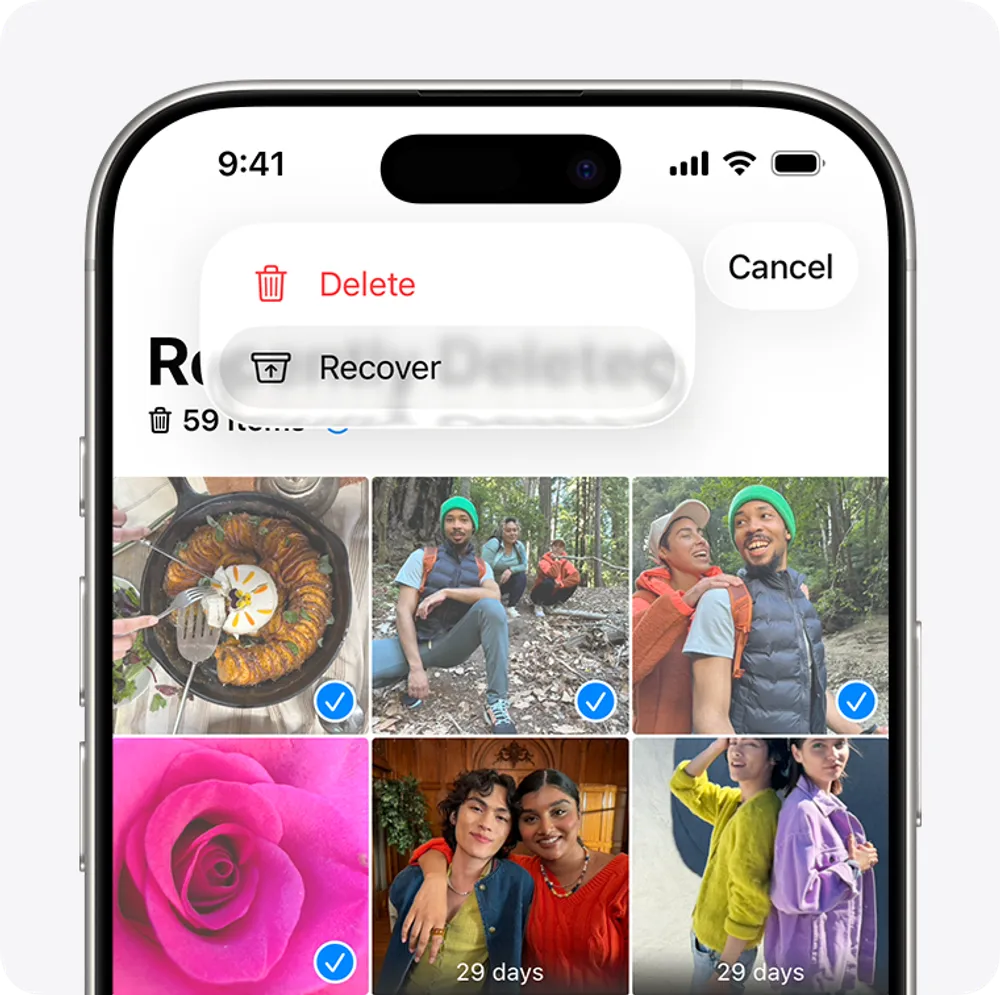
Open the Photos app
Tap Albums at the bottom
Scroll to the very bottom, to Utilities
Tap Recently Deleted and unlock it with Face ID or Touch ID
Find your video, tap it, then tap Recover
It goes straight back to your main library, in its original spot in the timeline, at full quality.
Two things worth knowing.
The 30-day countdown starts the day you deleted the video — not the day you noticed it was missing. Someone who deletes a clip in January and goes looking in March has already missed the window, even though it only felt like a few days.
The folder can also empty early. Tapping "Delete All" in Recently Deleted, or removing a video a second time from inside that folder, clears it immediately. Anyone who has ever cleared space in a hurry may have wiped this safety net without realizing it.
iCloud.com works fine in a mobile browser, and it shows you what's actually sitting in the cloud rather than what your phone thinks is there. The two occasionally disagree, which is exactly why this check is worth a minute of your time.
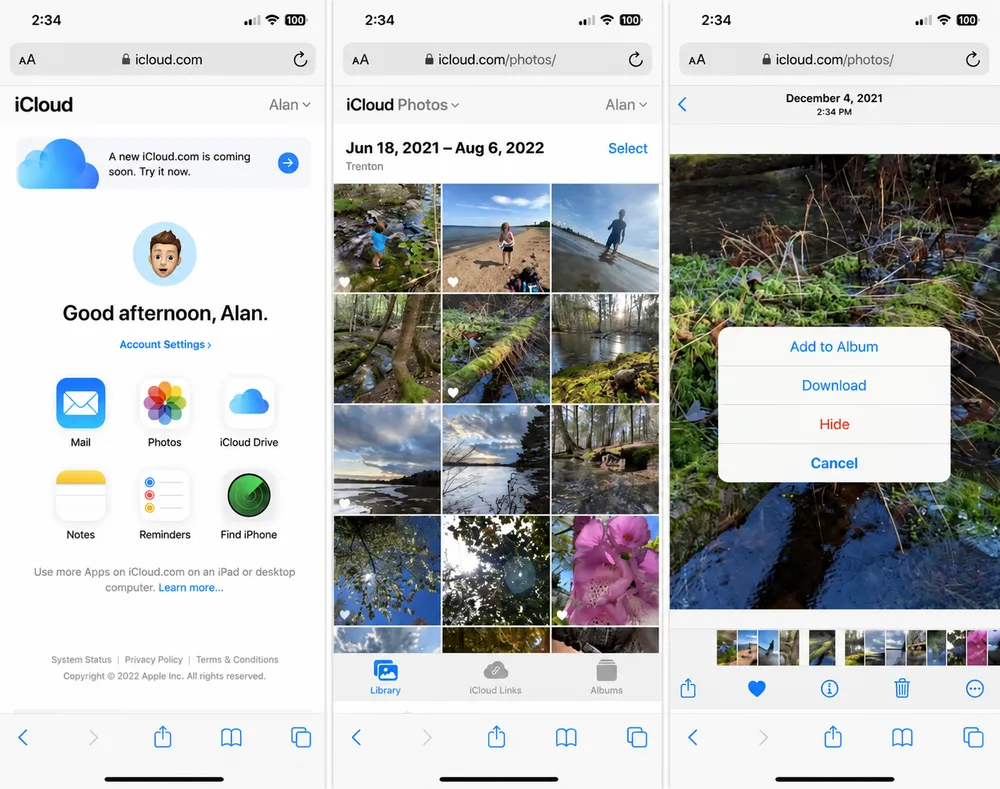
Open Safari and go to iCloud.com
Sign in with your Apple ID
Approve the login with the six-digit code sent to a trusted device
Tap Photos
Look through your library, then check Recently Deleted in the sidebar
Tap the video, then the download icon to save it back to your phone
A video that shows up here but not on your phone usually points to a sync that stalled — a common outcome after a long stretch on weak Wi-Fi or with a full storage plan.
Open the Photos app on that device and look through both the main library and its own Recently Deleted folder.
The reason this works: a device that has been sitting in a drawer, off or offline, never received the instruction to delete anything. It may still be holding a copy that vanished from your iPhone weeks ago. An old iPad that hasn't seen Wi-Fi since last summer is a better bet here than one you use daily.
Deletion timers also run separately on each device, so the same clip can have days left on one and be long gone on another.
Think back to whether you ever sent this clip to anyone. Search your WhatsApp, iMessage, and Instagram threads, then check Shared Albums and the Recently Shared row in Photos.
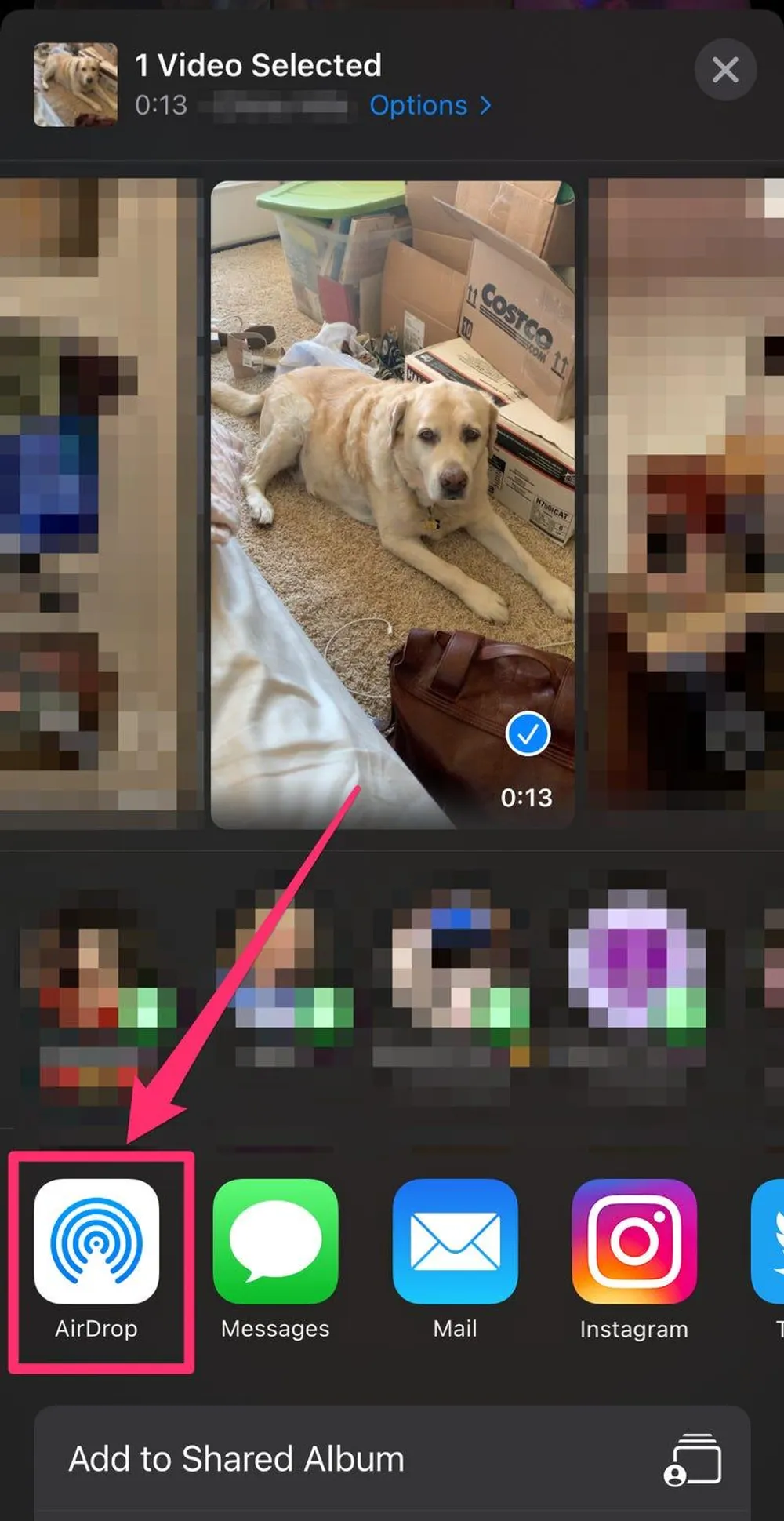
One tip that saves disappointment: ask the other person to send the original file rather than forwarding the version in their chat. Most messaging apps compress video heavily on the way out, and a forward compresses it a second time. On iMessage, having them AirDrop it or share it through iCloud Photos preserves the original quality.
Everything above searches what's visible on your devices and in your cloud photo library. There's one more place a video can survive: an iCloud backup, which is a separate snapshot of your phone taken while it charges overnight. Backups aren't browsable through Settings or iCloud.com, so a file can sit inside one for months with no way to see it.
Gbyte Recovery reads those backups and shows you what's inside them. Search the App Store for Gbyte Recovery and install it — the scan and preview cost nothing, so you can find out where you stand before deciding anything.
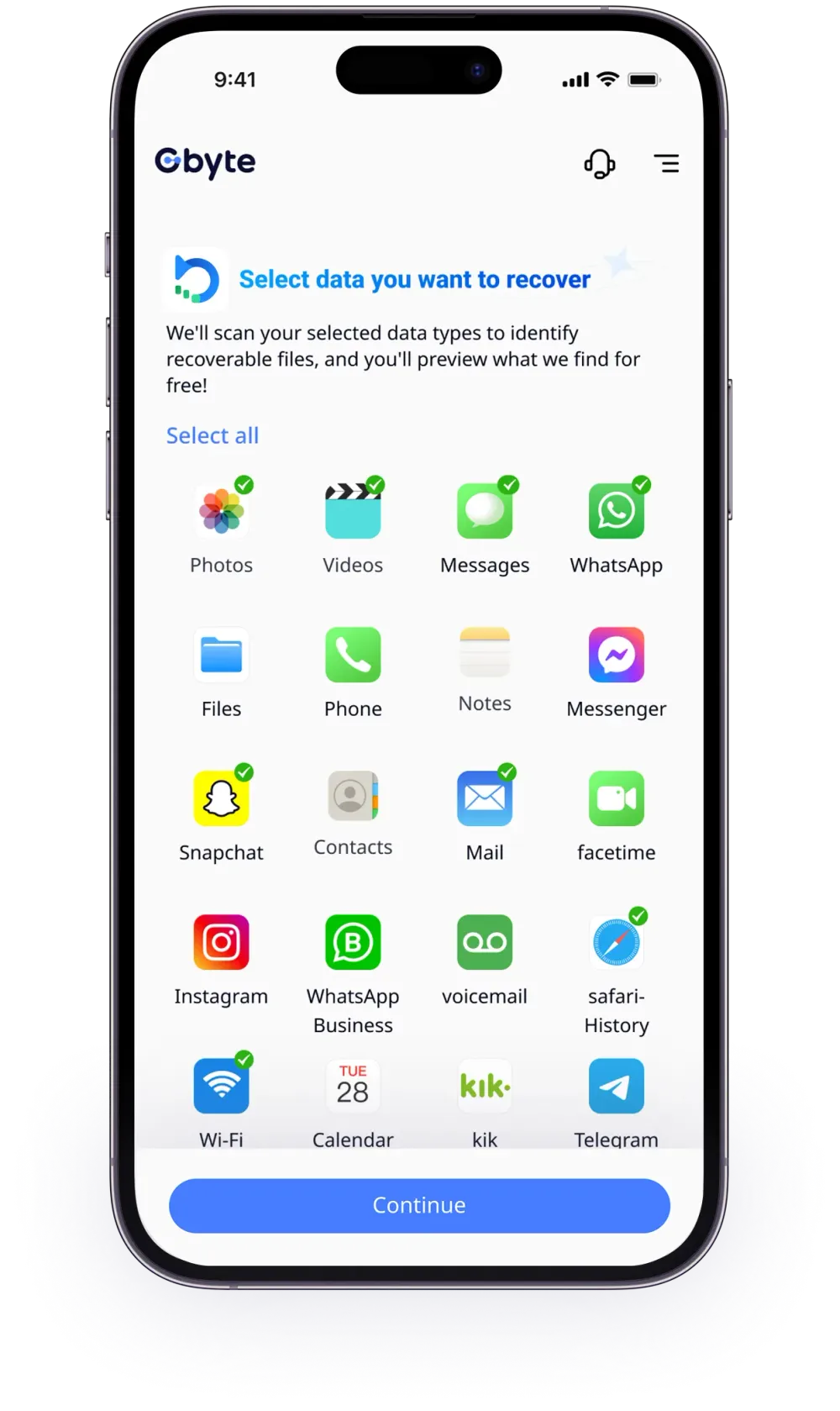
Open the app and choose Photos & Videos
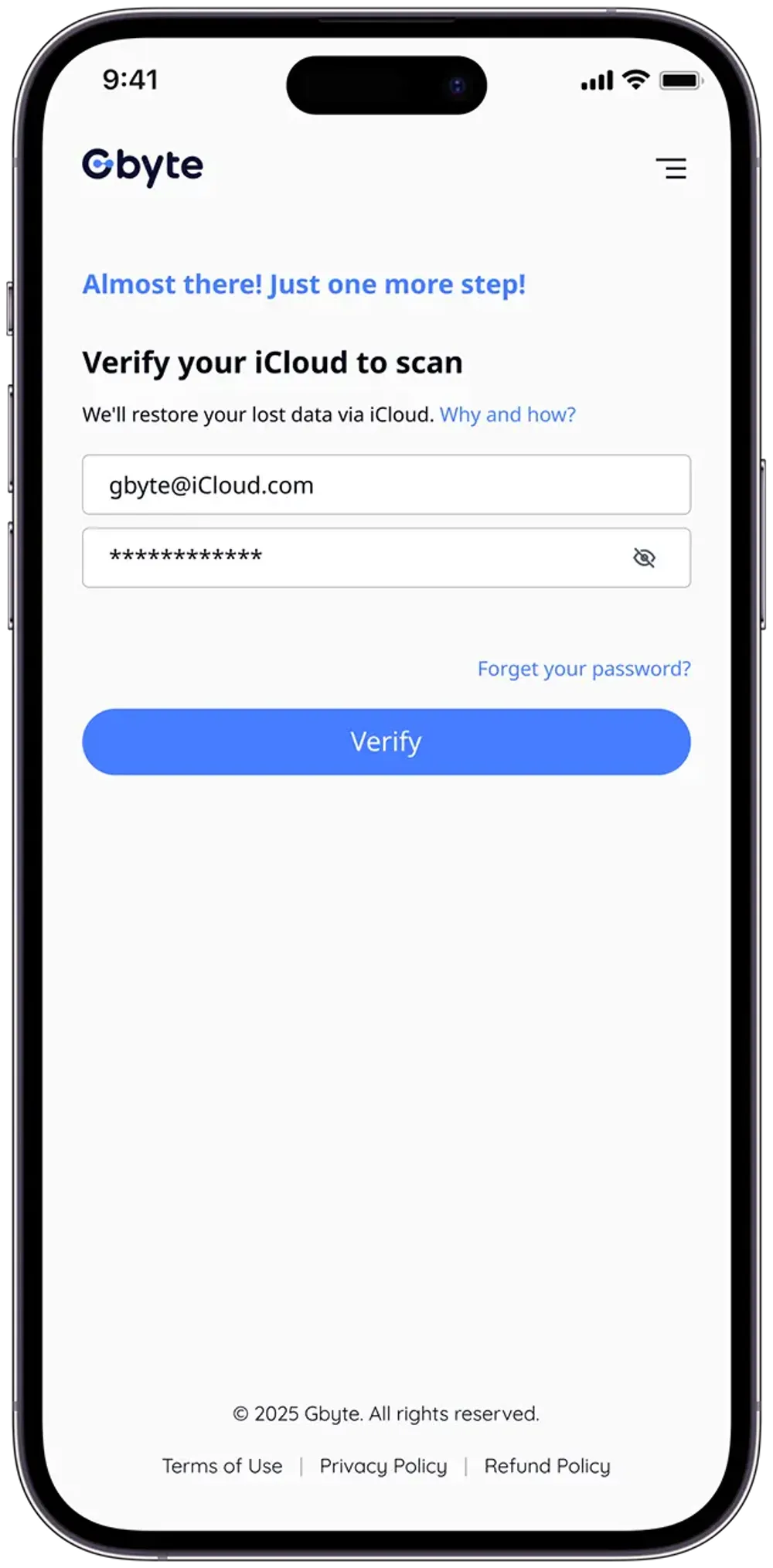
Sign in with your Apple ID
Enter the verification code from your trusted device
Start the deep scan
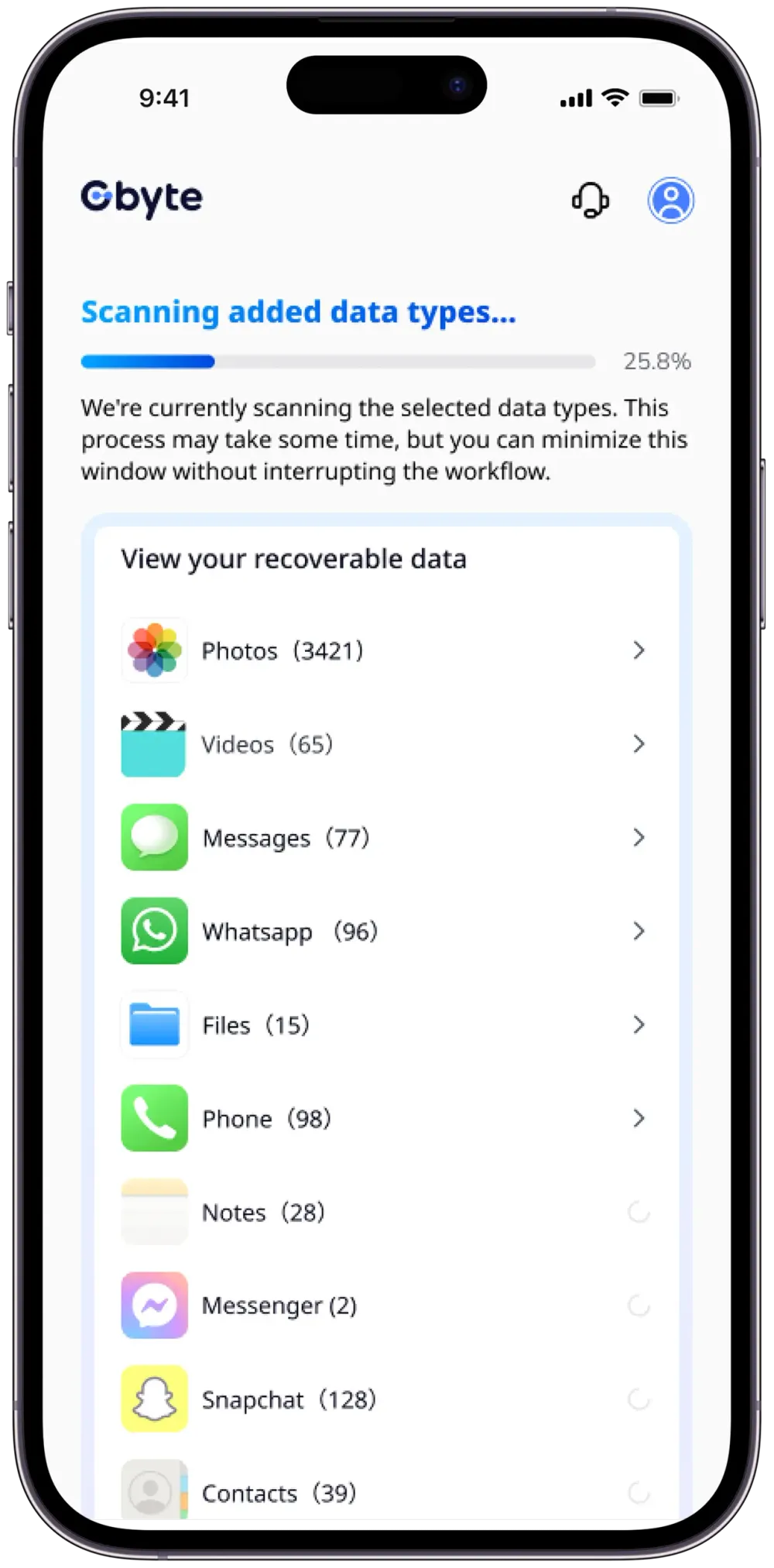
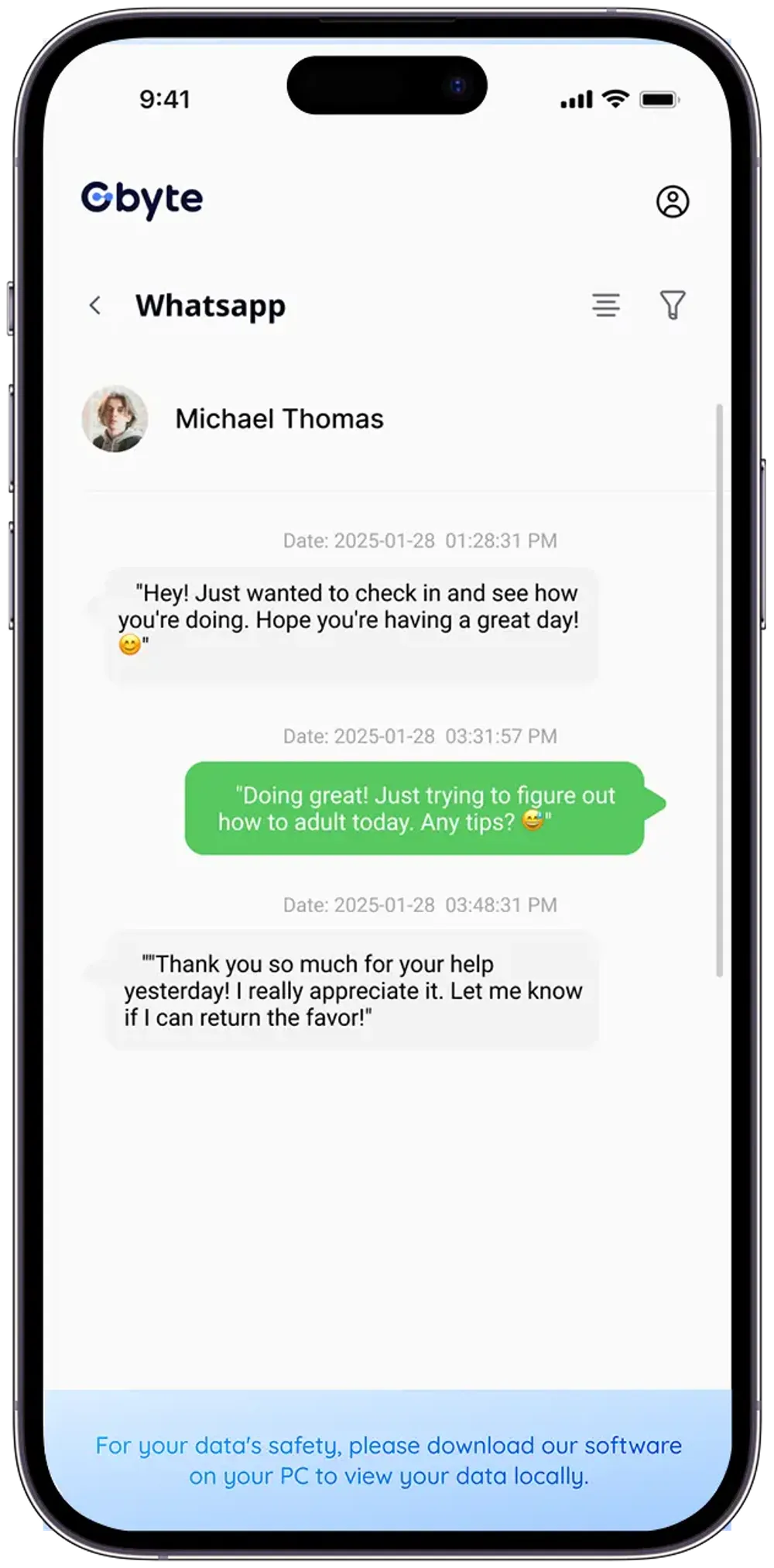
Preview the results and look for your video
This video shows a deleted video being found and saved back to an iPhone with the Gbyte app:
Before you start, get on stable Wi-Fi and keep the device you receive verification codes on within reach. About six in ten scans finish in under ten minutes, though a library with a lot of media takes longer — leave the app open and let it run.
When your video appears in the preview, it exists in a backup and can be brought back. Keep reading for the two ways to do that.
When the scan comes back empty, the video most likely never made it into a backup in the first place. Two situations account for nearly all of these. Photos that sync through iCloud Photos are deliberately left out of backups, so deleting one removes the only copy that existed. And a full iCloud storage plan quietly stops backups from completing at all, sometimes for months before anyone notices. Neither case leaves a copy anywhere for recovery software to find, and no tool on the market can change that.
Worth understanding before you choose: Apple's restore process was built for full-device recovery — a lost phone, a replacement handset, a wipe gone wrong. It was never designed to pull one missing file out of a backup, which is why the official route asks you to give up everything on the phone to get one video back.
Apple's built-in route, free and entirely on the phone. Restoring an iPhone from a backup takes five steps:
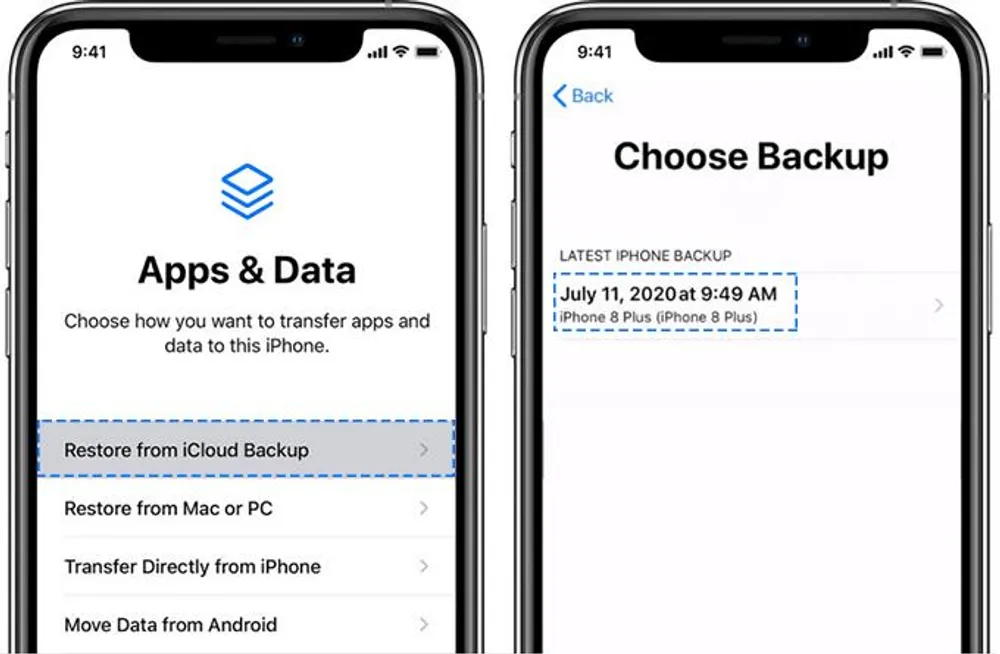
Go to Settings → General → Transfer or Reset iPhone
Tap Erase All Content and Settings
Work through the setup screens after the phone restarts
At Apps & Data, choose Restore from iCloud Backup
Sign in and pick the backup that predates the deletion
The cost is steep. This wipes the phone first and rebuilds it from the snapshot you picked. Every photo taken since that backup, every contact saved, every message thread and game save and app login — all of it goes.
That trade makes sense when a phone has been reset, replaced, or wiped and there's nothing on it worth keeping. For a single deleted video, it rarely does.
The alternative is to pull the one file out of the backup and leave everything else alone. Nothing gets erased, the phone isn't reset, and the photos you took this morning stay exactly where they are.
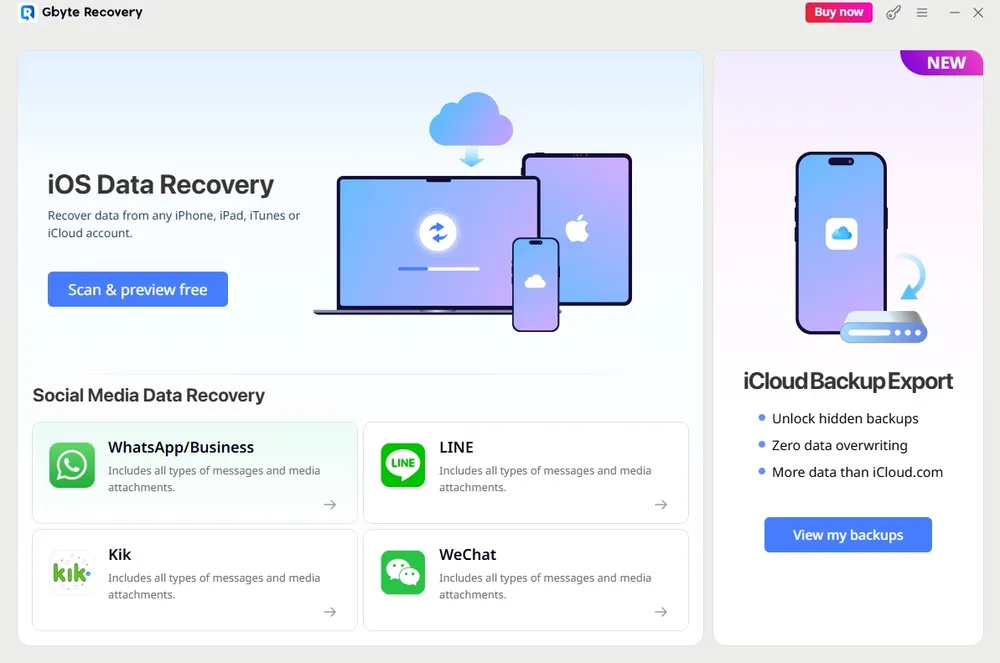
In Gbyte Recovery, this picks up right where the preview left off: select the video you found in the scan results and follow the prompts to recover it. The full extraction runs on desktop, and the app walks you through it — but you'll already know the file is there before spending time on that step, which is the whole point of scanning from the phone first.
For anyone who lost a handful of files rather than an entire phone, this is the version that makes sense.
Stop filling up your phone. Hold off on recording new clips and downloading large files until this is resolved. Video eats storage faster than anything else on a phone, and new data lowers the odds on any recovery attempt.
Look at your sync setting. Go to Settings → [your name] → iCloud → Photos. This one switch determines where your videos have been living all along, and it explains why some clips turn up in backups while others never do.
Check when your last backup actually finished. Go to Settings → [your name] → iCloud → Manage Storage → Backups and tap your device. A last-backup date from months ago is a strong signal that something has been failing quietly in the background.
Have your verification device nearby. Every method that touches your Apple ID sends a code to a trusted device. Failed two-factor verification is the single biggest reason sign-ins don't go through, and being locked out mid-process is a frustrating way to lose progress.
Some clips genuinely cannot be brought back, and knowing the pattern saves hours of trying. Close to one in five accounts we scan turns out to have no iCloud backup at all — no copy was ever set aside for anything to find.
The storage ran out months ago. Someone on the free 5 GB plan fills it, dismisses the warning, and moves on. Backups stop completing from that day forward. When they go looking for a clip filmed six months later, the newest backup on file predates it — the video was never captured by anything.
The sync did its job. With iCloud Photos on, deleting a video on the phone deletes it in the cloud at the same moment. Thirty days later the Recently Deleted folder clears both copies for good. Nothing was ever set aside elsewhere, which is why a scan finds nothing regardless of which app runs it.
The scan dropped halfway through. This one is recoverable. Nearly every interrupted scan traces back to a network timeout — a dropped Wi-Fi connection, or a phone that locks and sleeps mid-scan. Plug in, stay on a stable network, keep the screen awake, and run it again.
Only when a copy survived somewhere else. Once a video has been gone from Recently Deleted for more than 30 days, that particular copy is unrecoverable — no app can bring it back. What can still exist is a separate copy: one captured in an iCloud backup, one sitting on another device, or one you sent to someone. Recovery software reads copies that already exist; it can't create one for a file that was never stored. The scan is what tells you which situation you're in.
Not for finding out where you stand. Every check above, including the scan and preview, runs entirely on your iPhone. Pulling a file out of an iCloud backup is the one step that runs on desktop, and you only get there after confirming from your phone that the file is worth going after.
Only Option A does. A full iCloud restore wipes the phone before rebuilding it. Recovering a single file leaves everything else untouched.
Open Settings, tap your name at the top, then iCloud → Photos. The Sync this iPhone toggle tells you.
Yes, when they come from Recently Deleted, iCloud, or a backup — those hold the original file. The exception is a clip retrieved from a chat thread, which has usually been compressed in transit.

 Add Gbyte as a preferred source on Google
Share


Copyright ©2026 Gbyte. All rights reserved. Gbyte’s software is not developed by or affiliated with Apple Inc.
The installation wizard will automatically start after downloading.
After registration, the recovery process can be managed through the web interface.
You get it all with your purchase - no locked features, no hidden limitations.


