

Gbyte Repair

Gbyte Repair
Fix 150+ iOS issues yourself, no tech skills needed, no data loss
Table of contents
You're selling your old iPad Air, but worry about personal data leakage. Your iPad mini suddenly freezes on the Apple logo after an update. Or you simply forgot the passcode and can't unlock your device.
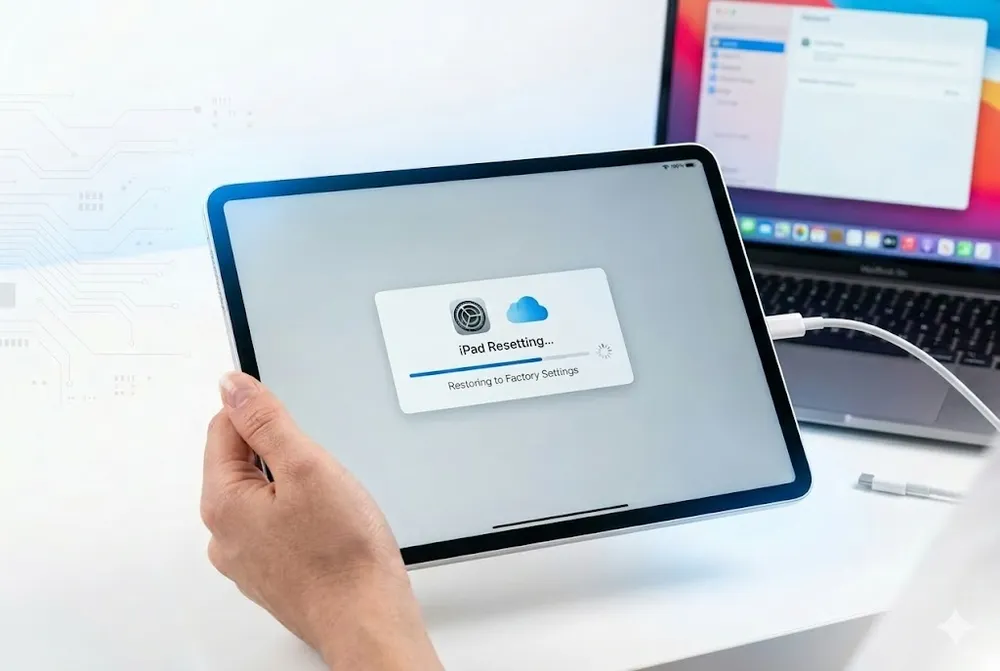
These are real scenarios where a factory restore iPad becomes necessary. Whether you need to restore iPad Pro to factory settings before gifting, troubleshoot persistent glitches, or bypass a forgotten password, this guide walks you through every verified method — plus a professional fallback when things go wrong.
According to Apple Support discussions, over 68% of factory reset attempts encounter at least one technical hurdle. Having a reliable recovery tool ready can save hours of frustration.
✅ Backup your data via iCloud or computer (Finder/iTunes)
✅ Charge iPad to 50%+ or keep it plugged in during restore
✅ Turn off Find My iPad: Settings > [Your Name] > Find My > Find My iPad
✅ Prepare a computer with latest iTunes (Windows) or macOS Finder
✅ Use original USB cable to avoid connection errors
Your Situation | Recommended Method | Time | Difficulty | Success Rate |
✅ Can unlock iPad, normal operation | Settings Reset | 5-15 min | ⭐ | 99% |
🔒 Forgot passcode, no computer access | Not possible — need computer | — | — | — |
💻 Forgot passcode + have computer | Recovery Mode + iTunes/Finder | 15-30 min | ⭐⭐⭐ | 85%* |
🔄 Stuck on logo/recovery loop after reset | Gbyte iOS System Repair | 5-10 min | ⭐ | 96% |
📱 iPad 2 / legacy model failing restore | Gbyte (Legacy Support) | 10-15 min | ⭐⭐ | 92% |
🗑️ Preparing to sell/gift iPad | Settings Reset + iCloud sign-out | 10-20 min | ⭐⭐ | 99% |
Success rate drops if firmware download fails or connection interrupts. Gbyte includes auto-retry and firmware verification to boost reliability.
This is the simplest way to restore iPad to factory settings when you can unlock your device and access Settings.
Open Settings > Tap General
Scroll down > Tap Transfer or Reset iPad
Select Erase All Content and Settings
Enter your passcode/Apple ID password if prompted
Confirm > Wait for the process to complete (5-15 mins)
🔹 Best for: factory restore iPad mini, iPad Air, or iPad Pro in normal working condition
🔹 Time required: 5-15 minutes
🔹 Technical level: Beginner
💡 Pro Tip: After erasing, you can choose to set up as new or restore from your iCloud/Finder backup during the initial setup screen.
Use this method when you can't access Settings, forgot your passcode, or need to restore iPad Air to factory settings without password.
iPad Model | Button Sequence to Enter Recovery Mode |
iPad with Home Button (iPad 2, mini 1-5, Air 1-2, etc.) | 1. Connect to computer |
iPad without Home Button (iPad Pro 2018+, Air 3+, mini 6+) | 1. Connect to computer |
Open iTunes (Windows/older macOS) or Finder (macOS Catalina+)
When prompted, choose Restore (not Update)
Wait for download and installation (may take 15-30 mins)
Follow on-screen setup after reboot
⚠️ Note: This force factory reset iPad method erases all data. If you didn't backup, files cannot be recovered through Apple tools.
Gbyte iOS System Repair is a professional tool that helps resolve common problems encountered during iPad factory restore, such as stuck on Apple logo, recovery mode loop, or failed update — without data loss in Standard Mode.
Scenario | Traditional Method | Gbyte Solution |
Stuck on Apple logo after reset | DFU mode (complex) | ✅ One-click fix, Standard Mode |
Recovery mode loop | Repeated iTunes attempts | ✅ Auto-detect & repair |
iTunes Error 4013/4005 | Multiple retries, risk of bricking | ✅ Pre-validated firmware, safe flash |
Forgot passcode + activation lock | Apple ID recovery (days) | ✅ Bypass assist + system repair |
iPad 2 / older models failing restore | Limited official support | ✅ Legacy device compatibility |
If you're interested in learning more about how Gbyte works, check out our User Guide and User Reviews.
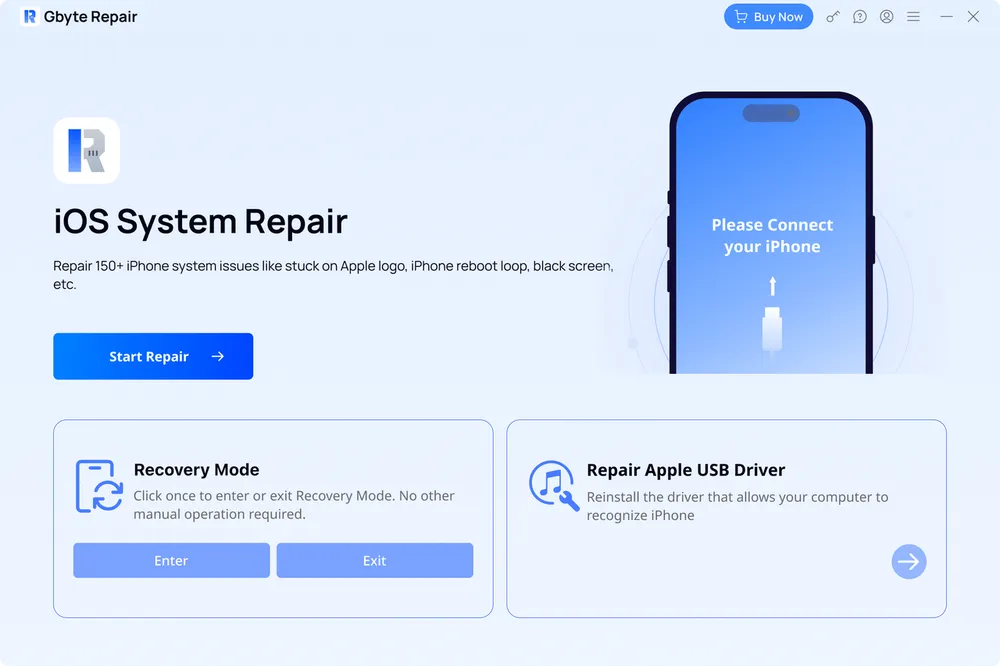
Connect & Detect: Launch Gbyte, connect iPad via USB, auto-recognize model
Choose Mode:
Standard Repair Mode: Repair system issues while keeping data (recommended first)
Deep Repair Mode: Full factory restore when password is forgotten
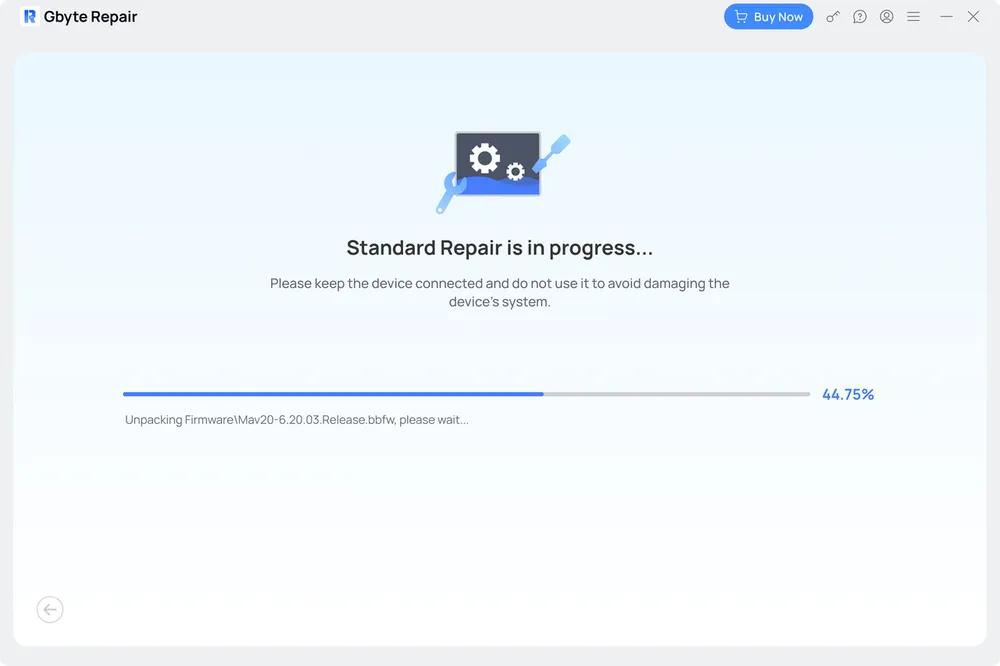
Download & Fix: Download verified firmware > Click "Repair" > Wait 5-10 mins
🔒 100% Safe & Apple-Compatible: Read-only access, no jailbreak required
🛡️ 30-Day Money-Back Guarantee: Zero-risk trial with full refund policy
👥 50,000+ Users Helped: Verified reviews on Trustpilot & G2
🌍 Global Support: 24/7 live chat + multilingual knowledge base
Try forcing a restart first (model-specific button combo). If it persists, use Gbyte's Standard Mode to repair system files without erasing data.
Usually indicates USB connection or firmware corruption. Solutions:
Try different USB port/cable
Update iTunes/Finder to latest version
Use Gbyte's pre-verified firmware package to bypass download errors
Factory reset does NOT remove iCloud Activation Lock. You must enter the original Apple ID password. If forgotten, contact Apple Support with proof of purchase.
Always backup first. If you forgot and already reset, third-party data recovery tools have limited success. Gbyte focuses on system repair — preventing data loss scenarios before they happen.
Community Insight: "Spent 3 hours trying to fix my iPad Air after a failed restore. Gbyte fixed it in 8 minutes. Wish I'd tried it first." — Reddit r/iPad user, verified purchase
You cannot erase an iPad via Settings without the passcode. Instead, use Recovery Mode: connect to computer, enter recovery mode (button combo varies by model), then restore via iTunes/Finder. For a simpler, higher-success alternative, Gbyte iOS System Repair offers an Advanced Mode designed for passcode-locked devices.
No. A factory restore erases local data but does not bypass Activation Lock. You'll still need the original Apple ID and password to reactivate the device. This is a security feature from Apple to deter theft. If you're the legitimate owner but forgot credentials, contact Apple Support with your purchase receipt.
Typically 5-30 minutes, depending on method and iPad model: Settings reset takes 5-15 mins; Recovery Mode via computer takes 15-30 mins (includes firmware download); Gbyte repair averages 5-10 mins with pre-verified firmware. Older models like iPad 2 may take slightly longer due to slower hardware.
Yes. iPad 2 supports factory restore via Settings (if accessible) or Recovery Mode + iTunes. Note: iPad 2 runs iOS 9.3.5 max, so newer firmware downloads may fail. Gbyte iOS System Repair includes legacy firmware support for older devices like iPad 2, improving compatibility and success rates.
 Add Gbyte as a preferred source on Google
Share


Related articles


Copyright ©2026 Gbyte. All rights reserved. Gbyte’s software is not developed by or affiliated with Apple Inc.
The installation wizard will automatically start after downloading.
After registration, the recovery process can be managed through the web interface.
You get it all with your purchase - no locked features, no hidden limitations.