

Gbyte Recovery
Gbyte Recovery
Free scan and selective preview of 25+ data types like messages, photos, and WhatsApp. No data overwritten — recover only what you need.
Table of contents
Sometimes you need to reset your iPhone because you want to sell it, fix a stubborn system problem, or simply give it a fresh start. But wiping everything clean is scary. One tap and years of photos, messages, and memories could disappear. It's natural to wonder if there's a way to reset your iPhone without losing everything, or at least without losing the data that matters most.
The good news is that there is a safe way to reset your device while keeping your important information. In this guide, you'll learn the most reliable way to reset your iPhone and protect as much of your data as possible. Follow the steps below to reset your device with confidence.
If you're thinking about a full reset because your iPhone is glitching, freezing, or running slow, try a few simpler fixes first.
A quick restart can solve a surprising number of issues. Sometimes the system just needs a fresh boot, and you don't have to touch any of your data at all.
Apple also gives you several partial reset options. These are safer because they only reset specific parts of the system while keeping personal content. Here are the main ones you can try:
Reset All Settings: This keeps all your data but restores system settings to default.
Reset Network Settings: It deletes saved Wi-Fi networks, VPN settings, and Bluetooth pairings.
Reset Keyboard Dictionary: This clears custom words you've added while typing.
Reset Home Screen Layout: Your apps return to the default layout.
Reset Location & Privacy: This resets permissions for apps that use your location, photos, mic, and more.
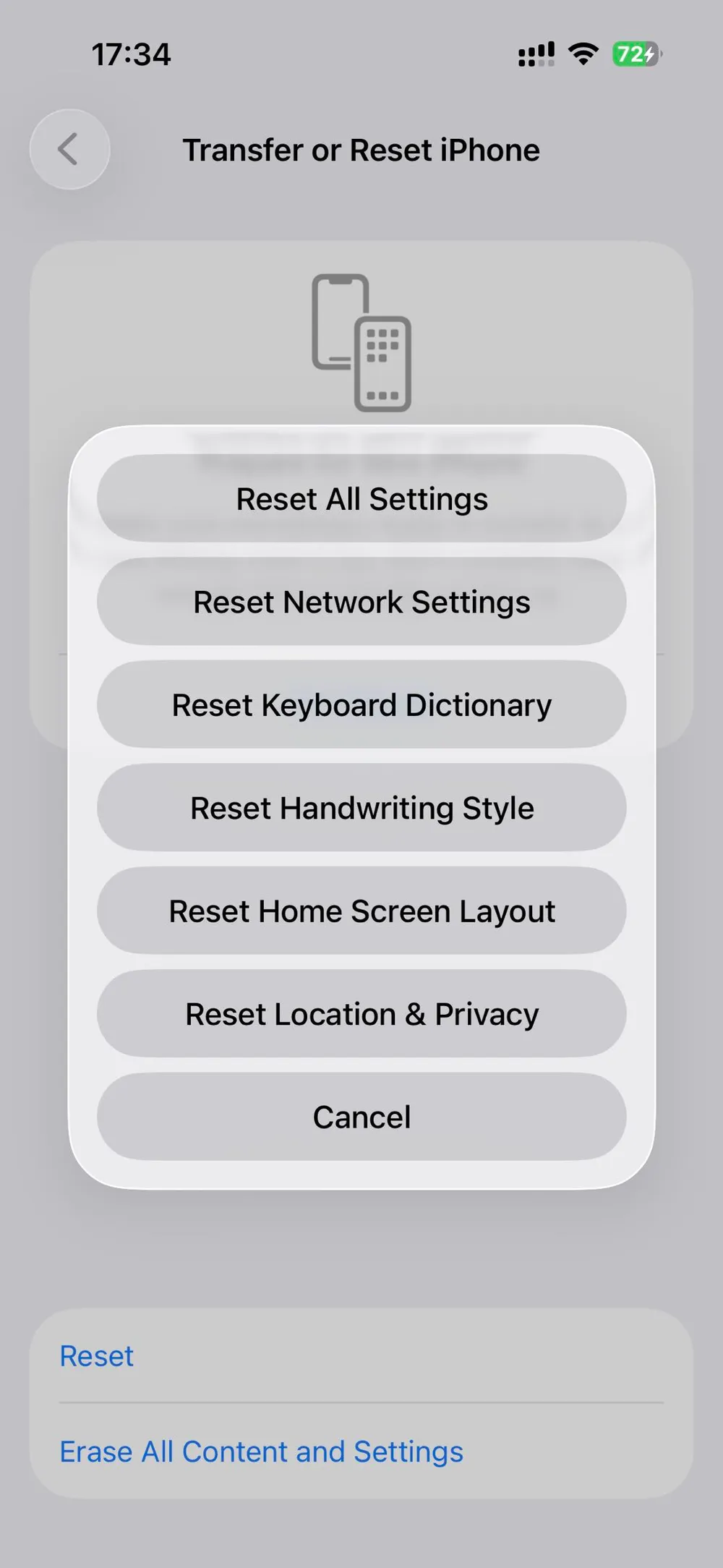
Trying these smaller resets first can often solve the issue without putting your data at risk. If you still need to erase all content and settings, just keep reading.
Before you reset your iPhone, there's one step that can save you hours of trouble later: making sure you know the login information for all the apps you use.
We rely so much on auto-login, Face ID, and saved passwords that we often forget our actual login information. After a reset, all of those sign-ins disappear. Some users even forget they had accounts with certain apps, which can lead to lost data, missing subscriptions, and a lot of unnecessary stress.
To avoid that, take time to gather your login information before you reset your iPhone.
Sync Passwords & Keychain to iCloud
Open the Passwords app and unlock it with Face ID or your passcode. You'll see all the passwords and passkeys saved on your device. Note: On iOS 17 or earlier, go to Settings > Passwords to find this list.
You can record these credentials manually, but the easier way is to turn on iCloud Passwords & Keychain.
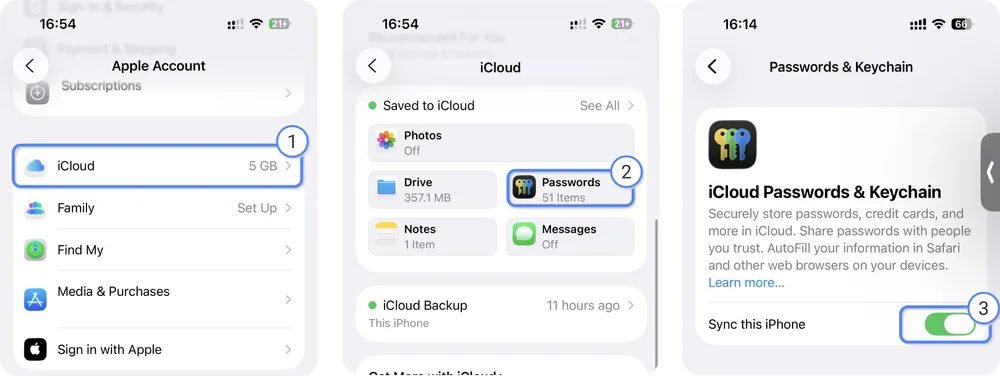
Go to Settings, tap your name, choose iCloud, then under Saved to iCloud, tap Passwords and turn on Sync This iPhone.
This uploads your saved passwords to iCloud. So when you reset your iPhone, your passwords will remain safely stored in the cloud and will not be deleted with the local phone data.
Note
Your data stays safe during a factory reset, but keep in mind that once iCloud Passwords & Keychain is enabled, any password you delete on your iPhone will also be removed from iCloud at other times.
Manually record accounts inside each app
Look through the apps on your phone and check which ones require sign-ins. Social media, banking, work apps, browsers, cloud storage, shopping, and streaming services all rely on accounts. Many apps show which account you're logged into inside their settings. Write down the username or email for each one. Even if you don’t remember the password, having the correct email or phone number makes password recovery much easier after the reset.
Backing up your iPhone is the most important step before any reset. A proper backup creates a full copy of your device and keeps your photos, messages, settings, and app data safe, so even if something goes wrong during the reset, you can always restore everything exactly as it was without losing anything.
iCloud is the simplest option because it doesn't require cables or a computer.
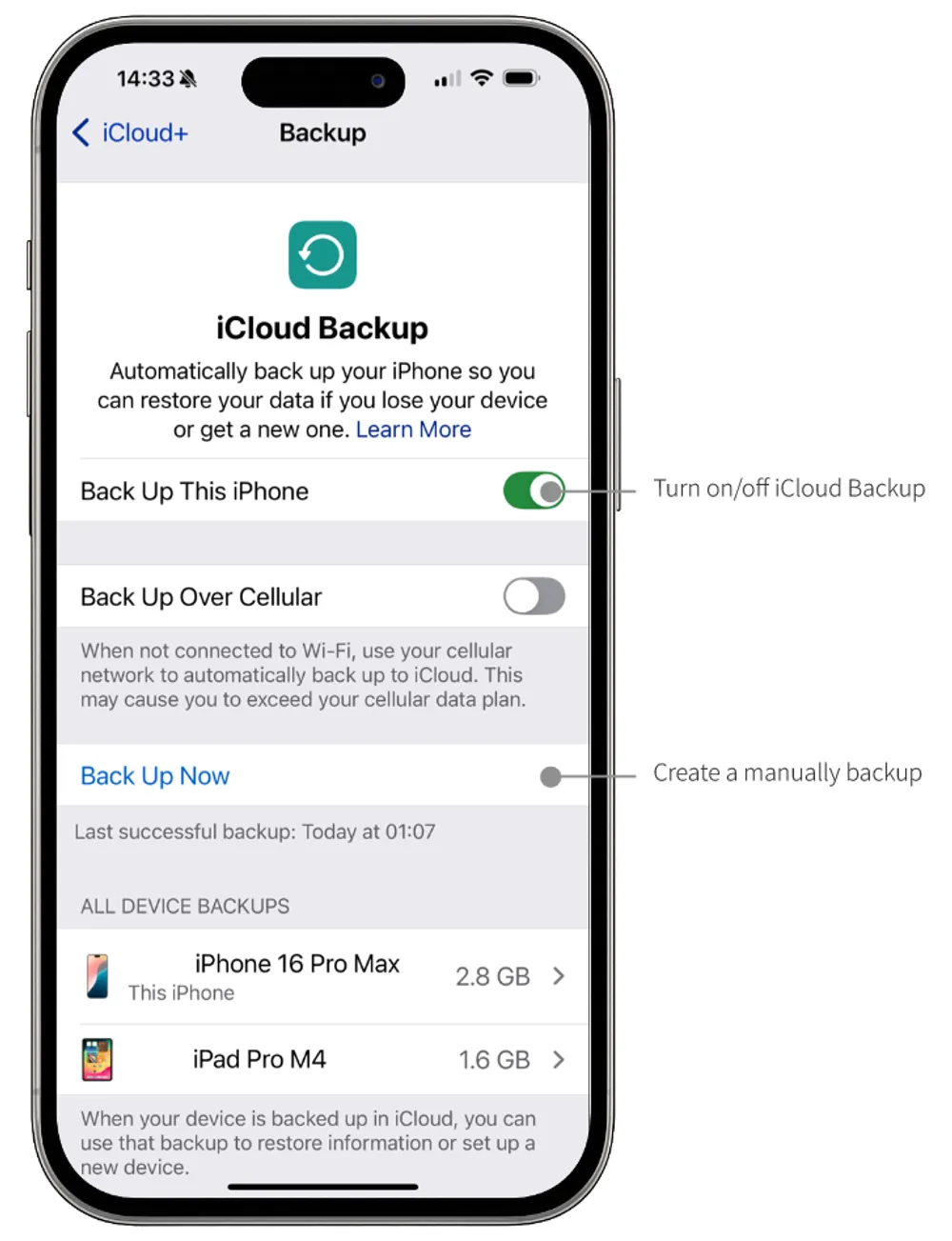
Go to Settings > your name > iCloud > iCloud Backup
Turn on Back Up This iPhone, then tap Back Up Now. Your data will upload and be securely encrypted in iCloud.
Make sure you're on Wi-Fi and have enough iCloud storage. The backup may take some time depending on your data size.
If your iCloud storage is full or your iPhone contains too much data, backing up to a computer is a solid alternative. This works on both Mac and a Windows PC.
On a Mac , open Finder. On Windows or older macOS versions, open Apple Devices (install it first if you don’t have it).
Connect your iPhone with a cable and select your device.
Back up before reset.
In Finder: Go to the General tab and choose Back Up Now.
In Apple Devices: Go to the Backups section and select Back Up Now.
You can also turn on Encrypt local backup if you want to include health data, website passwords, and other sensitive information.
The simplest way to return your iPhone to a clean, factory-fresh state is through the Settings menu.
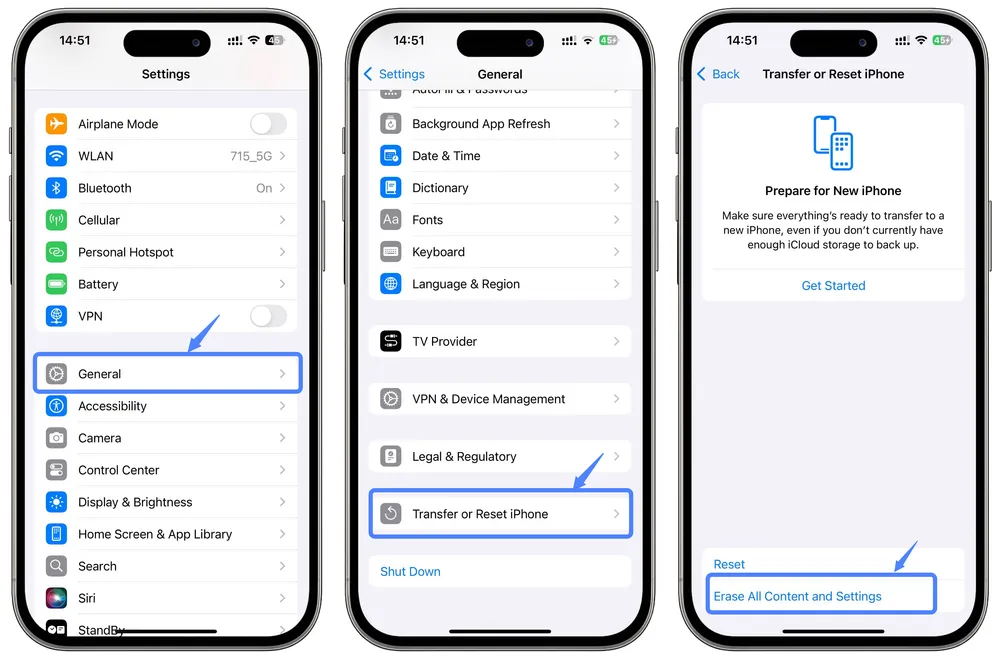
Go to Settings > General, then tap Transfer or Reset iPhone.
Select Erase All Content and Settings to fully reset your device.
Enter your Apple ID password and device passcode when prompted. This signs you out of your Apple account, which stops syncing and ensures that anything erased on the device will not be deleted from iCloud.
Tap Continue on the Erase This iPhone screen.
Wait for the process to complete. Your iPhone will restart as a completely blank device.
If your device is unresponsive or you can't access the Settings menu, you can use these alternative methods to reset an iPhone.
Once your iPhone has been reset, you can bring your data back using either an iCloud backup or a computer backup you made before.
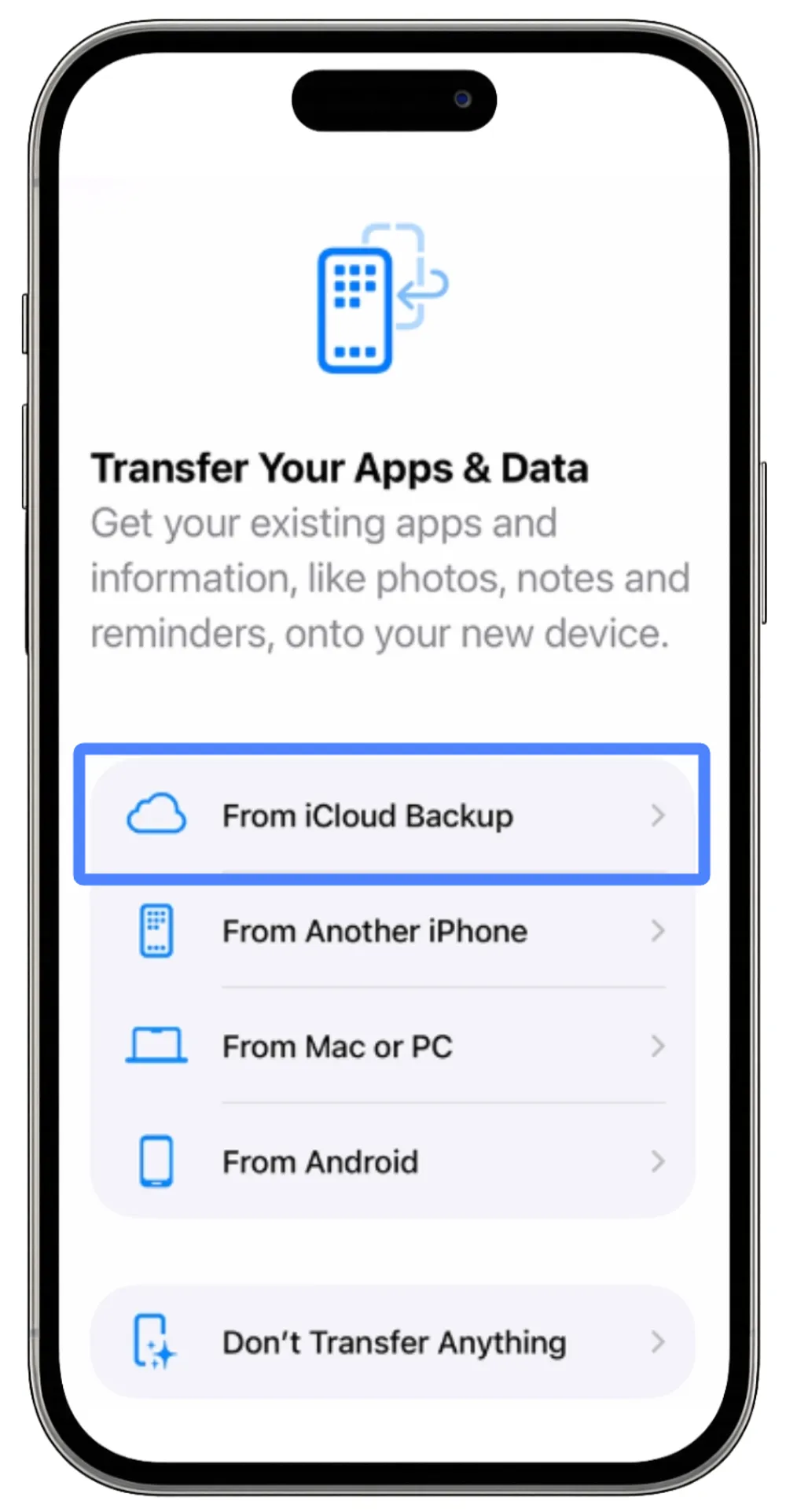
Turn on your iPhone and follow the setup steps until you reach Apps & Data. Note: If you're trying to restore data to an iPhone that's already been used, reset it first.
Choose Restore from iCloud Backup.
Sign in with your Apple ID.
Select the backup you created before the reset.
Stay connected to Wi-Fi and wait for the restore to finish.
Your iPhone will download apps and data in the background, and it may continue restoring files for several hours depending on size and network speed.
Restoring from an iCloud or computer backup works well, but it requires your iPhone to be completely erased first. You also can't pick and choose what to restore. If you only want one app’s chat history, one folder of photos, or one specific file, a full backup restore can’t give you that flexibility. And if your phone is already set up and in use, you would need to reset it again before restoring.
Gbyte Recovery offers a more advanced and flexible way to recover data:
Selective recovery: Recover only the data you actually want. You can pull out specific items, like a single photo album or one app's chat history.
No need to erase your iPhone: You don't have to wipe your phone or reset it to a blank state before recovering data.
No risk of overwriting existing data: Nothing on your phone gets replaced or deleted during recovery.
Free preview: You can scan your device and view all recoverable files for free.
Recover deleted content: Gbyte Recovery can find items that were deleted before your last backup, including older chat history and photos that disappeared weeks or even months ago.
Clear, step-by-step guidance: The process is easy even if you've never used data recovery tools before.
This makes Gbyte Recovery a strong option when you want to recover specific data or avoid wiping your device again.
Use this method if your backup is saved on a Mac or Windows PC.
Turn on your iPhone and stop at the setup screen.
Connect your device to your computer with a cable.
On a Mac, open Finder. On Windows or older macOS versions, open Apple Devices.
Select your iPhone when it appears.
Choose Restore from backup, then select the backup you made earlier.
If the backup is encrypted, enter the password to start the restore.
Resetting an iPhone without losing everything isn’t magic; it just comes down to preparation and using the right recovery tools.
As long as you keep regular backups or turn on iCloud sync for the stuff you rely on, a reset doesn't have to be a disaster. And if something still slips through the cracks, knowing how to restore your data properly saves you from hours of panic scrolling.
A little preparation goes a long way toward keeping your iPhone safe and your data intact.

 Add Gbyte as a preferred source on Google
Share


Related articles


Copyright @2026 Gbyte. All rights reserved.
The installation wizard will automatically start after downloading.
After registration, the recovery process can be managed through the web interface.
You get it all with your purchase - no locked features, no hidden limitations.