Recover, repair, unlock, transfer & view backups. Every iPhone issue, solved.
 Gbyte Editorial Team
Table of contents
Find My iPhone is a valuable tool for tracking lost devices and sharing locations with friends and family. However, there may be times when you want to pause your location temporarily without disabling the feature entirely. Whether you need privacy or simply want to stop sharing your location for a while, this guide covers multiple methods to pause Find My iPhone location effectively.
Yes, you can pause your location on Find My iPhone, but Apple doesn’t provide a direct "pause" button. Instead, you’ll need to use workarounds like turning off location services, disabling Share My Location, or using Airplane Mode. Below, we’ll explore different ways to stop location sharing temporarily without notifying others.
Before diving into how to pause Find My iPhone location, it's important to understand how Apple's location services work. Find My iPhone uses GPS, Wi-Fi, and cellular data to pinpoint your device's location. This information is shared with trusted contacts and can be accessed through the Find My app on other Apple devices.
The service operates on multiple levels - device tracking for lost or stolen phones, and location sharing with family and friends. When you're looking to pause your location, you're typically referring to the latter - preventing others from seeing your real-time location while keeping the device findable for security purposes.
The simplest and most immediate way to pause your location on Find My iPhone is to enable Airplane Mode. This effectively disables all wireless signals (cellular, Wi-Fi, and Bluetooth), preventing your device from being tracked. Here’s how to do it:
Steps:
Swipe down from the top-right corner of your iPhone to open Control Center.
Tap the Airplane Mode icon (the plane symbol).
Once enabled, your location will be paused as the device won't be able to transmit any data.
While this method will stop your location from being updated on Find My iPhone, keep in mind that it also disables all other network connectivity. You won’t be able to make calls, send messages, or access the internet until Airplane Mode is turned off.
Does this notify anyone? No, enabling Airplane Mode doesn’t send any notifications to the people tracking you via Find My iPhone.
Another method to pause your location is to turn off location services entirely. By disabling the GPS on your iPhone, you prevent Find My iPhone from sharing your location.
Open Settings on your iPhone.
Tap your Apple ID (your name at the top).
Select Find My > Find My iPhone.
Toggle off Share My Location.
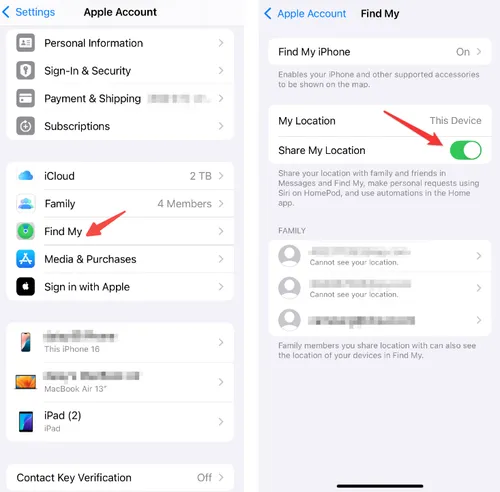
This will pause your location without deleting your device from Find My iPhone. However, people who follow your location will see that you’ve stopped sharing.
Does this notify anyone?
Turning off location services may send a notification to people tracking you via Find My iPhone. To prevent this, make sure you don’t have “Share My Location” enabled under the Find My settings.
If you want to freeze your location without others knowing, you can disable Location Services for Find My iPhone.
Go to Settings > Privacy & Security > Location Services.
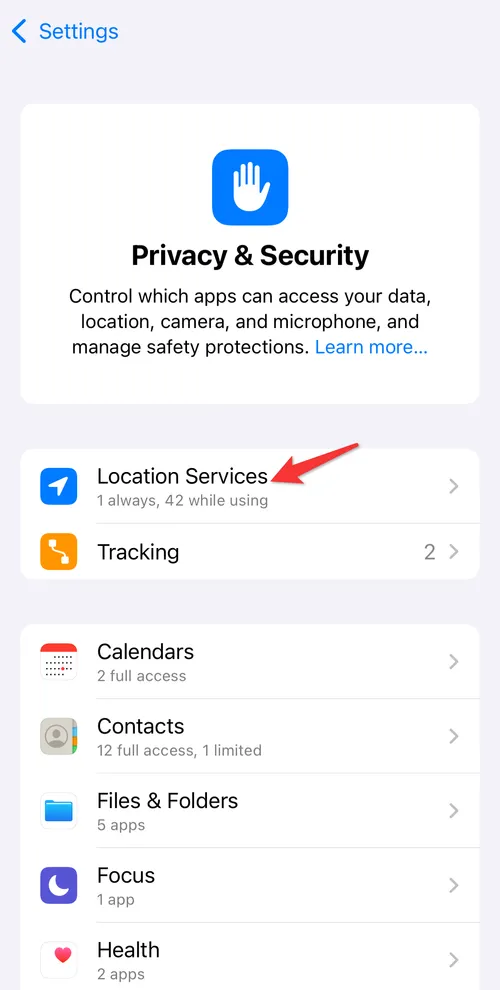
Scroll down and tap Find My.
Select Never to stop location access.
This method pauses location updates, but your last known location will remain visible until you turn it back on.
If you want to pause your location sharing with specific people without them receiving a notification:
Open the Find My app on your iPhone
Tap on the "People" tab at the bottom
Select the person you want to stop sharing your location with
Tap "Stop Sharing My Location"
Confirm your choice
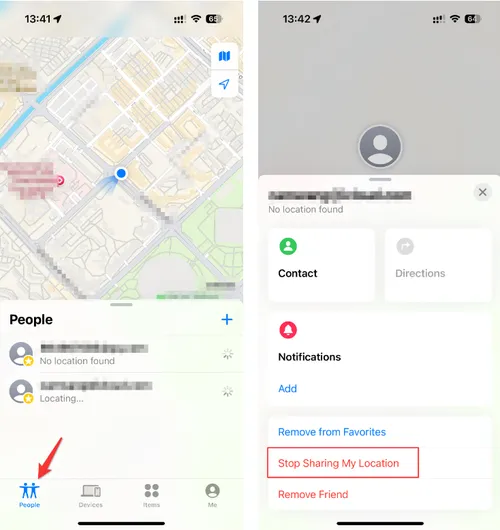
While this method doesn't send an immediate notification, the person will eventually notice that your location is no longer updating when they check the Find My app. This approach gives you more control over who can see your location without completely disabling the service.
If you need to completely pause location on Find My iPhone, you can disable the entire service:
Go to Settings on your iPhone
Tap on your Apple ID profile at the top
Select "Find My"
Tap "Find My iPhone"
Toggle off "Find My iPhone"
Enter your Apple ID password when prompted
Tap "Turn Off"
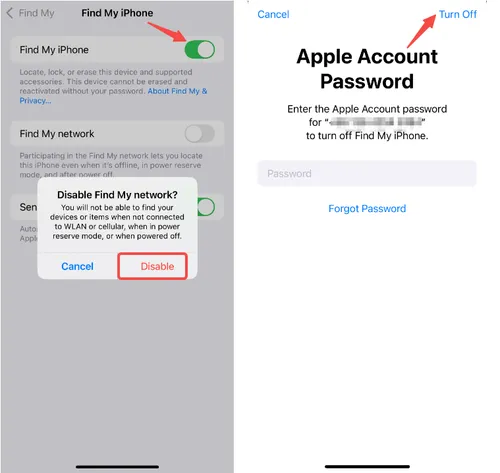
This method completely disables Find My iPhone, meaning you won't be able to track your device, remotely lock it, or use Find My's built-in erase feature if it's lost or stolen. Before turning it off, it's worth understanding what you'd be giving up — see our guide on remotely erasing an iPhone with Find My for what this feature protects against. Only disable Find My entirely if you're confident you won't need these safeguards, even temporarily.
Yes, you can use methods like Airplane Mode, turning off location services.
Go to Settings > Privacy & Security > Location Services > Find My, then select "Never." This freezes your location updates, but your last known location remains visible until you turn access back on.
It depends. Turning off location services might notify others that you are no longer sharing your location. However, turning off Share My Location within Find My iPhone will not notify anyone.
In the Find My app, tap the "People" tab and select their name. If their location shows "Location Not Available" or a timestamp that hasn't updated in a while, they've likely paused or stopped sharing — Find My doesn't explicitly label it as "paused."
Knowing how to pause your location on Find My iPhone is essential for maintaining privacy when you don’t want others to track your every move. By using methods like Airplane Mode or disabling location services, you can achieve this without much hassle. Remember, while pausing location might give you a temporary break from tracking, it’s important to weigh the pros and cons.

 Add Gbyte as a preferred source on Google
Share


Related articles


Copyright ©2026 Gbyte. All rights reserved. Gbyte’s software is not developed by or affiliated with Apple Inc.
The installation wizard will automatically start after downloading.
After registration, the recovery process can be managed through the web interface.
You get it all with your purchase - no locked features, no hidden limitations.