Gbyte Recovery
Gbyte Recovery
Free scan and selective preview of 25+ data types like messages, photos, and WhatsApp. No data overwritten — recover only what you need.
 Gbyte Editorial Team
Table of contents
Often, yes — but where you look matters more than which app you download. Some Instagram content is still sitting in the app itself, waiting behind a folder most people never open. Some is in an iCloud backup you didn't know you had. And some is genuinely gone, no matter what the software promises.
Here's how to tell which situation you're in.
The first step is to try Instagram's own recovery tools. One option is the "Download Your Information" feature, which allows you to request a full copy of your account data. This can include direct messages, making it useful if you're trying to recover deleted Instagram messages.
Another option is to check your profile's Archive and Recently Deleted folders. Posts, photos, and videos often remain here for a limited time before being permanently erased. If you act quickly, you can often restore these posts without needing any third-party tools.
If Instagram's own features don't work for older or permanently deleted data, a professional data recovery tool might be your next step. Instead of relying on Instagram itself, these apps take external approaches — they can scan your phone's storage, check system backups, and even search hidden cache files. By covering these sources, recovery software gives you more chances to find photos, videos, and conversations that no longer appear in the app. They're your second line of defense when official methods fall short.
While recovery software sounds powerful, it's not magic. No program can "hack" Instagram's servers to fetch data beyond what the platform itself provides. Once Instagram has completely erased content from its servers, it's gone for good. Instead, these tools focus on scanning what still remains on your device or within your backups. Understanding this principle helps set realistic expectations and avoid misleading apps.
1. Device Cache
Sometimes fragments of images, messages, or videos remain in your phone's cache even after deletion. On Android devices, recovery tools may be able to detect and restore this leftover data. However, due to iOS's encrypted storage design, this approach usually does not apply to iPhones.
2. Cloud Backups
If you've enabled iCloud or Google Drive, Instagram data may exist within these system backups. The process often happens automatically in the background, meaning you may already have backup data stored without realizing it. Recovery software can scan and extract relevant Instagram content from these backups.
3. Local Media Folders
Photos or videos shared via Instagram may also be saved to your phone's gallery or hidden media folders. Recovery tools can scan these directories, uncovering files you might have overlooked.
Effective Instagram data recovery software is built to search across all these sources, extract what's still recoverable, and organize it in a way that allows you to preview and save the content that matters most.
We ran all three tools against the same device and the same set of deleted Instagram content, and recorded what each one actually returned. For each tool we looked at:
What came back — whether the scan returned the deleted Instagram content, something else, or nothing
Result accuracy — whether deleted items were clearly separated from data still on the device
Free preview — whether you can see what's recoverable before paying
Recovery routes — which sources each tool can read from
Test Setup | Detail |
Test device | iPhone 17, iOS 26 |
Computer | Windows 11 |
Photos in library | 1,329 |
Instagram content deleted | 5 DMs, 3 photos, 2 videos |
Tested | August 27, 2026 |
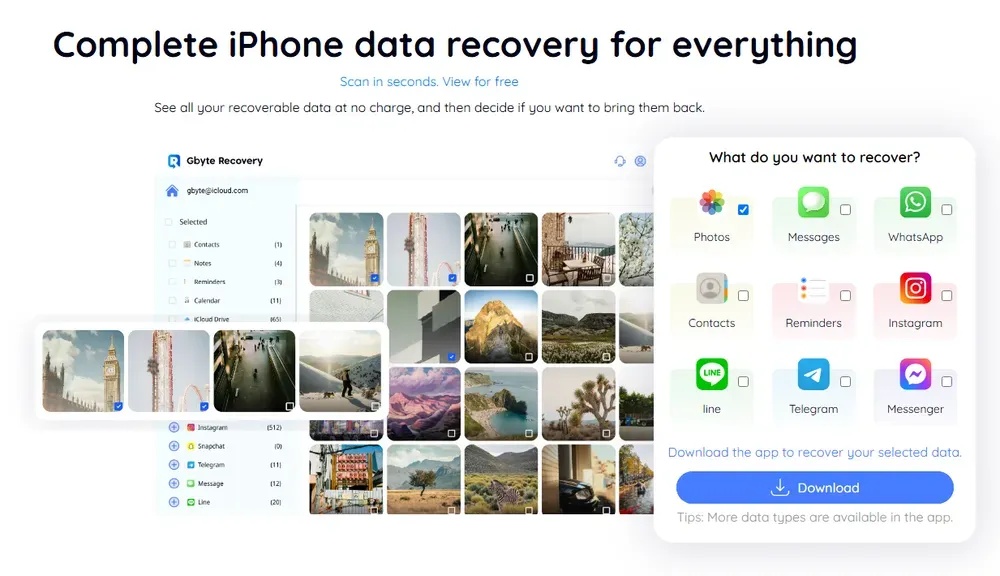
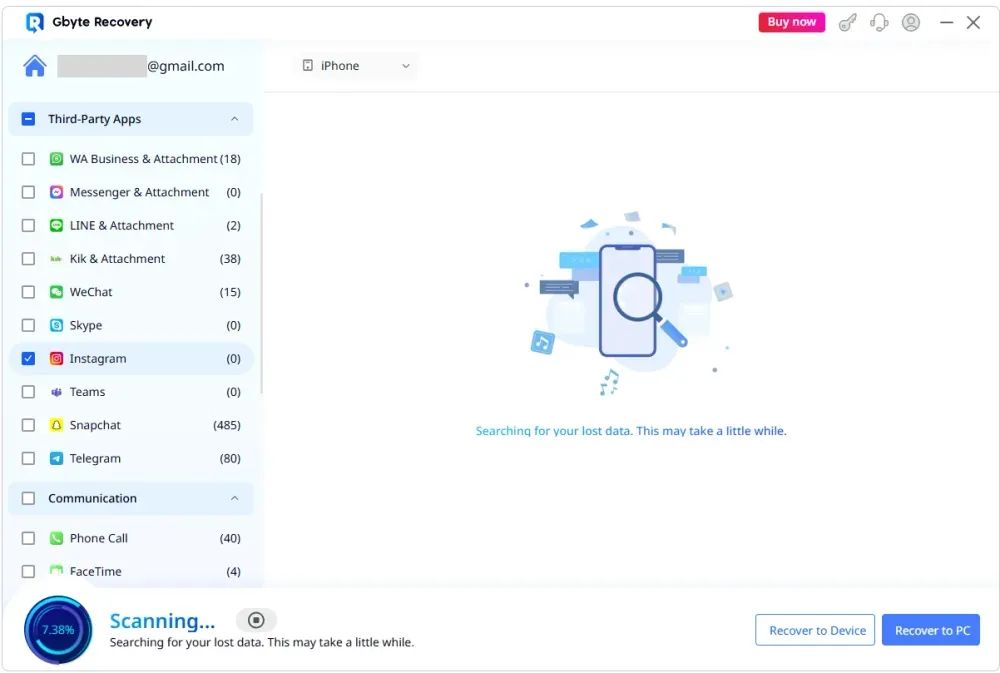
Gbyte Recovery works from your iCloud backup rather than the device itself. Because backups run automatically in the background, there's often more stored there than people realise — including Instagram content you never manually saved. After scanning, results come back organised: an Instagram Photos folder for media, and a separate Instagram Messages tab for conversations.
The free scan shows you exactly what's in there before you decide anything — no guessing, no paying to find out.
Pros
Works beyond Instagram — supports recovery of 30+data types
Free scan and preview; deleted files are clearly tagged
Web version available for scanning without installing anything
Cons
Scanning may take some time
Currently available for iOS only
Best for: Checking what's recoverable before spending anything.
iMyFone D-Back is a recovery tool for iOS and Android. It offers four recovery routes — direct USB scan, iTunes backup, iCloud backup, and iCloud account login — and lists Instagram among its supported data types.
Our test
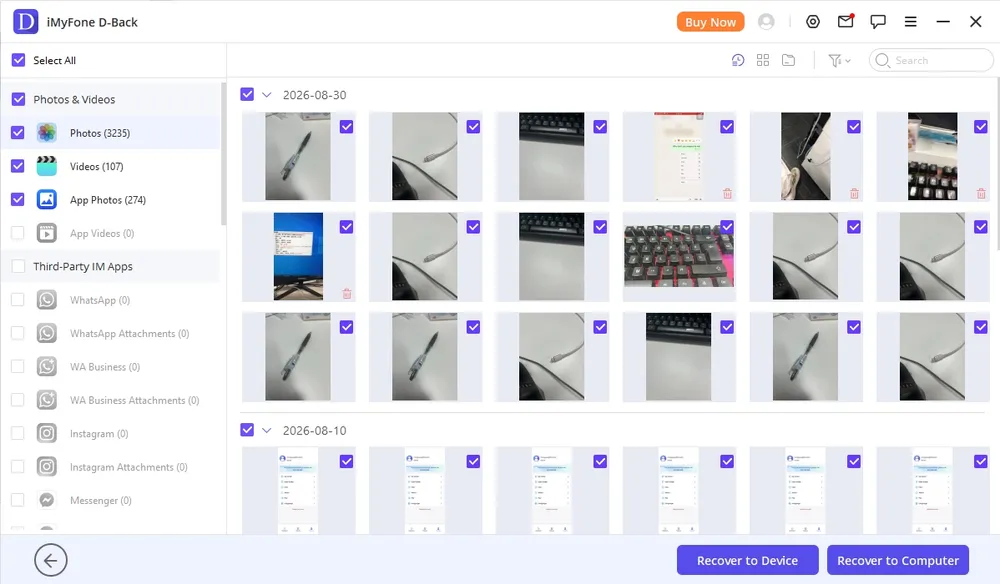
The device held 1,329 photos. The scan came back with over 3,000 — and going through them, the same image often appeared five or six times. Everything it surfaced could already be opened in the Photos app. The deleted Instagram content wasn't among it.
Pros
Four recovery routes to choose from
Clean interface with clear step-by-step instructions
Fast scan
Cons
Returned no Instagram content in our test
Results were padded with duplicates and files already on the device
Best for: Browsing what's already stored in an iTunes or iCloud backup.
Tenorshare UltData is one of the few mainstream tools with a dedicated social app category. Its product page names Instagram alongside WhatsApp, Kik, LINE, Messenger, Viber, WeChat and KakaoTalk, and states it can pull messages, chat history, photos, videos and attachments from them.
Our test
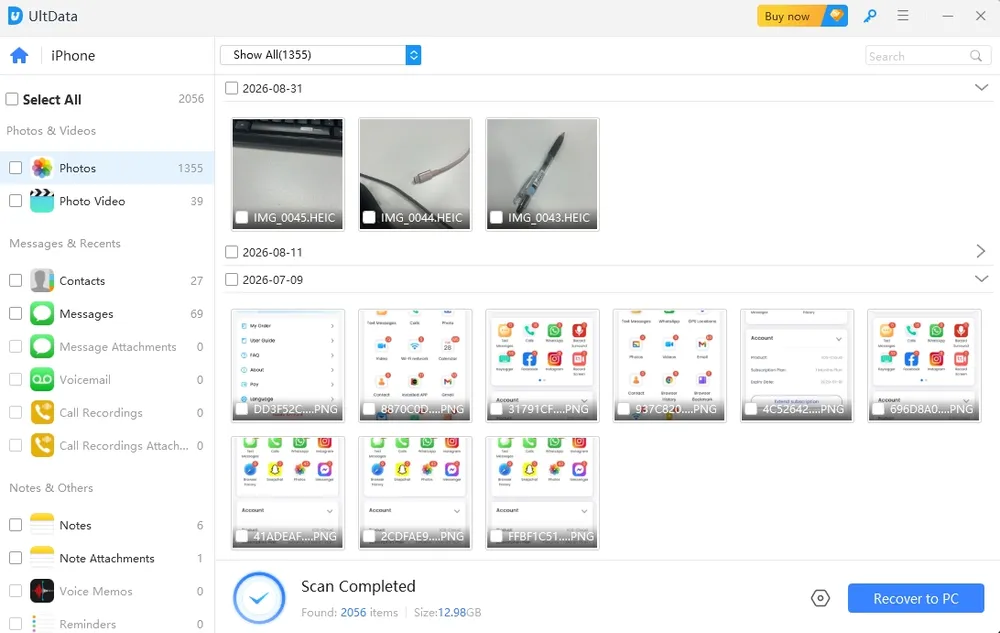
On paper this makes UltData the most obvious fit here. In our run, the scan came back empty.
Pros
One of the only mainstream tools with a dedicated social app recovery category
Three recovery modes: device scan, iTunes backup, iCloud backup
Free scan and preview before purchase
Cons
Returned no Instagram content in our test
Resets the iTunes backup password after scanning — worth knowing before you run it
Best for: Users who want the broadest social app coverage on paper.
Instagram isn't built to be your personal storage box. Think of your posts and messages like a report you wrote for your boss. Once you delete the file and even empty the recycle bin, that digital report is gone — no tool can bring it back. But maybe you once printed a hard copy for the meeting, and it's still sitting in your drawer. That's what recovery software tries to find: not the original Word file, but those "printed copies," like old backups, phone cache, or hidden folders that Instagram no longer shows.
To avoid the stress of losing important memories, don't treat Instagram as your only storage. Back up your phone regularly, save favorite photos in your gallery or cloud drive, and use Instagram's Archive and Highlights features. These small habits make sure your memories stay safe, even if the app lets them slip away.
Instagram's own Archive and Recently Deleted folders are always worth checking first — free, instant, and often enough on their own.
When those come up empty, a free scan is the fastest way to see whether your content is still sitting in a backup somewhere. Of the three tools we tested, only one brought back the deleted Instagram content we were looking for — so it's worth starting with a scan that costs nothing.
Thirty days for posts, photos, reels and videos — after that, the Recently Deleted folder clears them for good. Stories are different: they sit there for 24 hours only, unless you'd already added them to Highlights or your Stories Archive.
The countdown starts the day you deleted the content, not the day you noticed it was missing.
No — and this catches a lot of people out. Recently Deleted only holds posts, photos, reels and stories. Instagram's own Help Center confirms that deleted messages can't be restored through it.
You'll see plenty of guides claiming DMs sit in Recently Deleted for 30 days. They don't. If you've deleted a conversation, that folder won't help.
Usually yes, and that's the easiest recovery route most people overlook.
Deleting a chat from your inbox only removes it from your view. The other participant's copy stays exactly where it was, and they can screenshot it or forward it back to you. Unsending a message is different — that pulls it from both sides.
So before trying any software: ask them.
Instagram doesn't publish a figure, and the numbers you'll see online range from a couple of days to 90 days depending on who's writing.
What's clear is that the odds drop sharply with time. If you're going to request your data through Download Your Information, do it now rather than next week.
It can, but it's a heavy-handed way to do it. A full restore wipes the phone and rebuilds it from the backup — everything added since that backup goes with it, including photos, messages and app data from other apps.
For a handful of Instagram files, that trade rarely makes sense. Extracting the specific files from the backup gets you the same result without the reset.
Check your Stories Archive first — Instagram saves your stories there automatically unless you've turned the setting off, and there's no time limit on it. Open your profile, tap the menu, then Archive.
If archiving was switched off when you posted it, the 24-hour window in Recently Deleted is the only route, and after that it's gone.

 Add Gbyte as a preferred source on Google
Share


Related articles


Copyright ©2026 Gbyte. All rights reserved. Gbyte’s software is not developed by or affiliated with Apple Inc.
The installation wizard will automatically start after downloading.
After registration, the recovery process can be managed through the web interface.
You get it all with your purchase - no locked features, no hidden limitations.