Recover, repair, unlock, transfer & view backups. Every iPhone issue, solved.
 Gbyte Editorial Team
Table of contents
Managing a long contact list is easier when you organize people into groups for family, work, school, or other purposes. On current iOS versions, you can create contact lists directly in the Contacts app—no computer or third-party app required.
In this guide, I'll show you how to create groups in Contacts on iPhone, as well as how to create and manage contact lists through iCloud.com and the Contacts app on Mac.
Before we dive into the how-to steps, it helps to know why organizing contacts into groups is beneficial:
Quickly message or email multiple people at once (e.g., for event planning or work communication).
Separate personal and professional contacts.
Make sharing easier with family, clubs, or teams.
Save time during emergencies or urgent updates.
Now, let’s look at how you can create these groups—starting with iCloud.
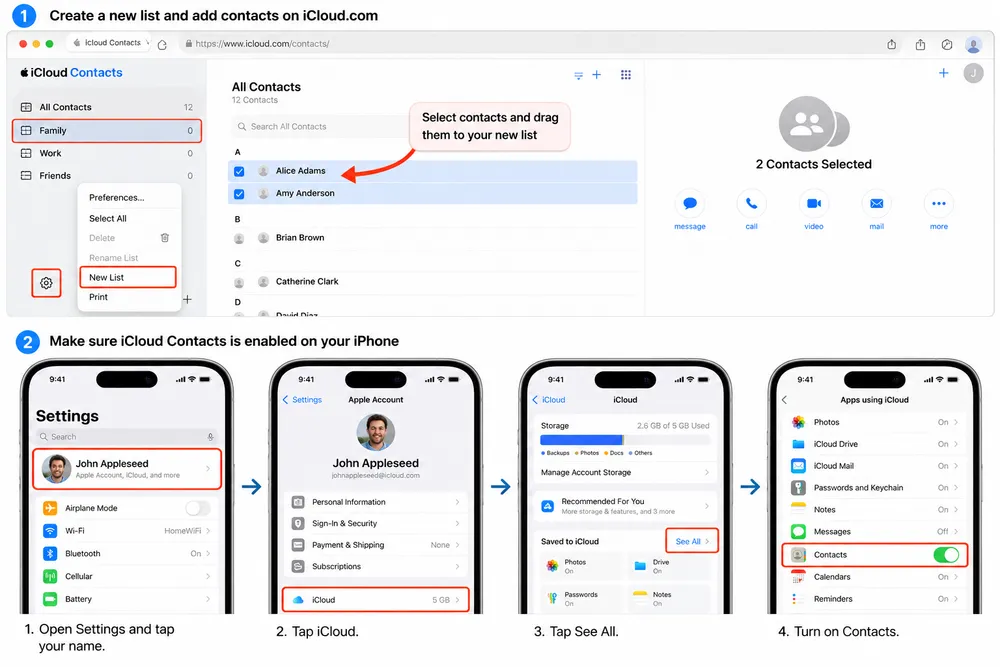
You can create and manage contact lists through iCloud.com on a computer. Once created, your lists will sync to your iPhone when iCloud Contacts is enabled.
Open a web browser on your computer and go to iCloud.com.
Sign in with your Apple Account.
Open Contacts.
Click the Settings button in the sidebar to create a new list.
Enter a name for the list (e.g., "Family" or "Work Team"), then press Enter.
Select the contacts you want to add, then drag them to the new list in the sidebar.
Once done, the list will sync to your iPhone as long as:
You're signed in to the same Apple Account.
iCloud Contacts is enabled on your iPhone under Settings > [your name] > iCloud > See All (or Show All) > Contacts.
📌 Not sure if your contacts are properly synced? Check out our guide on how to see your iCloud contacts for a full walkthrough of the sync settings and what to do if something looks off.
If you created a contact list through iCloud.com, you can easily access it from the Contacts app on your iPhone:
Open the Contacts app on your iPhone.
Tap Lists in the upper-left corner.
Under iCloud, you'll see the contact lists synced with your Apple Account.
Tap a list, such as Family or Work, to view the contacts it contains.
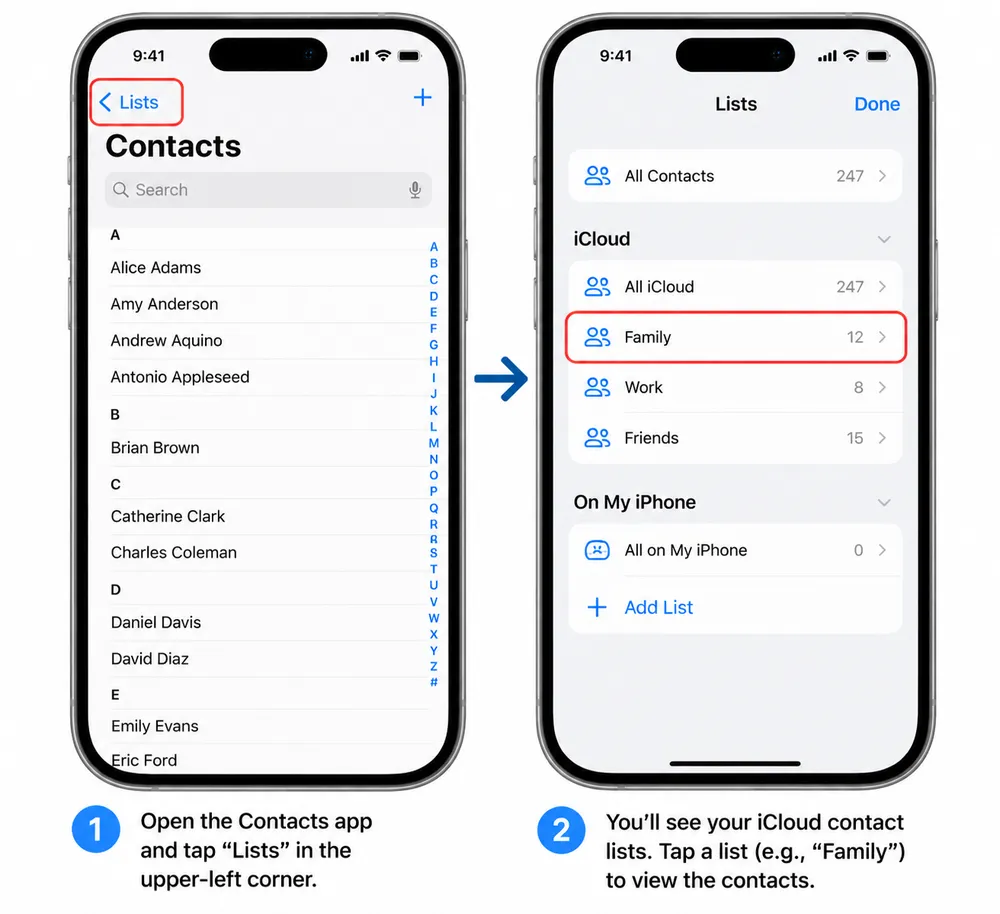
🔍 Tip: You can also create a new contact list directly on your iPhone by going to Contacts > Lists > Add List.
If you own a Mac, you can also create and manage contact lists directly in the built-in Contacts app:
Open the Contacts app on your Mac.
Click the Add (+) button at the top of the window, then choose New List.
Enter a name for the list.
Select the contacts you want to add, then drag them to the new list in the sidebar.
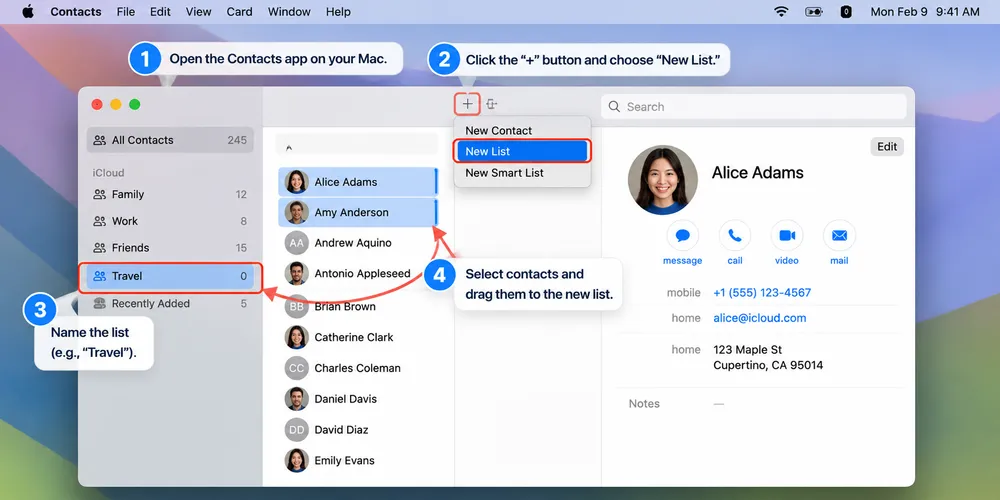
If you're using iCloud Contacts, the list will sync across devices signed in to the same Apple Account with Contacts enabled in iCloud.
Creating a contact list doesn't automatically create a group conversation in Messages. To text multiple people, open Messages, tap Compose, and add the contacts you want to include. Once you send the message, it becomes a group conversation.
Note: Contacts in a list aren't automatically added as message recipients, so you'll need to select the people you want to text.
Yes. On current iOS versions, you can create contact lists directly in the Contacts app on your iPhone, so you don't need to use iCloud.com or a Mac.
Open the Contacts app.
Tap Lists in the upper-left corner.
Tap Add List.
Choose an account, enter a name for the list, and add the contacts you want.
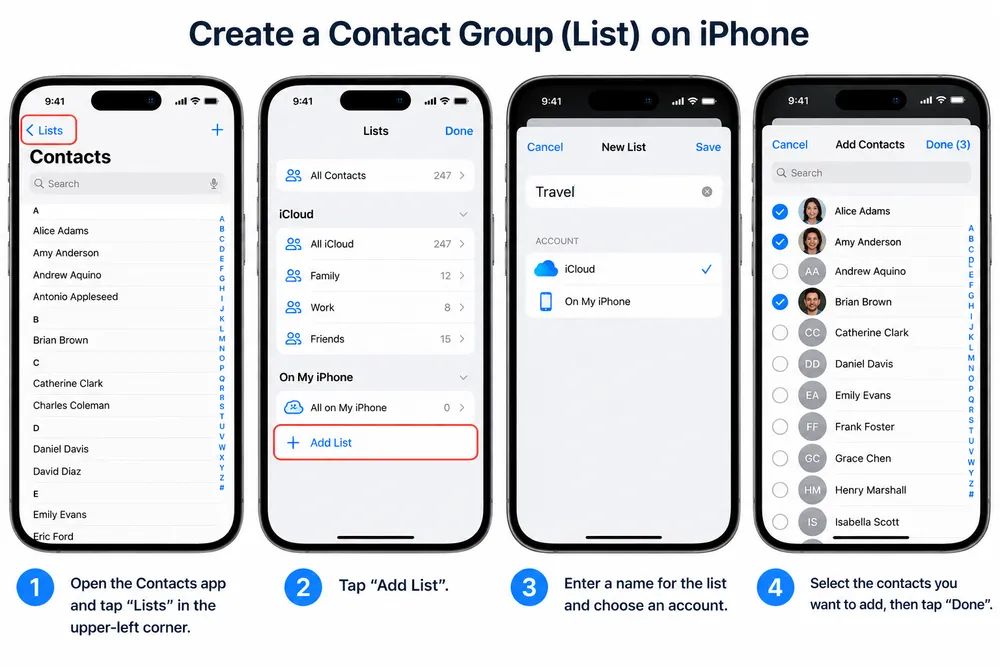
Once created, you can view and manage the list directly from the Contacts app.
For most users, the easiest option is now to create a contact list directly in the Contacts app on iPhone. Go to Contacts > Lists > Add List, choose an account, and add the contacts you want.
You can also manage contact lists through iCloud.com or the Contacts app on Mac, especially if you prefer working with a larger screen.
If you use iCloud Contacts, make sure syncing is enabled across your devices so your lists and contacts stay up to date. If something isn't syncing correctly, check whether iCloud syncing has paused.
Yes. On current iOS versions, open Contacts > Lists > Add List to create a new contact list directly on your iPhone. You don't need iCloud.com, a Mac, or a third-party app just to create a list.
A Contacts list and a Messages group conversation are different. Creating a contact list doesn't automatically add everyone in that list to a Messages conversation. To text multiple people, open Messages, tap Compose, and add the recipients you want.
Yes. In Messages, tap Compose, add multiple recipients, write your message, and send it. This creates a group conversation. However, it is separate from any list you've created in the Contacts app..
Open the Contacts app and tap Lists in the upper-left corner. You'll see your available contact lists organized by account, such as iCloud.
If the list is stored in your iCloud account and iCloud Contacts is enabled, changes to your contacts and lists sync across devices signed in to the same Apple Account.
First, check that you're signed in to the correct Apple Account and that iCloud Contacts is enabled. If contacts are still missing, see our guide on restoring contacts from iCloud for additional recovery options.

 Add Gbyte as a preferred source on Google
Share


Related articles


Copyright ©2026 Gbyte. All rights reserved. Gbyte’s software is not developed by or affiliated with Apple Inc.
The installation wizard will automatically start after downloading.
After registration, the recovery process can be managed through the web interface.
You get it all with your purchase - no locked features, no hidden limitations.